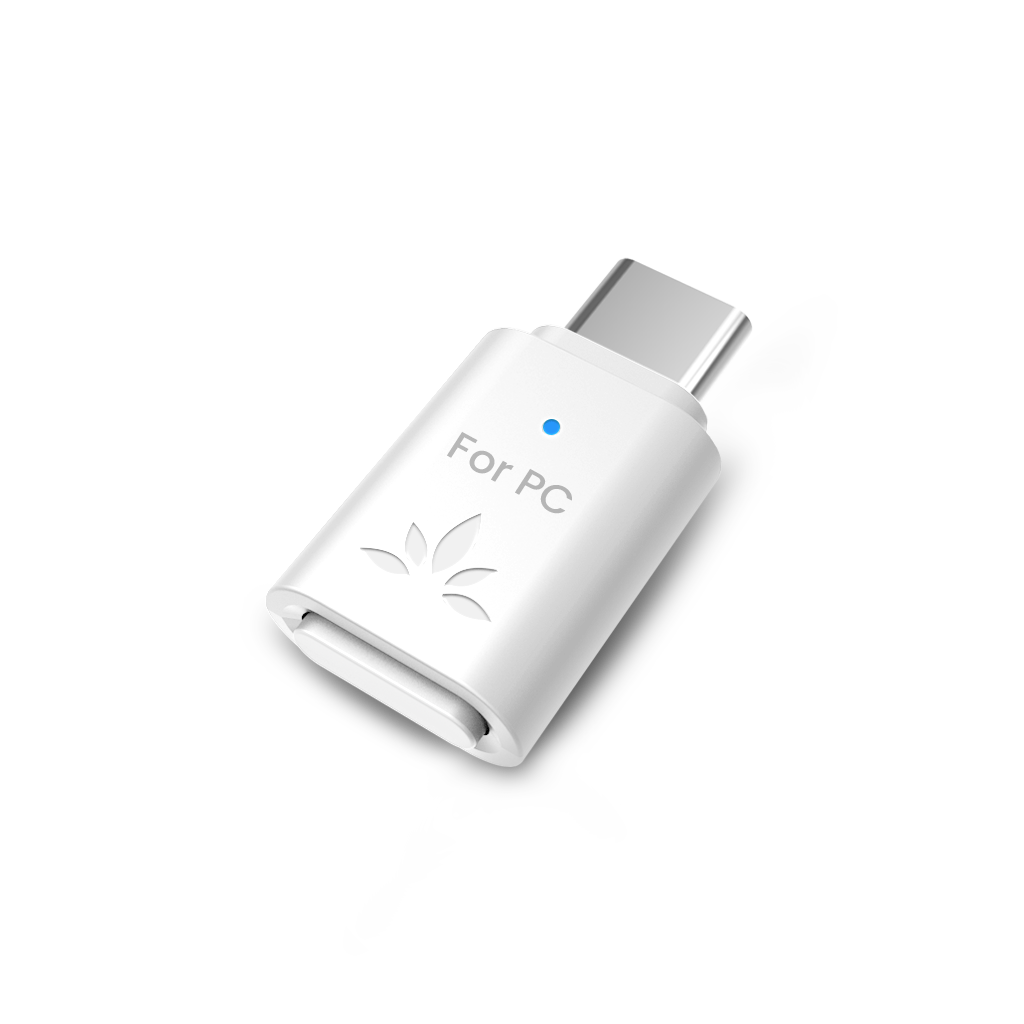
C81-Gaming | PS5 Bluetooth Adapter

USB-C Bluetooth 5.3 Adapter for PS5 & Gaming Consoles with Low Latency & aptX-Adaptive, Wireless Audio Transmitter for Headphones & Earbuds

$26.99
Subtotal: $26.99

Free Shipping and Returns

  • FOR PS5 USERS ONLY
    Specifically designed for PS5 to connect Bluetooth headphones (e.g., AirPods, Bose, & more) for audio playback. For the best voice chat experience, please use the PS5 controller microphone instead of headphone mics.
  • PREMIUM SOUND, LOW LATENCY
    Enjoy immersive, low-latency audio with aptX Adaptive, aptX HD, and aptX Low Latency. Delivers clear, dynamic sound for gaming and movies with compatible headphones (e.g., Bose QuietComfort Ultra). Note: Only aptX Adaptive or aptX Low Latency-enabled headphones support low-latency audio. Headphones without aptX support (e.g., AirPods, Bose QC45, QC35) may experience audio delay.
  • LIMITED MIC SUPPORT
    Due to Bluetooth bandwidth limitations, microphone input does not work with Bluetooth headphones. For clear voice communication, please use the PS5 controller mic. Manual setup required: PS5 Settings > Sound > Microphone > Input Device: Microphone on Controller.
  • NOT FOR 2.4GHz GAMING HEADSETS & OTHER DEVICES
    Not compatible with Xbox, PS Portal, keyboards, mice, controllers, PS5 Pulse 3D Headset, or 2.4GHz wireless gaming headsets. Also cannot be plugged into TVs, car systems, projectors, or printers.
  • EASY SETUP & RELIABLE CONNECTION
    Plug the USB-C dongle into your PS5 and set the audio output to “C81-G” once. The adapter auto-reconnects for future use, but microphone settings must be manually configured for voice chat.
Wireless Technology Bluetooth v5.3
Supported Audio Codecs aptX-HD, aptX Adaptive, aptX-LL, aptX, SBC
Supported Bluetooth Profiles A2DP, AVRCP, HSP, HFP
Operating Range Up to 100ft / 30m
Frequency Range 2.4GHz - 2.48GHz
Size 14mm x 26mm x 7mm
Net Weight 3g
Jack Type Type C
Audio Source Devices with USB Type-C or USB Type-A ports
Compatible Devices Bluetooth headphones, earbuds, speakers
Not compatible with PULSE 3D headset, 2.4G wireless headsets, wired headphones, keyboards, mice, or controllers
Use Cases Wireless audio transmission from PS5 / PS4 / Switch to Bluetooth headphones or earbuds (e.g., AirPods)
For PC use, please consider the C81-PC version
  1. Plug the C81-Gaming into your device’s USB‑C port. Press and hold the button to enter fast‑flashing pairing mode.
  2. Turn off Bluetooth on nearby phones to avoid interference. Press and hold your headphone’s button to enter pairing mode.
  3. Wait until the LED on the C81-Gaming slows down, indicating a successful connection.
  4. On your PS5, go to Settings › Sound:
      - Set Output Device to USB Headset Avantree C81-Gaming
      - Set Input Device to Microphone on Controller for best audio
      - To use headset mic via C81-Gaming, double‑click the button to enter Call Mode

✅ For best performance and clear instructions,
👉 check our C81‑Gaming Interactive Setup Guide.

Setup & Support
C81-Gaming | PS5 Bluetooth Adapter

C81-Gaming | PS5 Bluetooth Adapter

$26.99

C81-Gaming | PS5 Bluetooth Adapter

$26.99

Frequently Asked Question

Q: Will the C81-Gaming work with my headphones?
A: Yes, it works with most Bluetooth headphones and earbuds, including AirPods, Bose, and Sennheiser. However, it does NOT work with the PS5 PULSE 3D headset, PS Portal, or any 2.4GHz gaming headsets.


Q: Can I use the C81-Gaming with other devices besides PS5?
A: The C81-Gaming is designed primarily for PS5 and PS4. It does not work with Xbox, TVs, cars, cameras, projectors, printers, or as a Bluetooth receiver for speakers.


Q: Does the C81-Gaming support high-quality audio for games?
A: Yes. It supports aptX Adaptive and aptX HD for premium, low-latency audio. To enjoy these benefits, your headphones must also support the same codecs. Otherwise, sound quality and latency will depend on your headset’s capabilities.


Q: Can I use my Bluetooth headset's microphone with the C81-Gaming on PS5?
A: No. For voice chat, Bluetooth headphone microphones are not supported. Please use the microphone on the PS5 controller for communication while gaming. This ensures the best audio quality for both game sound and voice chat.


Q: What if I have trouble pairing my headphones?
A: Turn off Bluetooth on other nearby devices to avoid interference, ensure your headphones are in pairing mode, and reset both devices if needed. If you are using USB 3.2 ports, try the included USB extension cable to reduce interference.

Comparison Table

Model
  • Optimized for
  • Compatibility
  • Supported Devices
  • USB Port Type
  • Operating Range
  • Supported Bluetooth Codecs
  • Latency
  • Audio Quality
    • Gaming, Calls, Music
    • PS5, PS4, PC, Mac
    • Audio devices (ie headphones)
    • USB-C
    • Up to 100ft / 30m
    • aptX Adaptive/HD/LL, aptX, SBC
    • 40ms
    • 24bit / 96kHz
    • Gaming, Calls, Music
    • PS5, PS4, PC, Mac
    • Audio devices (ie headphones)
    • USB-C
    • Up to 100ft / 30m
    • LC3, aptX Adaptive, aptX, SBC
    • 40ms
    • 24bit / 96kHz
    • Calls, Music
    • PC & Mac
    • Audio devices (ie headphones)
    • USB-C
    • Up to 100ft / 30m
    • aptX-Adaptive/HD/LL, aptX, SBC
    • 40ms
    • 24bit / 96kHz

Be The First