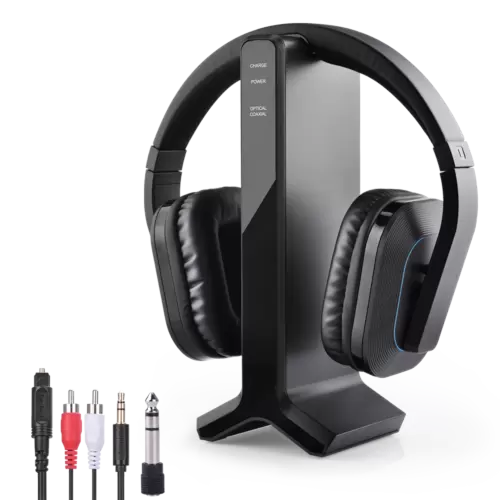

how-to-connect-wireless-headphones-to-samsung-tv
If you can't hear your TV well and you don't want to blast the volume, connecting wireless headphones to your TV is a good & easy way to let you hear it better.
This can be done on pretty much every SAMSUNG TV, whether it's a Smart TV or not. Some TVs come with built-in Bluetooth capabilities, some don't... either way, we'll help you get it done.
Please check your SAMSUNG user manual to see whether your TV has Bluetooth built-in or not.
If your TV DOES have built-in Bluetooth
1. Get your Bluetooth Headphones into Bluetooth Pairing Mode. The process is slightly different for every headphone model; please refer to its USER MANUAL for more details.
2. Take your SAMSUNG Remote, go into your TV's SETTINGS menu.
3. Find SOUND OUTPUT, go into SPEAKER LIST, SEARCH & SELECT your Headphone to PAIR & CONNECT.
4. Please note that the settings menu may look different in different TV models. Check your SAMSUNG user manual for more details.
5. You can adjust volume directly via your SAMSUNG Remote.
If your TV DOES NOT have built-in Bluetooth
If your TV does NOT have built-in Bluetooth, or if you'd like to connect MORE THAN ONE PAIR of headphones to your TV simultaneously, you'll have to connect using a Bluetooth Audio Adapter, somthing like these:
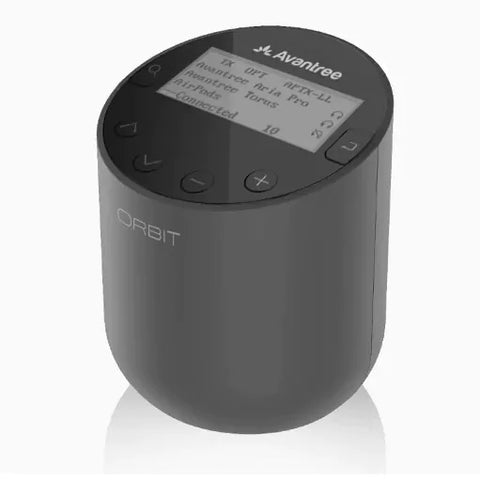
Avantree Orbit (Learn More) - ONLY Bluetooth Transmitter on the market with LCD Screen Display
Avantree Audikast Plus (Learn More)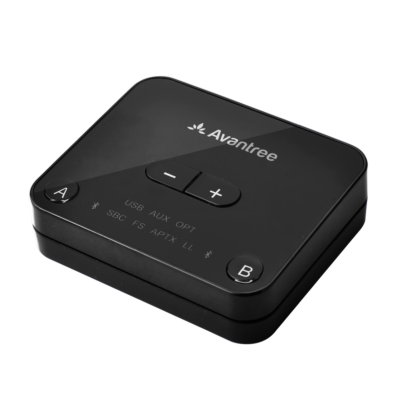
Avantree Oasis Plus (Learn More)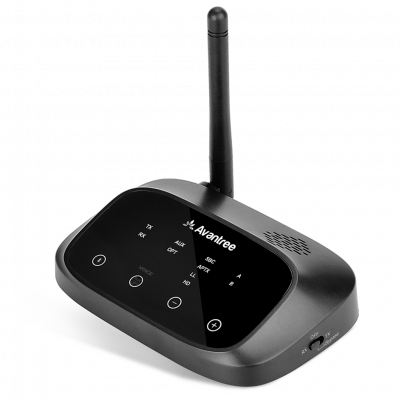
With these, you'll be able to:
- Get extended Bluetooth Range.
- Connect up to TWO PAIRS of headphones to your TV (adapter) simultaneously.
- In the case of Oasis Plus, it can be used simultaneously with a SoundBar/Stereo Receiver while sharing ONE Digital Optical Port (See THIS ARTICLE for more details regarding this function.)
Here are the Instructions:
1. Connect your Bluetooth adapter to Power.
2. Connect the Bluetooth adapter to TV. Our adapters support Digital Optical (aka TOSLINK or SPDIF,) 3.5mm Auxiliary (aka Headphones Jack,) and RCA (Red/White) Audio Output Ports. Please see your adapter's user manual for more details.
3. Get your Headphones into pairing mode (Please see your headphone's user manual.)
4. Get your Bluetooth adapter into Bluetooth Pairing mode as well. Please see your user manual if you're not sure how.
5. Keep your the Headphone and the Adapter close to each other until they connect.
6. Once connected, if you're using Digital Optical connection, please go to your TV settings menu and change your Digital Audio Format to PCM.
7. And you'd be good to go!
Here's a video that may give you an idea on Connecting Headphones to SAMSUNG TV.
If you have any question, please feel free to contact us at support@avantree.com.
FAQs
How do I connect Bluetooth headphones to a Samsung TV with built-in Bluetooth?
Put your Bluetooth headphones into pairing mode, then on your Samsung TV, go to Settings > Sound > Sound Output > Bluetooth Speaker List. Select your headphones from the list to pair and connect. You can adjust the volume using your TV remote once connected.
What if my Samsung TV does not have built-in Bluetooth?
Use a Bluetooth audio adapter like Avantree Orbit, Audikast Plus, or Oasis Plus. Connect the adapter to your TV’s audio output and power, then pair your headphones with the adapter. These adapters also support connecting two pairs of headphones simultaneously.
How do I set up a Bluetooth audio adapter with my Samsung TV?
Connect the adapter to power and plug it into your TV’s audio output (Digital Optical, AUX, or RCA). Put both the adapter and your headphones into pairing mode and keep them close until connected. For digital optical, set your TV’s audio format to PCM in the settings.
Can I connect more than one pair of Bluetooth headphones to a Samsung TV?
Yes, using Bluetooth adapters like Avantree Oasis Plus or Orbit, you can connect up to two pairs of headphones simultaneously, allowing multiple users to listen wirelessly without disturbing others.
How do I adjust volume when using Bluetooth headphones with my Samsung TV?
If connected directly via TV’s built-in Bluetooth, use your TV remote to adjust volume. When using a Bluetooth adapter with a digital optical connection, some adapters have built-in volume controls since TVs often disable volume adjustment through the remote in this mode.
You might be interested in
dual wireless earphones for TV
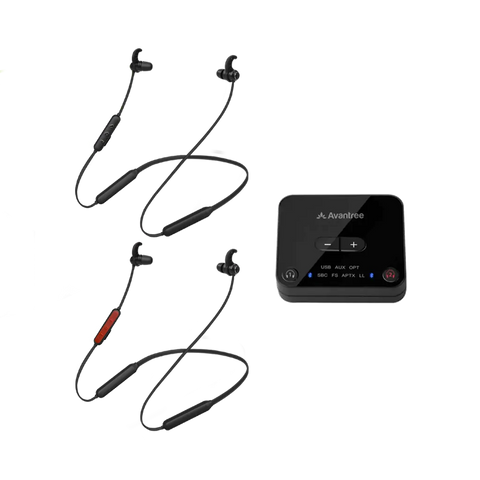
2.4G wireless TV headphones Set
The transmitter dock can simultaneously support to 100 HT280 original headphines