Audikast 4

INTERACTIVE USER GUIDE · Version V10

Audikast 4

TV audio setup

Choose a TV audio output, then connect with Auracast or Bluetooth.

1

STEP 01

Choose Your TV Audio OUT

Find one TV port labelled AUDIO OUT.

TASKChoose the first available option below.

  1. Check the TV labels

    Use an OUT port, never an IN port.

  2. Choose Optical first

    Use OPTICAL or DIGITAL AUDIO OUT when available.

    TV Optical Digital Audio Out square port
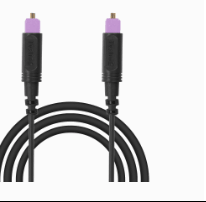
    Audikast 4 optical cable with purple square ends
    Optical cablePurple tips
  3. No Optical? Use AUX

    Use HEADPHONES, AUX OUT or AUDIO OUT.

    TV Headphones audio output round port with blue ring
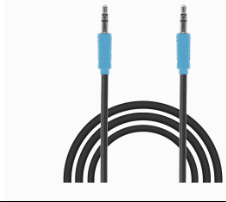
    Audikast 4 AUX cable with blue round ends
    AUX cableBlue ends
  4. Otherwise use an adapter

    RCA: use an RCA-to-3.5 mm adapter.
    HDMI ARC/eARC: use the Avantree HAX06 HDMI ARC adapter ↗.

DONEYou have chosen one TV audio output.

IF NOTSend Support a clear photo of all TV ports with the TV brand and model.

2

STEP 02

Connect Audikast 4 to the TV

Power the transmitter, then connect one audio cable.

TASKConnect the cable chosen in Step 01.

  1. Power on

    Connect USB-C power, then slide the switch to ON.

  2. Connect Optical

    Use the pink square-ended cable: TV OPTICAL OUT → Audikast 4 OPTICAL.

    Connect Optical
  3. Or connect AUX

    Use the blue round-ended cable: TV HEADPHONES / AUDIO OUT → Audikast 4 AUX.

    Or connect AUX

DONEAudikast 4 is on and connected to the TV.

IF NOTRecheck that both ends are fully inserted and the TV port is labelled OUT.

3

STEP 03

Set Optical Audio to PCM

Optical users must set the TV to PCM. AUX users can skip this step.

TASKSet the TV's Optical audio format to PCM.

  1. Open Sound settings

    On the TV remote, open Settings → Sound.

  2. Choose Optical output

    Select Optical, External Speaker or Audio System.

  3. Choose PCM

    Set Digital Audio Format to PCM or Stereo.

    Open the TV PCM guide

DONEThe TV output is Optical and the format is PCM or Stereo.

IF NOTOpen the brand-by-brand PCM guide for the exact TV menu path.

4

STEP 04

Choose Bluetooth or Auracast

Choose the path that matches your listening device.

TASKSelect your listening device below.

  1. Auracast device

    Use the right Auracast button.

    Auracast setup · Step 05Audikast 4 front panel showing the right Auracast button
  2. Classic Bluetooth headphones

    Use the left Bluetooth button.

    Bluetooth setup · Step 06

DONEYou have opened the setup path for your listening device.

IF NOTCheck whether your hearing aids or headphones support Auracast.

5

STEP 05

Connect with Auracast

Use the right Auracast button and choose your device mode.

TASKStart broadcasting, then join from your hearing aids or headphones.

  1. Start the broadcast

    Short-press the right Auracast button.

  2. Choose the device mode

    Hearing aids: hearing-aid light solid white. Auracast headphones: hold the button until the headphone light is solid orange.

  3. Check the audio signal

    Play TV audio. The center Audio Signal light should be solid white.

  4. Join the broadcast

    On your hearing aids or headphones, open its Auracast Assistant or App and select Audikast 4.

DONEYour Auracast device plays the TV audio.

IF NOTConfirm the center Audio Signal light is solid white, then search again in the device App.

6

STEP 06

Pair Classic Bluetooth

Use this path for traditional Bluetooth headphones.

TASKPut Audikast 4 and the headphones into pairing mode.

  1. Start Audikast pairing

    Press the left Bluetooth button until the light flashes red and blue quickly.

  2. Start headphone pairing

    Put the Bluetooth headphones into pairing mode and keep them within 1 m.

  3. Wait for connection

    Wait until the Audikast 4 Bluetooth light stays solid blue.

DONEThe Bluetooth light is solid blue and TV audio plays.

IF NOTTurn off Bluetooth on nearby phones, keep the headphones within 1 m, and try again.

QUICK HELP

Fix the common problems

01No TV sound through the listening deviceTV audio is playing, but no sound reaches headphones, earbuds, or hearing aids.
  1. Confirm the TV cable uses Optical Out or AUX/headphone Out, not an input.
  2. For Optical, set the TV digital audio format to PCM.
  3. Check the listener is connected through the selected Bluetooth or Auracast path.

DONEAudio Signal is solid white and TV audio plays through the selected listener.

02Hearing aids cannot join or reconnectCompatible hearing aids cannot find, join, or stay connected to Audikast 4.
  1. Confirm Hearing Aid Mode and Audio Signal are both solid white.
  2. Return both hearing aids to their charging case, reboot the phone, then remove them.
  3. Confirm hearing aids connect to the phone, open the companion app, and join Audikast 4.

DONEHearing Aid Mode and Audio Signal are solid white, and TV audio plays through the hearing aids.

03Bluetooth headphones will not connectTraditional Bluetooth headphones or earbuds do not pair or do not play TV audio.
  1. Turn off Bluetooth on nearby devices that may reconnect to the headphones.
  2. Put Audikast 4 into red/blue flashing pairing mode.
  3. Put headphones into their manufacturer pairing mode within 1 m.

DONEThe Bluetooth indicator is solid blue and TV audio plays through the listener.

MORE HELP

Optional and reference guides

01Soundbar Connection OptionsKeep soundbar setups out of first-time setup. Choose the matching soundbar connection: Optical needs a splitter; HDMI ARC/eARC needs the official HAX06 BYPASS connection.

TASKKeep TV audio available to both your soundbar and Audikast 4.

  1. Check soundbar cable type

    Check whether the soundbar connects to the TV by Optical or HDMI ARC/eARC.

  2. Use Optical splitter

    For an occupied Optical output, use an Optical splitter and an additional Optical cable.

    Open Optical soundbar setup
  3. Use HAX06 for HDMI ARC

    For a soundbar on HDMI ARC/eARC, use HAX06 with BYPASS enabled and connect its Optical output to Audikast 4.

    Open HDMI ARC soundbar setup

DONEThe soundbar and Audikast 4 receive audio from the same TV source.

IF NOTOpen the official soundbar guide for the matching connection diagram.

02Official Help And CompatibilityUse official resources for device compatibility, controls, model-specific hearing-aid joining, and support. Include your TV model, listening-device model, cable type, and LED pattern when requesting help.

TASKFind verified Audikast 4 help.

  1. Check compatibility

    Check your exact headphone, speaker, or hearing-aid model before attempting a connection.

    Open compatibility checker
  2. Check controls and indicators

    Open the official controls guide to identify a button or indicator.

    Check controls and indicators Open controls guide
  3. Contact Support

    Submit your TV model, listening-device model, cable type, and Audikast 4 LED pattern.

    Submit a support ticket

DONEYou have opened the official resource or submitted the details Support needs.

IF NOTSubmit a support ticket and select Audikast 4 / BTTC-480.

03Firmware Updater — only when neededOptional: update firmware or manage advanced broadcast settings.

TASKOpen the official Firmware Updater only for an update or supported advanced setting.

  1. Open Firmware Updater

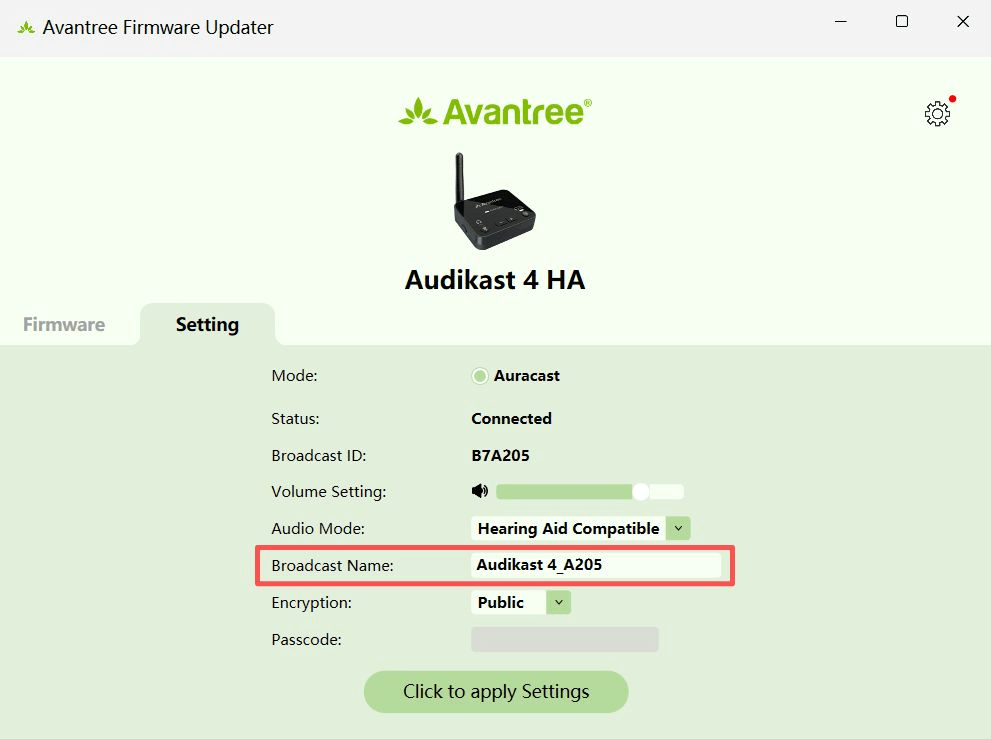
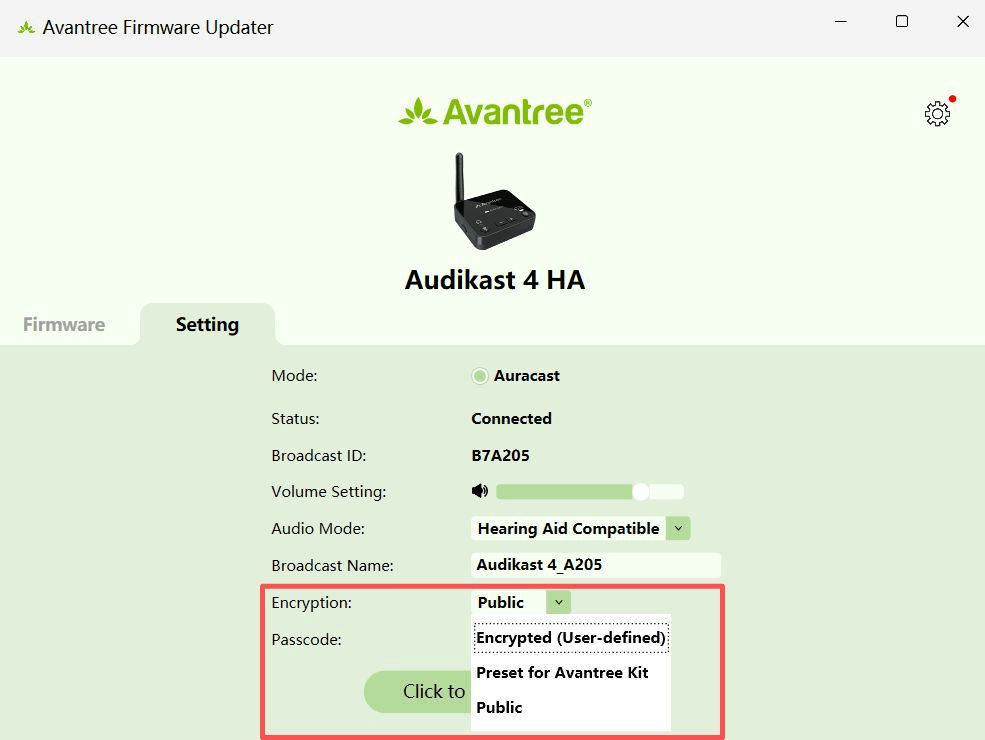
    Firmware is not part of normal first-time setup. Use it only when an update or an advanced broadcast setting is needed.

    Open Firmware Updater

DONEThe required firmware task is complete.

IF NOTUse the official updater instructions or contact Support.

Version V10 · Draft generated for human review. Product facts and publishing require approval.