Interactive user guide · Audikast 4

TV sound, your way.

Set up Audikast 4 for one classic Bluetooth device or broadcast TV audio to multiple compatible Auracast receivers.

Avantree Audikast 4 Bluetooth and Auracast TV transmitterAudikast 4Bluetooth 5.4 · Auracast broadcast
Start here

Connect the TV first.

Power Audikast 4, choose the cable that matches your TV output, then set the TV audio correctly.

1

Power it

Connect the included USB-C cable to a 5 V, 1-2.4 A power source. Slide the power switch to ON.

Expected: the transmitter lights turn on.
2

Choose one TV audio output

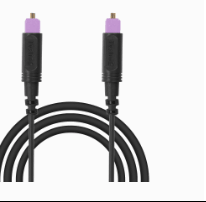
Look at the labels beside your TV ports. Match one output to the same Audikast 4 input.

Use only one audio cable. Optical is recommended when available.
3

Set TV audio

For Optical, select Optical output and set the digital audio format to PCM.

No sound? Dolby/DTS can produce silence; use PCM.

Which cable should I use?

Find the matching label on your TV. Do not connect to an input port.

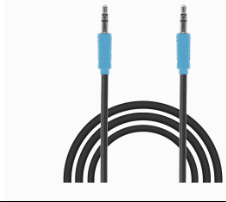
AUX / 3.5 mm
HEADPHONES
🎧
Use the blue AUX cable. Plug TV Headphones / Audio Out into Audikast 4 AUX.
Only HDMI ARC?
HDMI
(ARC)
Audikast 4 has no HDMI input. Use a compatible HDMI-to-Optical extractor such as HAX06.View HAX06 →
Not sure? Send Support a clear photo of all TV ports and include the TV brand and model.

Set your TV to Optical + PCM

Select your TV brand for the exact menu path. Menu names can vary by model.

Open the full TV PCM guide →
Choose one

How will you listen?

MODE 1

Connect one Bluetooth device.

Pair Audikast 4 and your headphones while they are close together.

ONE DEVICE ONLY
1
AUDIKAST 4

Start pairing

First usePairing starts automatically.
OtherwisePress and hold the mode/pair button.
Ready: indicator blinks red and blue.
2
HEADPHONES

Put your headphones in pairing mode

Power on ≠ pairing mode
1Turn off nearby BluetoothPhones, tablets, and computers.
2Do not use a phone menu or appAudikast 4 pairs directly with your headphones.
3Choose your headphones belowContinue after its pairing signal appears.

Choose your headphones

3
CONNECT

Keep them close and wait

≤ 1 mKeep both devices close together.
Do not: select Audikast 4 from the TV.
ConnectedBluetooth indicator turns solid.
4
LISTEN

Play TV audio

Start a TV program and set a comfortable listening volume.

No sound? Check:Optical/AUX inputPCM for OpticalAudio-signal indicator is solid
MODE 2

Broadcast with Auracast.

Choose the indicator that matches the type of listening device you want to join.

COMPATIBILITY REQUIRED
Hearing aidsUse the upper hearing-aid symbol. Its LED must be white before the hearing-aid app scans for Audikast 4.
Other Auracast listening devicesUse the lower double-headphone symbol for compatible Auracast earbuds, headphones, speakers, or receivers.
1

Select the correct Auracast broadcast

Press the Auracast mode button to select the symbol for your listener. Confirm the LED beside that symbol is white.

Important: a hearing aid will not join while only the lower double-headphone indicator is selected.
2

Open the listener's app

Open its Auracast Assistant or broadcast menu. Find and join Audikast 4.

3

Join each listener

Repeat the receiver-side join step for each compatible device.

Success: Audikast 4 is selected in the app and TV audio plays.
4

Play TV audio

Start a program. Each joined device should receive the broadcast.

No sound? Recheck the selected symbol, TV cable and PCM setting.
HEARING AIDS

Join Audikast 4 with your hearing-aid app

1. Select the upper hearing-aid symbol and confirm its LED is white. 2. Open your hearing-aid app. 3. Find and join Audikast 4. Choose your brand for its exact guide:

Brand not listed? Check that the exact hearing-aid model supports Auracast, then use the hearing-aid manufacturer's app or support guide.

Check Auracast compatibility

Fix a problem

What is happening?

Choose the closest symptom.

Restore TV audio

  1. Confirm the TV cable is in Optical Out or AUX / headphone Out, not an input.
  2. Match the Audikast 4 input to that cable.
  3. For Optical, set the TV to Optical output + PCM.
  4. Start TV playback and raise TV/source volume if AUX is used.
Expected: the audio-signal indicator is solid and sound plays.
Still no sound? Try AUX if available, or open the official no-sound guide below.

Pair again

  1. Turn off Bluetooth on nearby phones or computers that may reconnect to the headphones.
  2. Put Audikast 4 in Bluetooth pairing: red and blue blinking.
  3. Put the headphones in pairing mode: their indicator must blink as described by the maker.
  4. Keep the devices within 1 m and wait.
Expected: the Bluetooth indicator becomes solid.
Still blinking? Clear the headphone's old pairing if its manual provides that step, then retry.

Make the broadcast visible

  1. Confirm the Audikast 4 Auracast indicator is solid white.
  2. Confirm your exact hearing aid/headphone/earbud model supports Auracast.
  3. Use the device maker's hearing-aid app or Auracast Assistant to scan for broadcasts.
  4. Update Audikast 4 firmware and receiver firmware/apps.
Expected: Audikast 4 appears and can be joined.
Still missing? Open the compatibility checker and product-specific connection guide, then submit a ticket with the receiver model and LED state.
FIRMWARE UPDATE

Update Audikast 4 only when needed.

Not part of normal setup. Update only if Avantree Support tells you to, or this guide sends you here.

  1. 1
    Download the DFU ToolAvantree Firmware Updater. Download the latest version—even if you installed it before.
  2. 2
    Connect Audikast 4 to your computerUse a USB data cable. Charge-only cables do not work.
  3. 3
    Run the updateKeep Audikast 4 connected. Restart it after the DFU Tool says Complete.

During the update: Keep Audikast 4 plugged in. Do not close the DFU Tool or turn off the computer.

OPTIONAL DFU TOOLS

Customize the Auracast broadcast.

These features use the official DFU Tool.

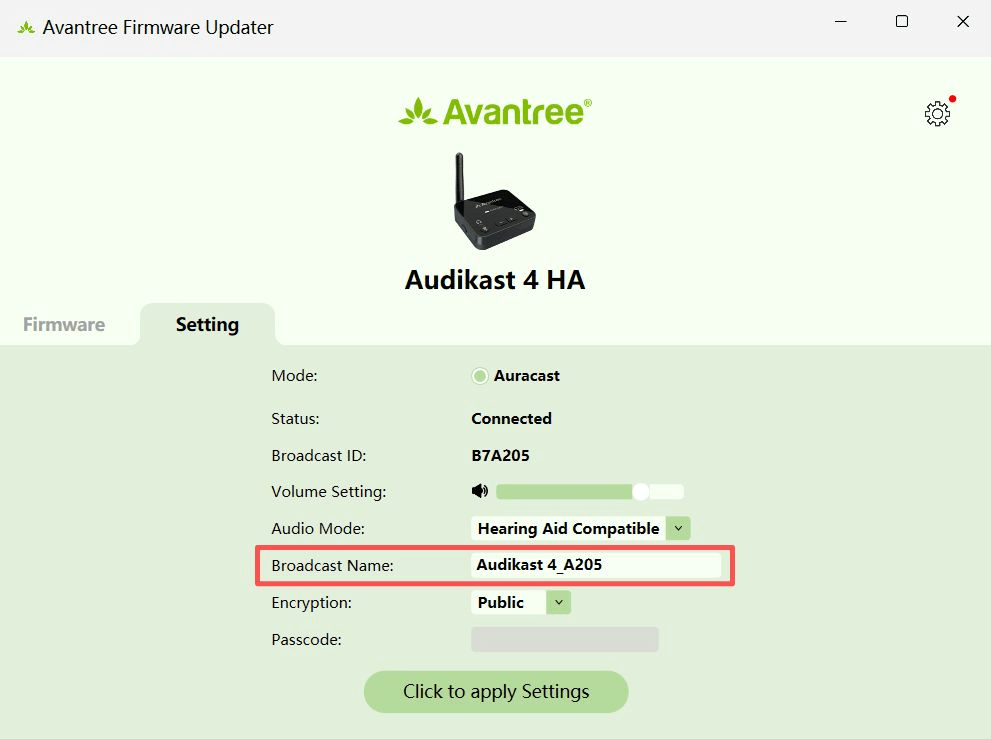
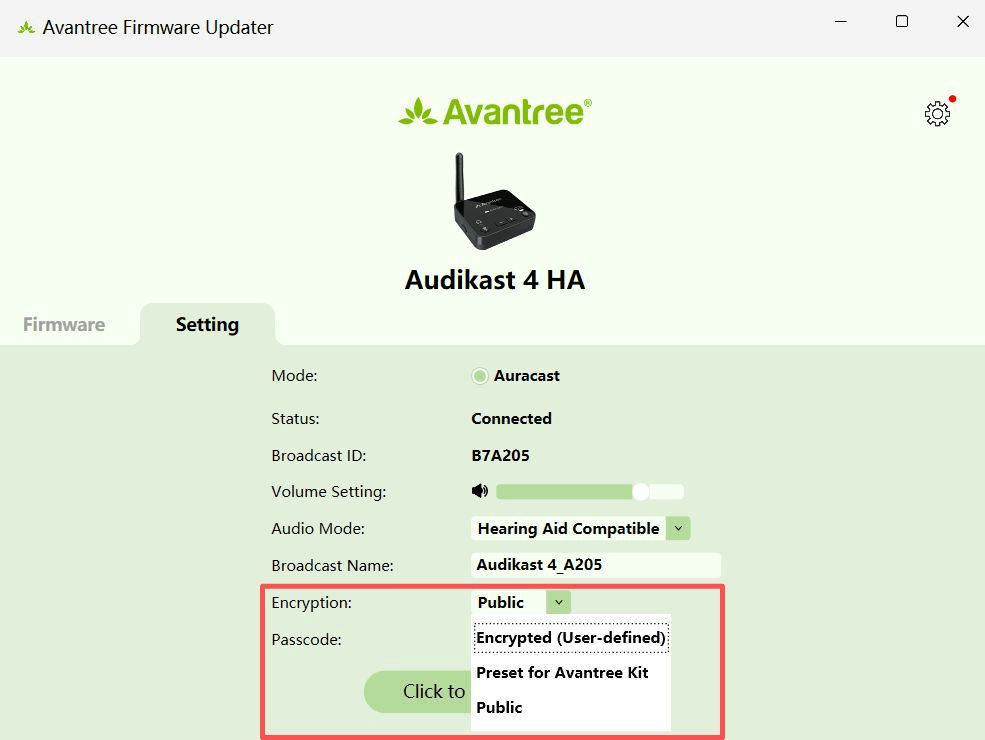
DFU Advanced screen showing broadcast name, encryption, passcode, and QR-code controls.
Use the Advanced screen for all three features below.

Rename the broadcast

Open Advanced, edit Broadcast Name, then apply the setting.

Add a passcode

Set Encryption to Encrypted, enter a passcode, then apply the setting.

Create a join QR code

Generate a QR code after changing the name or passcode. The original IUG documents quick joining for compatible Oticon apps.

STILL NEED HELP?

Get the right help for Audikast 4.

Choose Audikast 4 / BTTC-480. Include your TV model, listening-device model, cable type, and LED pattern.

Was this helpful?