
AURACAST LISTENING GUIDE

Hear an Auracast broadcast your way.

Start with compatible hearing aids, or choose a receiver or headphones. This guide helps you pick the right path and know what success sounds like.

Auracast is joined as a broadcast. It is not the same as normal Bluetooth pairing.

SETUP

How would you like to listen?

For the clearest, most direct path, start with Auracast-compatible hearing aids.

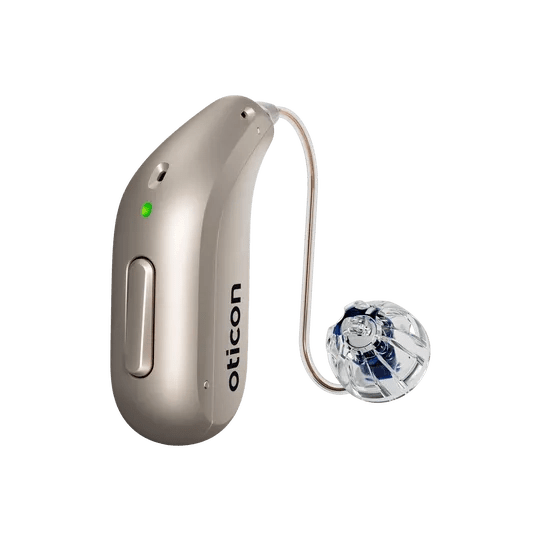
HEARING AIDS

Choose your hearing-aid type.

Use the path that matches how your hearing aids receive audio.

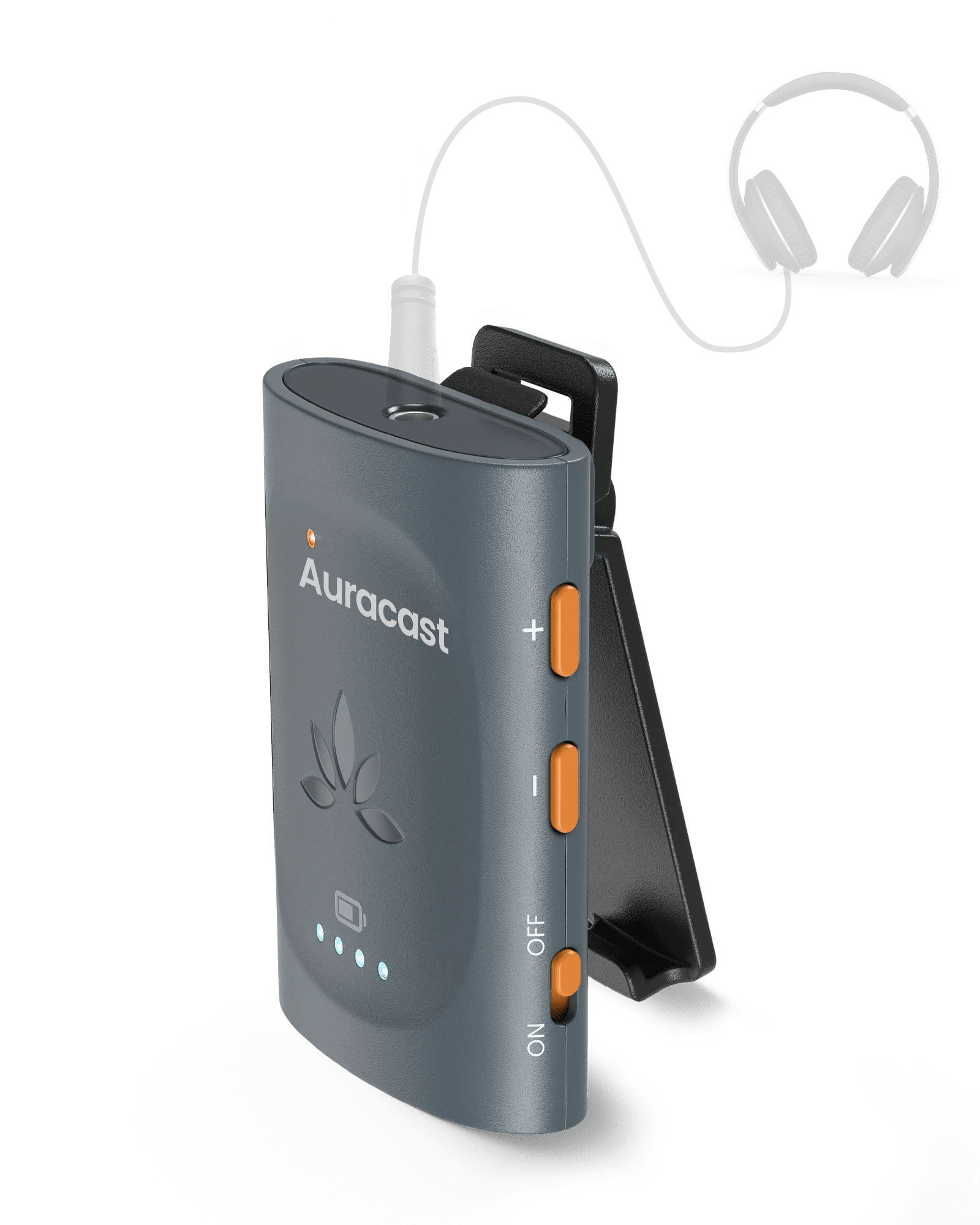
Avantree Aura C

For Bluetooth hearing aids

Aura C receives the nearby Auracast broadcast through a supported USB-C phone, then sends audio to compatible Bluetooth, MFi, or ASHA hearing aids connected to that phone.

View Aura C ↗
Avantree AuraClip

For T-coil hearing aids

Connect your T-coil neck loop to AuraClip, join the nearby broadcast, then switch the hearing aids to their T or telecoil program. Ask your audiologist if T-coil is not enabled.

View AuraClip ↗

HEARING AIDS

Choose your hearing-aid brand.

Select your brand to open the correct guide for joining an Auracast broadcast from your hearing-aid app.

Brand guides

ReSoundDanalogicOticonJabraStarkeyNuEarWidexCochlearBeltoneBernafonPhilips

Before joining: Make sure your exact hearing-aid model supports Auracast. If your brand is not listed, use the manufacturer app or official support guide.

OTHER WAYS TO LISTEN

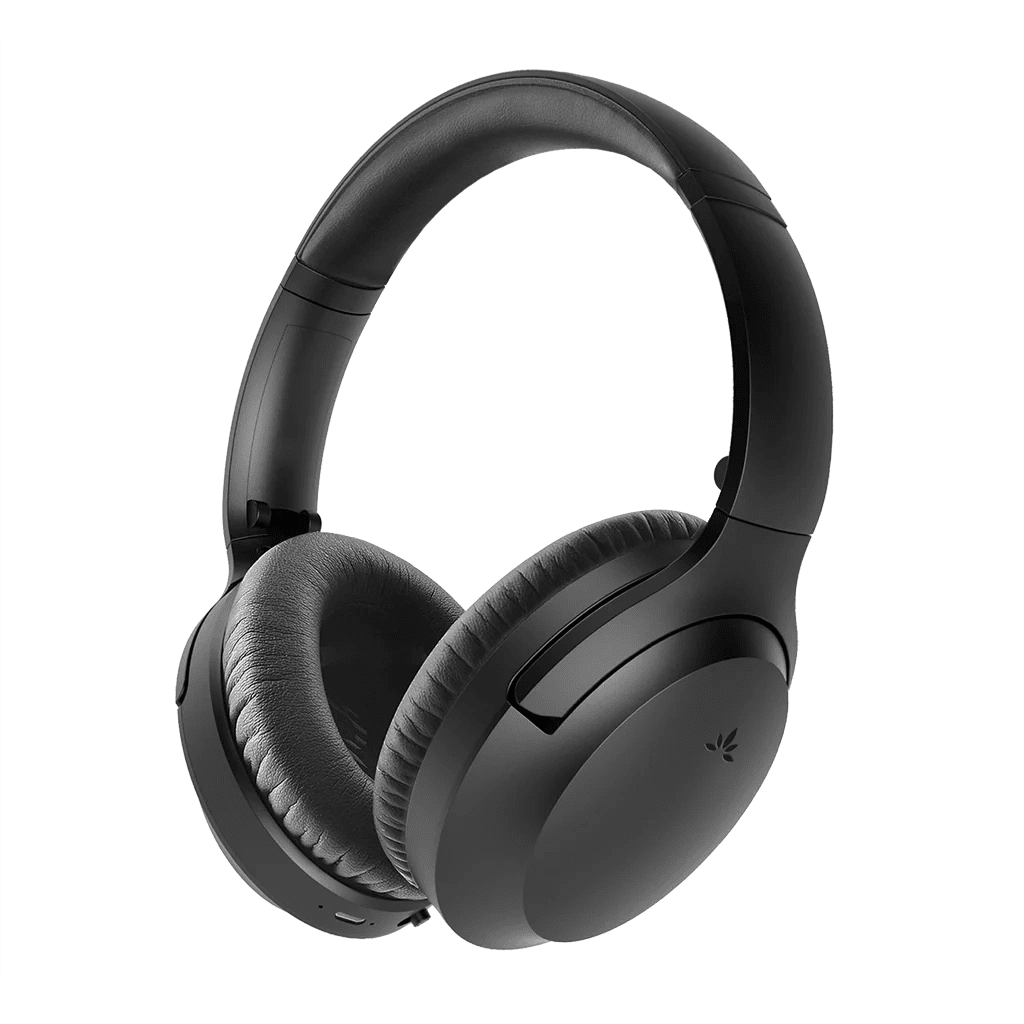
Choose a listening product.

Open the corresponding product page for specifications, compatibility, and setup support.

FIX A PROBLEM

Start with what you notice.

Each fix names the action, expected result, and escalation path.

I cannot find the broadcast
  1. Make sure an Auracast broadcast is available nearby.
  2. Move closer to the area where the broadcast is available.
  3. Make sure you are scanning for an Auracast broadcast, not opening ordinary Bluetooth pairing.
  4. Restart the listening device, then scan again.

Expected: the broadcast name appears. If it does not, verify compatibility and use the brand guide or contact support with the exact model.

I joined, but hear no sound
  1. Check that the correct broadcast is selected.
  2. Leave the broadcast, then join it again.
  3. Raise volume gradually on the listening device.
  4. Restart the listening device and repeat the brand-guide steps.

Expected: audio plays in both ears. If not, note the broadcast name, listening-device model, and what the app shows.

Sound cuts out or stutters
  1. Move closer to the area where the broadcast is available.
  2. Pause other active streaming or calls on the hearing aids or phone.
  3. Leave the broadcast and restart the listening device.
  4. Rejoin the broadcast and test again nearby.

Expected: audio stays stable. Persistent dropouts may need hearing-aid-specific support.

I hear echo or delayed TV sound
  1. Mute the TV speakers temporarily and listen only through Auracast.
  2. If other listeners need TV sound, look for a TV audio-delay or synchronization setting.
  3. Use the same audio path for all listeners when practical.

Expected: voices no longer arrive twice. Delay control depends on the TV audio settings.

REFERENCE

Know the difference.

Auracast broadcasts behave differently from private Bluetooth connections.

Auracast broadcast

  • One broadcast can serve many compatible listeners.
  • Each listener controls their own volume.
  • You join a broadcast from supported controls or an app.
  • A venue may publish a name or QR code for the broadcast.

Before you rely on it

  • Confirm the exact listening-device model supports Auracast.
  • Learn the venue’s broadcast name or joining method.
  • Test the setup at close range first.
  • Keep an accessory listening option available when compatibility is uncertain.

STILL NEED HELP?

Get the right help for Auracast Listening.

For the fastest answer, start with a support ticket. Include your listening-device brand and exact model, the broadcast name, and what you see when joining.

Was this helpful?