
Step 01
Choose your TV AUDIO OUT
Find one TV port labelled AUDIO OUT.
TaskChoose the first available option below.
-
Check the TV labels
Use an OUT port, never an IN port.
-
Choose Optical first
Use OPTICAL or DIGITAL AUDIO OUT when available.
Recommended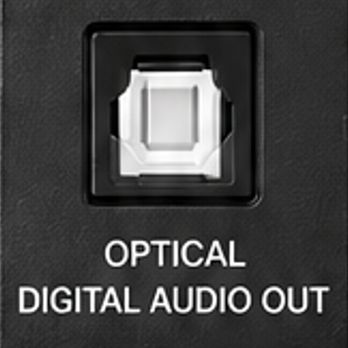
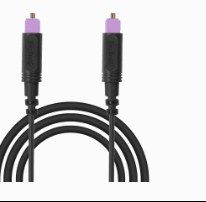
Optical cable
Purple tips -
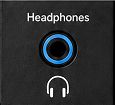
No Optical? Use AUX
Use HEADPHONES, AUX OUT, or AUDIO OUT.
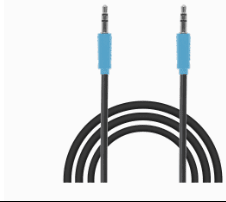
AUX cable
Blue ends -
Otherwise use an adapter
RCA: use an RCA-to-3.5 mm adapter.
HDMI ARC/eARC: use the Avantree HAX06 HDMI ARC adapter ↗.Adapters are separate accessories.
DoneYou have chosen one TV audio output.
Send Support a clear photo of all TV ports with the TV brand and model.
Step 02
Connect Audikast 4T to the TV
Power the transmitter, then connect one audio cable.
TaskConnect the cable chosen in Step 01.
-
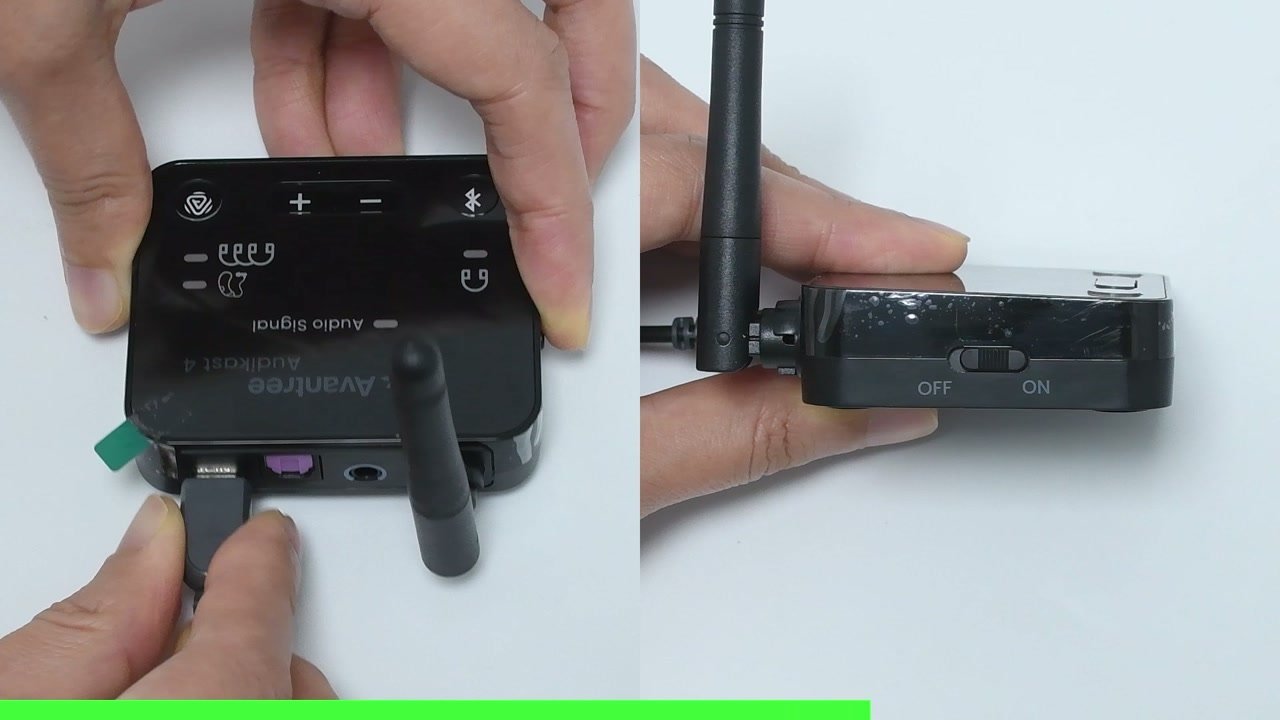
Power on
Connect USB-C power, then slide the power switch to ON.
-
Connect Optical
Remove both clear tip covers. Connect TV OPTICAL OUT to Audikast 4T OPTICAL.
Do not bend the optical cable sharply.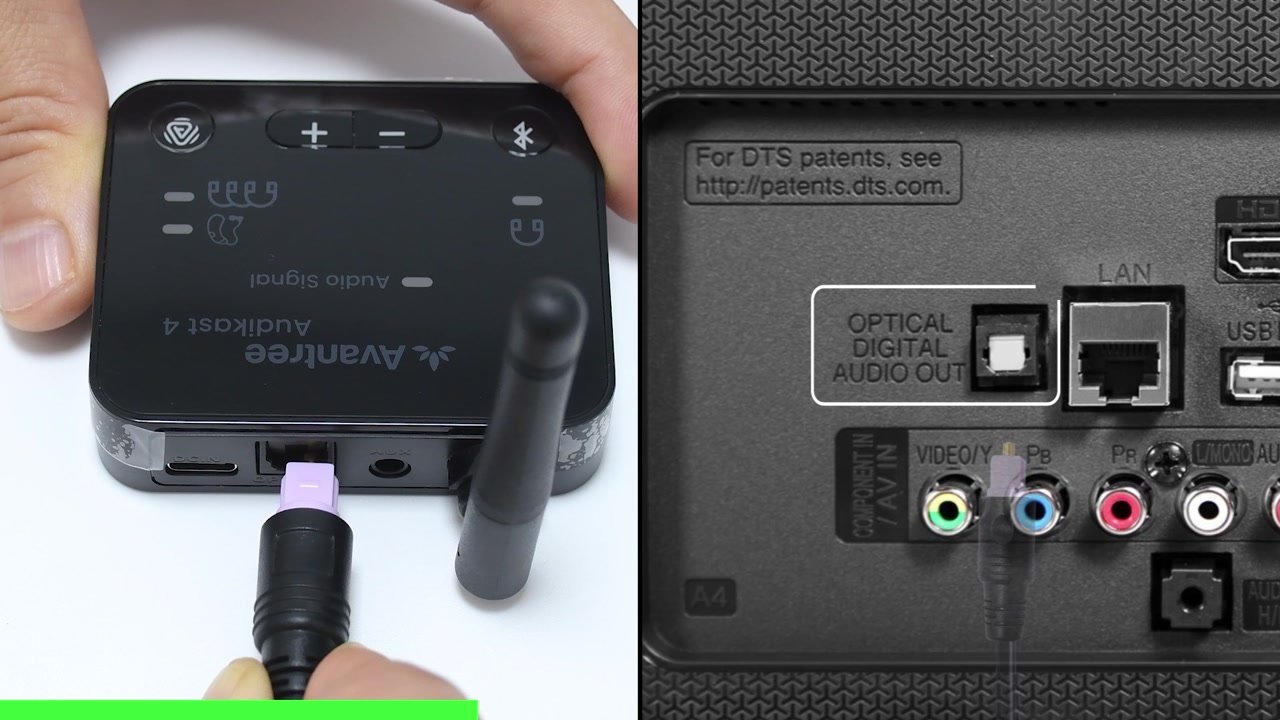
-
Or connect AUX
Connect TV HEADPHONES / AUDIO OUT to Audikast 4T AUX.
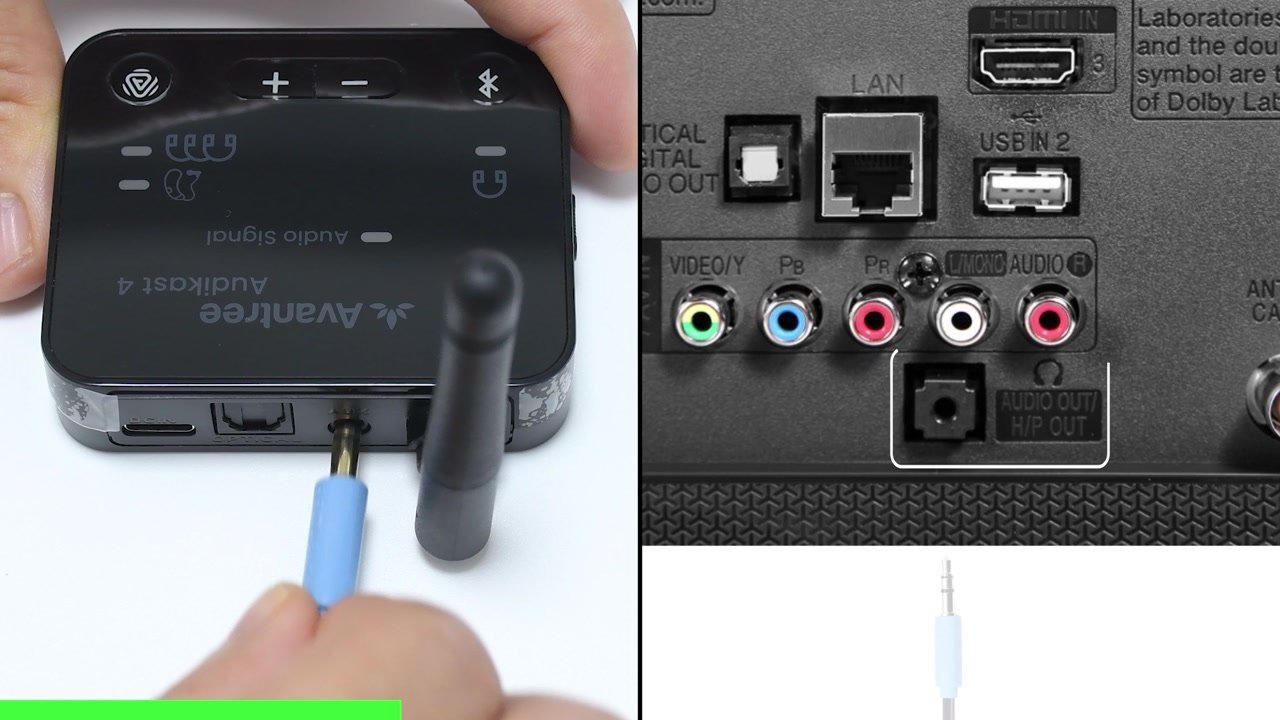
DoneAudikast 4T is on and connected to the TV.
Push both cable ends in fully and confirm the TV port is labelled OUT.
Step 03
Set Optical Audio to PCM
Optical users must set the TV to PCM. AUX users can skip this step.
TaskSet the TV's Optical audio format to PCM.
-
Open Sound settings
On the TV remote, open Settings → Sound.
-
Choose Optical output
Select Optical, External Speaker or Audio System.
-
Choose PCM
Set Digital Audio Format to PCM or Stereo.
Do not use Dolby, DTS, Auto, or Bitstream. - Open the TV PCM guide
DoneThe TV output is Optical and the format is PCM or Stereo.
Open the brand-by-brand PCM guide for the exact TV menu path.
Step 04
Choose Bluetooth or Auracast
Choose the path that matches your listening device.
TaskSelect your listening device below.
-
Auracast device
Use the right Auracast button.
For Auracast hearing aids, headphones, or speakers.Auracast setup · Step 05 →
-
Classic Bluetooth headphones
Use the left Bluetooth button.
Bluetooth setup · Step 06 →
DoneYou have opened the setup path for your listening device.
Check whether your exact hearing-aid, headphone, or speaker model supports Auracast.
Step 05
Connect with Auracast
Use the right Auracast button and choose the mode for your listening device.
TaskStart broadcasting, then join from the Auracast device.
-
Start the broadcast
Short-press the right Auracast button.
-
Choose the device mode
Hearing aids: hearing-aid light solid white.
Auracast headphones or speakers: hold the Auracast button until the headphones/speakers light is solid orange. -
Check the audio signal
Play TV audio. The center Audio Signal light should be solid white.
Solid white means audio is entering Audikast 4T and broadcasting. -
Join the broadcast
On the hearing aids, headphones, or speaker, open its Auracast Assistant or app and select Audikast 4T.
Choose your hearing-aid brand guide⌄
DoneYour Auracast device plays the TV audio.
Confirm the center Audio Signal light is solid white, confirm the correct device-mode indicator, then search again in the device app.
Step 06
Pair classic Bluetooth
Use this path for traditional Bluetooth headphones or one Bluetooth speaker.
TaskPut Audikast 4T and the listening device into pairing mode.
-
Start Audikast 4T pairing
Hold the left Bluetooth button until the Bluetooth light flashes red and blue quickly.
Fast red/blue flashing means pairing mode. -
Start headphone or speaker pairing
Put the Bluetooth headphones or speaker into pairing mode and keep it within 1 m / 3 ft.
Powering on alone may not start pairing.
Headphone pairing helpChoose brand
Choose a brand to see its pairing steps.
AirPods / AirPods Pro
- AirPods 1–3 and AirPods Pro 1–2: keep them in the case, open the lid, then hold the rear setup button for about 5 seconds.
- AirPods 4 and AirPods Pro 3: keep them in the case, open the lid, then double-tap the front of the case.
Ready when: the case light flashes white.
AirPods Max
- Press and hold the noise control button for about 5 seconds.
Ready when: the status light flashes white.
Bose
- Turn on the headphones or open the earbud case.
- Hold the Bluetooth or power button until the light flashes blue or you hear “Ready to connect.”
Ready when: the light flashes blue or the voice prompt confirms pairing.
Beats
- Turn on the headphones.
- Hold the system or power button until the indicator flashes.
Ready when: the indicator flashes for pairing.
Sony
- With the headphones off, hold the power button for about 5 seconds.
- For Sony earbuds, use the case or touch-sensor pairing command for your exact model.
Ready when: the light flashes blue or you hear “Bluetooth pairing.”
Samsung Galaxy Buds
- Place both earbuds in the case, close it for 5–6 seconds, then open it.
- If pairing does not start, wear both earbuds and touch both touchpads until you hear the pairing sound.
Ready when: the earbuds announce pairing or show their pairing pattern.
JBL
- Hold the Bluetooth or power button until the indicator flashes rapidly.
- If JBL reconnects to a phone, turn that phone Bluetooth off and try again.
Ready when: the indicator flashes rapidly.
Other headphones
- Hold the power, Bluetooth, or main button until the light flashes rapidly.
- Check the headphone manual for the exact command if the light does not change.
Ready when: the headphones show their documented pairing pattern.
-
Wait for connection
Wait until the Audikast 4T Bluetooth light stays solid blue, then play TV audio.
Solid blue means connected.
DoneThe Bluetooth light is solid blue and TV audio plays.
Turn off Bluetooth on nearby phones, keep the devices within 1 m / 3 ft, put both into pairing mode again, and wait.
Quick help
Fix the common problems
01No TV sound through the listening device
- Problem
- The listening device is connected, but no TV audio plays.
- Possible cause
- The cable uses an input port, Optical is not set to PCM, audio is paused, or a cable is loose.
- Solution
- Play TV audio; push both cable ends in; select the matching TV AUDIO OUT; for Optical, choose PCM or Stereo; then raise the TV and listening-device volume.
- Expected result
- The center Audio Signal light is solid white and TV audio plays.
02Hearing aids cannot join or reconnect
- Problem
- The hearing-aid app cannot find Audikast 4T or a previous connection does not return.
- Possible cause
- The broadcast is off, the headphones/speakers mode is selected, the hearing aids are not Auracast-compatible, or the app scan is stale.
- Solution
- Short-press the right Auracast button. Confirm the hearing-aid indicator is solid white and the center Audio Signal light is solid white. Close and reopen the hearing-aid app, scan again, and select Audikast 4T.
- Expected result
- Audikast 4T appears in the Auracast list and the hearing aids play TV audio.
03Bluetooth headphones will not connect
- Problem
- The Audikast 4T Bluetooth light keeps flashing and never turns solid blue.
- Possible cause
- The headphones are only powered on, are connected to a nearby device, or are too far away.
- Solution
- Turn off Bluetooth on nearby phones and computers. Keep both devices within 1 m / 3 ft. Hold the left Audikast 4T button until red and blue flash quickly, then put the headphones into their documented pairing mode.
- Expected result
- The Bluetooth light turns solid blue and TV audio plays.
More help