Skip to guide
User Manual
EN

Interactive user guide

Audikast 4HA Setup Guide

TV audio setup

Choose a TV audio output, then connect with Auracast or Bluetooth.

TV Audio OUTOptical or AUX
Audikast 4HATV audio transmitter
Hearing aids or headphonesAuracast or Bluetooth

Connect only one TV audio cable: Optical or AUX.

1

Step 01

Choose your TV audio OUT

Find one TV port labeled AUDIO OUT.

TaskChoose the first available TV Audio OUT. You will connect only one audio cable.

  1. Check the TV labels

    Use an OUT port, never an IN port.

  2. Choose Optical first

    Use OPTICAL or DIGITAL AUDIO OUT when available.

    Recommended
    TV Optical Digital Audio Out square port
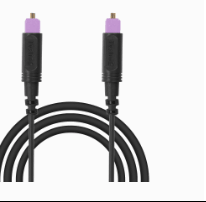
    Audikast 4HA Optical cable with purple square ends
    Optical cablePurple tips
  3. No Optical? Use AUX

    Use HEADPHONES, AUX OUT or AUDIO OUT.

    TV Headphones audio output round port with blue ring
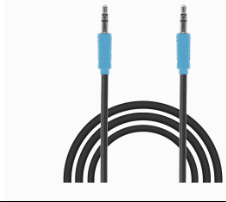
    Audikast 4HA AUX cable with blue round ends
    AUX cableBlue ends
  4. No AUDIO OUT? Use an adapter
    HDMI ARC/eARC onlyUse the Avantree HAX06 HDMI ARC adapter ↗ to create an Optical output.
    RCA OUTUse an RCA-to-3.5 mm adapter.
    Requires a separate adapter.

DoneYou have chosen one TV audio output. Use the matching cable in Step 02.

If notSend Support a clear photo of all TV ports with the TV brand and model.

2

Step 02

Connect Audikast 4HA to the TV

TaskPower Audikast 4HA, then connect only the cable chosen in Step 01.

  1. Connect the USB-C power cable

    Plug the USB-C end into the Audikast 4HA power port.

    Plug the other end into either:

    • Powered TV USB port
    • 5 V USB wall adapter
  2. Turn on Audikast 4HA

    Slide the power switch to ON.

    ReadyThe power and indicator lights turn on.
    No lights? Reconnect both ends of the USB-C cable, then try another powered TV USB port or 5 V USB wall adapter.
  3. Connect the cable chosen in Step 01
    Optical

    Use the purple square-ended cable: TV OPTICAL OUT → Audikast 4HA OPTICAL.

    Remove both clear tip covers.
    ReadyBoth square plugs are fully inserted.
    Audikast 4HA Optical cable with purple square ends
    AUX

    Use the blue round-ended cable: TV HEADPHONES / AUDIO OUT → Audikast 4HA AUX.

    ReadyBoth round plugs are fully inserted.
    Audikast 4HA AUX cable with blue round ends

DoneAudikast 4HA is on and the selected cable is connected. Keep it connected for Step 03.

If notNo lights: recheck the power cable and powered USB source. No connection: recheck both audio-cable ends and use a TV port labeled OUT.

3

Step 03

Set TV sound and check the signal

Use the card that matches the cable connected in Step 02. Then check the Audio Signal light.

Optical

Set the TV to PCM

Open
Settings → Sound
Sound output
Optical, External Speaker or Audio System
Audio format
PCM or Stereo
Do not use Dolby, DTS, Auto or Bitstream.
Open the TV PCM guide
AUX

Select Audio Out and raise the volume

Sound output
Headphones or Audio Out
TV volume
Raise the volume
Final check

Check the Audio Signal light

Play a TV program with speaking voices.

ReadyThe center Audio Signal light stays solid white.
Want TV speakers on too?

DoneThe center Audio Signal light is solid white while TV audio plays.

If notOptical: recheck the TV OUT connection and PCM setting. AUX: raise the TV volume and recheck the AUDIO OUT connection.

5

Step 05

Connect with Auracast

Start the broadcast, check the lights, then join.

TaskCheck the lights, then join Audikast 4HA.

First useThe broadcast starts automatically after power-on.

  1. Check the mode light
    Hearing aids
    Solid whiteLight off? Press the right Auracast button onceOrange? Press and hold until white
    Other Auracast devices
    Solid orangePress and hold until orange
    Hearing aids cannot join unless the mode light is solid white.
  2. Check the audio signal
    Play TV audio
    Center Audio Signal light: solid whiteAudio is entering and broadcasting
  3. Join the broadcast
    Hearing aids
    Open the brand app's Auracast Assistant or broadcast menu
    Other devices
    Open the device's Auracast controls

    Then select Audikast 4HA.

Choose your hearing-aid brand guide

DoneYour Auracast device plays the TV audio.

If notConfirm the center Audio Signal light is solid white, then search again. Open hearing-aid connection help →

6

Step 06

Pair Classic Bluetooth

Use this path for traditional Bluetooth headphones.

TaskPut Audikast 4HA and the headphones into pairing mode.

  1. Start Audikast 4HA pairing

    On first use, Audikast 4HA starts in Auracast mode. Press the left Bluetooth button once.

    Ready: the Bluetooth indicator flashes red and blue quickly.
    Not flashing? If the indicator is on, press and hold the left Bluetooth button.
  2. Start headphone pairing

    Put the Bluetooth headphones into pairing mode and keep them within 1 m / 3 ft.

    Powering on alone may not start pairing.
    Headphone pairing helpChoose brand
    AirPods / AirPods Pro

    Check the back of your case.

    There is a button

    AirPods 1–3 / AirPods Pro 1–2

    1. Open the case with your AirPods inside.
    2. Hold the button on the back for about 5 seconds.
    AirPods case rear setup button held until the front status light flashes white

    Ready when: the case light flashes white.

    There is no button

    AirPods 4 or 5 / AirPods Pro 3

    1. Open the case with your AirPods inside.
    2. Double-tap the front of the case.
    AirPods 4 or 5, or AirPods Pro 3 case front double-tapped until the status light flashes white

    Ready when: the case light flashes white.

    AirPods Max
    1. Press and hold the noise control button for about 5 seconds.

    Ready when: the status light flashes white.

    Bose
    1. Turn on the headphones or open the earbud case.
    2. Hold the Bluetooth or power button until the light flashes blue or you hear “Ready to connect.”

    Ready when: the light flashes blue or the voice prompt confirms pairing.

    Beats
    1. Turn on the headphones.
    2. Hold the system or power button until the indicator flashes.

    Ready when: the indicator flashes for pairing.

    Sony
    1. With the headphones off, hold the power button for about 5 seconds.
    2. For Sony earbuds, use the case or touch-sensor pairing command for your exact model.

    Ready when: the light flashes blue or you hear “Bluetooth pairing.”

    Samsung Galaxy Buds
    1. Place both earbuds in the case, close it for 5–6 seconds, then open it.
    2. If pairing does not start, wear both earbuds and touch both touchpads until you hear the pairing sound.

    Ready when: the earbuds announce pairing or show their pairing pattern.

    JBL
    1. Hold the Bluetooth or power button until the indicator flashes rapidly.
    2. If JBL reconnects to a phone, turn that phone Bluetooth off and try again.

    Ready when: the indicator flashes rapidly.

    Other headphones
    1. Hold the power, Bluetooth, or main button until the light flashes rapidly.
    2. Check the headphone manual for the exact command if the light does not change.

    Ready when: the headphones show their documented pairing pattern.

  3. Wait for connection

    Wait until the Audikast 4HA Bluetooth indicator stays solid blue.

    Solid blue means connected.

DoneThe Bluetooth indicator is solid blue and TV audio plays.

If notTurn off Bluetooth on nearby phones, keep the headphones within 1 m / 3 ft, and try again.

Quick help

Fix the common problems

More Quick Fixes

Firmware update

Update Audikast 4HA

  1. Download the Firmware Update Tool on a Windows/Mac computer.

  2. Connect Audikast 4HA to your computer with a USB data cable.

    Firmware update cable: Use the gray-tip cable that came with your device. Mac users can also use an Apple charging cable.

  3. Open the Firmware Update Tool.

    Follow the on-screen instructions.

    Keep Audikast 4HA connected until it says Complete.

After updating: reset Audikast 4HA.
Rename & encrypt

Customize the Auracast broadcast.

Rename or protect the Audikast 4HA broadcast from the Firmware Update Tool ↑

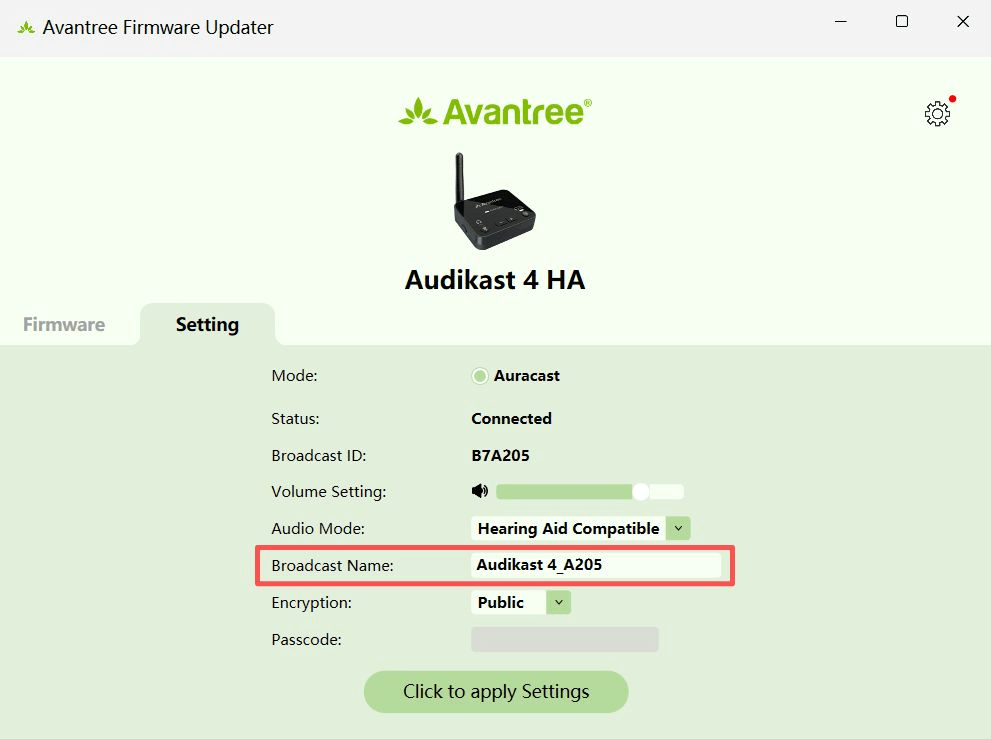
Setting screen with the Audikast 4HA Broadcast Name field highlighted.

Rename the broadcast

Open Setting, edit Broadcast Name, then select Click to apply Settings.

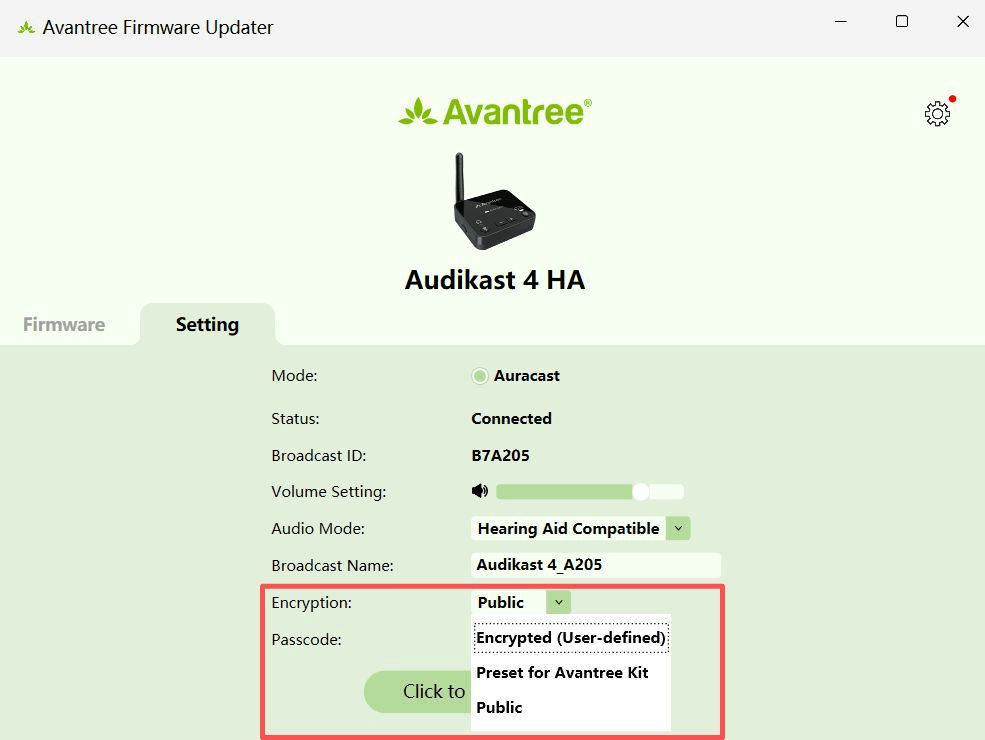
Setting screen with the Audikast 4HA Encryption menu highlighted.

Encrypt the broadcast

In Setting, choose Encrypted (User-defined), enter a passcode, then select Click to apply Settings.