C82 Aura Setup Guide

Set up your Auracast hearing aids in four steps.

1 of 4

Plug in C82 Aura

  1. Plug C82 Aura into your device’s USB-C audio port.

DONE Solid white light.

IF NOT Check the light →

Port and light help

White means hearing-aid broadcast mode. It does not confirm a hearing-aid connection.

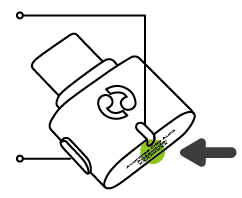
Orange? Hold the C82 Aura MFB button for 6 seconds to switch to white.

Find the MFB button / USB-A help
C82 Aura diagram: USB-C plug, side MFB button, and small LED on the front
The MFB is the oval side button. The LED is the small indicator on the front.

For a computer with USB-A, use the included USB-A adapter. A USB charger supplies power only; it cannot supply your music.

No light? Reinsert C82 Aura into a powered USB port.

2 of 4

Play audio at low volume

  1. On computers, select Avantree C82 Aura as sound output.
  2. Play media with your media player’s volume set low.

DONE Media is playing.

IF NOT Check output →

Phone / computer help

C82 Aura missing? Unplug it, reconnect, and reopen sound settings.

Find your device’s sound settings
  • Windows: Settings → System → Sound → Output → Avantree C82 Aura.
  • Mac: System Settings → Sound → Output → Avantree C82 Aura.
  • USB-C phone / tablet: Connect C82 Aura and play media. If audio stays on the device, check its USB audio output selection and USB audio support.

The C82 Aura factory output level may be 100%. Start with low media volume; adjust the default level in Avantree Updater if needed.

3 of 4

Join the C82 Aura broadcast

  1. Turn on the hearing aids you want to use.
  2. Enable Bluetooth on the phone running your hearing aid app.
  3. Select C82 Aura in your hearing aid app’s Auracast list.

DONE Broadcast selected.

IF NOT Choose your brand →

Joining help

Enable Bluetooth on your phone before opening the hearing aid app’s Auracast or broadcast-selection feature.

Use the app’s Auracast list, not the phone’s ordinary Bluetooth pairing list.

Choose your hearing aid brand
Broadcast renamed or asking for a password?

If C82 Aura has a custom broadcast name, select that name. For an encrypted broadcast, enter its configured password.

Need to check or change the name or password? Connect C82 Aura to your computer and open Avantree Updater → Settings. See broadcast settings.

4 of 4

Set a comfortable listening volume

  1. Raise media-player or hearing-aid app volume slowly while audio plays.

DONE You hear the media through your hearing aids.

IF NOT No sound? →

Quick help

Joined, but no sound
  1. Select Avantree C82 Aura as your source device’s sound output.
  2. Confirm a white C82 Aura LED; if orange, hold MFB for 6 seconds.
  3. Rejoin C82 Aura in your hearing aid app, then play media at low volume.

DONE Media is audible through your hearing aids.

IF NOT Contact Support with the device and hearing aid models.

Why this happens

C82 Aura may not be the selected audio output, or your hearing aids may have left its broadcast.

Cannot find or join C82 Aura
  1. Check the C82 Aura LED; hold MFB for 6 seconds if orange.
  2. Check your model and app requirements in brand help.
  3. Scan Auracast broadcasts again and select C82 Aura or its custom name.

DONE C82 Aura is selected in your hearing aid app.

IF NOT Contact Support; ordinary Bluetooth pairing will not solve this.

Why this happens

Orange mode or an unsupported hearing aid/app setup can prevent discovery.

Too loud / volume will not change
  1. Lower volume inside the media player.
  2. Adjust Auracast listening volume in your hearing aid app.
  3. If still too loud, lower C82 Aura’s default output in Avantree Updater.

DONE Audio is comfortable at your preferred volume.

IF NOT Pause playback and contact Support.

Why this happens

The C82 Aura output level or media player may be set too high.

More problems
Sound cuts out or keeps switching
  1. Keep media playing on the device connected to C82 Aura.
  2. Stop audio on other devices connected to your hearing aids.
  3. Move close to C82 Aura, then rejoin its broadcast.

DONE Audio plays without interruption.

More help with competing Bluetooth

After joining, temporarily turn off Bluetooth on other connected phones/tablets to test for switching. Keep Bluetooth on while using the hearing aid app to join or change settings.

If needed, restart your hearing aids, reconnect C82 Aura, and rejoin the broadcast.

IF NOT Report the LED color and when sound stops.

Why this happens

Your hearing aids may switch to another Bluetooth stream, or lose the source signal.

Password requested every time

Some hearing aids cannot save encrypted broadcast credentials.

  1. Rejoin C82 Aura and enter the configured password.
  2. If privacy is unnecessary, change Encrypted to Public in Avantree Updater → Settings.

Public mode allows nearby compatible receivers to listen without a password. It does not guarantee automatic reconnection.

DONE You can join the broadcast; Public mode removes the password prompt.

IF NOT Check your hearing aid manufacturer’s reconnection support.

Teams / Zoom: others cannot hear me

NOT SUPPORTED: C82 Aura does not carry your hearing-aid microphone back to the computer.

  1. Select C82 Aura as the meeting app’s speaker/output.
  2. Select your computer’s built-in microphone as the meeting app’s input.
  3. Run the meeting app’s speaker and microphone test.

DONE You hear the test in your hearing aids, and the computer microphone registers your voice.

IF NOT Check the meeting app’s input selection and microphone permission.

Settings and resources

Update C82 Aura firmware

Firmware update

Update C82 Aura

  1. Open the official C82 Aura firmware page and install Avantree Updater.
  2. Plug C82 Aura directly into the computer’s USB port, using its USB-A adapter if needed.
  3. Follow the Updater instructions for the C82 Aura firmware offered.
  4. When complete, follow the official reset instructions and rejoin your broadcast.

DONE Updater confirms completion, and media plays after you reconnect.

IF NOT Contact Support with the displayed update message.

Use the C82 Aura instructions. C82 LEA has different operating modes; ask Support before changing firmware families.

Open manuals, FAQ, and product support
More settings and product details
Set a quieter default volume
  1. Connect C82 Aura to a computer with Avantree Updater installed.
  2. Use C82 Aura firmware 20.6.0 or later for default-volume adjustment.
  3. Open Updater → Settings and lower the default output volume.

DONE Test media starts at a more comfortable level.

IF NOT Check C82 Aura firmware if the setting is missing.

Change broadcast name or privacy
  1. Plug C82 Aura into your Windows or Mac computer.
  2. Open Avantree Updater → Settings.
  3. Set the broadcast name and choose Encrypted or Public mode.
  4. For Encrypted mode, set a password and use it when rejoining.

DONE Your hearing aids join the chosen broadcast name with the intended password setting.

Public: Nearby compatible receivers can listen without a password. Encrypted: Receivers need the configured password.

IF NOT Check the selected broadcast name and password again.

Reset C82 Aura

Use this if C82 Aura still cannot connect or reconnect after the setup checks. Avantree’s C82 Aura FAQ uses the same procedure for factory reset and clearing pairing history.

  1. Keep C82 Aura plugged into a powered USB-C port.
  2. Press the C82 Aura MFB button three times quickly.
  3. Check for the green LED, then join the broadcast again.

DONE A green LED confirms reset. Confirm sound after reconnecting.

IF NOT Keep C82 Aura powered and repeat the three quick presses.

Understand the button and lights
C82 Aura controls and LED states
State / action Meaning
Solid white LED Hearing-aid Auracast broadcast mode; not proof that a listener has joined.
Orange LED Alternate sampling mode for compatible Auracast headphones/speakers. Use white for hearing aids.
Hold MFB 6 seconds Switch white/orange broadcast sampling mode.
Press MFB 3 times quickly Reset; green LED confirms.

Changing to orange does not add Classic Bluetooth or LE Audio unicast support. Auracast receiver support depends on the exact model.

Add more Auracast listeners
  1. Keep C82 Aura connected to a playing USB audio source.
  2. Use white mode for hearing aids.
  3. Join the same broadcast from each compatible receiver’s app or Auracast controls.

DONE Each listener hears the source audio.

IF NOT Check that receiver’s Auracast compatibility and connection instructions.

There is no Classic Bluetooth dual-pairing process. C82 Aura broadcasts to multiple compatible listeners.

Adjust surrounding sound

While listening to C82 Aura, open your hearing aid app. Adjust sound quality or microphone mixing if your model supports those controls.

DONE The balance of streamed audio and surrounding sound suits your needs.

IF NOT Ask your hearing aid provider which Auracast listening controls your model supports.

Check connections and product details
Product / SKU
Avantree C82 Aura / ATDG-C82-Aura
Input
USB digital audio, USB-C connector; USB-A adapter included.
Output / protocol
Auracast broadcast (BIS), Bluetooth 5.4, LC3.
Supported source types
USB-audio-capable computers, phones, and tablets.
Not supported
Classic Bluetooth, LE Audio unicast, microphone return, TVs, cars, consoles, and Lightning iPhones.
Range
Up to 100 ft / 30 m, depending on surroundings.
Latency
Published specification: 50–80 ms.
Dimensions / weight
17 × 21 × 7 mm / 2 g.

Need more help?

Send your hearing aid model, source device, LED color, and checks tried.

Phone and regional support

US: 800 232 2078 · Other regions

For a reply, contact Support. Guide feedback helps improve this page.

Was this helpful?