Power it
Connect the included USB-C cable to a 5 V, 1-2.4 A power source. Slide the power switch to ON.
Set up Audikast 4 for one classic Bluetooth device or broadcast TV audio to multiple compatible Auracast receivers.
Audikast 4Bluetooth 5.4 · Auracast broadcastPower Audikast 4, choose the cable that matches your TV output, then set the TV audio correctly.
Connect the included USB-C cable to a 5 V, 1-2.4 A power source. Slide the power switch to ON.
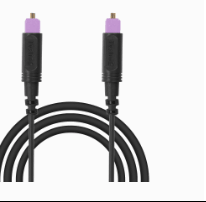
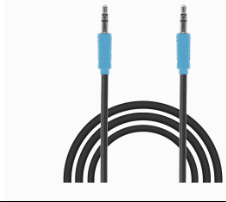
Look at the labels beside your TV ports. Match one output to the same Audikast 4 input.
For Optical, select Optical output and set the digital audio format to PCM.
Find the matching label on your TV. Do not connect to an input port.
Select your TV brand for the exact menu path. Menu names can vary by model.
Open the full TV PCM guide →Choose one. The instructions appear immediately below.
Keep the device close to Audikast 4 during pairing.
On first use it enters pairing automatically. Otherwise, press and hold the mode/pair button until the Bluetooth indicator blinks red and blue.
Powering them on is not always enough. Use the brand's pairing action and confirm its pairing light or voice prompt.
Choose AirPods, Bose, Beats, Sony, Samsung, JBL, or Other →Leave both devices close together. Do not select Audikast 4 from the TV.
Start a program and set a comfortable listening volume.
Choose the indicator that matches the type of listening device you want to join.
Press the Auracast mode button to select the symbol for your listener. Confirm the LED beside that symbol is white.
Open its Auracast Assistant or broadcast menu. Find and join Audikast 4.
Repeat the receiver-side join step for each compatible device.
Start a program. Each joined device should receive the broadcast.
1. Select the upper hearing-aid symbol and confirm its LED is white. 2. Open your hearing-aid app. 3. Find and join Audikast 4. Choose your brand for its exact guide:
Choose the closest symptom.
Not part of normal setup. Update only if Avantree Support tells you to, or this guide sends you here.
During the update: Keep Audikast 4HA plugged in. Do not close the updater or turn off the computer.
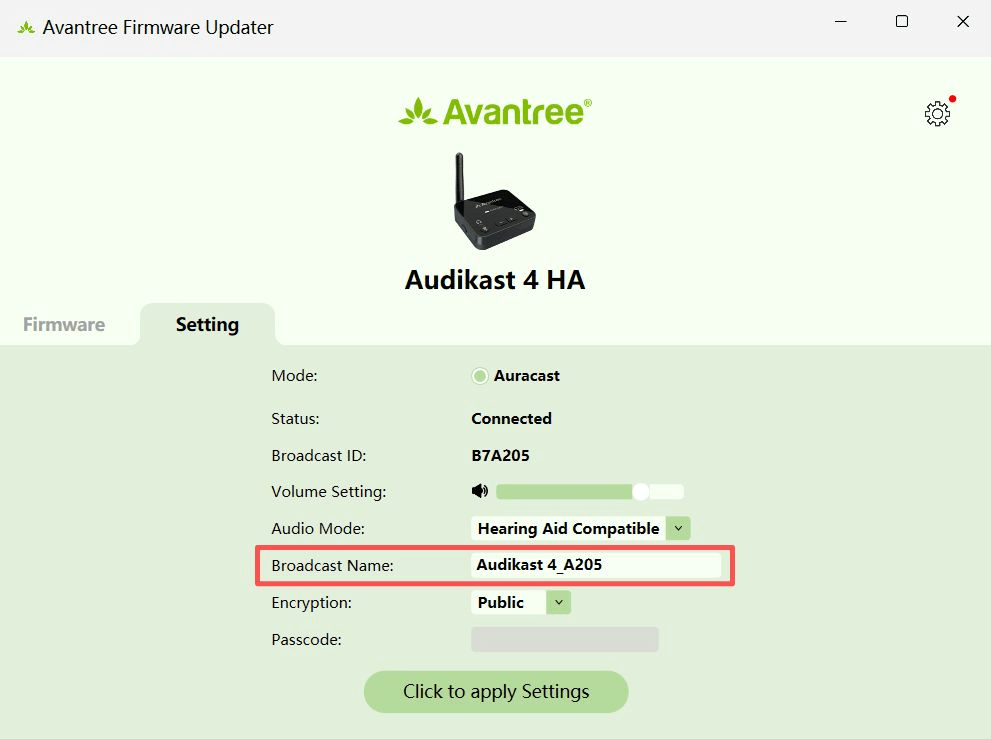
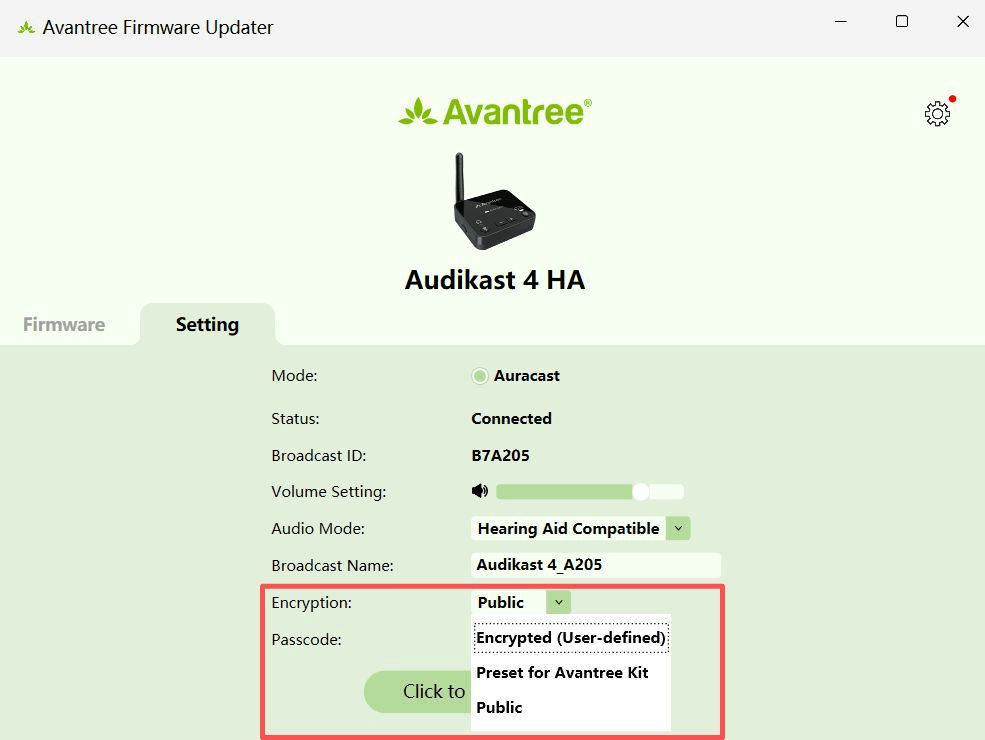
Rename or protect the Audikast 4HA broadcast from the official Avantree DFU Tool.

In the DFU Tool, open Setting, edit Broadcast Name, then select Click to apply Settings.

In Setting, choose Encrypted (User-defined), enter a passcode, then select Click to apply Settings.
Open the exact guide you need.
Choose Audikast 4 / BTTC-480. Include your TV model, listening-device model, cable type, and LED pattern.
DON'T WANT TO SUBMIT A TICKET?
Was this helpful?