
Connect one TV audio cable. Pair up to two headphones.
Will my hearing aids work?
Audikast 3 supports Classic Bluetooth audio only. It does not support Auracast, LE Audio, MFi or ASHA hearing-aid connections.
Compatibility depends on the exact hearing-aid model.
Check your hearing-aid model →Step 01
Choose your TV audio OUT
TaskChoose one TV audio output. Use an OUT port, not IN.
Choose Optical first
Use OPTICAL or DIGITAL AUDIO OUT.
Recommended

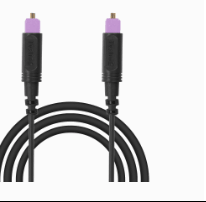
Purple tips
No Optical? Use AUX
Use HEADPHONES, AUX OUT or AUDIO OUT.

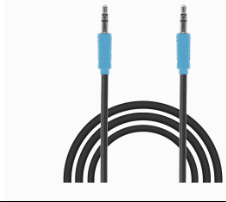
Blue ends
Only RCA or HDMI ARC/eARC?
Audikast 3 has no RCA or HDMI input. RCA requires an RCA-to-3.5 mm adapter. HDMI ARC/eARC requires an audio extractor such as the Avantree HAX06.
Adapters are separate accessories.
DoneYou have chosen one TV OUT. Use its matching cable in Step 02.
Step 02
Connect Audikast 3 to the TV
TaskPower Audikast 3, then connect only the cable chosen in Step 01.
Connect the power cable
Plug the USB-C end into Audikast 3.
Plug the other end into either:
Use a 5 V supply rated 1–2.4 A.
USB supplies power—not TV audio.Turn on Audikast 3
Slide the power switch to ON.
The indicators turn on.
No lights? Reconnect both power-cable ends, then try the other power source.
Connect one TV audio cable
Use the cable chosen in Step 01. Do not connect both.
Optical
Remove both clear cable tip covers.
TVOPTICAL OUT
Purple tips Audikast 3OPTICALConnect TV OPTICAL OUT to Audikast 3 OPTICAL.
Set the input selector to OPT.
Both square plugs are fully inserted.
Set TV Optical audio →Or use AUX
TVHEADPHONES
/ AUDIO OUT
Blue ends Audikast 3AUXConnect TV HEADPHONES / AUDIO OUT to Audikast 3 AUX.
Set the input selector to AUX.
Both round plugs are fully inserted.
Set TV AUX audio →
DoneAudikast 3 is on. One audio cable is connected and the input selector matches it.
If notReseat both audio-cable ends. Use TV AUDIO OUT, not IN.
Step 03
Set TV sound and check the signal
TaskUse your TV remote. Follow your cable below.
Check the selected input light
Play a TV program with speaking voices.
- Optical cable
- OPT indicator: solid white
- AUX cable
- AUX indicator: solid white
Solid white means TV audio is entering Audikast 3.
DoneThe selected OPT / AUX indicator stays solid white while TV audio plays.
If notOptical: recheck OUT and PCM. AUX: recheck OUT and raise TV volume. Check the audio signal →
Step 04
Pair Classic Bluetooth headphones
Use this path for traditional Bluetooth headphones.
TaskPut Audikast 3 and the headphones into pairing mode.
Start Audikast 3 pairing
Find the left light, just to the right of the button.
On first use, Audikast 3 enters pairing automatically after power-on.
Ready: flashes red and blue.
Not flashing? Hold the pairing button for about 5 seconds, until it flashes red and blue.Start headphone pairing
Put your headphones into pairing mode. Keep them within 3 ft / 1 m of Audikast 3.
Powering on alone may not start pairing.
Headphone pairing helpChoose brand
AirPods / AirPods Pro
Check the back of your case.
There is a button
AirPods 1–3 / AirPods Pro 1–2
- Open the case with your AirPods inside.
- Hold the button on the back for about 5 seconds.

Ready when: the case light flashes white.
There is no button
AirPods 4 or 5 / AirPods Pro 3
- Open the case with your AirPods inside.
- Double-tap the front of the case.

Ready when: the case light flashes white.
AirPods Max
Press and hold the noise control button for about 5 seconds.
Ready when: the status light flashes white.
Bose
- Turn on the headphones or open the earbud case.
- Hold the Bluetooth or power button until the light flashes blue or you hear “Ready to connect.”
Ready when: the light flashes blue or the voice prompt confirms pairing.
Beats
- Turn on the headphones.
- Hold the system or power button until the indicator flashes.
Ready when: the indicator flashes for pairing.
Sony
- With the headphones off, hold the power button for about 5 seconds.
- For Sony earbuds, use the case or touch-sensor pairing command for your exact model.
Ready when: the light flashes blue or you hear “Bluetooth pairing.”
Samsung Galaxy Buds
- Place both earbuds in the case, close it for 5–6 seconds, then open it.
- If pairing does not start, wear both earbuds and touch both touchpads until you hear the pairing sound.
Ready when: the earbuds announce pairing or show their pairing pattern.
JBL
- Hold the Bluetooth or power button until the indicator flashes rapidly.
- If JBL reconnects to a phone, turn that phone Bluetooth off and try again.
Ready when: the indicator flashes rapidly.
Other headphones
- Hold the power, Bluetooth, or main button until the light flashes rapidly.
- Check the headphone manual for the exact command if the light does not change.
Ready when: the headphones show their documented pairing pattern.
Buttons differ by model. Follow your headphone model’s manual if the controls do not match.
Wait for connection
Wait until Audikast 3’s indicator stays solid blue.
Solid blue means connected.
Play a TV show with speaking voices. Adjust headphone volume.
Watch: pair Audikast 3


DoneYou hear TV audio through the headphones. stays solid blue.
If notSolid blue alone does not confirm TV audio. Check the OPT / AUX signal and headphone volume.
Setup complete. Enjoy your TV audio.
Reconnect next time
Turn on Audikast 3 and your headphones. They should reconnect automatically. If not, disconnect nearby phones, then press to reconnect.
Add a second listener (optional)
Keep the first headphones connected.
Find the right light, just to the left of the button.
- Put the second headphones in pairing mode.
- Hold Audikast 3’s button for 5 seconds until its indicator flashes red and blue.
- Keep the second headphones within 3 ft / 1 m. Wait for the right indicator to turn solid blue.
- Play TV audio. Check that both headphones hear it.
Both and connection indicators are solid blue and both headphones play TV audio.
Still not connecting? Turn off Bluetooth on nearby phones and retry. More dual-link help →
Watch: pair a second listener
Quick help
Fix the common problems
01Connected, but no TV sound
a. Check the headphone connection
Check Audikast 3’s left indicator (right for the second headphones).
Not solid blue? The headphones are not connected. Put both devices in pairing mode and wait for solid blue.
b. Check the TV audio signal
Play TV audio. Check the OPT or AUX indicator for your selected input.
Flashing white: no valid TV audio
- Match the input selector: Optical → OPT; blue cable → AUX.
- Use TV AUDIO OUT, not IN. Reseat both cable ends.
- For Optical: select Optical output and PCM / Stereo. For AUX: select Headphones output if needed and raise TV volume.
- Try another TV show. After a TV update, check PCM again.
The selected OPT / AUX indicator turns solid white.
Solid white + solid blue, but still silent
- Unmute the headphones and increase their volume.
- For AUX, raise TV output volume too.
- Try another program. If only a streaming app is silent, check the source device’s digital audio format is PCM / Stereo.
Still silent? Open the official no-sound guide or contact Support with both indicator states.
Sound plays through the headphones—not just a blue connection light.
02Headphones will not pair or reconnect
A nearby phone connection or headphones not in pairing mode can prevent pairing.
- Turn off nearby phone Bluetooth. Put the headphones in pairing mode.
- Hold Audikast 3’s matching listener button for about 5 seconds until red and blue flash.
- Keep devices within 3 ft / 1 m and wait.
The matching listener indicator turns solid blue.
Still not connecting? Open pairing help →03Sound is delayed
Delay depends on the headphones’ audio codec and TV processing.
- Use headphones that support aptX Adaptive for better sync.
- AirPods do not support aptX Adaptive. Some delay may remain.
- Disable extra TV audio processing if available.
Speech and picture move closer together. Some delay may remain.
Changing the cable alone does not guarantee a fix. Open audio-delay help or ask Support about your exact models.