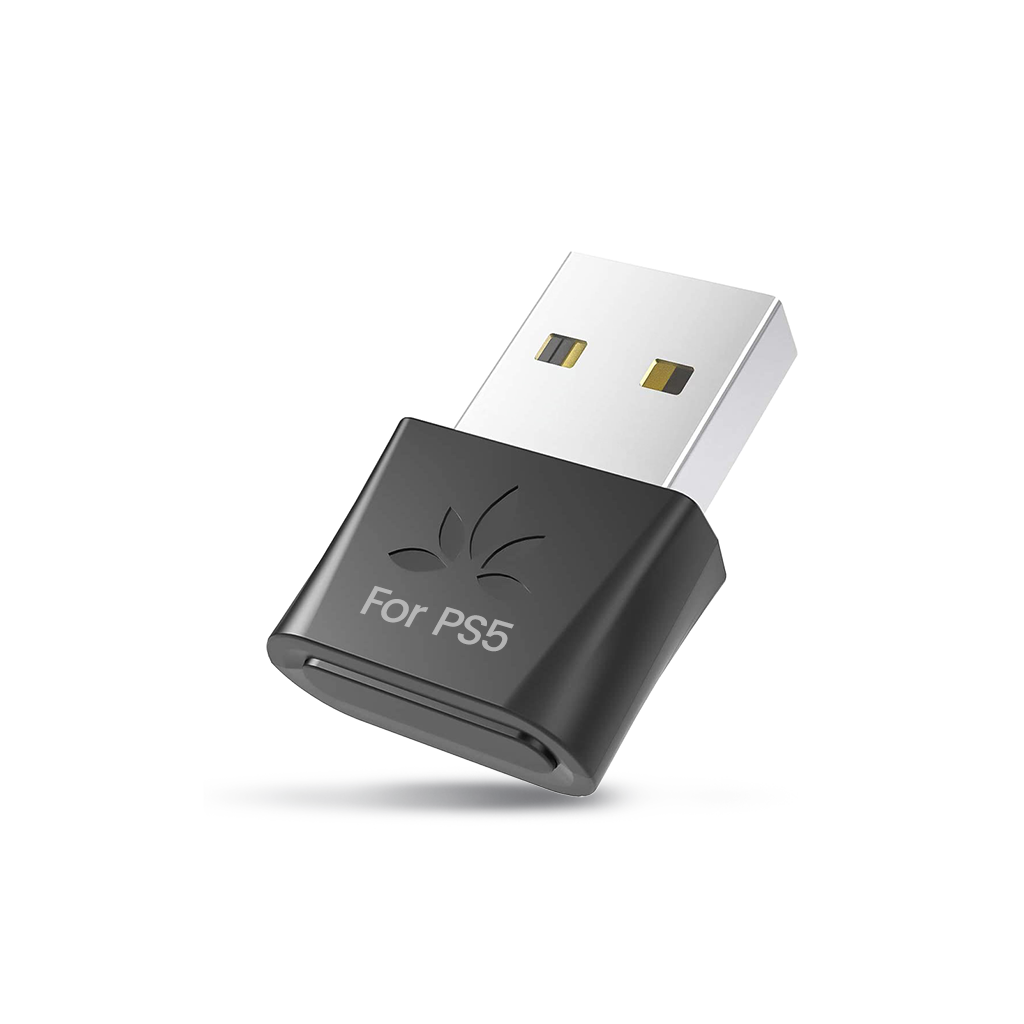
DG80-Gaming Bluetooth 5.3 USB Adapter for PS5, low-latency aptX Adaptive wireless audio transmitter for Bluetooth headphones and earbuds.
DG80-Gaming Bluetooth 5.3 USB Adapter for PS5, designed for PS5 only, not compatible with PCs, laptops, printers, mouse, keyboards, or controllers.
DG80-Gaming Bluetooth 5.3 USB Adapter for PS5, aptX Low Latency and aptX Adaptive support for synchronized audio with no delay.
DG80-Gaming Bluetooth 5.3 USB Adapter for PS5. Supports aptX Adaptive for stable connections and efficient energy consumption.
DG80-Gaming Bluetooth 5.3 USB Adapter for PS5, High definition audio with 24-bit dynamic audio; not compatible with Pulse 3D or 2.4GHz headsets.
DG80-Gaming Bluetooth 5.3 USB Adapter for PS5, extended wireless range up to 100 ft (30 m) for flexible listening.

DG80-Gaming | Bluetooth 5.3 USB Adapter for PS5

USB Bluetooth 5.3 Adapter for PS5 & Gaming Consoles with Low Latency & aptX-Adaptive, Wireless Audio Dongle Transmitter for Headphones & Earbuds

Sale price $23.99 Regular price $29.99
Save $6.00
Subtotal: $23.99
  • 2-Year Warranty
  • 60-Day Returns
  • Bulk Discounts
  • Fast Shipping
Price $23.99
  • Bluetooth Version: v5.3
  • Supported Audio Codecs: aptX-HD, aptX-Adaptive, aptX-LL, aptX, SBC
  • Supported Bluetooth Profiles: A2DP, AVRCP, HSP, HFP
  • Operating Range: Up to 100ft / 30m
  • Frequency Range: 2.4GHz - 2.48GHz
  • Size: 14mm x 26mm x 7mm
  • Jack Type: Type A

• SKU: BTDG-80-G1
• Package Dimensions: 12.5 × 8.8 × 1.5 cm
• Packaged Weight: 0.037 kg
• Net Weight: 0.003 kg
• Carton Dimensions: 41 × 28.5 × 27 cm
• Carton Gross Weight: 6 kg
• Units per Carton: 150

  • DG80-Gaming Adapter
Setup & Support
DG80-Gaming Bluetooth 5.3 USB Adapter for PS5, low-latency aptX Adaptive wireless audio transmitter for Bluetooth headphones and earbuds.

DG80-Gaming | Bluetooth 5.3 USB Adapter for PS5

$29.99 $23.99

DG80-Gaming | Bluetooth 5.3 USB Adapter for PS5

$29.99 $23.99

Easy Setup

Plug & Pair

Plug the DG80-Gaming into your console’s USB-A port. Put your headphones into pairing mode and they will automatically connect to the adapter.

Switch Output

In your console’s settings menu, go to “Sound” and set the “Avantree DG80G” as the output device.

Switch Input

For best audio results, set the input device to “Microphone on Controller.” Using your headphones’ mic will degrade background audio quality.

Play

Sit back, relax, and enjoy!

Be The First