English

Interactive User Guide · Ensemble / HT5150

Hear your TV clearly—in four simple steps.

Connect the base to your TV, turn on the pre-paired headphones, and listen.

First use: charge the headphones for about 2 hours. You can connect the TV while they charge.

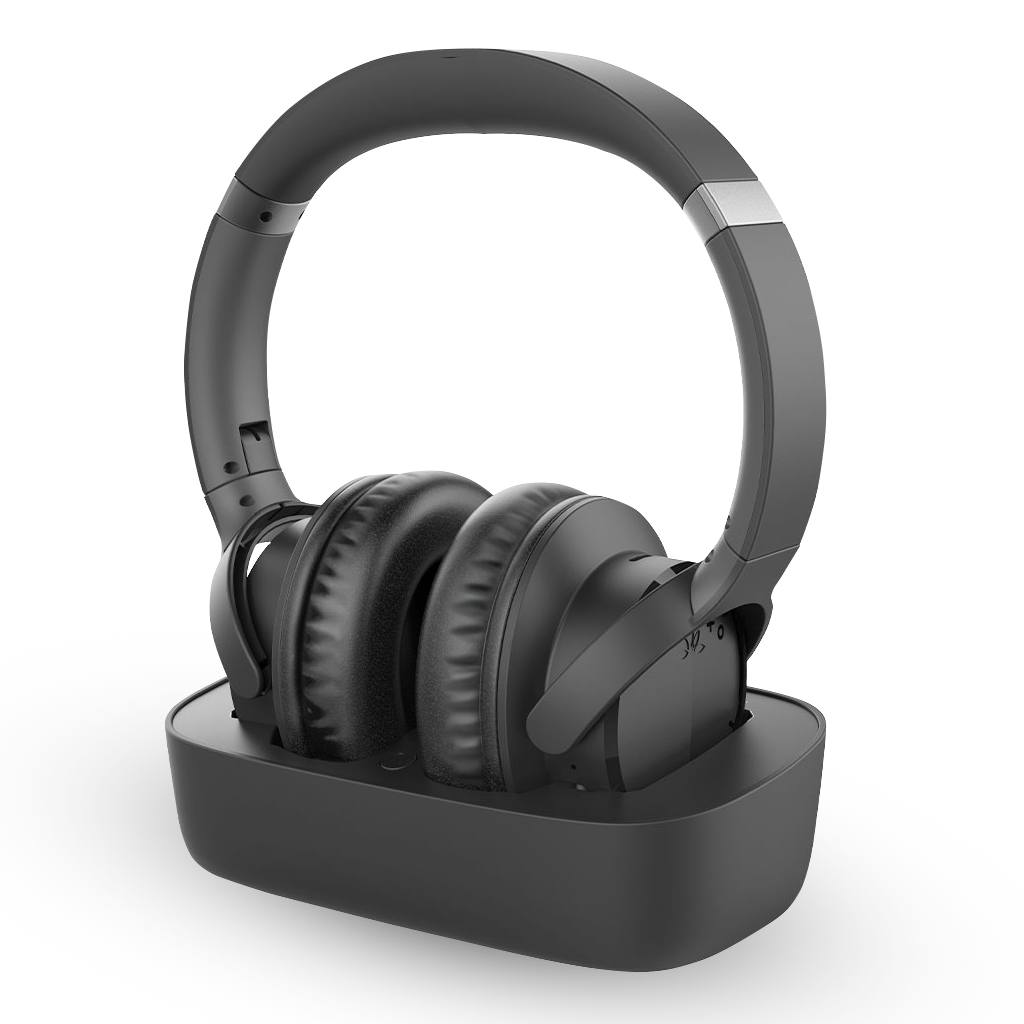
Ensemble headphones resting on the transmitter and charging baseHeadphones + transmitterOptical or AUX audio

Before you connect anything

The base sends your TV sound to the headphones.

Your TVOPTICAL OUT or HEADPHONES / AUDIO OUT
Ensemble baseConnect one audio cable
Ensemble headphonesAlready paired with the base

Do not open the TV Bluetooth menu. Connect the base to one TV audio output with a cable.

Quick setup

Four steps. One clear result.

Follow each step in order. We show what to do, what to look for, and how to fix it.

Step 1

Power the base

  1. Connect the supplied USB power cable to the base.
  2. Connect the other end to a known-working 5 V USB power source.
  3. Check that the base power light turns on.
Watch: power up the base
First use or headphones will not turn on?

Place the headphones on the charging contacts. A full charge takes about 2 hours, but you can continue setup while they charge.

Watch: charge the headphones
No light on the base? Reseat the USB cable at both ends and try a known-working 5 V USB power source.

Step 2

Choose one TV audio output.

Look at the back or side of your TV. Match the printed socket label first, then pick the cable shown.

Use only one audio cable. Optical is recommended when available. A TV without a headphone jack will often have a square OPTICAL / DIGITAL AUDIO OUT.

Which socket label do you see?

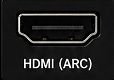
Tap Optical or AUX to see exactly where each cable end plugs in. If the TV has only HDMI ARC, use the HAX06 option.

Connect with Optical

Use the purple cable selected above.

  1. Remove the clear protective caps from both square ends.
  2. Plug one end into the TV's OPTICAL / DIGITAL AUDIO OUT.
  3. Plug the other end into the Ensemble base's OPTICAL input.
  4. Make sure both plugs are fully seated.
TV
OPTICAL OUT
ENSEMBLE BASE
OPTICAL
Watch: Optical connection

Connect with AUX / 3.5 mm

Use the blue cable selected above.

  1. Plug one end into the TV's HEADPHONES / AUDIO OUT.
  2. Plug the other end into the Ensemble base's AUX input.
  3. Push both round plugs in fully.
TV
HEADPHONES / AUDIO OUT
ENSEMBLE BASE
AUX
Watch: AUX connection
Using an HDMI ARC-only TV with HAX06
  1. Connect the TV's HDMI ARC / eARC port to HAX06.
  2. Connect HAX06 OPTICAL OUT to the Ensemble base's OPTICAL input.
  3. Turn off eARC if enabled, then set the TV audio format to PCM.
View HAX06 adapter →

Step 3

Set the TV to the output you chose.

If you connected Optical, two TV settings must be correct. The exact menu names vary by brand.

Set TV audio

Used Optical? Complete both settings below.

  1. Set Sound Output to Optical, External Speaker, or Audio System.
  2. Set Digital Audio Format to PCM or Stereo.
  3. Play a TV show with speaking voices.
Important for Optical:The TV digital audio format must be PCM. Dolby or DTS can produce silence.
Choose your TV brand for PCM steps
Used the blue Headphone/AUX cable? Turn the TV volume up to a normal level. Depending on the TV, its speakers may stay on or mute automatically.

Step 4

Turn on the headphones and listen.

The headphones and base are paired at the factory. Normally, you do not need to pair them during first setup.

Success: the connection light is solid blue and TV sound plays in the headphones.

Finish setup

  1. Take the headphones off the base.
  2. Turn on the base and the headphones.
  3. Wait a few seconds for the connection light to become solid blue.
  4. Put the headphones on and adjust volume gradually.
Light flashes red + blue? The headphones are in pairing mode. Keep the base and headphones close, then use “Can't pair” below if they do not reconnect.

Daily use

Charge the headphones.

Charge on the powered base, or connect a USB-C cable directly to the headphones.

Power & charging

About 2 hours for a full charge.

  1. Use the powered base or a USB-C cable connected to a 5 V, 1–2.4 A power source.
  2. When using the base, align the headphones with the charging pins.
  3. The headphone LED stays solid red while charging and turns off when fully charged.

Not charging? Place the headphones back on the charging pins, or reseat the USB-C cable and confirm the power source works.

Watch: charge the headphones

Quick fixes

What do you see?

Tap the light or sound that matches your problem.

Can't pair or connect
  1. Turn off Bluetooth on nearby phones, tablets, and computers so they cannot take the headphones.
  2. Keep the headphones within 3 ft / 1 m of the base.
  3. Turn both off, then turn on the base followed by the headphones.
  4. If the headphones announce “pairing” or flash red + blue, keep them close and wait up to 30 seconds.

Expected: solid blue means connected. If not, open the official Ensemble troubleshooting page for re-pair/reset instructions.

🔇Solid blue, but no sound
  1. Confirm the cable is in a TV OUT socket—not an input.
  2. For optical, set the TV output to Optical/External Speaker and format to PCM.
  3. For AUX, raise the TV volume, then raise headphone volume.
  4. Try another TV channel or app to rule out a silent source.

Expected: dialogue plays without changing the Bluetooth settings on the TV.

No light on the base
  1. Disconnect and firmly reconnect the USB power cable.
  2. Try a different 5 V USB wall adapter or powered USB port.
  3. Turn the base off and on once.

If the base still shows no light with a known-working power source, submit a support ticket.

Blue light is flashing
  1. A flashing blue connection light means the devices are not fully connected yet.
  2. Keep the base and headphones close and confirm both are on.
  3. Turn off nearby Bluetooth devices, then restart the base and headphones.

Expected: the blue light becomes solid.

TVUse TV Bluetooth directly
  1. Turn off the Ensemble base so the headphones do not reconnect to it.
  2. Put the headphones in pairing mode; their light flashes red + blue.
  3. Open the TV Bluetooth device list and select Ensemble.

Direct TV Bluetooth is optional and may have more delay than using the supplied base. A TV without Bluetooth should use the base and an audio cable.

TV speakers and headphones together
  • Some TVs can play internal speakers and optical output at the same time; enable a setting such as “TV Speaker + Optical”.
  • Some TVs mute speakers when a 3.5 mm headphone cable is inserted.
  • If simultaneous output is unavailable, check the TV manual or use a compatible external audio solution.

The exact option depends on the TV model, not the Ensemble headphones.

🔋Headphones will not charge
  1. Confirm the base has USB power.
  2. Place the headphones squarely on the charging contacts.
  3. Wipe the contacts gently with a clean, dry cloth and reseat them.
  4. Allow about 2 hours for a full charge.
?Still not working
  • Note the TV brand/model, connection used, and exact light pattern.
  • Take a clear photo of the TV socket and base connections.
  • Use the recommended Ensemble support ticket below so the product team can diagnose it.

Video guide

Watch the complete setup video.

What came in the box?

Check each included part before setup.

Ensemble headphones and charging transmitter baseHeadphones + charging base
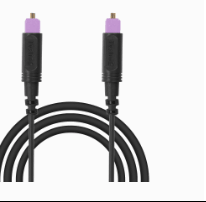
Purple square-ended Optical cableOptical cable
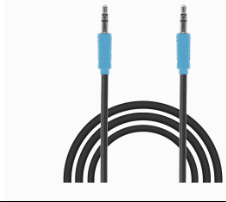
Blue round-ended 3.5 millimeter AUX cableAUX cable
USB power cable

Use only one audio cable: Optical or AUX.

View product details →

Reference

Connections, lights, and useful links.

Quick reference

Recommended TV link
Optical or 3.5 mm AUX cable to the Ensemble base
Factory pairing
Headphones and base are pre-paired
Solid blue
Connected and ready to play sound
Red + blue flashing
Headphones are in pairing mode
Charge time
About 2 hours for a full charge
Playtime
Up to 35 hours; actual time varies with use
TV digital format
PCM / Stereo for optical audio

STILL NEED HELP?

Get the right help for Ensemble.

For the fastest answer, start with a support ticket. Choose Ensemble / HT5150 and include your TV model, connection, light pattern, and photos.

Was this helpful?

Thanks for your feedback!