
Skip to guide
PL

Interactive user guide

Medley Pebble 2 Setup Guide

TV earphone setup

Connect the transmitter to your TV via Optical or AUX, then listen with the included earphones.

TV audio setup

Connect the transmitter to your TV, then listen with the earphones.

TV
6126R transmitterTransmitter
6126R earphonesEarphones
Optical · AUXOpen-ear · Auracast Medley Pebble 2 open-ear earphones and transmitter charging dock

Recommended kit setup

Set up with the transmitter

1

Choose your TV audio OUT

TASKChoose the first available output below.

  1. TV Optical Digital Audio Out port
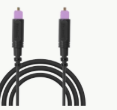
    Optical cable with purple tips
    Optical cable
    Included
    RecommendedUse Optical

    Some TVs support TV speakers + earphones. Enable both in TV sound settings.

  2. TV Headphones or Audio Out port
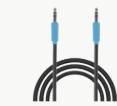
    AUX cable with blue ends
    AUX cable
    Included
    If no OpticalUse AUX
  3. TV HDMI ARC port
    Only HDMI ARC / eARC?

    HAX06 HDMI ARC-to-Optical adapter required.
    Sold separately.

    View HAX06

Use AUDIO OUT, not AUDIO IN. For HAX06, use the TV’s HDMI ARC/eARC port. If using eARC, turn eARC off in TV settings.

DONE

The matching TV port and cable are selected.

IF NOTPhotograph all TV ports and the TV model label, then contact Support

2

Connect Medley Pebble 2 to TV

TASKConnect the cable selected in Step 1.

Power the transmitter

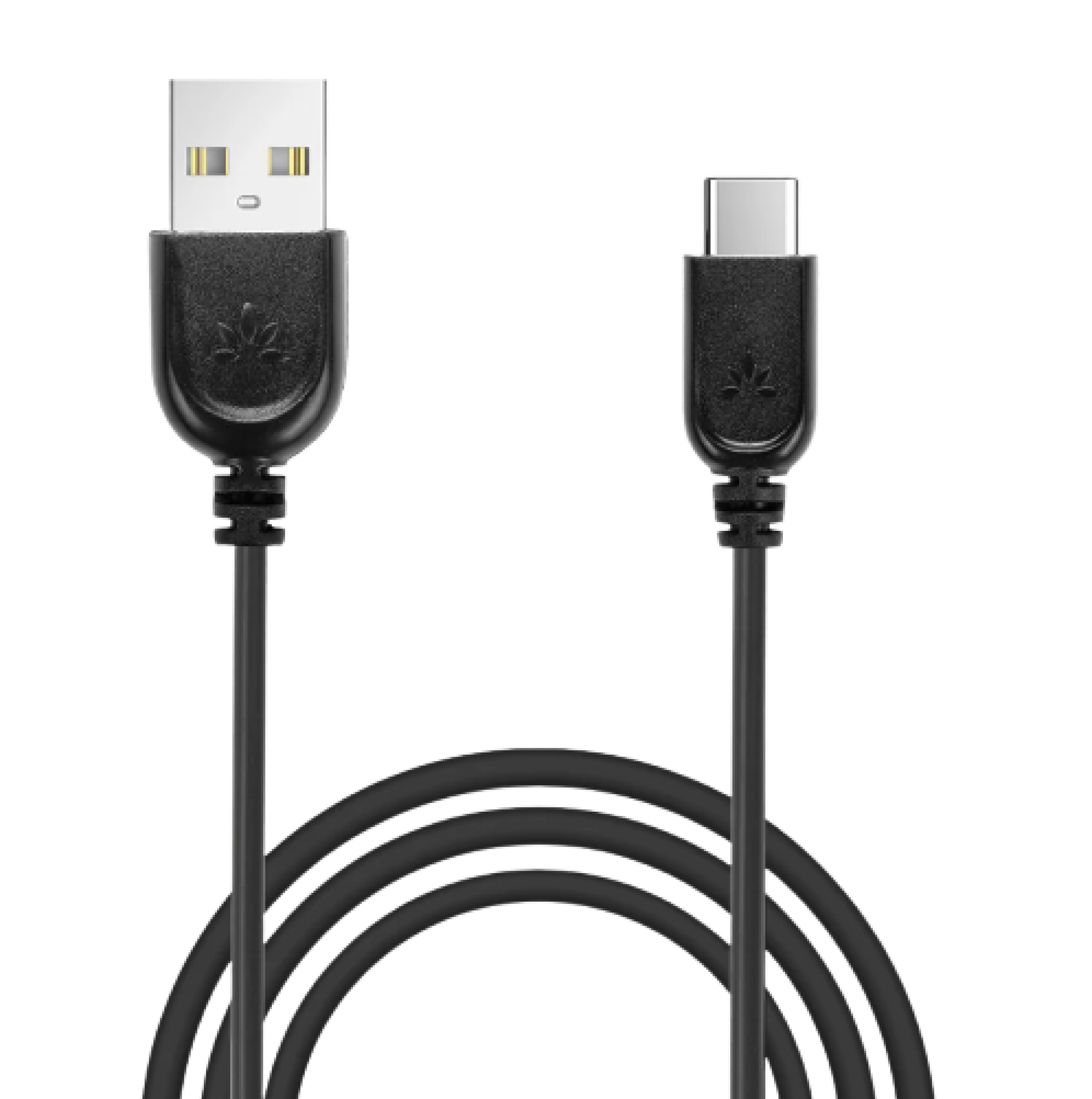
USB-A to USB-C power cable
Use the included USB-C power cable.
  1. Connect USB-C to the transmitter.
  2. Connect USB-A to a 5 V, 1–2.4 A power source.
  3. Slide the power switch to ON.

Connect Optical

150CMConnect Optical
  1. Remove the clear protective caps from both cable ends.
  2. Connect TV OPTICAL OUT / DIGITAL AUDIO OUT to transmitter OPT IN.

Connect AUX

150CMOr connect AUX
  1. Connect TV HEADPHONES / AUDIO OUT to transmitter AUX IN.
  2. Raise the TV volume to a normal level.
DONE

The transmitter is switched on and both ends of the audio cable are fully inserted.

IF NOTCheck power, make sure the switch is ON, and reseat both cable plugs.

3

Optical TV settings

Use your TV remote

Open Settings → Sound

  1. Sound OutputOptical / External Speaker / Audio System
  2. Digital Audio Format

    Use: PCM or Stereo

    Do not use: Dolby, DTS, Auto, or Bitstream
    These may produce silence.

    See how to set PCM

    Why PCM? PCM is an audio format the transmitter supports.

    Choose your TV brand:

  3. Play audioPlay a program with speaking voices.
TV speakers + earphones?Check TV compatibility and steps
DONE

The transmitter Audio Input light is solid white while TV audio plays.

IF NOT

Recheck the TV Sound Output and audio format before continuing.

4

Listen with earphones

Listen with hearing aids

  1. Remove both earphones from the transmitter and keep them nearby.
  2. When connected, the earphone LEDs turn solid orange for about 3 seconds, then turn off.
  3. Put on the earphones and slowly raise the volume to a comfortable level.
DONE

You can hear TV audio through both earphones.

Listen with hearing aids

Use the Medley Pebble 2 TV broadcast with compatible hearing aids or a receiver.

Before you start: Complete Steps 1–3, then keep the transmitter on and TV audio playing.

  1. Check hearing-aid mode

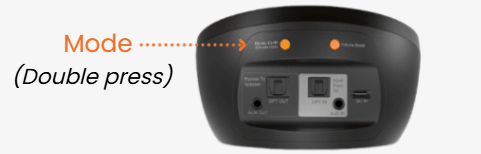
    The transmitter Mode light should be white.

    Not white? Double-press the transmitter MODE button.

    Double-press the transmitter MODE button when the Mode light is not white
  2. Open the hearing-aid Auracast guide

    Choose your hearing-aid brand and type, then follow the matching instructions to join the Medley Pebble 2 broadcast.

    Open hearing-aid guide
DONE

TV audio plays through your hearing aids.

IF NOT
Confirm the transmitter Audio Input light is solid white, then follow the selected hearing-aid guide.

Adjust volume

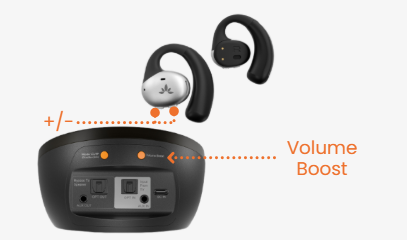
  1. Press + or −

    Use either earphone. The change applies to both.

  2. Adjust TV volume

    Optical: volume may be fixed.
    AUX: raise the TV volume if needed.

  3. Still too low?

    Optical only: after maximizing the other volume controls, press Volume Boost once.

Medley Pebble 2 earphone volume buttons and transmitter Volume Boost control
Still too quiet? See volume fixes

Fix the common problems

No sound Low volume
Reconnect earphones to transmitter
  1. Transmitter: Hold the MODE button for 2 seconds. The Mode light flashes orange rapidly.                                          
  2. Earphones: Hold Volume − for 5 seconds on either earphone. The LED flashes orange rapidly. Keep both earphones close to the transmitter.                                    
DONE

The earphone LED turns solid orange for 3 seconds, then turns off.

More ways to use

Use earphones with a phone/PC

Connect the earphones directly—do not pair the transmitter.

  1. Turn the transmitter OFF

  2. Start Bluetooth pairing

    Remove both earphones from the transmitter. The LEDs flash red and blue.

    If not, hold Volume + on either earphone for 5 seconds.

  3. Select Medley Pebble 2

    Open Bluetooth settings on your phone or PC and select Medley Pebble 2.

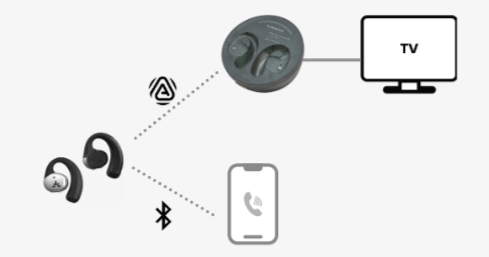
Dual mode: TV + phone calls

Stay connected to your phone while listening to TV audio.

Earphones connected to the TV transmitter by Auracast and to a phone by Bluetooth

Incoming call?

TV audio pauses automatically.
It resumes when the call ends.

Set up dual mode

  1. Pair the earphones with your phone.
    Turn the transmitter OFF and remove both earphones. If the LEDs don’t flash red and blue, hold Volume + on either earphone for 5 seconds. Select Medley Pebble 2 in your phone’s Bluetooth settings.
  2. Turn the transmitter back ON.
    The earphones reconnect to TV audio and stay linked to your phone.

Add more earphones

For additional Pebble Aura earphones.

  1. Pair the transmitter

    Hold the MODE button for 2 seconds. The Mode light flashes orange rapidly.

  2. Pair the earphones

    On either earphone, hold Volume − for 5 seconds. The LED flashes orange rapidly. Keep them close.

  3. Confirm connection

    Transmitter: solid orange.
    Earphone: solid orange for 3 seconds, then off.

Use a soundbar and earphones together

TV Optical OUT connects to transmitter OPT IN; transmitter OPT OUT connects to the soundbar. The earphones receive audio via Auracast.
OPT IN → OPT OUT, or AUX IN → AUX OUT.
  1. Get earphone sound with Optical or AUX.
  2. Connect the matching OUT to the soundbar.
  3. Select that input on the soundbar.

HDMI ARC soundbar? Use the HAX06 extractor

Earphone volume buttons and transmitter Volume Boost control