HAX06 · Interactive User Guide

Get TV sound
where you need it.

Connect headphones, a hearing-aid transmitter, or a soundbar to your TV’s HDMI ARC port.

TV ARC only · No built-in Bluetooth · Turn eARC off

Avantree HAX06 HDMI ARC audio extractor

Setup

Choose how you want to listen

Start with the devices you want to hear. You can change your choice at any time.

Fix a problem

What is happening?

Try the matching checks, then play the same programme again.

No sound from any connected device
  1. Check that the power light is solid red and that the TV’s ARC/eARC port connects to HAX06 HDMI ARC IN.
  2. Enable TV ARC and HDMI-CEC, turn eARC off, and choose HDMI ARC/receiver as the TV sound output.
  3. Set TV digital audio to PCM. Set a connected streaming device or set-top box to PCM/stereo too.
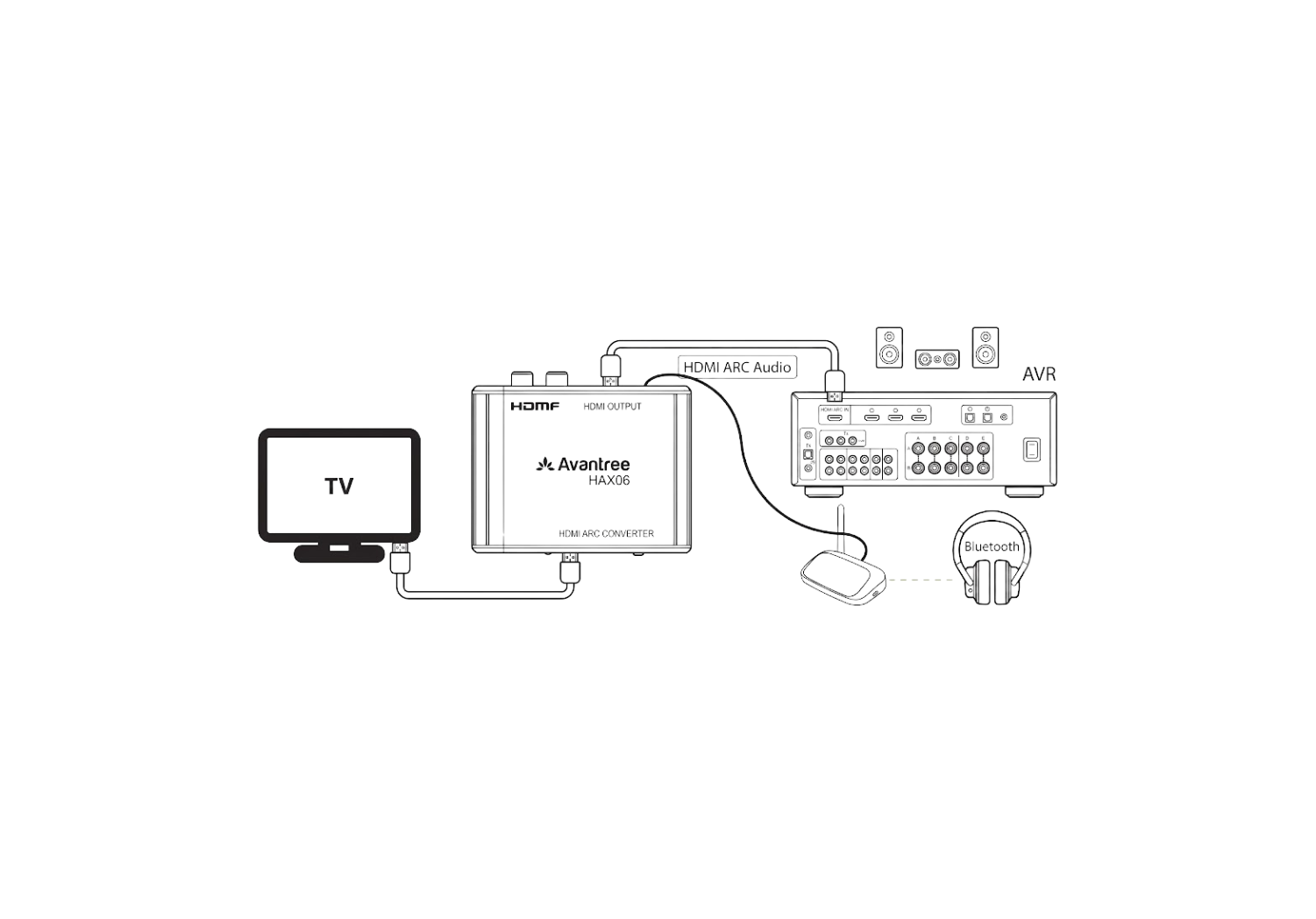
  4. Use Bypass OFF for Optical/analog only, or ON for an HDMI ARC soundbar/receiver. With ON, check for a solid green Bypass light.
  5. Select the correct input on the listening device and raise its volume. Restart the TV and HAX06, reconnect HDMI, and try a known-good HDMI 2.0 or newer cable if needed.

Check: play a built-in TV app or TV channel first. If that works but a set-top box does not, use the source-device checks below.

Still silent? Contact Support
Soundbar works, but headphones / Optical / RCA / AUX are silent
  1. Set the TV and any source device to PCM/stereo. Dolby, DTS, or Bitstream can leave the extracted outputs silent.
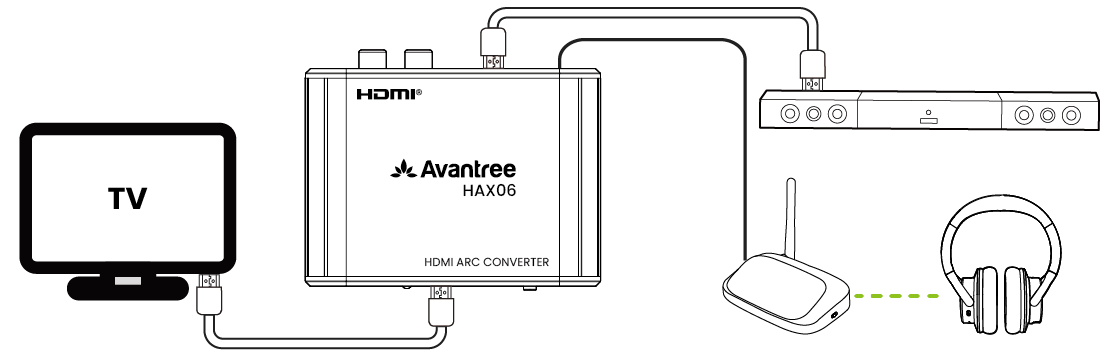
  2. Keep Bypass ON if the soundbar must also play. Verify HAX06 audio OUT is connected to your transmitter’s audio IN.
  3. Select the matching input on the transmitter/base. Make sure the headphones or hearing aids are connected to that transmitter and its volume is up.

Check: both devices play the programme. If only the transmitter remains silent, try it with another supported source to isolate the connection.

Still only one device playing?
Headphones work, but the soundbar is silent
  1. Set Bypass ON and check for a solid green light.
  2. Connect HAX06 HDMI ARC OUT to the soundbar’s ARC port and select TV/ARC on the soundbar.
  3. Enable CEC on the TV and soundbar, turn TV eARC off, and keep PCM selected for simultaneous listening.

Check: both the soundbar and headphones play audio. If the soundbar has no ARC port, use a supported Optical/analog route instead.

Soundbar still silent?
TV apps work, but my set-top box or streaming device does not
  1. Connect the source device to a normal HDMI input on the TV, not to HAX06 or the AV receiver.
  2. Keep the TV ARC/eARC port connected to HAX06 HDMI ARC IN.
  3. Select the source’s HDMI input on the TV. Set source audio to PCM/stereo and keep TV digital audio on PCM with eARC off.

Check: play content on that source, then compare it with the working TV app. If only the source is silent, send Support its model and audio-menu photos.

Get help with my source device
I want headphones only, or my TV speakers stopped playing

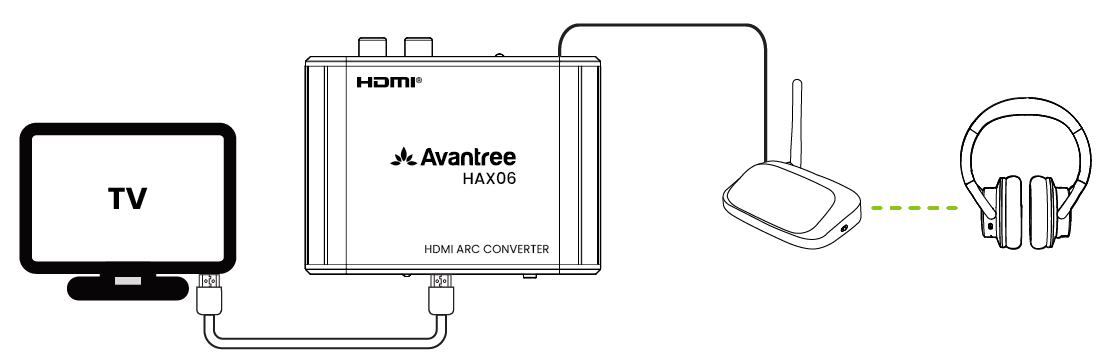
For private listening through a transmitter, set Bypass OFF. This disables the HDMI ARC passthrough path. The TV’s own speakers may mute automatically when ARC is selected.

HAX06 cannot force a TV to keep its internal speakers on. For shared listening with an external HDMI ARC soundbar, use Bypass ON + PCM.

Check: sound comes from the devices you want to use.

Change my listening setup
My TV remote cannot change headphone volume

CEC volume control travels through HDMI only. It does not control Optical or RCA output volume. Adjust volume on the headphones, transmitter, or connected audio system.

For HDMI ARC soundbar volume, enable CEC on both the TV and soundbar.

Check: the appropriate device’s volume control changes the listening level.

My connected device has no volume control
Will my hearing aids, wireless speakers, or audio system work?

HAX06 is a wired TV audio extractor. It has no Bluetooth pairing function and does not broadcast directly to hearing aids or wireless speakers.

  • Hearing aids: use their compatible transmitter with an Optical or analog input. Confirm the exact hearing-aid and transmitter models with their manufacturer.
  • Soundbar + transmitter: soundbar on HAX06 HDMI ARC OUT; transmitter on Optical/RCA OUT; Bypass ON; TV eARC OFF and PCM stereo.
  • Wireless furniture/speakers: a separate compatible transmitter/receiver system is needed. HAX06 does not link a wired surround system directly to wireless speakers.
  • No TV ARC port, or eARC cannot be disabled: this HAX06 setup is not suitable. Ask Support about a connection that matches your equipment.

For a specific Samsung/Phonak/Polk or TCL/LG combination, provide the exact model numbers and photos of the ports. Brand names alone do not establish compatibility.

Check my exact equipment with Support
Surround sound is missing, or the two devices sound out of sync

Simultaneous HDMI and extracted Optical/analog listening uses PCM stereo. To use supported 5.1 on an ARC soundbar, use the HDMI path alone and choose a format supported by the TV and soundbar.

HAX06 does not pair wireless devices or provide a wireless-delay adjustment. If you hear echo between headphones and a soundbar, check the transmitter/headphones and TV/soundbar audio-delay settings.

Check: listen to dialogue again. If timing still differs, send Support the complete device chain and tell them which output is late.

Get help with surround or timing

Reference

Ports, lights, and useful links

At a glance

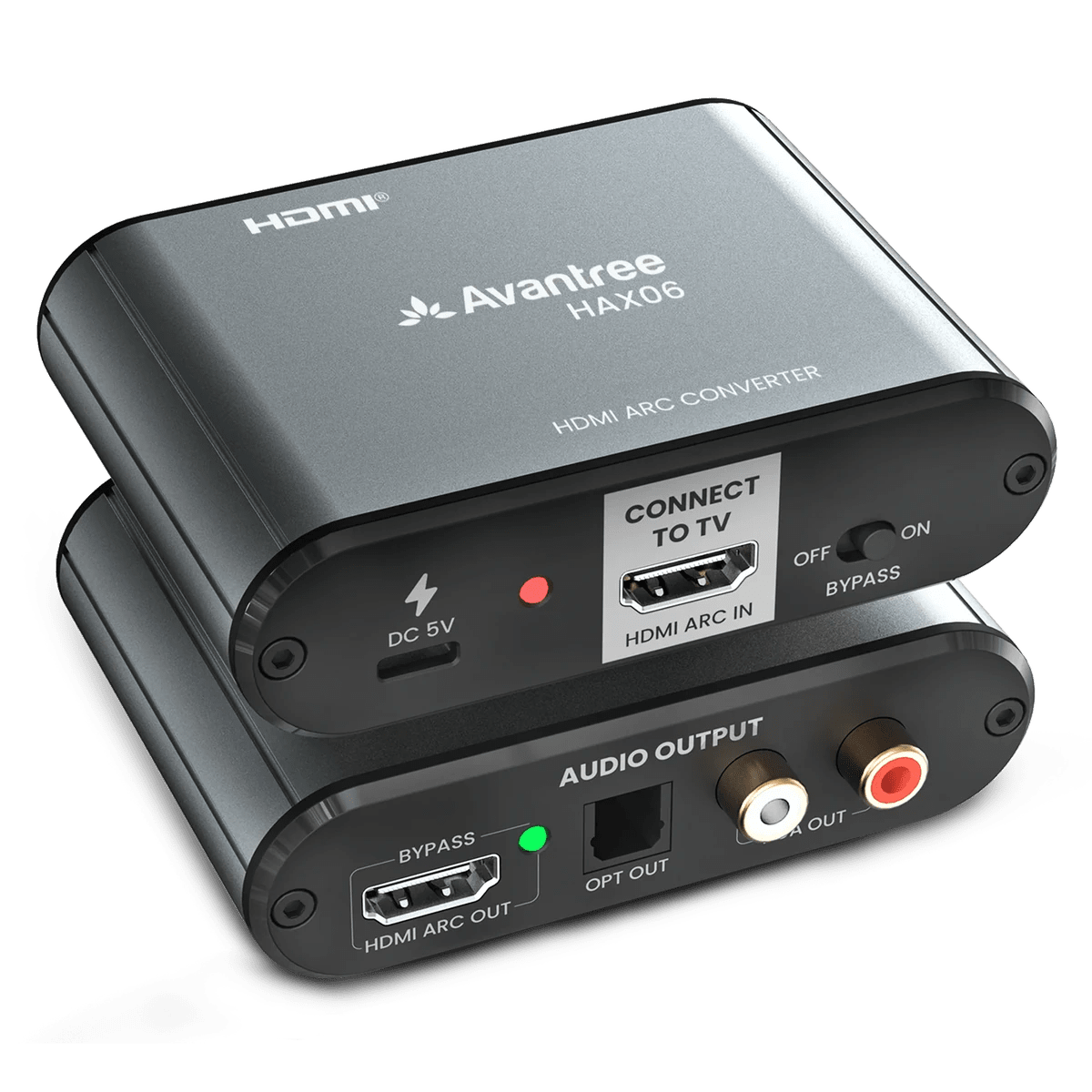
HDMI ARC IN
From the TV’s ARC/eARC port; eARC must be off.
HDMI ARC OUT
To an ARC soundbar or compatible ARC receiver.
Optical / RCA / 3.5 mm OUT
To a compatible audio input; use PCM stereo.
Power light: solid red
HAX06 has power.
Bypass light: solid green
HDMI ARC bypass is enabled.
Bypass OFF / ON
OFF: extracted audio only. ON: also enables HDMI ARC passthrough.

Official HAX06 resources

Still need help?

Get help with HAX06.

Send us your issue

A support agent will reply. Include your TV and audio-device models, the symptom, your Bypass/PCM/eARC settings, and the checks you have tried.

Submit a ticket →
Prepare a support summary

This summary stays on this page until you copy or send it yourself. Guide feedback does not open a support ticket.