Skip to guide
PDF Guide
PL

Interactive user guide

Ensemble Pro Setup Guide

Connect by Optical or AUX, then listen through the included wireless headphones.

TransmitterHeadphones
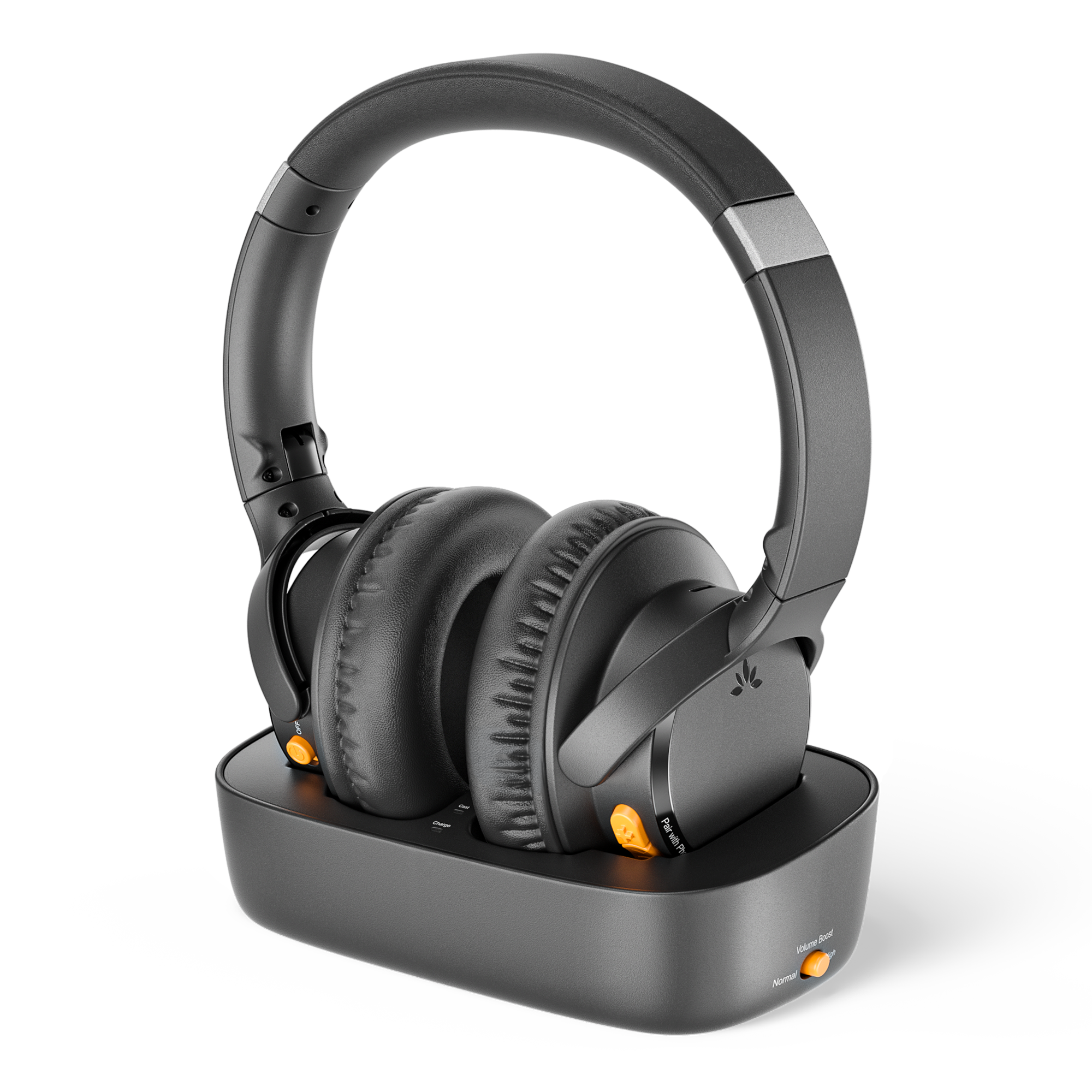
Ensemble Pro headphones on the transmitter charging dockOptical · AUXMulti-headphone · up to 35 hours

Set up with the transmitter

Step 1 of 4 · Cable

Connect your TV

Find an audio OUT port on your TV, then choose one cable below.

HDMI ARC portOnly HDMI ARC / eARC?Use HAX06 Converter
Not sure? Take a photo of your TV ports.Get help →

Connect the audio cable

Choose Optical or AUX above to see the connection steps.

  1. Remove the clear caps from both square ends.
  2. TV: plug into OPTICAL / DIGITAL AUDIO OUT.
  3. Transmitter: plug into OPTICAL.
✓
Ready: both square plugs are fully inserted.

Next: power on the devices →

  1. TV: plug into HEADPHONES / AUDIO OUT.
  2. Transmitter: plug into AUX.
✓
Ready: both plugs are fully inserted.

Next: power on the devices →

Step 2 of 4 · Power

Power on the transmitter and headphones

  1. Connect the supplied USB power cable to the transmitter and a working 5 V USB power source.
  2. Turn on the transmitter and headphones. Slide both ON/OFF switches to ON. Keep them close together.
    Wait until the headphone connection light is solid orange.

Headphone light: solid orange means the headphones are connected to the transmitter. It does not confirm that TV audio is arriving.

Connected? Set the TV audio next →
Otherwise, no sound.
No light?
Reseat both ends of the USB cable. If your TV USB port has no power, use a working 5 V USB power source.
First use or headphones will not turn on?

Slide the headband back in, then place the headphones on the powered dock. Solid red confirms charging. Once the headphones can turn on, continue setup. A full charge takes about 2 hours; you do not need to wait for a full charge.

Headphones will not connect?
Red + blue flashing? Double-press ⏯, then hold it for 3 seconds. Wait for solid orange.

If the headphones still will not connect, open the connection checks →

Step 3 of 4 · TV sound

Set the audio output

Step 4 of 4 · Listen

Listen to your TV

After completing the TV sound settings:

  1. Play a TV program with speaking voices.
  2. Put on the headphones. Press + or − to adjust the headphone volume slowly.
  3. Check that you hear the TV clearly through the headphones.
Success: solid orange headphone connection light + TV sound through the headphones.
Connected but no sound? Check these two lights
  • Headphones — solid orange: connected to the transmitter.
  • Transmitter Audio Signal — solid: receiving audio from the TV/source.

Flashing is normal when the TV is off or no audio is playing. If Audio Signal flashes while a program is playing, check the audio cable and the source settings in Step 3.

Finished setup? The sections below are optional.

Adjust volume in this order

  1. TV and transmitter
    • Using AUX? Raise the TV/source volume first.
    • Need more volume? Switch Volume Boost to ON (+6 dB). If the sound becomes distorted, turn Volume Boost OFF.
  2. Headphones
    • Set volume: raise it slowly.
    • Dialogue unclear? Try Clear Voice 1 or Clear Voice 2.
      Ensemble Pro headphones. The marked round orange button is the EQ button.

      Short press the EQ button to switch between Balance, Clear Voice 1, and Clear Voice 2.

Use with a Phone or PC

Connect the headphones directly by Bluetooth.

  1. Turn off the transmitter
  2. Start pairing

    Hold Pair with Phone for 3 seconds. The LED flashes red and blue.

  3. Open Bluetooth settings

    On your phone or PC, turn on Bluetooth.

  4. Select Ensemble Pro

    Solid blue means connected.

Add More Headphones

Share TV sound via Auracast.

Add another Auracast device

Avantree device
Turn it on near the transmitter.

Other brand
Use its app to join Ensemble Pro.

Bluetooth-only headphones won't work.

Charge the headphones

Use the powered dock or a USB-C cable.

Full charge: about 2 hours.
Playtime: up to 35 hours.

Battery Low: about 40 minutes of listening time remain after the first low-battery prompt. Charge the headphones when convenient.

  • Headband: retract it before placing the headphones on the dock.
  • Base: align the headphones with the charging pins.
  • USB-C: use a 5 V, 1–2.4 A power source.
  • Light: solid red = charging; off = full.

Not charging? Reseat the headphones or USB-C cable. Check the power source.

Fix a Problem

More quick fixes