 PS5
→
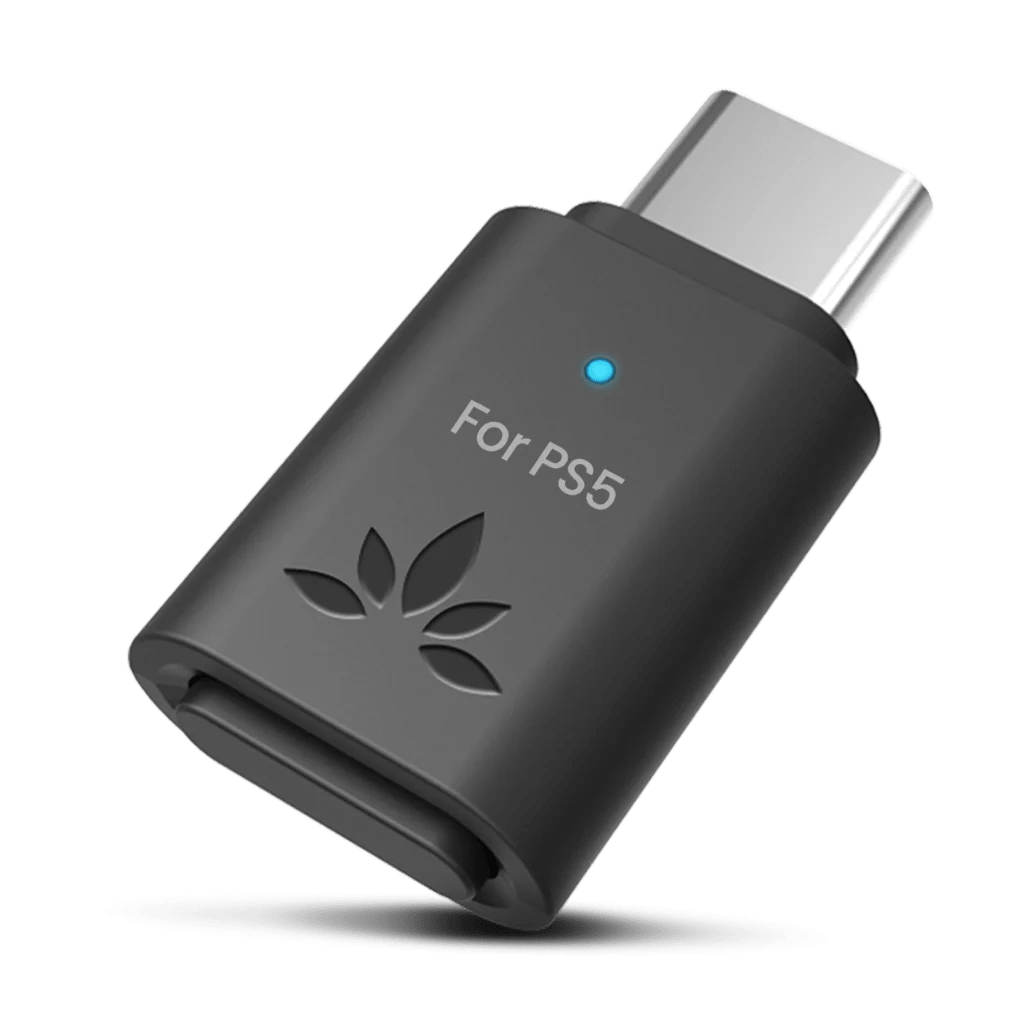 C81-Gaming
→
Play PS5 sound through your Bluetooth headphones.
Connect one Bluetooth headset or pair of earbuds at a time.
↔ Keep C81-Gaming and the headphones within 3 ft / 1 m while pairing.
1
Headphones
Put your headphones in pairing mode
- Put your headphones or earbuds into Bluetooth pairing mode.
- Look for their flashing pairing light or a “ready to connect” prompt.
Turning them on is not enough.
Headphone pairing helpChoose brand
AirPods / AirPods Pro
Check the back of your case.
There is a button
AirPods 1–3 / AirPods Pro 1–2
- Open the case with your AirPods inside.
- Hold the button on the back for about 5 seconds.

Ready when: the case light flashes white.
There is no button
AirPods 4 or 5 / AirPods Pro 3
- Open the case with your AirPods inside.
- Double-tap the front of the case.

Ready when: the case light flashes white.
AirPods Max
Press and hold the noise control button for about 5 seconds.
Ready when: the status light flashes white.
Bose
- Turn on the headphones or open the earbud case.
- Hold the Bluetooth or power button until the light flashes blue or you hear “Ready to connect.”
Ready when: the light flashes blue or the voice prompt confirms pairing.
Beats
- Turn on the headphones.
- Hold the system or power button until the indicator flashes.
Ready when: the indicator flashes for pairing.
Sony
- With the headphones off, hold the power button for about 5 seconds.
- For Sony earbuds, use the case or touch-sensor pairing command for your exact model.
Ready when: the light flashes blue or you hear “Bluetooth pairing.”
Samsung Galaxy Buds
- Place both earbuds in the case, close it for 5–6 seconds, then open it.
- If pairing does not start, wear both earbuds and touch both touchpads until you hear the pairing sound.
Ready when: the earbuds announce pairing or show their pairing pattern.
JBL
- Hold the Bluetooth or power button until the indicator flashes rapidly.
- If JBL reconnects to a phone, turn that phone Bluetooth off and try again.
Ready when: the indicator flashes rapidly.
Other headphones
- Hold the power, Bluetooth, or main button until the light flashes rapidly.
- Check the headphone manual for the exact command if the light does not change.
Ready when: the headphones show their documented pairing pattern.
Ready? Continue to Step 2 →
2
C81-Gaming
Put C81-Gaming in pairing mode
Turn on the PS5 and plug C81-Gaming into its USB port.
Use the included USB-A adapter if needed.
Blue + white flashingC81-Gaming is searching
If notNo blue + white and not connected? Hold PAIR for 2 seconds, then release. Still stuck?
3
Connect
Wait for the devices to connect
- Keep C81-Gaming and the headphones within 3 ft / 1 m.
- Wait 10–30 seconds for the light to change.
Solid blueLow-latency audio connected
Slow blinking blueStandard Bluetooth audio connected — not pairing
Low latency requires compatible headphones. Audio delay help →
If notStill blue + white after 30 seconds? Turn off Bluetooth on any phone or computer connected to your headphones. Still stuck? Check pairing →
4
PS5 audio
Choose C81-G as the PS5 output
- Open PS5 Settings → Sound → Audio Output.
- Set Output Device → C81-G (USB Headset Avantree C81-G).
- Set Output to Headphones → All Audio.
- Play game audio and adjust the PS5 and headphone volume.
“Bluetooth audio accessories not supported”? Use C81-G in Audio Output. Pair headphones with the adapter, not the PS5 Bluetooth menu.
Connected but no sound?
Unplug and reconnect C81-Gaming, or try another compatible PS5 USB port. Still no sound? Check audio output →
5
Optional · PS5 voice chat
Use the controller microphone
Only need game audio? Skip this step.
- On PS5, open Settings → Sound → Microphone.
- Set Input Device to Microphone on Controller.
The headphone mic is not used on PS5. Unmute the controller mic and check the input before each use.
Prefer another microphone? See the official PS5 microphone options.
More ways to use C81-Gaming
Use with a computer or phone
- Plug C81-Gaming into a compatible computer or phone USB audio port.
- Put your headphones in pairing mode. Keep them within 3 ft / 1 m of C81-Gaming.
Wait up to 30 seconds. Solid or slow-blinking blue means connected.
Not connecting?
Blue + white flashing: Still searching.
Not searching and not connected? Hold adapter PAIR for 2 seconds.
No light or still no connection after one attempt? Contact Support.
- Select C81-G as audio output, then play audio.
- Windows
- Settings → System → Sound
- Mac
- System Settings → Sound
PC voice chat (optional)
Open your call app. Select C81-G as both input and output.
- 25J3 and later
- Switches automatically.
- Before 25J3
- Double-click MFB to switch audio / call mode.
Solid white: Call mode.
Check that you hear the call and your mic is received.
No call audio or microphone?
Confirm C81-G as the app’s input and output. Still not working? Contact Support.