
- Open Settings → Sound / Audio
- Choose how you want to listen
-
Set Digital Audio Format toPCM or Stereo
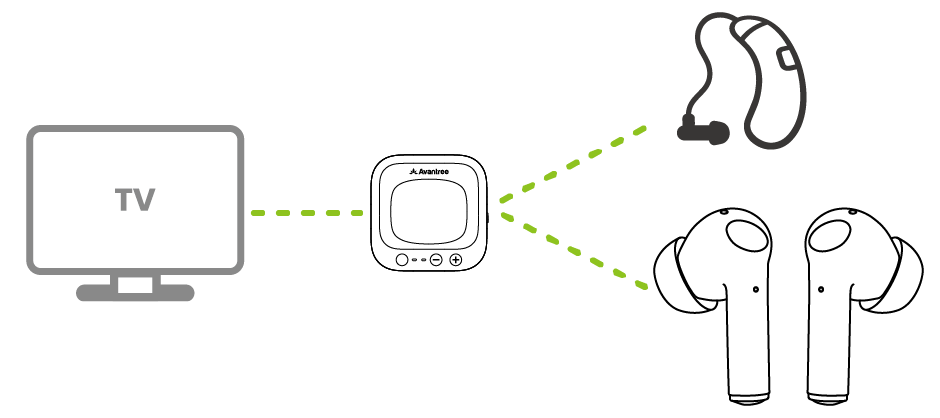
TV
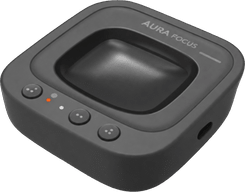 Transmitter
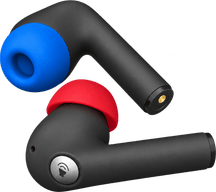 Earbuds
Use the included transmitter. The earbuds connect automatically for TV listening.
No transmitter. Requires Bluetooth audio support on your TV.
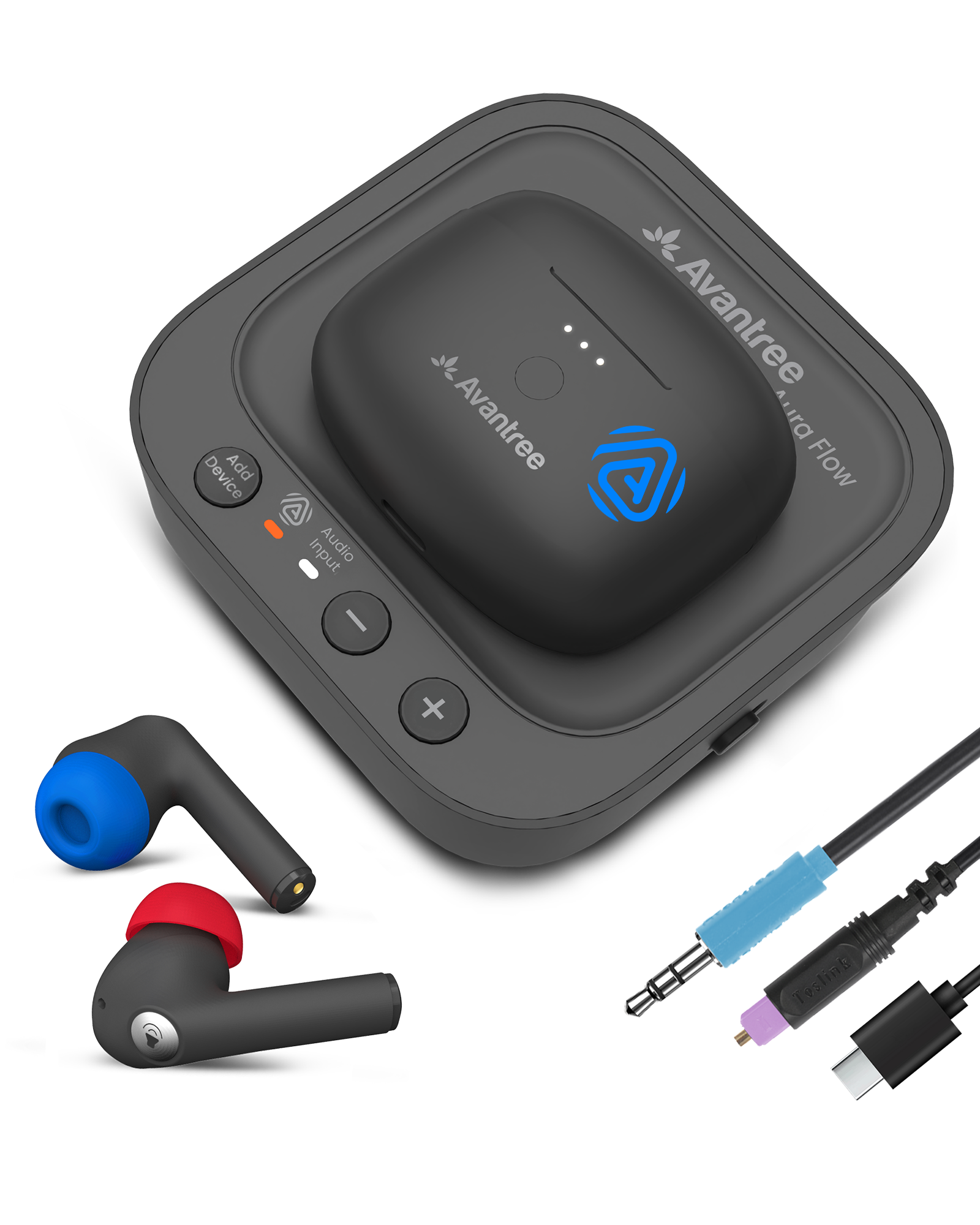 Low delaySecure in-ear fit
Recommended kit setup
Set up with the transmitter
- 1Cable
- 2Power
- 3TV sound
- 4Listen
Step 1 of 4 · Cable
Connect your TV
Check the labels beside the ports, then choose the first match below.
Not sure? Take a photo of your TV ports.
Contact Support →Connect the Optical cable
- Remove the clear protective caps from both cable ends.
- TV: plug into OPTICAL / DIGITAL AUDIO OUT.
- Transmitter: plug into OPT IN. Match the plug shape and insert gently.
✓ Ready: Both square plugs are fully inserted. Do not force them.
Connect the AUX cable
- TV: plug into HEADPHONES / AUDIO OUT, not AV IN.
- Transmitter: plug into AUX IN.
✓ Ready: Both round plugs are fully inserted. The TV may mute its speakers when you use its headphone jack.
Connect with the HAX06 adapter
Aura Focus has no HDMI input. You need a HAX06 HDMI ARC-to-Optical adapter (sold separately).
- Connect TV HDMI ARC / eARC to HAX06. Follow the HAX06 guide for its power connection.
- Connect HAX06 OPTICAL OUT to Aura Focus OPT IN.
✓ Ready: TV audio passes through HAX06 to the transmitter Optical input.
Step 2 of 4 · Power
Power the transmitter and earbuds
-
Transmitter: connect USB-C power.
Use TV USB or a 5 V USB adapter. Keep power connected. -
Earbuds: take both out of the case.
Keep them close to the transmitter. - Connect: each earbud LED turns solid blue for 1 second, then off.
✓
Connected: the earbuds have joined the transmitter. No Bluetooth pairing is needed.
Next: set the TV sound →
No light or not connected?
No transmitter light: reconnect both USB cable ends and try another USB power source.
USB power: USB-C connects to the transmitter; USB-A connects to TV USB or a 5 V / 500 mA–2 A adapter.
No earbud light: charge the earbuds, then remove both from the case.
Red and blue flashing: the earbuds are in Bluetooth mode. Turn the transmitter on, put both earbuds back in the case, then remove them together.
Step 3 of 4 · TV sound
TV sound settings
Use your TV remote.
Choose your cable in Step 1 to see the matching TV settings.
- Set Sound Output to
- Headphones / Audio Out
- TV output volume
- Raise gradually, if adjustable.
No PCM setting is needed for AUX.
- Set Sound Output to
- HDMI ARC / Receiver
- eARC
-
Off
How to turn off eARC → - Set Digital Audio Format to
- PCM or Stereo
Avoid Dolby, DTS, Auto or Bitstream.
These may cause silence.
See how to set PCM
Why PCM? PCM is an audio format the transmitter supports.
Choose your TV brand:
Next: listen to your TV →
Step 4 of 4 · Listen
Listen to your TV
-
Play TV audio. Choose a program with speaking voices.Check: the transmitter input light is solid white.
No white light? Check settings and cable → - Put on both earbuds. If they are still in the case, remove them and wait for solid blue for 1 second, then off.
- Check the sound. Confirm you hear TV speech. Raise the earbud volume slowly.
✓
Success: you hear TV sound through both earbuds.
Next: Adjust Volume →
Only one earbud has sound?
Place both earbuds fully in the case, close it for 5 seconds, then remove both together and keep them close to the transmitter.
Bluetooth TV setup
Connect the earbuds directly to a Bluetooth-enabled TV
Use this option without the Aura Focus transmitter. Bluetooth TV audio may have more delay.
Turn off the transmitter
Keep the Aura Focus transmitter off while pairing directly with the TV.
Start Bluetooth pairing
Open the charging case and hold the case button for 2 seconds until red and blue flash.
Select Aura Focus on the TV
Open the TV Bluetooth speaker or headphone list and select Aura Focus.
Confirm the connection
Solid blue means the Bluetooth connection is ready. Start TV playback and raise the TV volume if needed.
Expected: TV sound plays through both earbuds.
Next: Adjust Volume →Want lower-delay TV sound and Volume Boost?
Adjust volume
Adjust Volume
Tap once, then pause briefly before tapping again.

On the earbuds
- Tap once on the left (blue) earbud: Volume −
- Tap once on the right (red) earbud: Volume +
On the transmitter
- Use the + / − buttons.
On your TV (if available)
- Optical: TV volume may be fixed.
- AUX: use the TV remote.
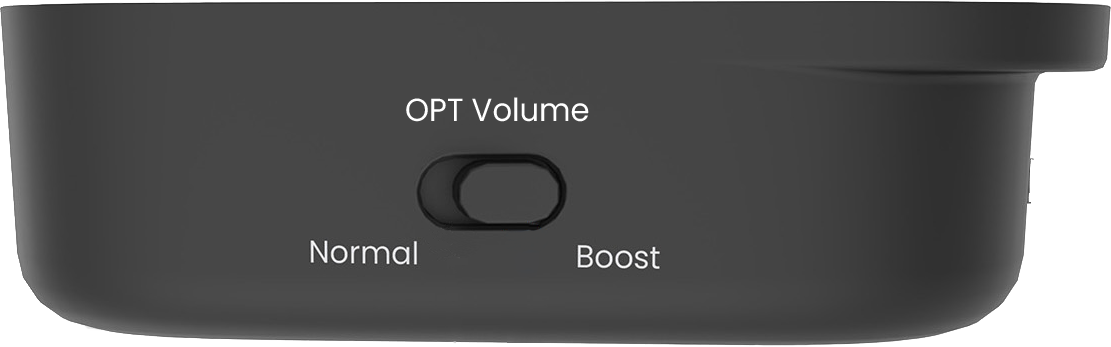
Volume too low with Optical
- Switch OPT Volume from Normal to Boost.
Phone + TV
Dual Mode: never miss a call
Stay connected to your phone while listening to TV audio.
Incoming call
TV audio pauses automatically.
It resumes when the call ends.
Set up Dual Mode
- Pair the earbuds with your phone.Turn the transmitter OFF, then follow Use with a PC / Phone.
- Turn the transmitter back ON.The earbuds reconnect to TV audio and stay linked to your phone.
Expected: TV audio plays normally. Calls take priority automatically.
Listen with earbuds
Get a secure, comfortable fit
Start with the medium ear tips. Change size only if an earbud feels loose or uncomfortable.
Insert
Place each earbud in the matching ear.
Rotate
Turn it gently until it sits securely.
Check
Shake your head lightly. If it moves, try another tip size.
Good fit: secure, comfortable, and clear sound.
Where do I tap
Tap the round silver area once: left = Volume −, right = Volume +.
Advanced · Optional
Use as Bluetooth earbuds
-
Turn off the transmitter.
-
Open the case. Hold the case button for 2 seconds. LEDs blink red & blue.
-
Turn on Bluetooth on your phone or PC. Select Aura Focus.
✓LED turns solid blue for 1 second, then off.
Advanced · Optional
Use with hearing aids
Aura Focus works with compatible Auracast-enabled hearing aids.
-
Switch to hearing-aid mode.
On the transmitter, hold Volume + and Volume − together for 3 seconds. The Auracast LED turns white. -
Join the broadcast.
Use your hearing aid app or your phone’s Auracast Assistant to find and join Aura Focus.
Daily use
Charge the earbuds
Use the powered dock or a USB-C cable.
About 2 hours for a full charge
- Use the powered dock or USB-C with a 5 V, 1–2.4 A source.
- On the dock, align the charging contacts.
- Solid red means charging; the LED turns off when full.
On the charging caseThe 3 white dots show the charging case battery level.
Not charging? Reseat the earbuds or USB-C cable and verify the power source.
Battery reference
Up to 6 hours of playtime. Actual time varies with volume, connection, and use.
More listeners
Add another Auracast receiver
Choose the instructions for your receiver. The steps below are specifically for Infinity NC.

Join Aura Focus through the Avantree–Avantalk App
First Auracast use? Complete the Infinity NC App setup and firmware update first.
- Turn on Aura Focus.The transmitter Auracast light turns orange.
- In the App, choose Aura Focus.Tap Auracast → Scan, select the Aura Focus broadcast, then save it.
- Keep Infinity NC close.Joined: its LED is solid blue for 1 second, then turns off.
Follow that receiver's own instructions
- Turn on the Aura Focus transmitter.
- Put the receiver in Auracast mode.
- Use its Auracast Assistant or companion app if its manual requires one.
- Select the Aura Focus broadcast.
Check the receiver manual for its exact buttons, LED pattern, App, and confirmation behavior.
Not compatible: classic Bluetooth-only headphones cannot join an Auracast broadcast.
Quick fixes
Match what you see
Each fix states the action, expected result, and next step.
⌁Earbuds won't join the transmitter
- Confirm the transmitter is powered on and playing TV audio.
- Place both earbuds in the charging case, close it for 5 seconds, then remove both together.
- Keep the earbuds close to the transmitter while they reconnect.
Expected: each earbud shows solid blue for 1 second, then its light turns off and TV sound plays. If not, submit a support ticket with the LED pattern.
🔇Joined, but no TV sound
- Check the cable: use TV audio OUT and connect it to transmitter OPTICAL or AUX.
- HDMI-only TV: connect HDMI ARC/eARC to HAX06, then HAX06 Optical OUT to transmitter OPT IN.
- Check the TV: Optical or HAX06 requires PCM/Stereo. AUX requires Headphones output and normal TV volume.
- Restart: turn the transmitter OFF, then ON.
Expected: the Audio Signal light is solid and dialogue plays. If it still blinks, recheck the selected TV output.
ARCTV only has HDMI ARC / eARC
- Aura Focus does not accept HDMI directly.
- Connect TV HDMI ARC/eARC to the HAX06 adapter.
- Connect HAX06 Optical OUT to transmitter Optical input.
- On the TV choose HDMI ARC/Receiver, turn eARC off if required, and select PCM/Stereo.
Expected: the Audio Signal light becomes solid. A standard HDMI cable connected directly to Aura Focus cannot work.
◉Charging-case middle light blinks, side lights stay solid
- Place both earbuds fully into the charging case and confirm their contacts are seated.
- Connect the case to USB-C power or place it correctly on the powered charging dock.
- Leave it charging for about 2 hours, then remove and reinsert both earbuds.
Expected: the three white case lights indicate the case battery level. If the middle light continues blinking abnormally after a full charge, submit a support ticket with a short video of the pattern.
±Volume taps respond slowly
- Tap the center of the round silver control once—left for volume down, right for volume up.
- Wait briefly for the volume step before tapping again.
- Dry the control surface and your fingertip, then retry.
Expected: each deliberate tap changes one volume step. If it remains unresponsive, use the transmitter + / − buttons and contact support.
⚡No light on transmitter
- Reconnect USB-C at both ends.
- Try a known-working 5 V USB adapter.
- Slide the transmitter switch to OFF, then ON.
If there is still no light, submit a support ticket with a photo of the power connection.
🔋Earbuds will not charge
- Confirm the dock has power.
- Align the charging contacts and look for solid red.
- Try USB-C charging directly.
- Allow about 2 hours.
Share TV sound
Use TV speakers or a soundbar with Aura Focus
The TV must support two audio outputs at the same time.
Possible when your TV supports simultaneous output
- Connect Aura Focus to the TV Optical output.
- In TV Sound settings, choose TV Speaker + Optical, Simultaneous Optical Output, or Dual Audio Output.
- Set Digital Audio Format to PCM.
First check whether the TV has a second active audio output
Not sure? Send us your TV and soundbar models →Private listening
Private Mode is coming soon
Private Mode uses an encrypted, password-protected Auracast broadcast.
What to expect
The feature is not available yet. Once released, it will be added to the earbuds through a DFU firmware update.
Until then
Use the open Aura Focus broadcast for normal TV listening. The headphone app is only needed for password-protected broadcasts.
Firmware update
Update Transmitter
-
Open the official Aura Focus firmware page. Continue only if the listed release applies to the transmitter or Avantree Support asks you to update.
-
Connect the transmitter using the computer and USB data cable specified on the update page. Follow its device-specific connection instructions.
-
Run the listed updater and follow its instructions. Keep the transmitter connected until the updater confirms completion.
After updating: restart the Aura Focus transmitter.