Open Danalogic BeMore
Open the Danalogic BeMore app on your phone.

DANALOGIC HEARING AIDS · AURACAST GUIDE
Choose your Danalogic hearing aid first. We’ll show the right way to join nearby Auracast audio.
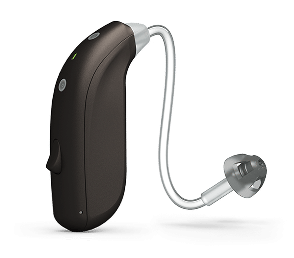
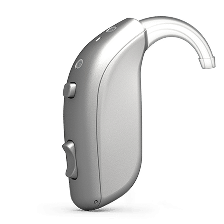
CHOOSE YOUR PATH
Select a setup path to see only the instructions that apply to you.

METHOD 1
Pair the hearing aids with your phone before opening the app.
Open the Danalogic BeMore app on your phone.
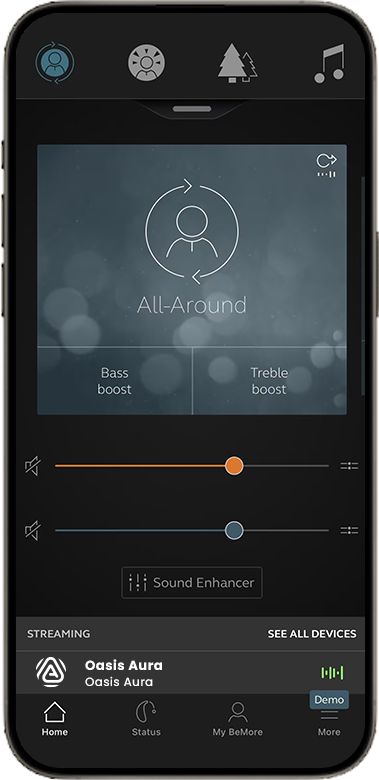
Tap SEE ALL DEVICES.
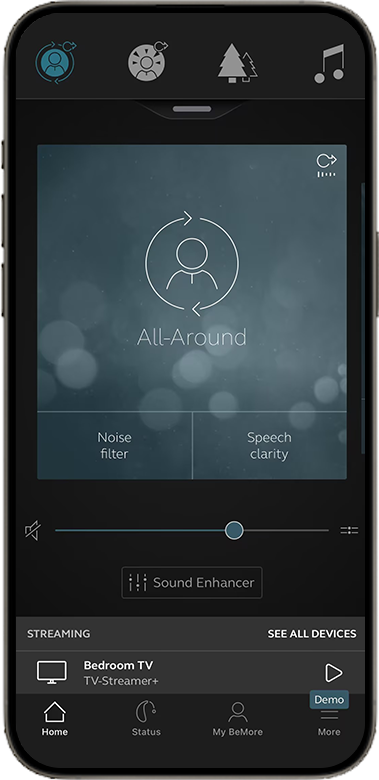
Choose the broadcast you want to hear.
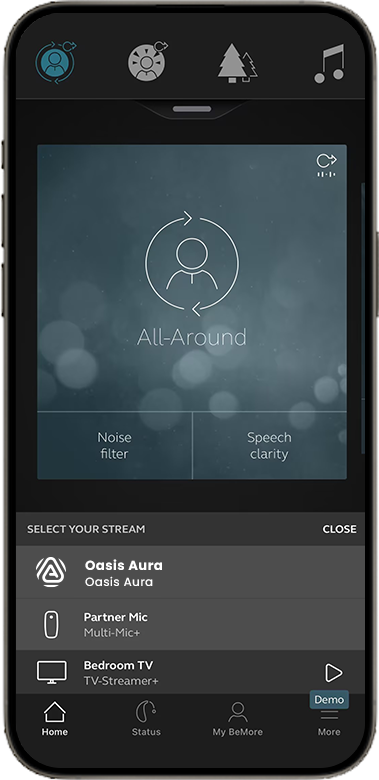
Set the broadcast and surroundings levels to a comfortable balance.
METHOD 2
For Danalogic hearing aids that cannot join an Auracast broadcast directly.
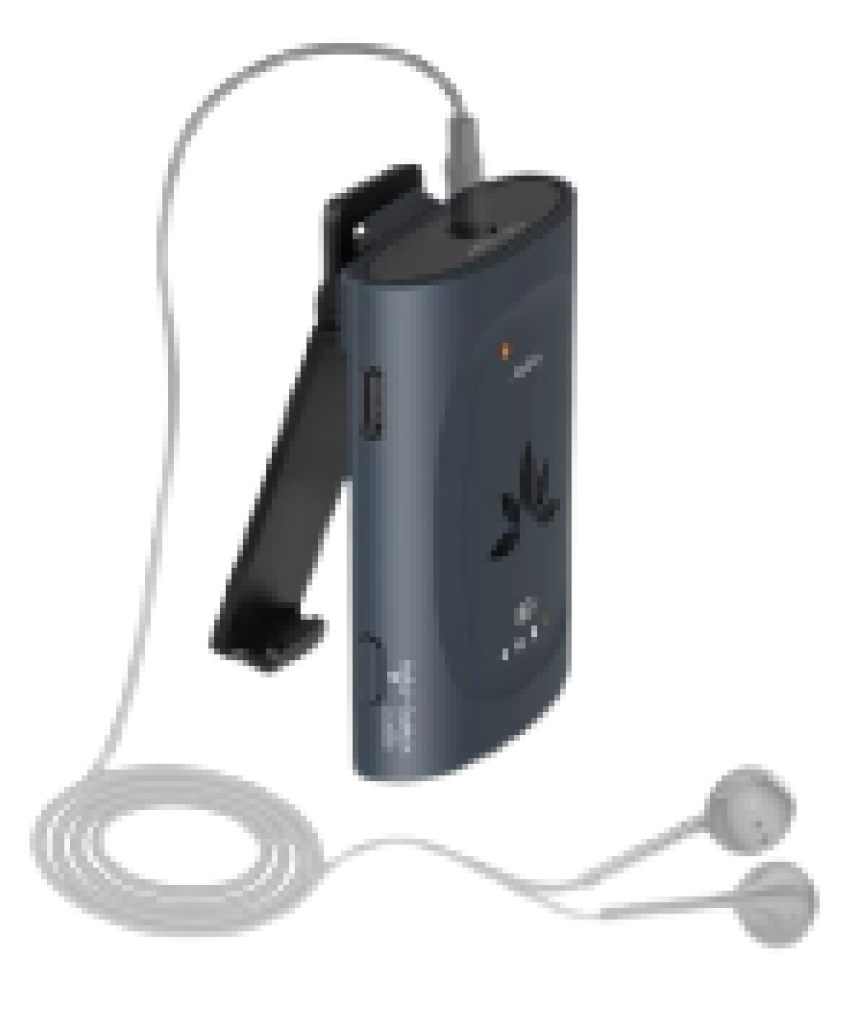
RECOMMENDED RECEIVER
Use AuraClip to receive the Auracast broadcast, then listen through one of these outputs:
METHOD 3
A simple listening option when direct hearing-aid connection is unavailable.
ALTERNATIVE LISTENING
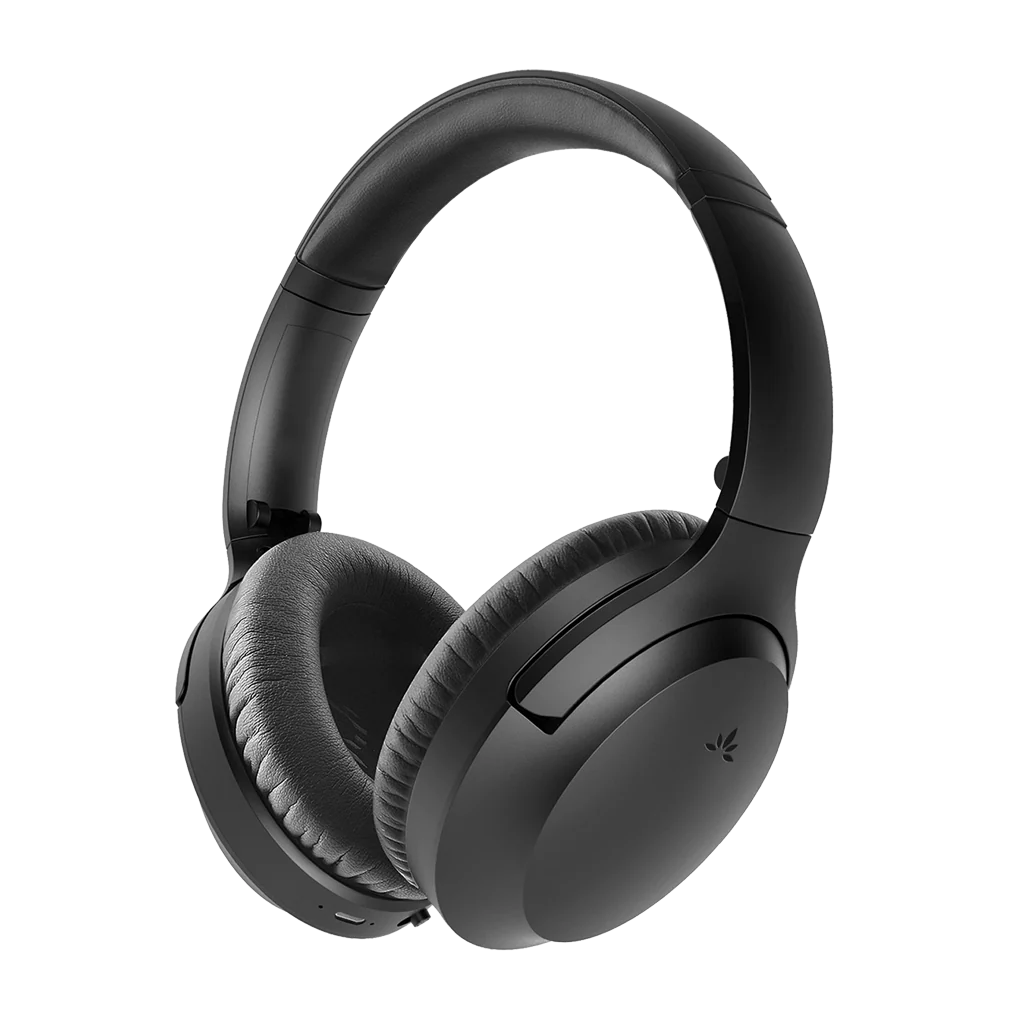
Wear comfortable over-ear Auracast headphones around your hearing aids, or use the headphones without hearing aids.
Example: Aria Aura.
QUICK FIXES
Confirm Audikast 4 is on the upper hearing-aid broadcast, move closer, rescan in the app and raise streaming volume.
Raise the broadcast stream and lower the surroundings or hearing-aid microphone level when that control is available.
Mute the TV speaker or use one listening path at a time. Two audio paths can reach you at slightly different times.
Content transcribed from the Danalogic source guide. Model, app and phone support can change; confirm the exact hearing-aid model and current manufacturer software before setup.