
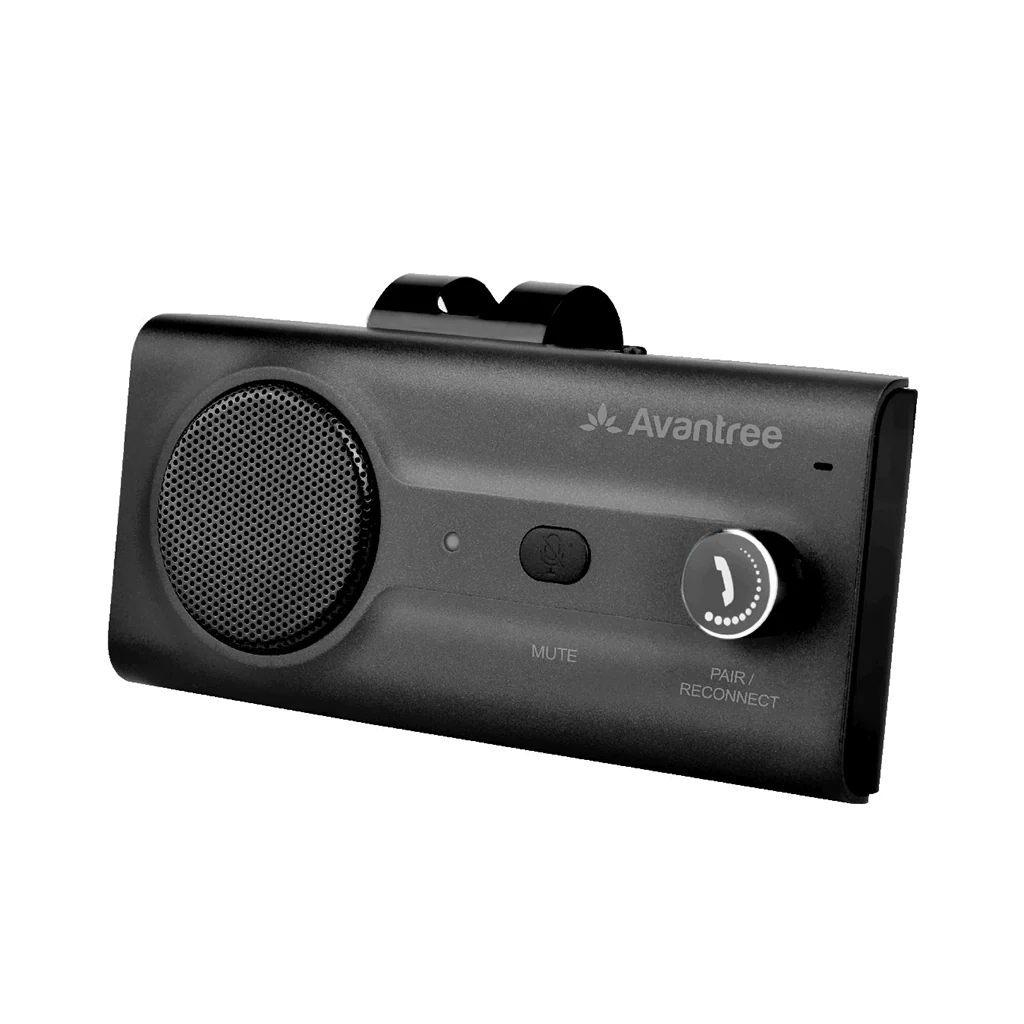
Take hands-free phone calls through CK11's built-in speaker.
Park your car before setup or testing a call.
Pair CK11 with your phone
Keep your phone nearby.
- Slide CK11’s power switch to ON.
- Check for a flashing red and blue light.
On first use, pairing starts automatically.
Not flashing?
Hold the phone knob (multifunction button) for 3 seconds.
Look for: The LED flashes red and blue alternately. CK11 is ready to pair.
- Open your phone’s Bluetooth settings. Turn Bluetooth on and select Avantree CK11.
If not
Won’t turn on? Charge CK11.
Can’t connect? Get connection help.
Test a call
Your phone should be connected to Avantree CK11.
- Ask someone to call you. Press CK11’s phone knob once to answer.
- Rotate the knob to adjust volume.
Clockwise: louder. Anticlockwise: quieter.
Adjust the phone’s call volume if needed. - Speak and ask the caller if they can hear you. Press the knob once to end the call.
Install CK11 on the visor
- Insert the clip’s short end into CK11’s slot until it clicks.
Fits for right- or left-hand installation.
- Clip CK11 to the sun visor above the driver’s seat.
If not
Remove CK11 and refit the clip. Still loose? Contact support.
Leave the switch ON for automatic wake-up. How auto power works.
← Back to Step 2Quick help
Fix a CK11 problem
Phone cannot find or connect to CK11
Possible cause: CK11 is not in pairing mode, or the phone has an old pairing record.
- Switch CK11 ON. Hold the phone knob for 3 seconds until the LED flashes red and blue alternately.
- In your phone's Bluetooth settings, select Avantree CK11. If connection still fails, forget/delete Avantree CK11 on the phone, then reset CK11 and pair again.
Check: The LED flashes blue about every 5 seconds. Then test a call. If this still fails, contact support.
No sound or call volume is too low
Possible cause: The call is using the phone speaker, or the volume is low.
- During a connected call, choose Avantree CK11 as the phone's call audio output.
- Rotate CK11's knob clockwise and increase the phone's call volume to a comfortable level.
Check: You hear the caller through CK11. If not, reconnect using pairing steps, then contact support if unresolved.
Caller cannot hear you
Possible cause: The microphone is muted or the phone is handling the call audio.
- Choose Avantree CK11 as the call audio output on your phone.
- If you muted the microphone, press CK11's Mute button once during the call to unmute. The Mute button is separate from the phone knob.
Check: Ask the caller whether they can hear you. Muting the microphone does not necessarily silence CK11's speaker. If unresolved, contact support.
CK11 does not turn on automatically
Possible cause: The switch is OFF or the battery needs charging.
- Slide the switch to ON to enable the motion sensor.
- Open the car door to trigger motion. If CK11 still does not wake, charge CK11 and retry.
Check: CK11 wakes and reconnects to the last phone when that phone's Bluetooth is on. If needed, select Avantree CK11 in the phone's Bluetooth list. If unresolved, contact support.
CK11 does not charge
Possible cause: The charging cable or USB power connection is loose or not supplying power.
- Use the supplied charging cable that fits your CK11's charging port. Check both connections and the USB power source.
- Try another compatible cable or USB power source if available. Do not force a connector into the port.
Check: The LED stays red while charging and turns off when fully charged. If no charging light appears and CK11 will not power on, contact support.
Reference
Using CK11
Buttons and indicators
- Phone knob / multifunction button
- Press once to answer or end a call. Hold for 1 second to reject an incoming call. Rotate clockwise / anticlockwise to increase / decrease volume. Hold for 3 seconds to enter pairing mode.
- Mute button
- During a call, press once to mute or unmute the microphone.
- LED flashes red and blue alternately
- Pairing mode: select Avantree CK11 on your phone.
- LED flashes blue every 5 seconds
- Connected to a phone.
- LED flashes red every 5 seconds / “Battery low”
- Charge CK11.
- Solid red LED while charging
- Charging. The LED turns off when fully charged.
Charge CK11
When CK11 reports “Battery low”, flashes red every 5 seconds, or will not power on, connect the supplied charging cable to CK11 and a USB power source.
Use the cable that matches your unit's port. CK11 charging ports can differ by version. Check whether your unit has USB-C or micro-USB before connecting; do not force the plug.
Check: The LED stays red while charging and turns off when fully charged (about 3 hours). If not, follow charging help.
Automatic power and reconnection
Leave CK11's switch at ON to enable the motion sensor. Motion, such as opening the car door, wakes CK11. The supplied guide describes sleep after about 2 minutes of inactivity; Bluetooth disconnection allows automatic sleep.
CK11 automatically reconnects to the last phone when powered on. Turn the phone's Bluetooth on before opening the door. For another previously paired phone, select Avantree CK11 manually in Bluetooth settings.
Slide the switch to OFF to turn off CK11 and its motion sensor, including when you want to stop unwanted reconnection.
Check: Your phone shows Avantree CK11 connected. If not, use connection help.
Use a second phone
CK11 supports two paired phones. Pair the first phone, then hold the phone knob for 3 seconds until the LED flashes red and blue. On the second phone, turn Bluetooth on and select Avantree CK11. Turn CK11 off and on again; if a paired phone does not reconnect, select Avantree CK11 manually on that phone.
For automatic reconnection with two phones, enable Bluetooth on both phones before opening the car door.
Check: Both phones show CK11 connected. Test a call while parked. If either phone fails to connect, repeat connection help or contact support.
Make a call with your voice
Connect your phone to CK11 first. Configure your phone's voice assistant, then say “Hey Siri” or “OK Google” if supported and enabled on your phone. Ask the assistant to call a contact.
On iPhone, check Siri settings, including activation and access while locked. On Android, check Google Assistant / Voice Match settings. Settings names vary by phone and software version. Place the phone in a holder: the supplied guide states voice commands use the phone's microphone.
Check: The assistant responds and places the intended call. If not, test the assistant on the phone and check its permissions and network connection. You can still make a call on the phone while parked and use CK11 for call audio.
Reset CK11 / clear pairing history
Use reset if pairing still fails. This clears CK11's pairing history.
- Turn CK11 ON. Hold the phone knob (multifunction button) for 3 seconds, until the LED flashes red and blue alternately.
- Double-press the separate Mute button. Two beeps confirm the reset. CK11 then enters pairing mode.
- Forget/delete Avantree CK11 from your phone's Bluetooth list and pair again.
Check: Two beeps confirm reset; after pairing, the blue LED flashes about every 5 seconds. If unresolved, contact support.
When contacting support, include your phone model, the symptom, LED pattern and steps tried. For charging questions, include a photo of CK11’s charging port.