Supported
PS5, PS4, Nintendo Switch, PC, and Mac; Bluetooth headphones, earbuds, or speakers.
Codecs: aptX Adaptive, aptX HD, aptX Low Latency, aptX, SBC.



INTERACTIVE USER GUIDE · C81-GAMING
C81-Gaming sends game audio from PS5, PS4, Switch, PC, or Mac to one Bluetooth headset. For PS5 voice chat, use the controller microphone for the best audio quality.
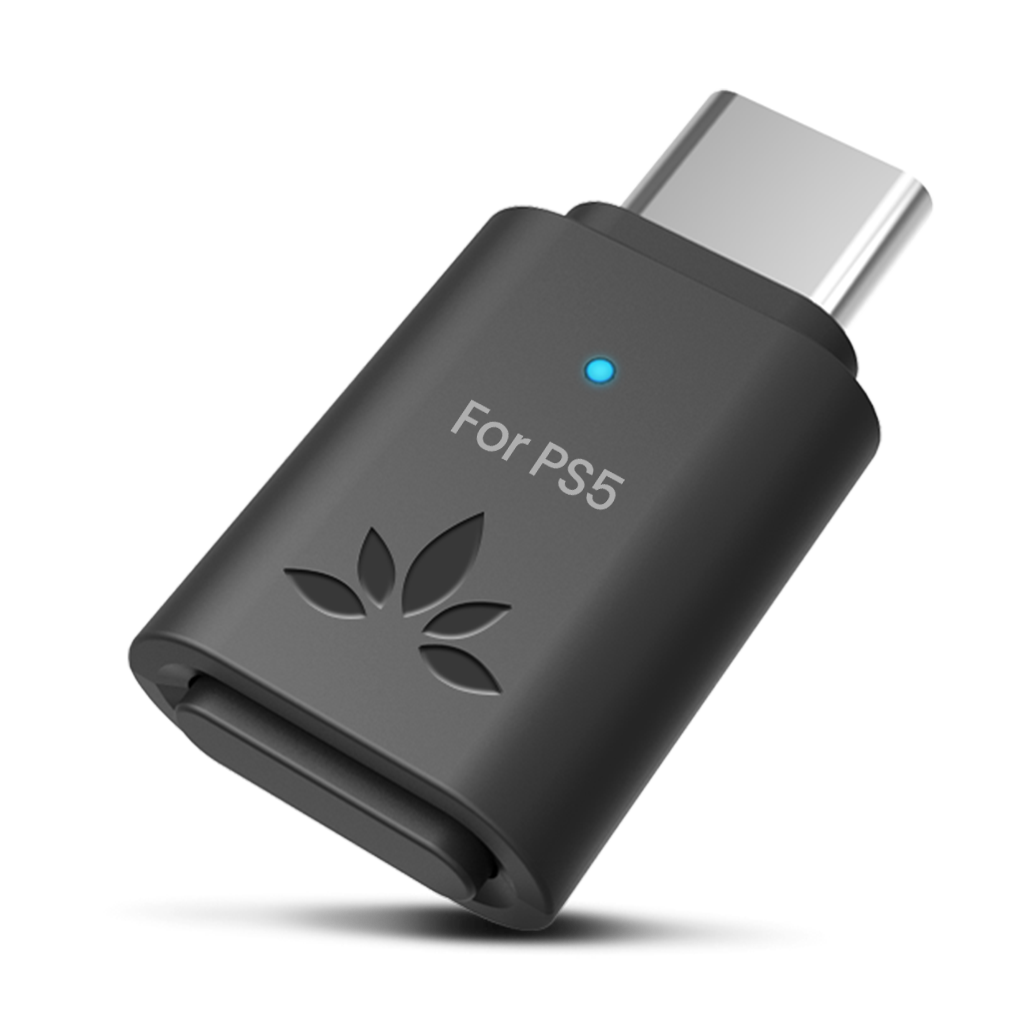
QUICK SETUP
Keep the C81-Gaming and headphones within 3 ft / 1 m. Turn off Bluetooth on nearby phones and computers before pairing.
STEP 1
Turn off Bluetooth on nearby phones and computers first. Simply turning headphones on is not enough—they must be in pairing mode.
Choose your headphones
PUT YOUR HEADPHONES IN PAIRING MODE
FIX A PROBLEM
If using a USB 3.2 port, move the adapter away from the console with a USB extension cable to reduce interference.
Bluetooth headphone microphones are not supported for the recommended high-quality PS5 setup. Set Input Device to Microphone on Controller. This preserves game-audio quality.
Low latency requires headphones that also support aptX Adaptive or aptX Low Latency. AirPods and many standard Bluetooth headphones may have noticeable delay. Move closer and disconnect competing Bluetooth sources.
Turn off the unwanted headset and nearby Bluetooth devices. Reset the adapter and the intended headphones, then pair them again at close range.
Not compatible with Xbox, PS Portal, PULSE 3D, 2.4 GHz gaming headsets, keyboards, mice, controllers, TVs, car systems, projectors, or printers. It sends audio to one Bluetooth headphone, earbud set, or speaker.
REFERENCE
PS5, PS4, Nintendo Switch, PC, and Mac; Bluetooth headphones, earbuds, or speakers.
Codecs: aptX Adaptive, aptX HD, aptX Low Latency, aptX, SBC.
STILL NEED HELP?
For the fastest answer, start with a support ticket. Choose C81-Gaming and the form will ask for the details our product team needs.
Answer product-specific questions and add photos or screenshots if needed.
Start support request →DON'T WANT TO SUBMIT A TICKET?
Was this helpful?

 Assistive Listening
 Instant Venue Audio
 Guided Tour