

Setup
How do you want to listen?
Choose a source to see the setup steps.
FM radio
Listen to FM radio
- Fully extend the antenna and turn the volume knob to ON.
- If needed, press FM / SPK / SD Card to select FM.
- On first use, scanning starts automatically. If it doesn’t, press SCAN. Wait about 1 minute for available stations to be saved.
- Press «SEEK / SEEK» to choose a station, then adjust the volume.
Poor reception? Reposition the antenna. Improve reception & reduce static.
Change stations
- Choose a station: Press «SEEK / SEEK».
- Find a clear station: Press and hold «SEEK / SEEK» to search backward or forward.
- Fine-tune: Press ∧ / ∨ to adjust the frequency by 0.1 MHz.
Save and play favorites
Save up to 20 favorites — 5 on each of 4 pages.
- Tune to a station, then press PAGE to choose P1–P4.
- Hold a number button (1–5) for 2 seconds. The screen confirms the saved page and number.
To play a favorite: Press PAGE to choose its page, then press its number button once.
Listen with Bluetooth headphones →
← Change sourcePhone or computer · Bluetooth
Use as a Bluetooth speaker
Note: Bluetooth Speaker mode cannot send audio to Bluetooth headphones.
- Turn on SoundByte T.
- Press
 to select Bluetooth Speaker mode.
- On your device, turn on Bluetooth and select Avantree Soundbyte T.
- Wait for Connected, then play audio on your device. Adjust both volumes.
MicroSD card
Play music from a MicroSD card
Use a MicroSD card up to 32 GB (not included). Supported formats: MP3, WAV, WMA, APE, FLAC.
- Insert the card into SoundByte T’s MicroSD slot until it clicks into place.
- Turn on SoundByte T.
- If playback does not start automatically, press to select MicroSD mode.
- Press «SEEK / SEEK» to change tracks. Press ⏯ to pause or resume.
Set repeat or shuffle
- In MicroSD mode, press to open System Settings.
- Use «SEEK / SEEK» to select Repeat/Shuffle, then press .
- Select Repeat All, Repeat One, Repeat Folder, or Shuffle, then press to confirm.
Listen with Bluetooth headphones →
← Change sourceAudio cable · AUX
Use SoundByte T as a wired speaker
- Plug the included 3.5 mm AUX cable into SoundByte T’s AUX input, not its headphone jack.
- Connect the other end to your audio device’s headphone or AUDIO OUT socket.
- Turn SoundByte T’s knob to ON. Press FM / SPK / SD Card until AUX mode appears.
- Play audio on the source device. Raise both volumes slowly.
Done: SoundByte T plays the wired device’s sound.
If not: Fully insert both plugs. AUX mode activates only when a source is detected. Press ⏯ to unmute. Open sound help.
Listen with Bluetooth headphones →
← Change sourceOptional · Private listening
Listen with headphones
Connect Bluetooth headphones
Bluetooth headphones work with FM, MicroSD, and AUX only—not Bluetooth Speaker mode.
- Turn off Bluetooth on your phone and other paired devices.
- Put your headphones into pairing mode.
Headphone pairing helpChoose brand
AirPods / AirPods Pro
Check the back of your case.
There is a button
AirPods 1–3 / AirPods Pro 1–2
- Open the case with your AirPods inside.
- Hold the button on the back for about 5 seconds.

Ready when: the case light flashes white.
There is no button
AirPods 4 or 5 / AirPods Pro 3
- Open the case with your AirPods inside.
- Double-tap the front of the case.

Ready when: the case light flashes white.
AirPods Max
Press and hold the noise control button for about 5 seconds.
Ready when: the status light flashes white.
Bose
- Turn on the headphones or open the earbud case.
- Hold the Bluetooth or power button until the light flashes blue or you hear “Ready to connect.”
Ready when: the light flashes blue or the voice prompt confirms pairing.
Beats
- Turn on the headphones.
- Hold the system or power button until the indicator flashes.
Ready when: the indicator flashes for pairing.
Sony
- With the headphones off, hold the power button for about 5 seconds.
- For Sony earbuds, use the case or touch-sensor pairing command for your exact model.
Ready when: the light flashes blue or you hear “Bluetooth pairing.”
Samsung Galaxy Buds
- Place both earbuds in the case, close it for 5–6 seconds, then open it.
- If pairing does not start, wear both earbuds and touch both touchpads until you hear the pairing sound.
Ready when: the earbuds announce pairing or show their pairing pattern.
JBL
- Hold the Bluetooth or power button until the indicator flashes rapidly.
- If JBL reconnects to a phone, turn that phone Bluetooth off and try again.
Ready when: the indicator flashes rapidly.
Other headphones
- Hold the power, Bluetooth, or main button until the light flashes rapidly.
- Check the headphone manual for the exact command if the light does not change.
Ready when: the headphones show their documented pairing pattern.
- Turn on SoundByte T and select FM, MicroSD, or AUX.
- Hold the
 button for 2 seconds. The screen shows Connecting.
- Wait for Connected, then play audio and slowly adjust the volume on both devices.


Reconnect next time
Turn on SoundByte T and your headphones. Select FM, MicroSD, or AUX, then press the button once. If they don’t reconnect, repeat the pairing steps above.
Use wired headphones
- Plug your 3.5 mm headphones into SoundByte T’s headphone jack, not AUX IN.
- Play your audio and slowly raise the volume.
Daily use
Sound, charging and sleep timer
Charge SoundByte T
Connect the included USB-C cable to SoundByte T and a 5 V / 1 A USB charger.
- Charging: Battery icon blinks.
- Fully charged: Battery icon stays solid (about 3 hours).
- Playtime: Up to 8 hours.
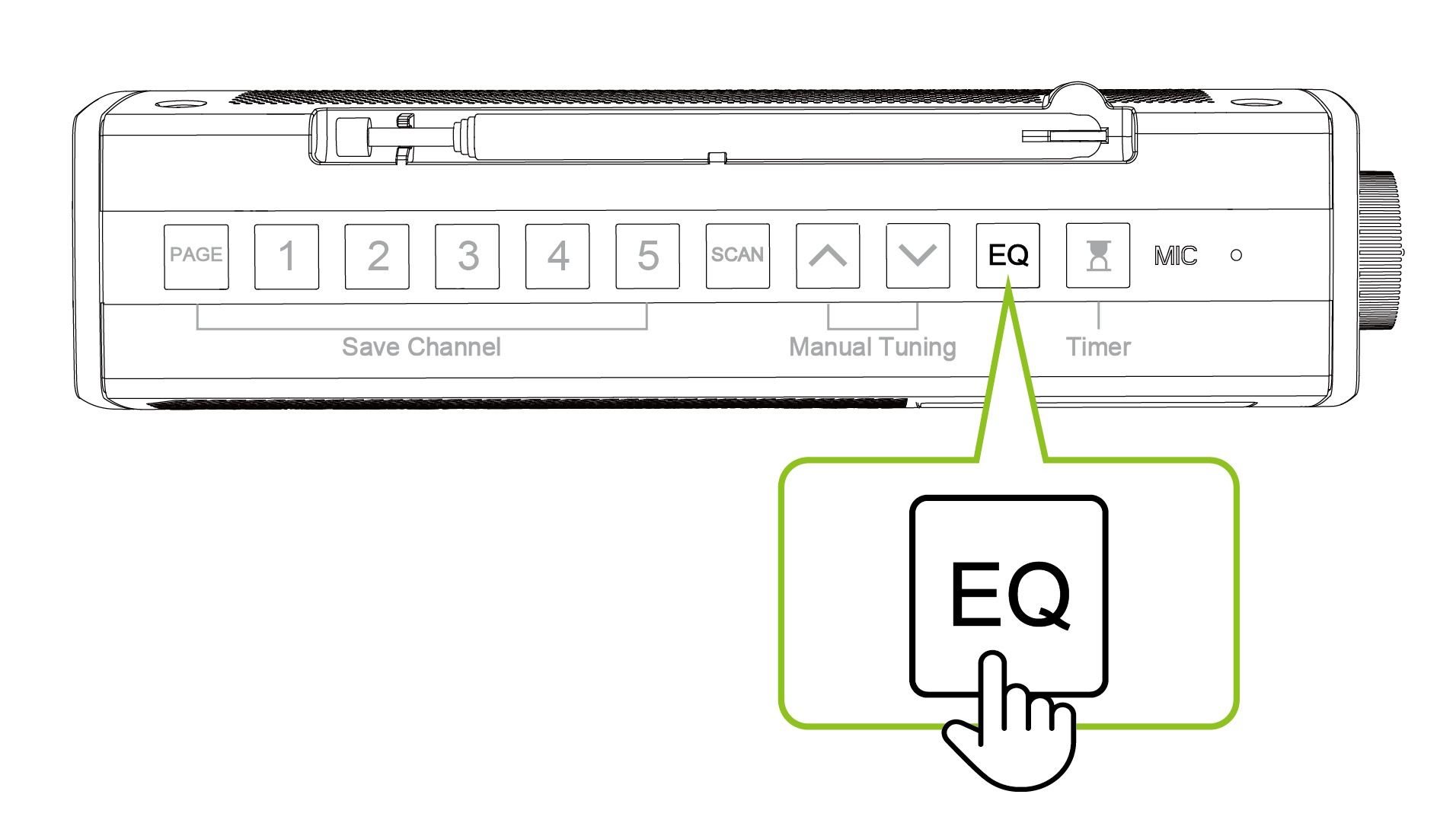
Sound modes (EQ)
Press EQ to cycle through Balanced, Clear Voice, and Bass Boost.
Sleep timer
- On SoundByte T, press the Timer button to open the Shut down menu.
- Use «SEEK / SEEK» to select 30, 60, or 90 minutes. Press to confirm.
- To cancel, open the Timer menu, select Cancel, and press .
Fix common problems
Improve reception & reduce static Factory resetMore Quick Fixes
Bluetooth headphones will not connect
Check the source and pairing state
SoundByte T cannot transmit in Bluetooth Speaker mode. Headphones may also be connected to another device instead of searching.
- Select and play FM, MicroSD, or AUX on SoundByte T.
- Turn off Bluetooth on the headphones’ usual phone or computer. Put the headphones into their documented pairing mode.
- Hold SoundByte T’s earbud-symbol button for 2 seconds until Connecting appears. Keep both devices close.
Expected: Connecting changes to Connected and the headphones play the selected audio.
Connected but silent? Check the audio source and volume. Still disconnected? Contact support with the headphone model and pairing indication.
Bluetooth headphone volume is too low
Check both volume controls
- Raise SoundByte T’s volume slowly.
- Use the headphones’ own volume controls to raise their volume, if available.
- For AUX, also check the source device’s volume.
- Try another station or track to compare.
Still too quiet? Contact support with your headphone model and audio source.
No power or no charging indication
Check charging and power
The cable, charger, or knob position may be preventing SoundByte T from powering on.
- Connect SoundByte T’s USB-C port to a 5 V / 1 A USB charger. Check both cable ends.
- If the battery icon does not blink, try another USB-C cable and charger.
- Allow charging, then turn the volume knob to ON.
Expected: The battery icon blinks while charging and the screen lights up when SoundByte T turns on.
Still no response? Contact support with the charger rating and what the screen shows.
FM has static or finds few stations
Improve FM reception
Weak local signals or nearby electronics can cause static on SoundByte T.
- Fully extend the antenna and change its angle.
- Move SoundByte T near a window, away from metal, TVs, phones, and routers.
- Press SCAN in FM mode and wait for scanning to finish. Test several stations.
Expected: More stations are found or reception becomes clearer.
Still weak? Try another room. If several stations stay poor, contact support with your location and stations tested.
Phone cannot find or reconnect to SoundByte T
Check Bluetooth Speaker mode
SoundByte T may be in a different mode or connected to a previously paired device.
- Turn SoundByte T on. Press FM / SPK / SD Card until Bluetooth Speaker mode appears.
- Turn off Bluetooth on the previously paired phone or computer.
- On the device you want to use, enable Bluetooth and select Avantree Soundbyte T.
Expected: Connected appears. Start playback and confirm SoundByte T plays sound.
Still unable to connect? Review the factory reset warning and steps, then pair again. If this fails, contact support.
Connected or playing, but no sound
Check the source and volume
SoundByte T or the source may be paused, muted, at low volume, or using the wrong connection.
- Check SoundByte T’s mode matches the source: FM, MicroSD, AUX, or Bluetooth Speaker.
- Press ⏯ once to unmute FM/AUX or resume paused Bluetooth/MicroSD playback.
- Raise SoundByte T’s volume slowly. For Bluetooth or AUX, also raise the source device’s volume and start audio.
- For AUX, use the source’s headphone/AUDIO OUT and SoundByte T’s AUX input. For wireless headphones, play FM/MicroSD/AUX and check the headphone volume.
Expected: You hear the active source through your selected speaker or headphones.
Still silent? Test another station, track, or source. Contact support with the mode and tests tried.
MicroSD or AUX mode does not appear
Check source detection
SoundByte T only enables MicroSD or AUX after detecting a connected source. An oversized card or unsupported file may not play.
- For MicroSD, reinsert a card of 32 GB or less. Test an MP3 file. MP3, WMA, WAV, APE, and FLAC are supported; sampling rates of 88 kHz or above are not.
- For AUX, fully insert the cable into SoundByte T’s AUX input and your source’s audio output.
- Press FM / SPK / SD Card to select the detected mode, then start audio.
Expected: The connected mode becomes available and audio plays.
Still missing? Test another supported card or AUX cable, then contact support.
Factory reset
Reset SoundByte T
Before you start: A factory reset erases saved FM stations and Bluetooth pairing history. Use it after the checks above have failed.
- Turn SoundByte T on. Press ⚙/OK to open System Settings.
- Use SEEK» to select Factory Reset.
- Press ⚙/OK again.
Expected: SoundByte T returns to FM mode and scans for stations for about 1 minute.
After reset: Save your stations and pair your Bluetooth device again. If the issue continues, turn SoundByte T off, wait 10 seconds, turn it on, and test again. Contact support if unresolved.