Opera Aura Interactive User Guide | Avantree
English

Interactive User Guide · Opera Aura / 6190R

Clear TV sound, without turning up the room.

Connect the included transmitter to your TV, then listen through the Opera Aura headphones.

No Bluetooth pairing is needed when using the transmitter.

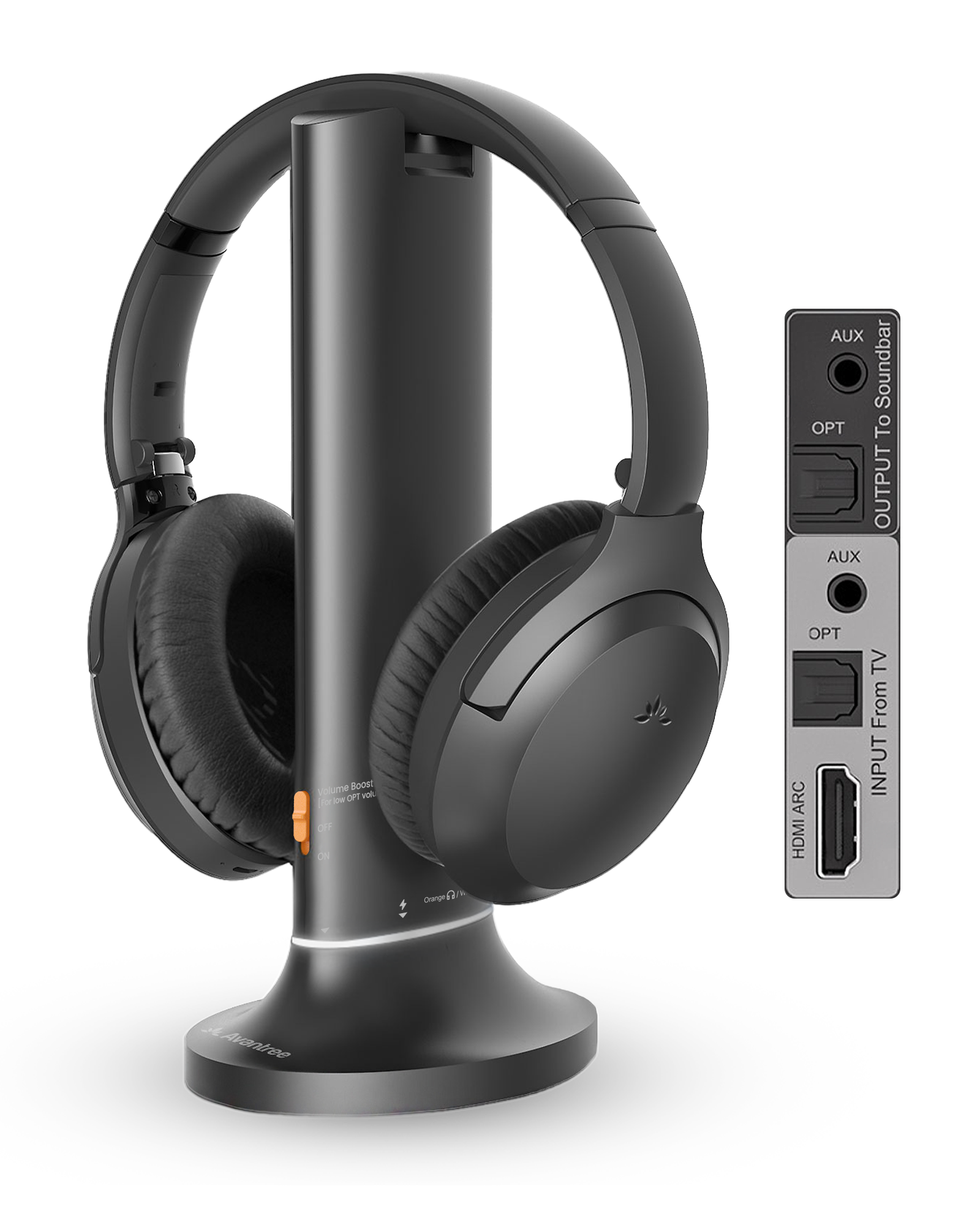
Opera Aura headphones with transmitter charging dockHDMI ARC · Optical · AUXAuracast · up to 35 hours

Start setup

Set up the Opera Aura kit.

This is the best choice for most users: lower delay and louder sound.

Want to connect without the transmitter? — more audio delay and no Volume Boost.

Quick fixes

Match what you see.

Each fix states the action, expected result, and next step.

Headphones won't join the transmitter
  1. Confirm the transmitter is on and playing TV audio.
  2. Keep the headphones close to the transmitter and at least 2 m from Wi-Fi routers or microwaves.
  3. Double-press if the LED is red + blue, then hold for 3 seconds until it flashes orange.
  4. Wait for solid orange.

Expected: solid orange and TV sound. If it still fails, hold + and together for 5 seconds to reset the headphones, then search again.

🔇Joined, but no TV sound
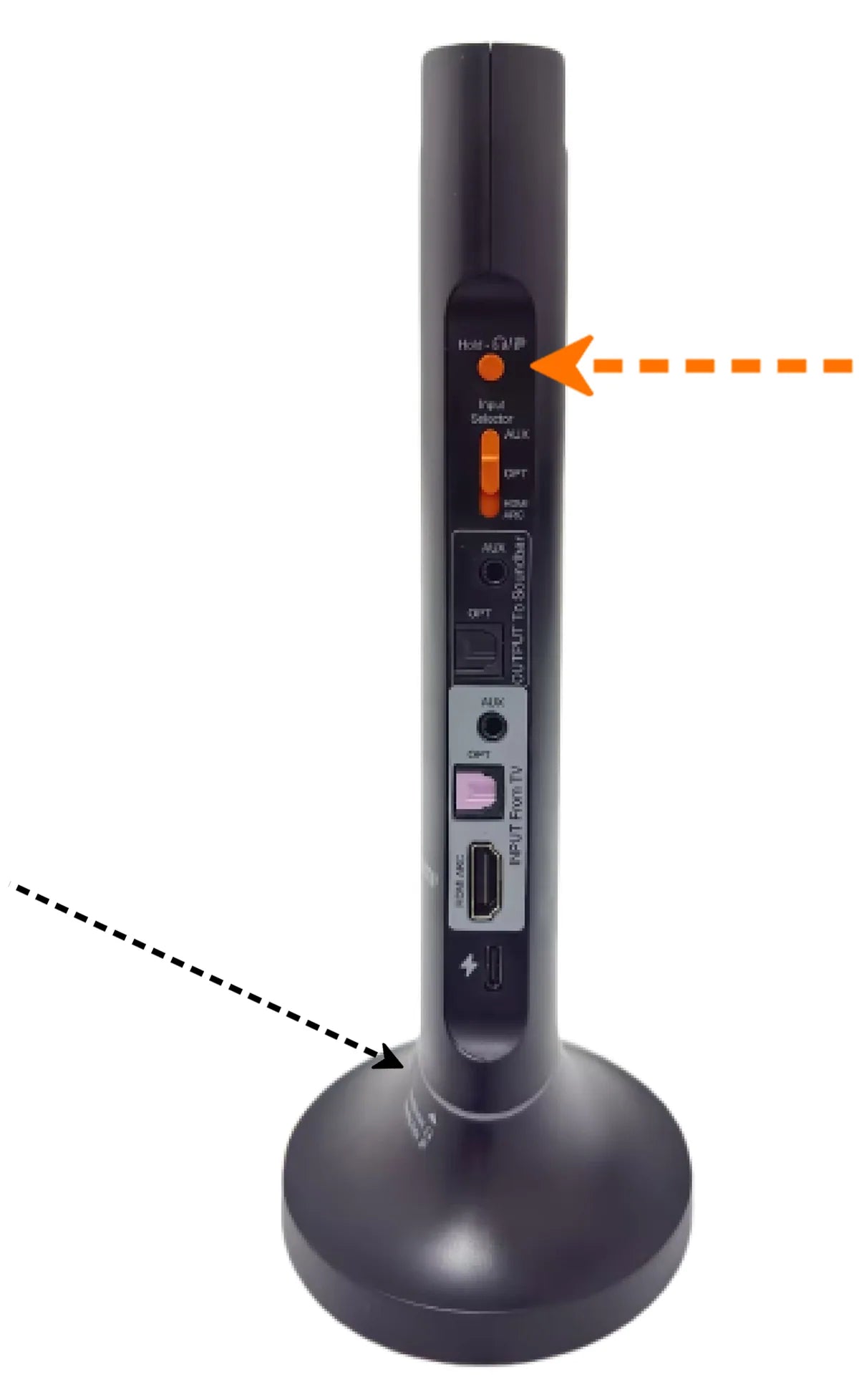
  1. Check the cable: use a TV audio OUT port and match the transmitter selector to HDMI ARC, OPT, or AUX.
  2. Check the transmitter: a solid Audio Signal light means usable TV audio is arriving. If it blinks, correct the cable or TV settings first.
  3. Check the TV: for Optical/HDMI ARC choose the matching Sound Output and set Digital Audio Format to PCM; for HDMI ARC also turn eARC off.
  4. Check volume: raise the TV volume for AUX, then raise the headphone volume and try Voice Clear 1 or 2.
  5. Restart: turn the transmitter OFF, then ON.

Expected: the Audio Signal light is solid and spoken dialogue plays. Still silent? Reopen Step 2 and follow the matching connection path from the beginning.

ARCHDMI ARC has no sound
  1. Use the TV port labeled HDMI ARC/eARC—not a standard HDMI input.
  2. Select HDMI ARC/Receiver as TV Sound Output.
  3. Turn eARC off and set Digital Audio Format to PCM.
  4. Set the transmitter Input Selector to HDMI ARC, then restart the TV and transmitter.

A soundbar already using the ARC port must be disconnected or rerouted; Opera Aura soundbar pass-through is Optical/AUX only.

No light on transmitter
  1. Reconnect USB-C at both ends.
  2. Try a known-working 5 V USB adapter.
  3. Slide the transmitter switch to OFF, then ON.

If there is still no light, submit a support ticket with a photo of the power connection.

🔋Headphones will not charge
  1. Confirm the dock has power.
  2. Align the charging contacts and look for solid red.
  3. Try USB-C charging directly.
  4. Allow about 2.5 hours.

Make dialogue louder

Adjust volume in this order.

Start with the source, then fine-tune the headphones.

1. TV and transmitter

  • TV/source volume: raise it first when using AUX.
  • Volume Boost: switch it ON at the transmitter for +6 dB. It supports AUX, Optical, and HDMI ARC.

2. Headphones

  • Volume: raise it slowly to a comfortable level.
  • Voice Clear: headphones ship in Balance mode. Try Voice Clear 1, then Voice Clear 2 for the strongest dialogue emphasis.

Bluetooth · Phone / PC

Use the headphones with a Phone/PC.

Connect the headphones directly—do not pair the transmitter.

1

Turn off the transmitter

This prevents the headphones from rejoining TV audio.

2

Start Bluetooth pairing

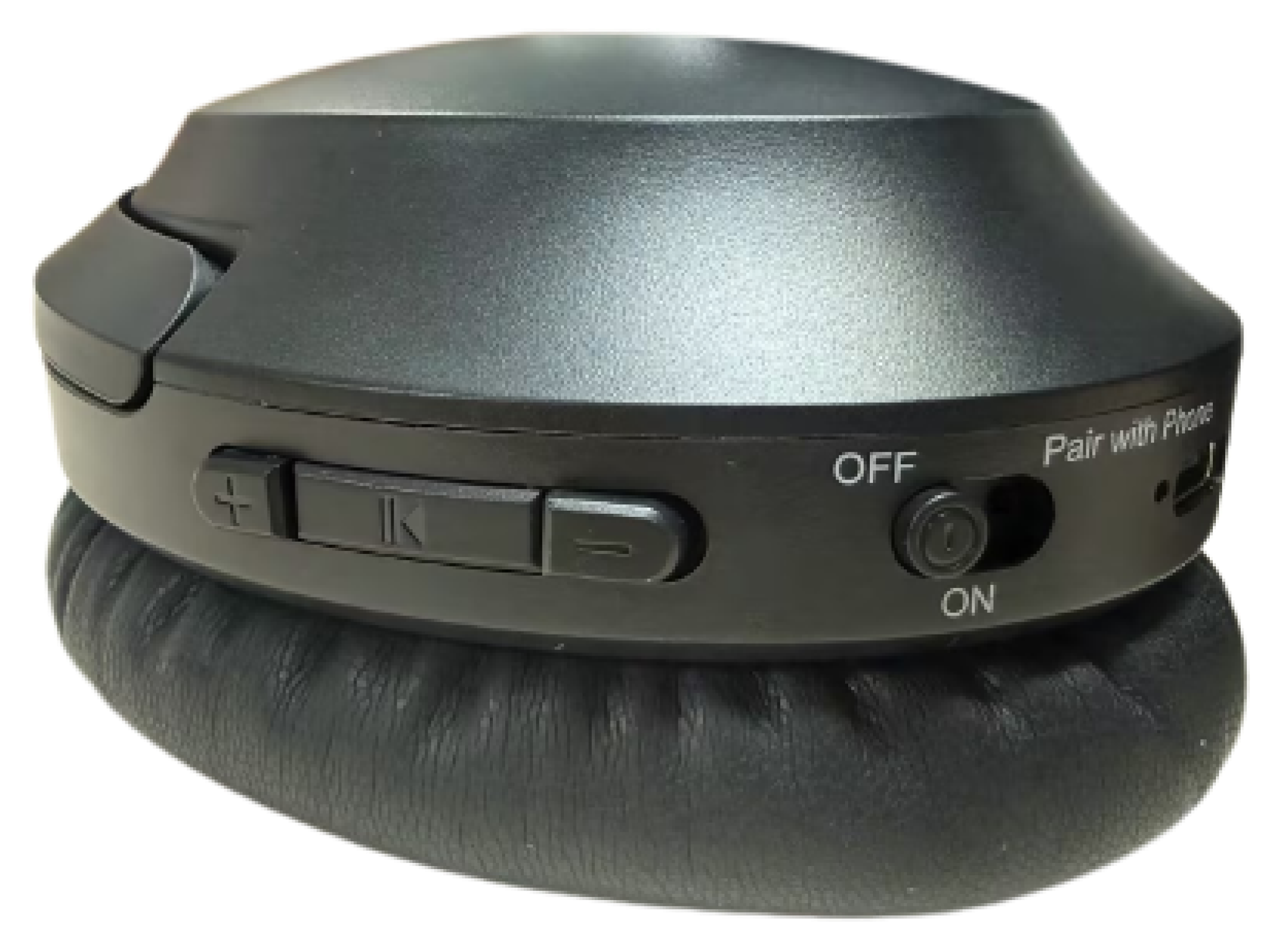
Hold the headphone switch at Pair with Phone for 3 seconds. Wait for red + blue flashing.

3

Select Aria Aura

Open Bluetooth on the phone or computer and select Aria Aura.

4

Confirm solid blue

A solid blue headphone LED means connected.

Watch: connect to a phone or PC

Return to TV listening Turn off the phone's Bluetooth, then switch the headphones to ON near the powered transmitter. Wait for solid orange.

Daily use

Charge the headphones.

Use the powered dock or a USB-C cable.

Power & charging

About 2.5 hours for a full charge.

  1. Use the powered dock or USB-C with a 5 V, 1–2.4 A source.
  2. On the dock, align the charging contacts.
  3. Solid red means charging; the LED turns off when full.

Not charging? Reseat the headphones or USB-C cable and verify the power source.

Battery reference

Up to 35 hours of playtime. Actual time varies with volume, connection, and use.

Daily use

Use a soundbar and headphones together.

Match the input and output cable.

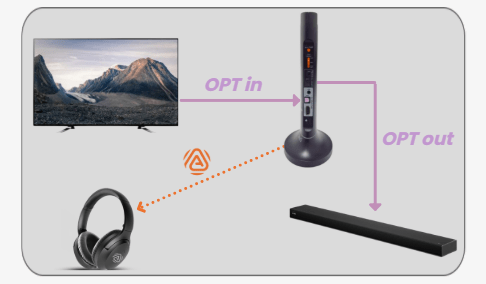
TV Optical audio enters the Opera Aura transmitter, passes from OPT OUT to a soundbar, and broadcasts wirelessly to the headphones
OPT IN → OPT OUT, or AUX IN → AUX OUT.
  1. 1Get headphone sound with Optical or AUX.
  2. 2Connect the matching OUT to the soundbar.
  3. 3Select that input on the soundbar.

HDMI ARC soundbar? Use the HAX06 extractor →

Private listening

Private Mode is coming soon.

Private Mode uses an encrypted, password-protected Auracast broadcast.

Until then

Use the open Opera Aura broadcast for normal TV listening. The headphone app is only needed for password-protected broadcasts.

Register for product updates →

In the box

Everything included.

Opera Aura headphones and transmitter charging dockHeadphones + transmitter dock
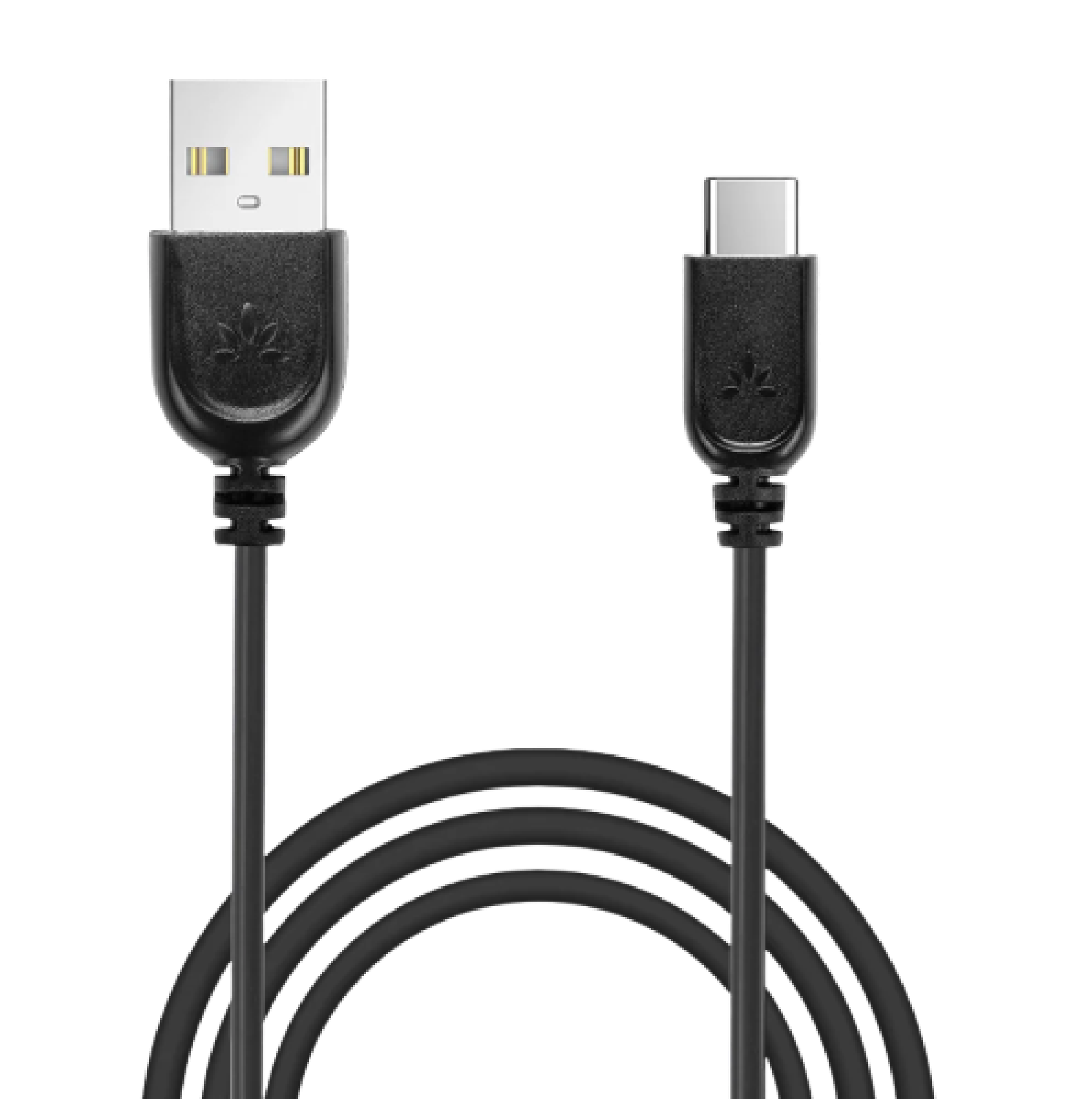
USB-C power cableUSB-C power cable
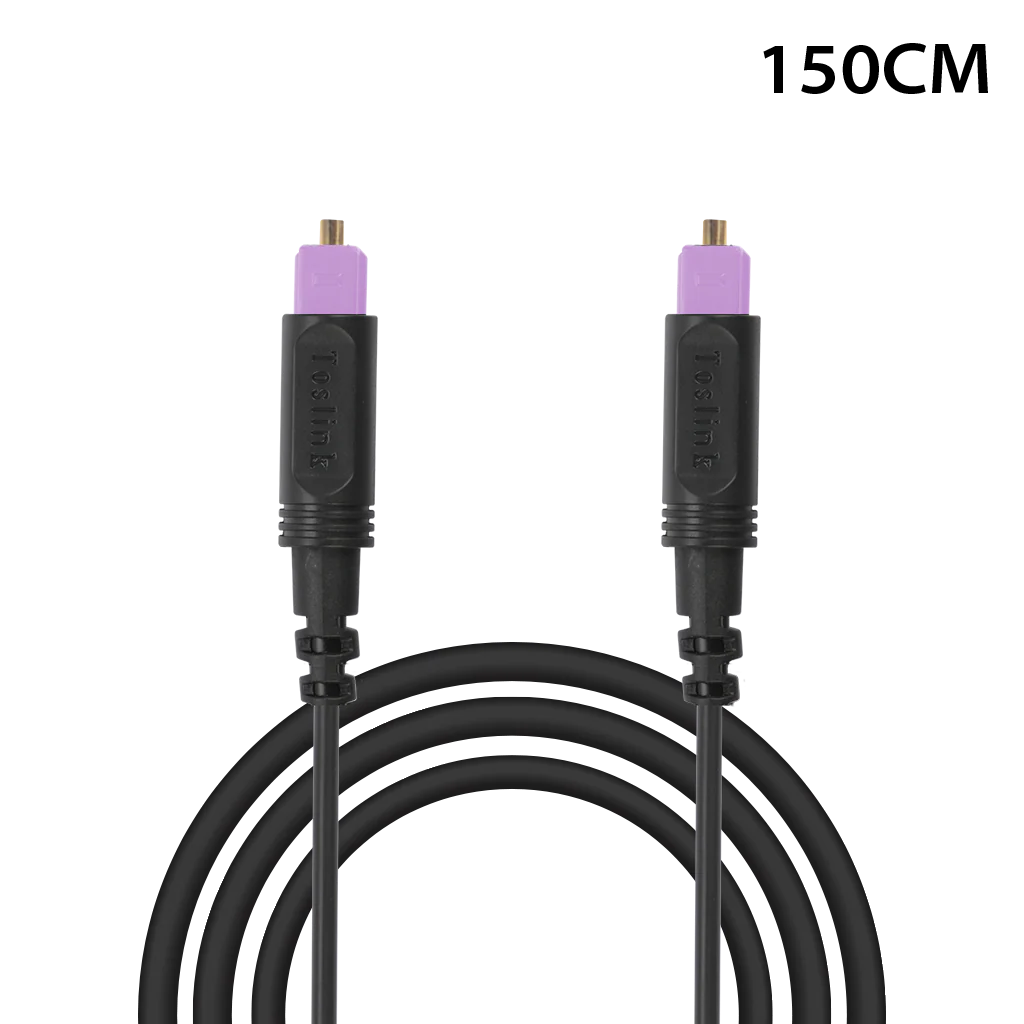
Optical audio cableOptical cable
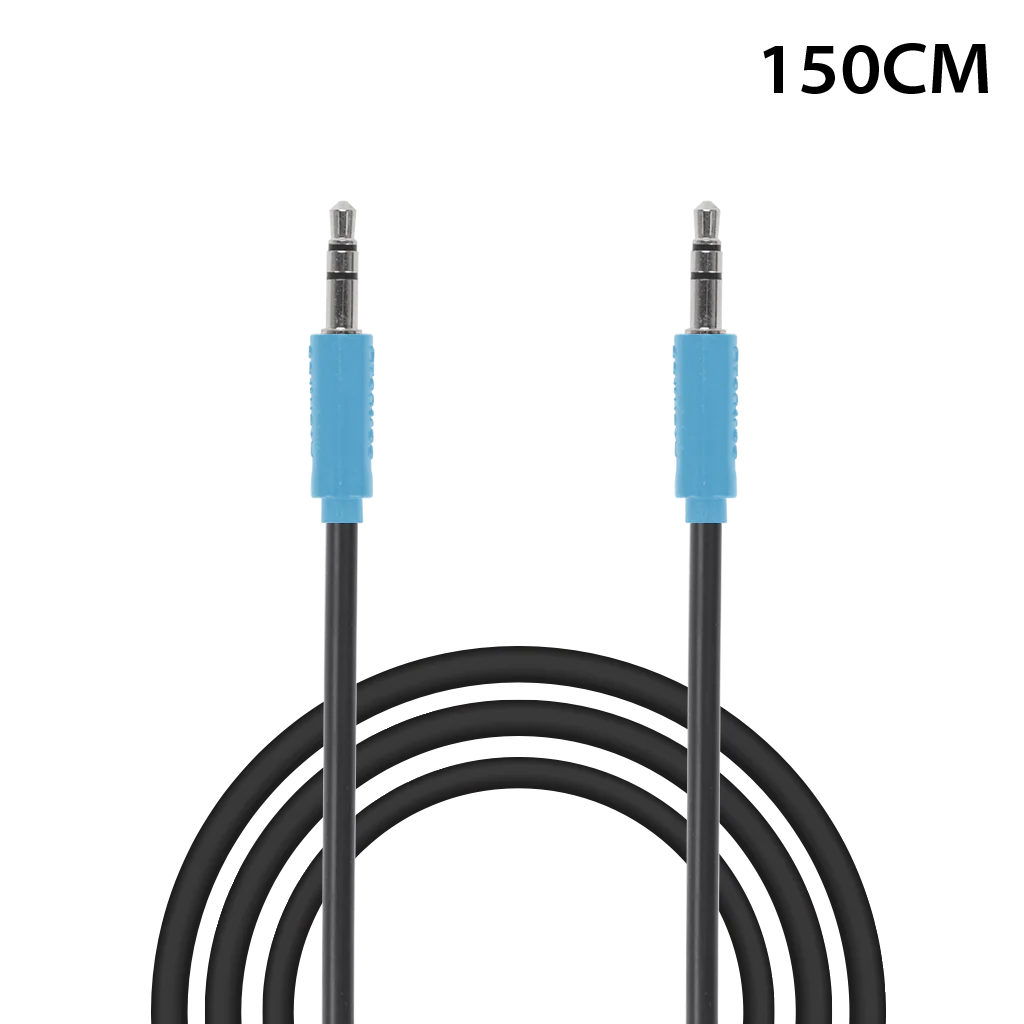
3.5 mm AUX audio cableAUX cable

HDMI cable is not included. Use a standard HDMI cable only when connecting through HDMI ARC.

Reference

Connections, lights, and official help.

Quick reference

TV inputs
HDMI ARC, Optical, or AUX
Solid orange
Headphones joined the Auracast broadcast
Flashing orange
Searching for an Auracast broadcast
Solid blue
Headphones connected by Bluetooth
Red + blue
Bluetooth pairing mode
Charge time
About 2.5 hours
Playtime
Up to 35 hours

FIRMWARE UPDATE

Update the headphones only when needed.

Not part of normal setup. Update only when an Opera Aura release addresses your issue or adds a feature you need.

  1. 1
    Read the Opera Aura update notesConfirm the listed fix or feature applies before starting DFU.
  2. 2
    Connect the headphonesUse a USB data cable and the supported Windows or macOS computer. Do not connect the transmitter dock.
  3. 3
    Run the updateKeep the headphones connected until the updater confirms completion, then follow its reset step.

During the update: do not unplug the headphones, close the updater, or turn off the computer.

STILL NEED HELP?

Get the right help for Opera Aura.

Choose Opera Aura / 6190R and include the TV model, connection type, LED pattern, and a clear photo of the TV and transmitter ports.

Was this helpful?

Thanks for your feedback!