Choose a listening mode
Press the EQ button once to switch modes.
- Balanced → Natural sound
- Clear Voice → Clearer speech
- Cinema Sound → Immersive 3D audio
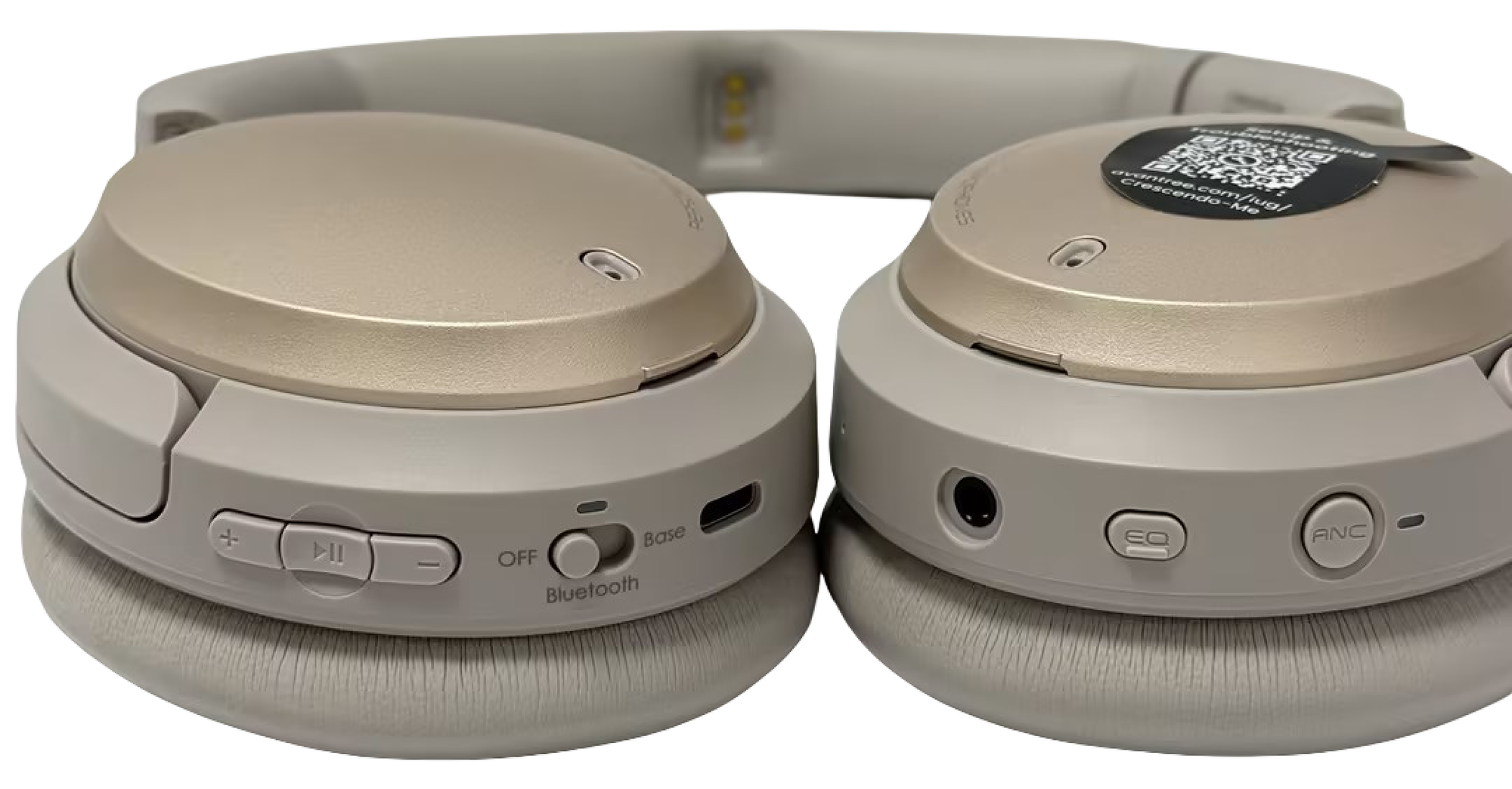

Interactive user guide
Connect Eon 3D to a Bluetooth TV, phone, computer, or compatible Crescendo transmitter.
 Bluetooth + Base mode
SETUP
BLUETOOTH TV
Put Eon 3D in Bluetooth mode.Slide the switch to Bluetooth.You should see: red and blue flashing.Not flashing? Hold Play/Pause for 3 seconds.
Open the TV's Bluetooth menu.Go to Settings → Sound or Audio → Bluetooth.Start a device scan.Open the TV Bluetooth settings guide →
Select “Eon 3D.”Keep the headphones within 1 m / 3 ft of the TV.Connected: the LED turns solid blue.
NON-BLUETOOTH TV
Make sure the transmitter is sending TV audio.The Crescendo transmitter must be connected to your TV and broadcasting its sound.Keep Eon 3D close to the transmitter.Open the Crescendo 3D TV connection guide →
Switch Eon 3D to Base.Slide the mode switch to Base.
Start pairing.Hold Play/Pause for 3 seconds.Pairing: red and blue flashing.Connected: solid blue.
PHONE OR COMPUTER
Put Eon 3D in Bluetooth mode.Slide the switch to Bluetooth.You should see: red and blue flashing.Not flashing? Hold Play/Pause for 3 seconds.
Select Eon 3D.Open Bluetooth settings on your phone or computer.Choose Eon 3D.
Play audio.Choose Eon 3D as the audio output.Connected: the LED is solid blue.
AFTER SETUP
Press the EQ button once to switch modes.
Use the included charging base or USB-C with a 5 V, 1–2 A power supply.
Charge on the base or directly by USB-C.
Need new earpads or a headband? See replacement parts and guides →
FIX A PROBLEM
Each fix identifies the state, the action, the expected result, and the next support path.
Recognize: Eon 3D does not appear in the TV's Bluetooth device list.
Expected: Eon 3D appears and the LED becomes solid blue after selection.
If the TV has no Bluetooth audio menu, use a compatible transmitter or contact support.
Recognize: the LED is solid blue but sound stays on the TV speakers.
Expected: TV audio moves to Eon 3D. Some TVs mute their speakers automatically.
Still silent? Use the official Eon 3D TV troubleshooting article.
Recognize: Base mode keeps flashing and no TV audio is heard.
Expected: the LED becomes solid blue.
If the models do not match the guide, include photos of both labels in a support request.
Recognize: the phone connects before the TV, or TV pairing fails after phone use.
Expected: the TV becomes the active connection and the LED is solid blue.
Recognize: the LED does not turn solid red on the base or USB-C cable.
Expected: solid red while charging; LED off when fully charged in about 2.5 hours.
If neither method works, contact support.
Compatibility: Eon 3D is an over-ear headphone, not a transmitter or hearing-aid accessory. It connects to a Bluetooth TV, phone, or PC, or to a compatible Crescendo transmitter in Base mode.
It does not pair directly to hearing aids. If you need TV audio sent to hearing aids, ask support for a solution that matches the hearing-aid brand and model.
REFERENCE
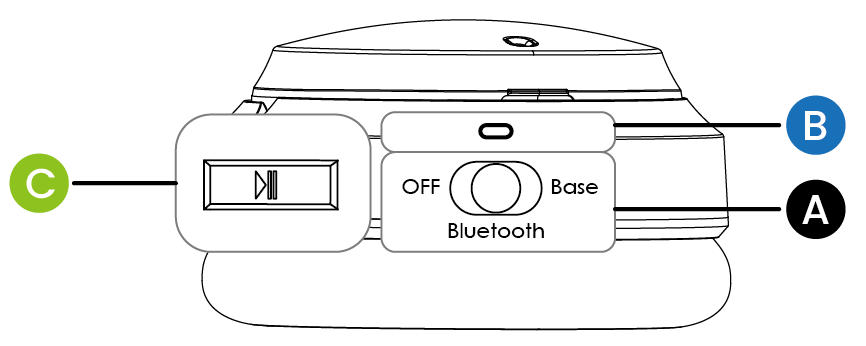 Full buttons & indicators table →
Red + blue flashing
Ready to pair.
Solid blue
Connected.
Blue flashing
Not connected.
Solid red
Charging.
LED off while docked
Fully charged.