
Skip to guide
PDF Guide
JA

Interactive user guide

DG80-Gaming Setup Guide

PS5 Bluetooth audio setup

Play PS5 sound through Bluetooth headphones. Use the controller microphone for voice chat.

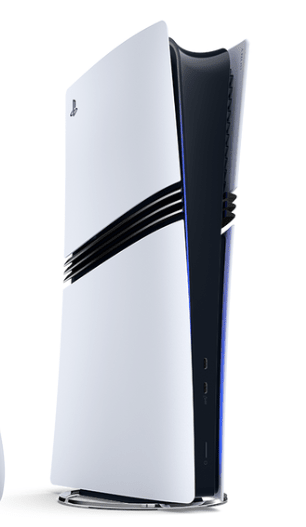
PlayStation 5 consolePS5
DG80-Gaming USB Bluetooth adapterDG80-Gaming
Headphones

Play PS5 sound through your Bluetooth headphones.

Requires Bluetooth headphones or earbuds. PULSE 3D and other 2.4 GHz-only headsets are not supported.

Set up with PS5

Keep DG80-Gaming and your headphones close together while pairing.

Headphones

Put your headphones in pairing mode

  1. Put your headphones or earbuds into Bluetooth pairing mode.
  2. Look for their flashing pairing light or a “ready to connect” prompt.
  3. Turn off Bluetooth on nearby phones or other devices connected to your headphones.

Turning them on is not enough.

Headphone pairing helpChoose brand
AirPods / AirPods Pro

Check the back of your case.

There is a button

AirPods 1–3 / AirPods Pro 1–2

  1. Open the case with your AirPods inside.
  2. Hold the button on the back for about 5 seconds.
AirPods case rear setup button held until the front status light flashes white

Ready when: the case light flashes white.

There is no button

AirPods 4 or 5 / AirPods Pro 3

  1. Open the case with your AirPods inside.
  2. Double-tap the front of the case.
AirPods 4 or 5, or AirPods Pro 3 case front double-tapped until the status light flashes white

Ready when: the case light flashes white.

AirPods Max

Press and hold the noise control button for about 5 seconds.

Ready when: the status light flashes white.

Bose
  1. Turn on the headphones or open the earbud case.
  2. Hold the Bluetooth or power button until the light flashes blue or you hear “Ready to connect.”

Ready when: the light flashes blue or the voice prompt confirms pairing.

Beats
  1. Turn on the headphones.
  2. Hold the system or power button until the indicator flashes.

Ready when: the indicator flashes for pairing.

Sony
  1. With the headphones off, hold the power button for about 5 seconds.
  2. For Sony earbuds, use the case or touch-sensor pairing command for your exact model.

Ready when: the light flashes blue or you hear “Bluetooth pairing.”

Samsung Galaxy Buds
  1. Place both earbuds in the case, close it for 5–6 seconds, then open it.
  2. If pairing does not start, wear both earbuds and touch both touchpads until you hear the pairing sound.

Ready when: the earbuds announce pairing or show their pairing pattern.

JBL
  1. Hold the Bluetooth or power button until the indicator flashes rapidly.
  2. If JBL reconnects to a phone, turn that phone Bluetooth off and try again.

Ready when: the indicator flashes rapidly.

Other headphones
  1. Hold the power, Bluetooth, or main button until the light flashes rapidly.
  2. Check the headphone manual for the exact command if the light does not change.

Ready when: the headphones show their documented pairing pattern.

Ready? Continue to Step 2 →

DG80-Gaming

Put DG80-Gaming in pairing mode

Turn on the PS5 and plug DG80-Gaming directly into its USB-A port.

Blue + white flashingDG80-Gaming is searching

If notNo white + blue and not connected? Hold MFB for 2 seconds, then release. No light? Reseat DG80-Gaming in a powered PS5 USB-A port. Still stuck?

Connect

Wait for the devices to connect

  1. Keep DG80-Gaming and the headphones close together.
  2. Wait 5–10 seconds for the light to change.
Solid blueLow-latency audio connected
Flashing blueaptX HD / aptX / SBC connected — not pairing

Low latency requires headphones supporting aptX Low Latency or aptX Adaptive. Audio delay help →

If notStill white + blue after 10 seconds? Turn off Bluetooth on nearby devices connected to your headphones. Check pairing →

PS5 audio

Choose DG80G as the PS5 output

  1. Open PS5 Settings → Sound → Audio Output.
  2. Set Output Device → Avantree DG80G / DG80G.
  3. Set Output to Headphones → All Audio.
  4. Play game audio and adjust the PS5 and headphone volume.

“Bluetooth audio accessories not supported”? Use DG80G in Audio Output. Pair headphones with the adapter, not the PS5 Bluetooth menu.

Done: You hear game sound through your headphones.
No sound? Unplug and reconnect DG80-Gaming, or try another powered PS5 USB-A port. Check audio output →

Optional · PS5 voice chat

Use the controller microphone

  1. On PS5, open Settings → Sound → Microphone.
  2. Set Input Device → Microphone on Controller.
  3. Unmute the controller mic, then check that your chat receives your voice.

Best game audio: Use the controller microphone. Using the headphone microphone can reduce background audio quality.

Prefer another microphone? See the official PS5 microphone options.

Quick Fixes

Fix a Problem

01Cannot pair or reconnect

Possible cause: The headphones may be connected to another device, not in pairing mode, or affected by interference.

  1. Turn off Bluetooth on nearby phones and previously paired devices.
  2. Put the headphones in pairing mode. Hold DG80-Gaming MFB for 2 seconds until white and blue alternate.
  3. Keep the devices close and wait 5–10 seconds. Move away from Wi-Fi routers or other interfering devices.
  4. Still cannot pair? Reset DG80-Gaming: hold MFB for 2 seconds until white and blue alternate, then double-tap MFB. The light turns solid blue, then resumes white and blue. Put the headphones in pairing mode and try again.

Done: DG80-Gaming shows solid or flashing blue. Play game audio to confirm sound.

Still stuck? Contact Support →

02Audio delay or poor sound

Possible cause: Low latency requires compatible headphones. Headphone microphone use or wireless interference can affect audio.

  1. For PS5 voice chat, select Microphone on Controller as Input Device.
  2. Move away from Wi-Fi routers and other interfering devices.
  3. For low latency, use headphones supporting aptX Low Latency or aptX Adaptive. Other codecs may have more delay.

Done: Game audio is clear; solid blue confirms an aptX Adaptive / Low Latency connection.

Still stuck? Contact Support →

03Connected, but no sound

Possible cause: The PS5 output may be set to another device or the audio volume may be too low.

  1. Confirm DG80-Gaming shows solid or flashing blue. If white and blue alternate, complete pairing first.
  2. Open PS5 Settings → Sound → Audio Output and select Avantree DG80G / DG80G as Output Device.
  3. Play game audio. Raise the PS5 and headphone volumes gradually.

Done: Game audio plays through the Bluetooth headphones.

Still stuck? Contact Support →

04Others cannot hear me

Possible cause: The PS5 microphone input or controller mute setting may be wrong.

  1. Open PS5 Settings → Sound → Microphone → Input Device.
  2. Select Microphone on Controller and unmute the controller microphone.
  3. Speak and check that your chat receives your voice.

Done: Your voice is received from the controller microphone.

Still stuck? Contact Support →

More ways to use DG80-Gaming

Computer or phone audio

The source must support USB audio output. DG80-Gaming has a USB-A plug. A phone or USB-C-only device requires a compatible USB adapter.

DG80-Gaming is designed for PS5. For PC compatibility advice, check the official product page or Contact Support.

  1. Connect DG80-Gaming to a compatible USB audio source.
  2. Put the headphones in pairing mode. Hold DG80-Gaming MFB for 2 seconds if white and blue are not alternating. Keep the devices close and wait 5–10 seconds.

    Solid or flashing blue: Connected. Not connecting?

  3. Select Avantree DG80G / DG80G as audio output, then play audio.
    Windows
    Settings → System → Sound
    Mac
    System Settings → Sound

Done: Audio plays through your Bluetooth headphones. If not, confirm the source supports USB audio and contact support.

Talk and music modes

Double-tap the DG80-Gaming MFB to switch between talk and music modes. Solid white means call mode.

For PS5 voice chat, use Microphone on Controller.