
Skip to guide
PDF Guide
JA

Interactive user guide

Boombyte Setup Guide

Pick FM, Bluetooth, MicroSD, or USB. Follow the short steps and check the success message.

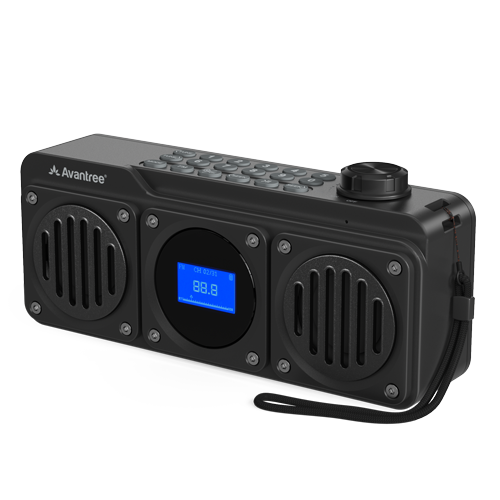
Avantree Boombyte portable FM radio and Bluetooth speaker

STEP 1 · CHARGING

Charge Boombyte.

You can use Boombyte while it charges. A full charge takes about 3 hours.

  • Connect: USB-C, 5 V / 1 A
  • Charging: battery icon blinks
  • Full: battery icon stays solid
  • Playtime: up to 17 hours
Connect the USB-C cable to the DC IN port.
Next: Turn it on →

STEP 2 · POWER ON

Turn it on.

  1. Turn the volume knob to ON. You should see: the screen turns on and shows the last-used mode.
  2. Choose your source below. For MicroSD or USB, insert the card or drive first.

Ready: the display is on and shows FM, Bluetooth, MicroSD, or Music.

Next: Choose a source →

CHOOSE A SOURCE

What do you want to hear?

Choose one. Only its steps will open.

FIX A PROBLEM

What is happening?

Open the problem that matches what you see or hear.

No power or the screen stays dark

You see: the screen stays dark after you turn the knob to ON.

Do this:

  1. Charge for at least 30 minutes.
  2. Use a 5 V / 1 A USB-C source.
  3. No blinking battery icon? Try another cable or charger.

You should see: the screen turns on.

Still dark? Submit a Boombyte support ticket.

FM has static or weak reception

Do this:

  • Fully extend the antenna.
  • Reposition it. Move near a window.
  • Move Boombyte away from routers, TVs, microwaves, metal, and other electronics.
  • Try another station or room.

You should hear: clearer reception.

Still weak? Test several locations. If reception stays weak, contact support. Include your location and setup.

FM scans only 76–90 MHz

What happened: Campus Band is selected.

Do this:

  1. In FM mode, press Settings OK button.
  2. Use SEEK to choose Common Band.
  3. Press the same button again.

You should see: the FM range changes to 87–108 MHz.

Bluetooth device cannot find Boombyte

Do this:

  1. Press MODE until Bluetooth appears.
  2. Disconnect Boombyte from the last paired device.
  3. Select Avantree Boombyte again.

You should see: Connected. Your audio starts playing.

Still not connected? Use Factory Reset below.

MicroSD or USB mode does not appear

You see: MODE skips MicroSD or Music.

Do this:

  • Reinsert the card or drive.
  • Use 32 GB or less.
  • Add MP3, WAV, or WMA files.

File limit: 88 kHz or higher audio is not supported.

You should see: the mode appears. Music starts.

Buttons do not respond

Do this: hold 0 to unlock the buttons. Try again.

Factory reset
  1. Turn Boombyte on.
  2. Hold Settings OK button to open System Settings.
  3. Use SEEK> to find Factory Reset.
  4. Press the same button to confirm.

You should see: FM mode opens. Scanning takes about 1 minute.

This erases saved FM stations and Bluetooth pairing history.

REFERENCE

Find a button or menu setting.

Scan the bold label, then read what it does.

Buttons

OFF / ON / − / +
Turn on/off; rotate for volume
MODE
Switch Bluetooth, MicroSD, and Music modes

Settings OK button
Press: mode settings / confirm · Hold: System Settings
<SEEK / SEEK>
Scroll menu choices or saved FM stations
⏯
Mute/unmute FM · Play/pause other modes
FM
Press: FM mode · Hold: scan and save stations
1–0
Enter station/track; hold 1–9 to save FM; hold 0 to lock/unlock
<TUNE / TUNE>
Change FM frequency by 0.1 MHz

System Settings

Mode Settings

Charging and media

Input
USB-C, 5 V / 1 A
Full charge
About 3 hours
Average playtime
About 11 hours
Media
MicroSD or USB, up to 32 GB
Files
MP3, WAV, WMA; no 88 kHz+ high-resolution audio
Private listening
Connect 3.5 mm wired headphones