Open the Beltone app
Open the Beltone app on your phone.

BELTONE HEARING AIDS · AURACAST GUIDE
Choose your Beltone hearing aid first. We’ll show the right way to join nearby Auracast audio.
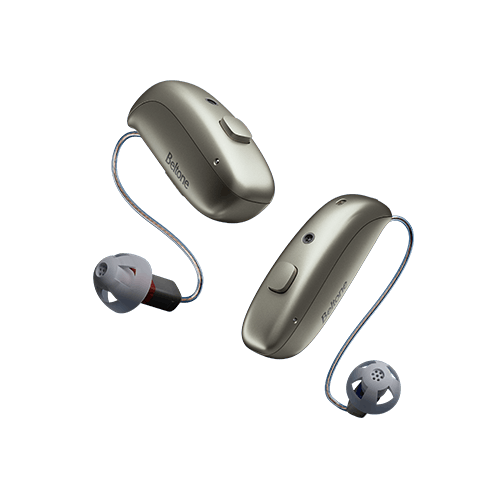
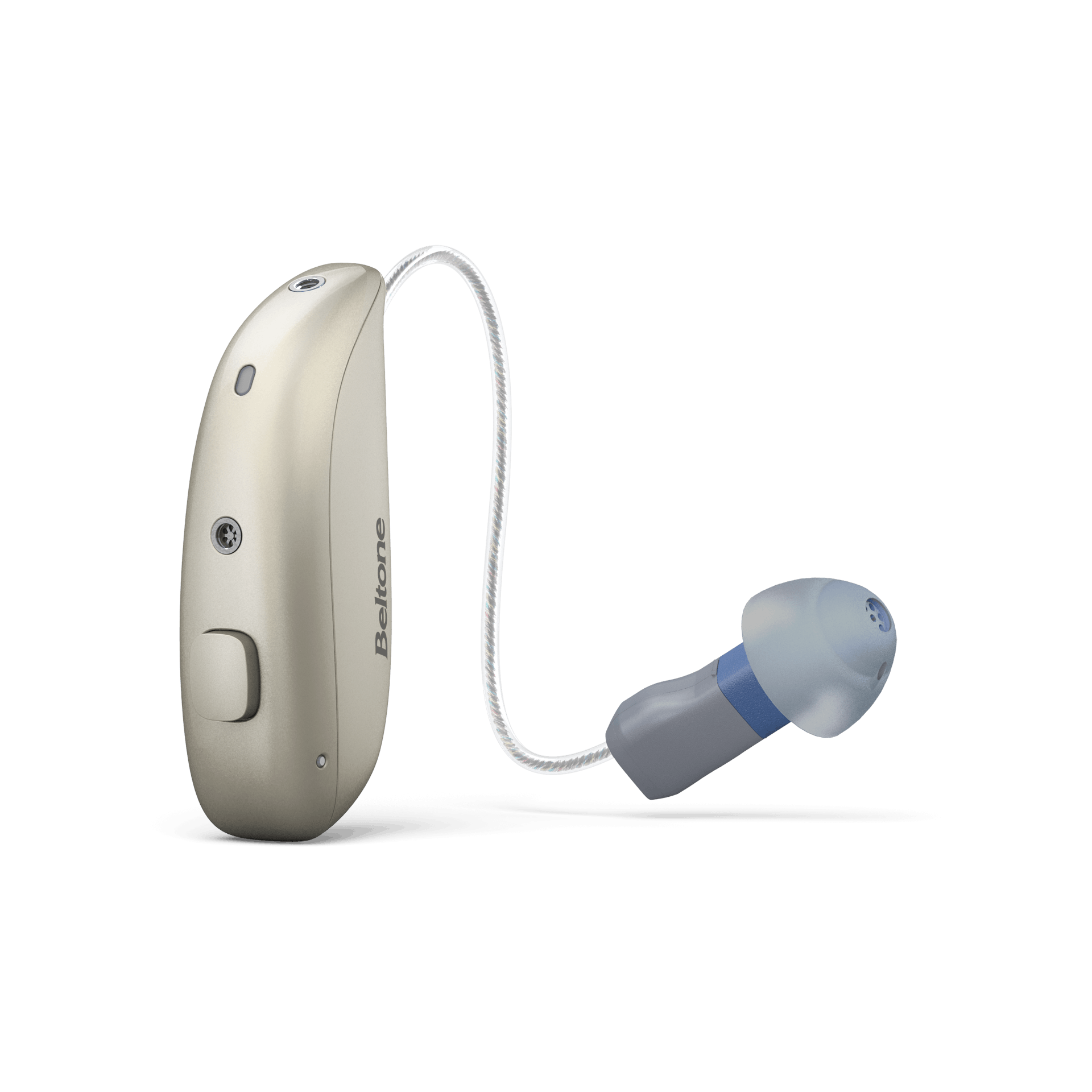
CHOOSE YOUR PATH
Select a setup path to see only the instructions that apply to you.

METHOD 1
Pair the hearing aids with your phone before opening the app.
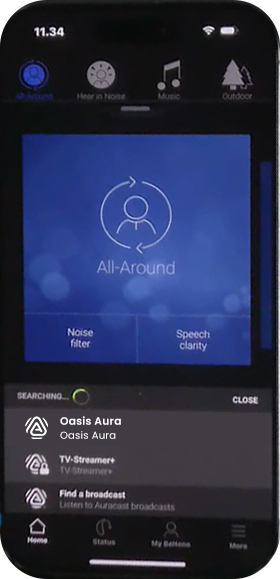
Open the Beltone app on your phone.
Tap Find a broadcast.
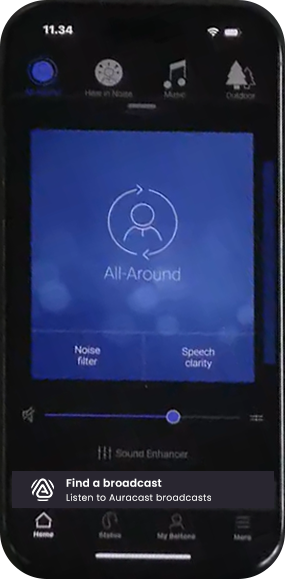
Choose the broadcast you want to hear.
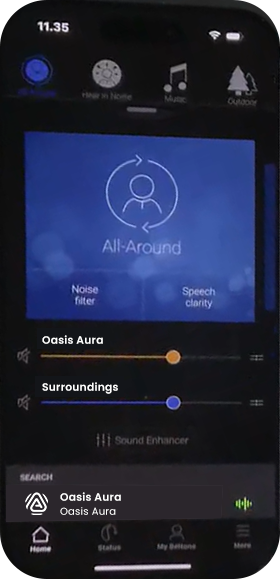
Set the broadcast and surroundings levels to a comfortable balance.
METHOD 2
For Beltone hearing aids that cannot join an Auracast broadcast directly.
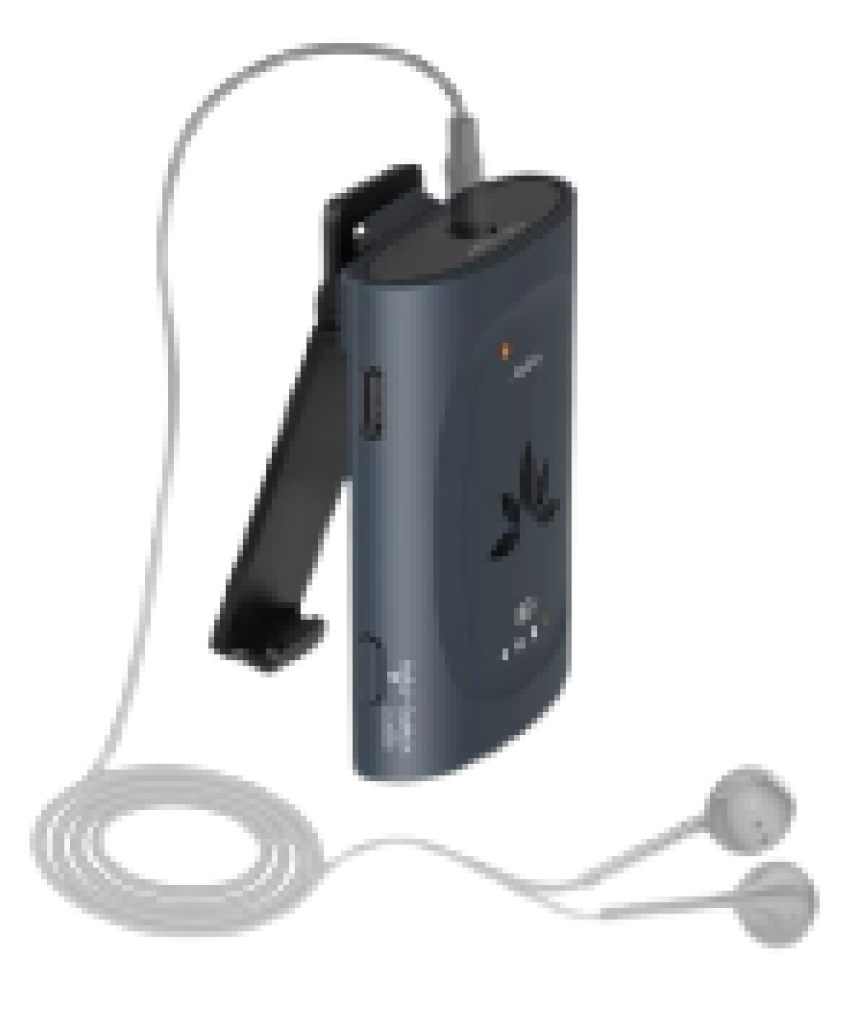
RECOMMENDED RECEIVER
Use AuraClip to receive the Auracast broadcast, then listen through one of these outputs:
METHOD 3
A simple listening option when direct hearing-aid connection is unavailable.
ALTERNATIVE LISTENING
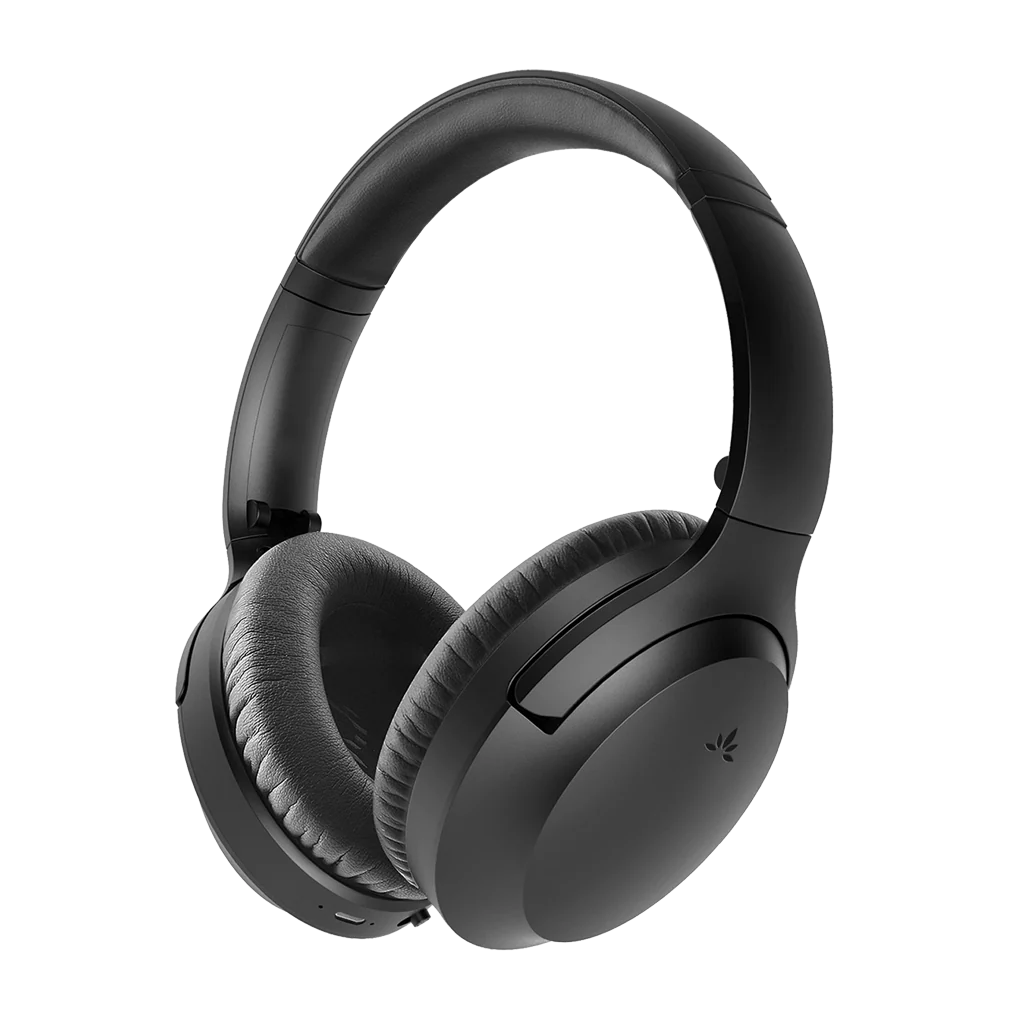
Wear comfortable over-ear Auracast headphones around your hearing aids, or use the headphones without hearing aids.
Example: Aria Aura.
QUICK FIXES
Confirm Audikast 4 is on the upper hearing-aid broadcast, move closer, rescan in the app and raise streaming volume.
Raise the broadcast stream and lower the surroundings or hearing-aid microphone level when that control is available.
Mute the TV speaker or use one listening path at a time. Two audio paths can reach you at slightly different times.
Content transcribed from the Beltone source guide. Model, app and phone support can change; confirm the exact hearing-aid model and current manufacturer software before setup.