
- Sound OutputOptical / External Speaker / Audio System
- Digital Audio Format✓Use:PCM or Stereo×Do not use:Dolby, DTS, Auto, or BitstreamThese may produce silence.
- Play audioPlay a program with speaking voices.
TV
→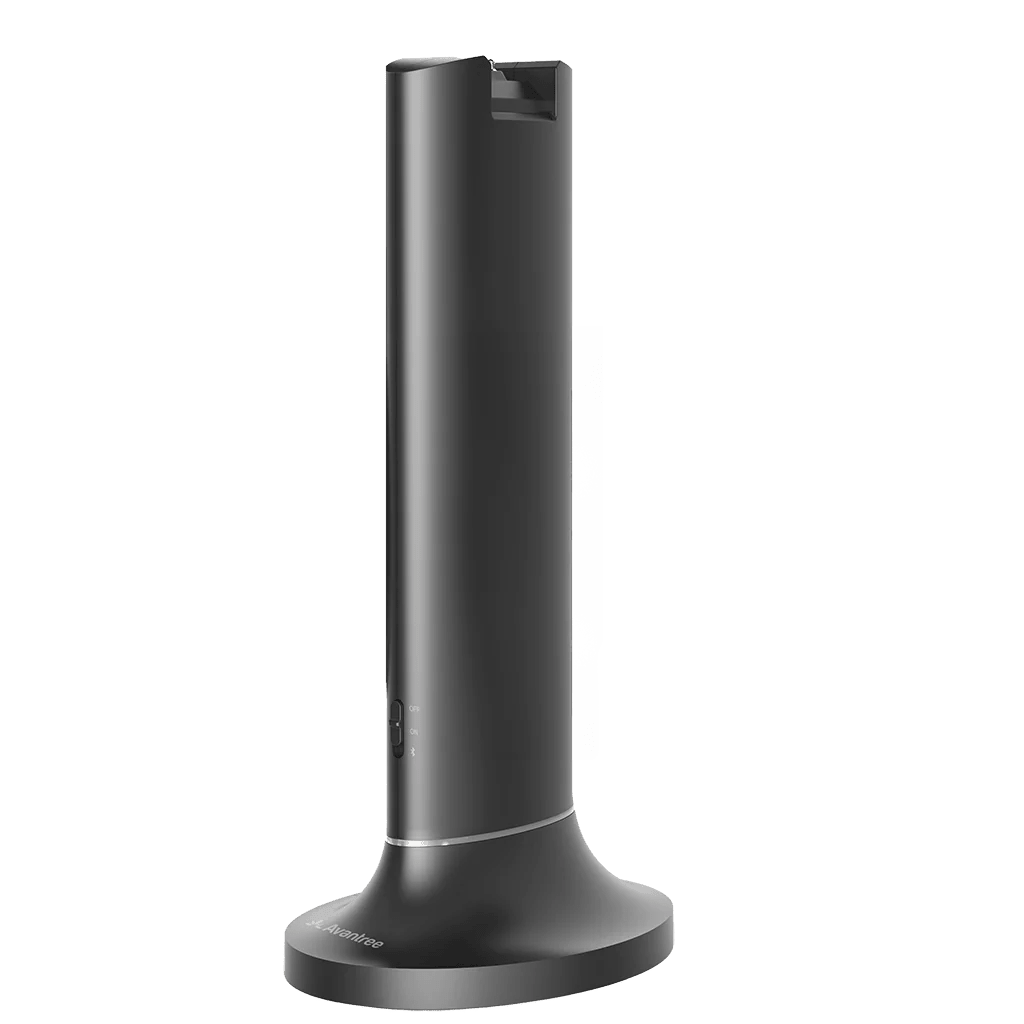 Transmitter
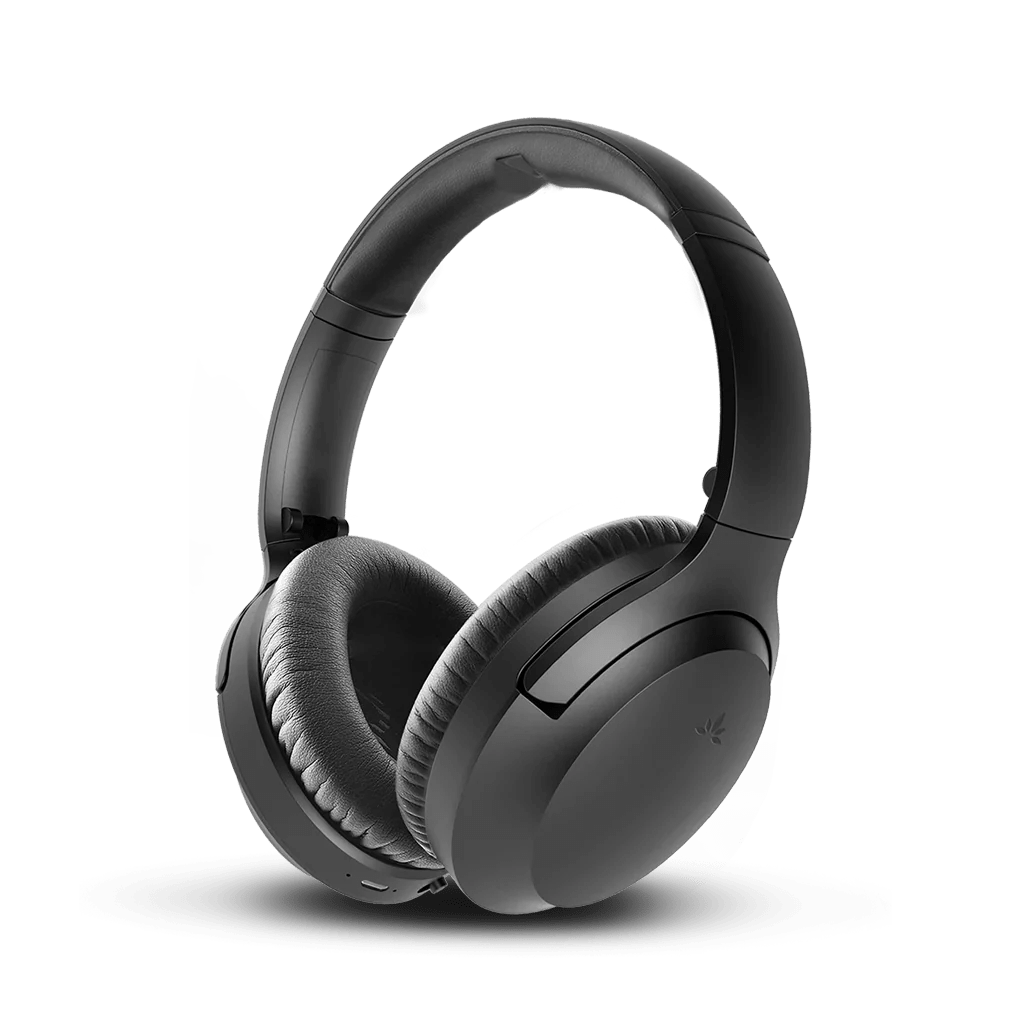 Headphones
 Clear dialogueUp to 20 hours
Start setup
Choose a setup method
The headphones and transmitter dock are Pre-paired. Turn both on to connect automatically.
Recommended kit setup
Set up with the transmitter
Step 1 of 4 · Power
Power the transmitter
- Connect USB-C to the transmitter.
- Connect USB-A to a 5 V, 1–2.4 A USB power adapter.
- Slide the transmitter power switch to ON.
✓
Expected result: the transmitter power light is on.
No light? Reseat both cable ends. Try another USB power source.
Step 2 of 4 · Cable
Connect your TV
Check the labels beside the ports, then choose the first match below.
Not sure? Take a photo of your TV ports.Contact Support →
Connect the Optical cable
- Remove the clear protective caps from both cable ends.
- TV: plug into OPTICAL / DIGITAL AUDIO OUT.
- Opera Plus transmitter: plug into OPT IN.
- Set the transmitter input switch to OPT.
✓
Ready
Both square plugs are fully inserted and the input switch points to OPT.
Connect the AUX cable
- TV: plug into HEADPHONES / AUDIO OUT.
- Opera Plus transmitter: plug into AUX IN.
- Set the transmitter input switch to AUX.
- Raise the TV volume to a normal level.
✓
Ready
Both round plugs are fully inserted and the input switch points to AUX.
Connect the HDMI cable
- Use only the TV port labeled HDMI ARC or HDMI eARC.
- Opera Plus transmitter: plug the other end into HDMI ARC.
- Set the transmitter input switch to HDMI ARC.
✓
Ready
The cable uses the TV ARC/eARC port and the input switch points to HDMI ARC.
Step 3 of 4 · TV sound
TV sound settings
Use your TV remote.
Choose your cable in Step 2 to see the matching TV settings.
Open Settings → Sound
- Sound OutputHDMI ARC / Receiver
- eARCOffHow to turn off eARC →
- Digital Audio Format✓Use:PCM or Stereo×Do not use:Dolby, DTS, Auto, Bitstream, or Pass ThroughThese may produce silence.
- Play audioPlay a program with speaking voices.
Sound OutputHeadphones or Audio Out
Raise the TV volume to a normal listening level. No PCM setting is needed.
Find PCM steps for your TV brand
TV speakers + headphones?Check TV compatibility and steps →
Step 4 of 4 · Listen
Turn on and listen
The included headphones are already paired. Finish the TV settings above, then:
- Slide the headphones to Base / TV.
- Wait for the LED to turn solid blue.
- Put on the headphones and listen to the TV.
✓
Success: solid blue light + TV sound.
TV Bluetooth · Higher delay
Pair directly with your TV
Audio behind the picture? Use the recommended transmitter setup.
Turn the transmitter OFF
Start pairing
Slide the headphones to Bluetooth / Phone. If red and blue do not flash, hold the headphone Play / Pause (▶Ⅱ) button for 3 seconds until the LED flashes red and blue.
Select Opera Plus
Open the TV Bluetooth audio list and select Opera Plus.
Play TV
LED: solid blue
Success: solid blue + TV sound
No TV Bluetooth?
Daily use
Adjust volume
- Adjust on the headphonesUse the + / − buttons on the headphones.
- Adjust TV volume, if availableOptical / HDMI ARC: TV volume may be fixed.
AUX: the TV remote volume may work. - Turn on VOL Boost on the baseSwitch it on for up to +8 dB higher output.
Volume Boost is intended to help seniors hear more clearly. It is not designed for severe hearing loss or hearing-aid-level use.
Bluetooth / Phone mode
Use with a phone or PC
Turn off the Opera Plus transmitter first.
- Switch to Bluetooth / PhoneWait for red and blue flashing. If not, hold Play / Pause (▶Ⅱ) for 3 seconds.
- Select Opera PlusOpen Bluetooth settings on your phone, tablet, or PC and select Opera Plus.
- Play your audioSolid blue means connected. Listen through the headphones.
Watch: connect Opera Plus headphones to a phone or PC
Daily use
Charge the headphones
Use the powered dock or a USB-C cable.
Power & charging
About 2.5 hours for a full charge
- Use the powered dock or USB-C with a 5 V, 1–2.4 A source.
- On the dock, align the charging contacts.
- Solid red means charging; the LED turns off when full.
Not charging? Reseat the headphones or USB-C cable and verify the power source.
Battery reference
Up to 20 hours of playtime. Actual time varies with volume, connection, and use.
Daily use
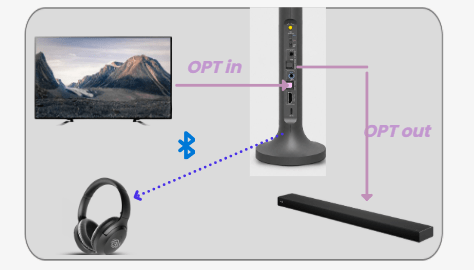
Use a soundbar and headphones together
Match the input and output cable.
In the box
Everything included
Headphones + transmitter dock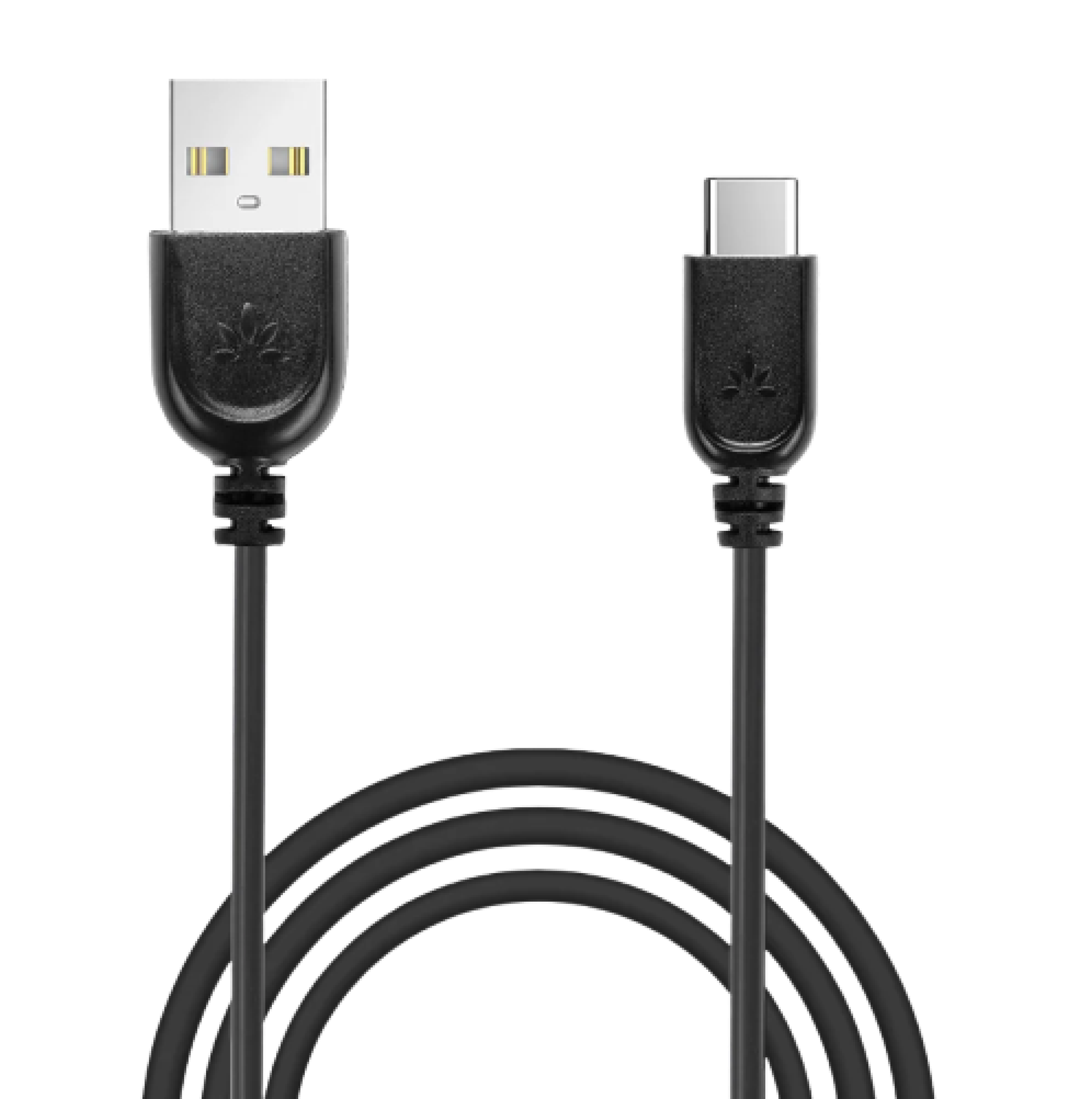 USB-C power cable
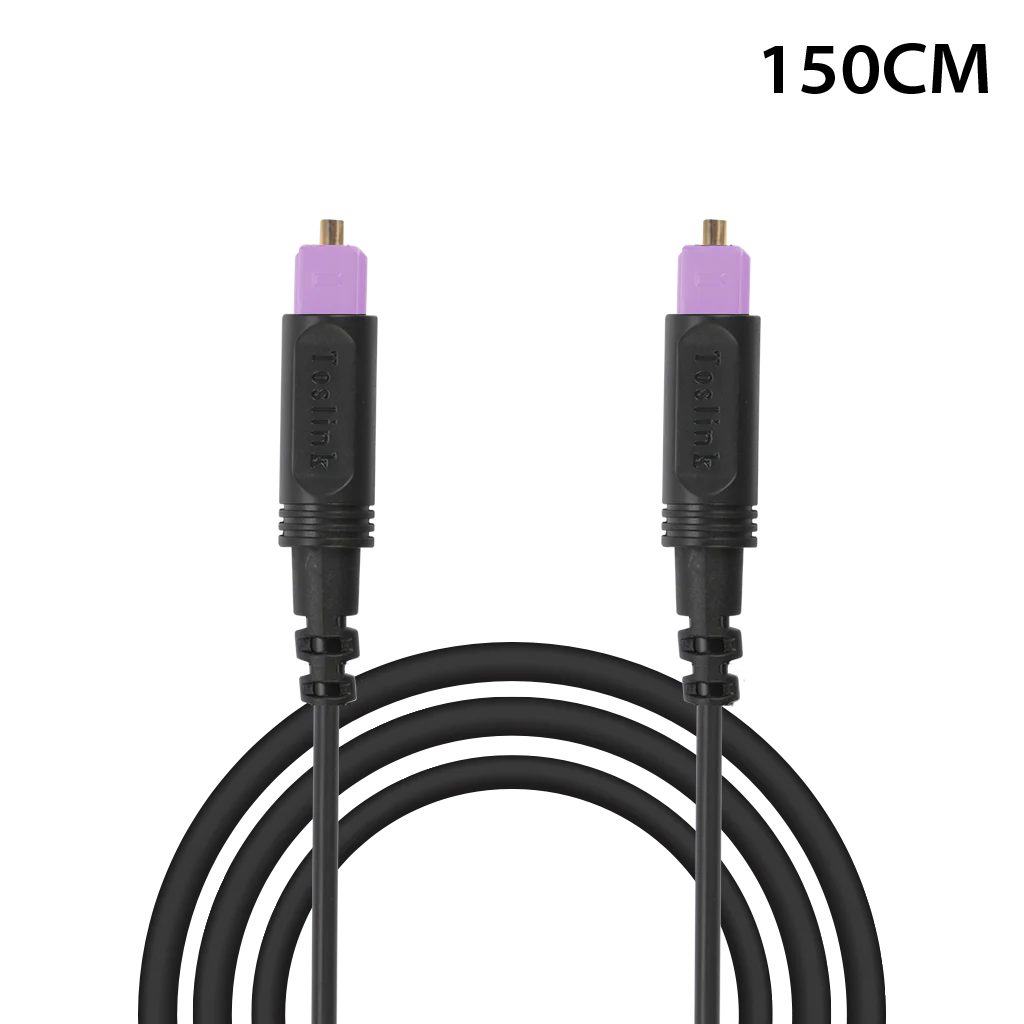 Optical cable
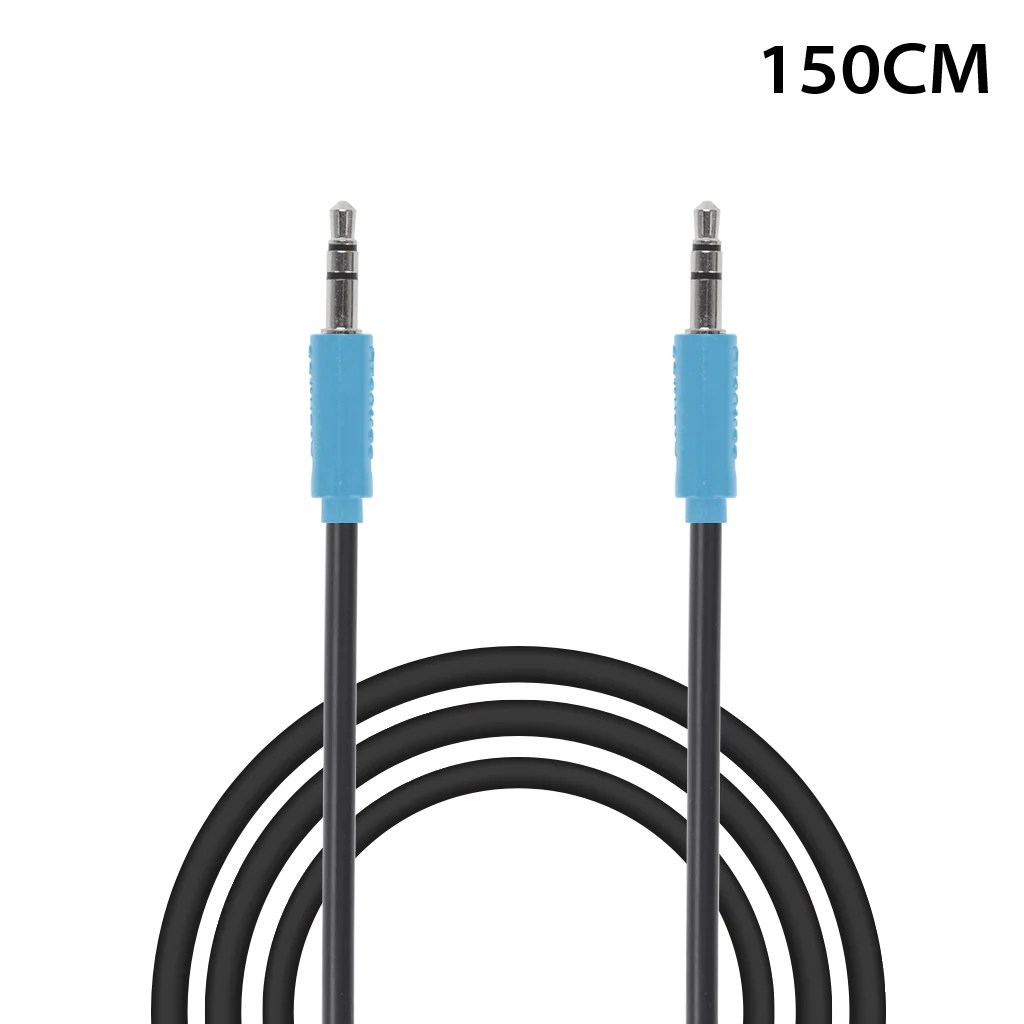 AUX cable
HDMI cable is not included. Use a standard HDMI cable only when connecting through HDMI ARC.
Reference
Connections and lights
Add a second pair of headphones
Use one additional Opera Plus Extra (AS90-K). Keep it close to the transmitter.
- Switch the new headphones to TV / Base. Hold Play / Pause until the LED alternates red and blue.
- Turn on the transmitter. Hold its switch in PAIR until the LED alternates red and blue.
- Wait 3–5 seconds for both LEDs to turn solid blue.
Done: both headphones play TV sound and have independent volume control.
Limit: the transmitter supports up to two AS90-K headphones at once.
Open the full pairing guide →Check buttons and indicator lights
- Headphones: solid blue
- Connected
- Headphones: red and blue
- Pairing mode
- Headphones: solid red
- Charging; the light turns off when full
- Transmitter: solid blue
- Headphones connected
- Transmitter: VOL Boost green
- Volume Boost is on, up to +8 dB
- Input switch
- Must match Optical, HDMI ARC, or AUX
Quick fixes
What do you need help with
No sound after setup
Likely condition: the TV output, cable, transmitter input, or audio format does not match.
- Switch the headphones to Base / TV and wait for solid blue.
- Confirm the cable uses the TV AUDIO OUT and the transmitter input switch matches it.
- For Optical or HDMI ARC, select the matching TV output and set audio to PCM or Stereo.
- Play a program with speaking voices.
Expected result: solid blue light and TV sound in the headphones.
Open the full no-sound guide →Headphones will not connect
Likely condition: the headphones are in Bluetooth / Phone mode or need a fresh connection.
- Switch the headphones to Base / TV.
- Turn the transmitter and headphones off.
- Turn on the transmitter, then the headphones, and keep them close together.
- Wait for the headphone LED to turn solid blue.
Expected result: solid blue means the headphones are connected to the transmitter.
Open Opera Plus support →No light on the transmitter
Likely condition: the transmitter is not receiving power.
- Reconnect the USB-C plug at the transmitter.
- Reconnect USB-A to a working 5 V, 1–2.4 A power adapter.
- Try another USB power adapter or cable.
- Slide the transmitter switch to ON.
Expected result: the transmitter power light turns on.
TV speakers stopped working
Condition: some TVs mute their speakers when an external audio output is selected.
- Open the TV Sound settings.
- Look for TV Speaker + Optical, Simultaneous Audio, or a similar setting.
- For AUX, check whether the TV headphone jack automatically mutes its speakers.
Expected result: both play only if the TV supports simultaneous audio.
Check TV compatibility and steps →Not loud enough
Likely condition: the headphone, TV, or transmitter output level is too low.
- Raise volume with the headphone + button.
- For AUX, raise the TV volume to a normal listening level.
- Turn VOL Boost on at the transmitter for up to +8 dB.
Expected result: speech plays louder through the headphones.
Open the full volume guide →Headphones will not charge
Likely condition: the dock has no power or the charging contacts do not touch.
- Power the dock with a 5 V / 1 A wall adapter.
- Wipe the charging contacts with a clean, dry cloth.
- Reseat the headphones until the contacts touch, or connect USB-C directly.
- Try another power adapter and cable if no red light appears.
Expected result: solid red means charging; the light turns off when full.
Open the full charging guide →