Interactive User Guide · Opera Aura / 6190R
Clear TV sound, without turning up the room.
Connect the transmitter by HDMI ARC, Optical, or AUX, then listen through the included Auracast headphones.
The headphones join the transmitter's Auracast broadcast—there is no Bluetooth pairing step for normal TV use.
HDMI ARC · Optical · AUXAuracast · up to 35 hoursStart setup
How do you want to connect?
Choose the option that works best for you.
★ We recommend Opera Aura for the best experience.
How the recommended setup works
The transmitter broadcasts your TV sound.
For normal TV use, do not pair by Bluetooth. A solid orange headphone LED means it has joined the transmitter.
Got it — Start setupRecommended kit setup
Four steps. One clear result.
Follow each step in order. We show what to do, what to look for, and how to fix it.
Step 1
Power the transmitter.
Place it near the TV. Keep the audio cable loose, not stretched.
Connect power

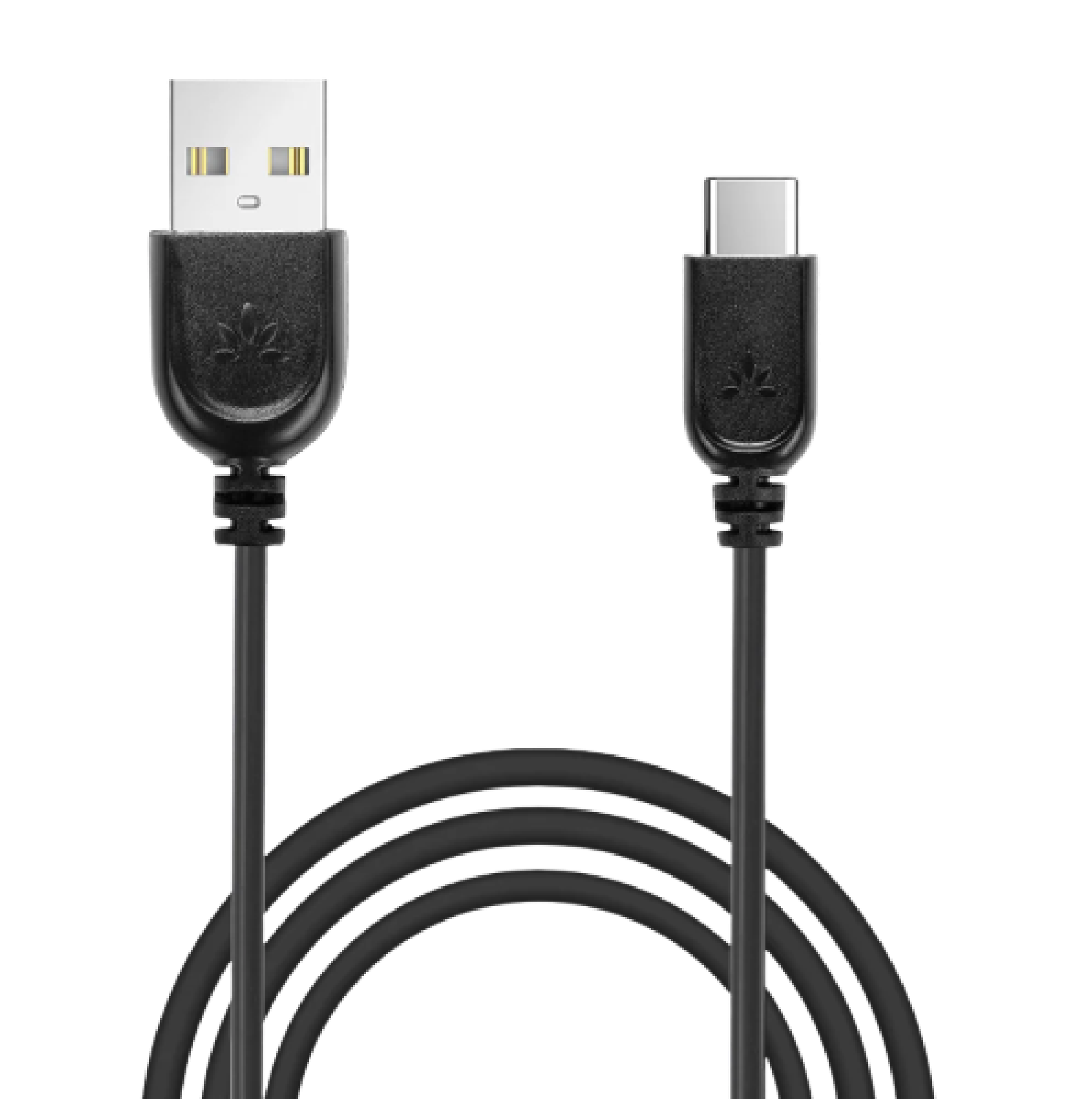
- Connect USB-C to the transmitter.
- Connect USB-A to a 5 V, 500 mA–2 A power source.
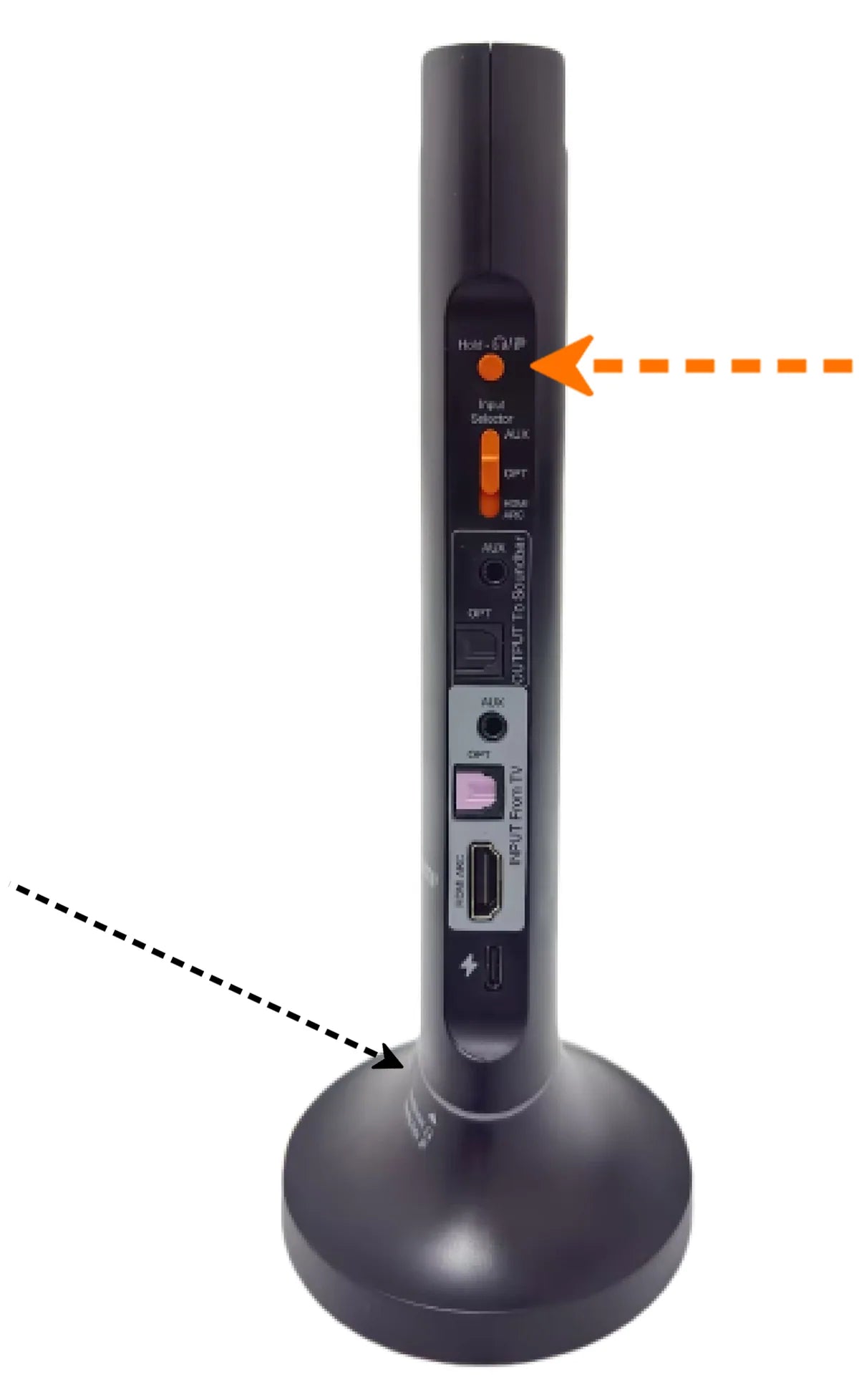
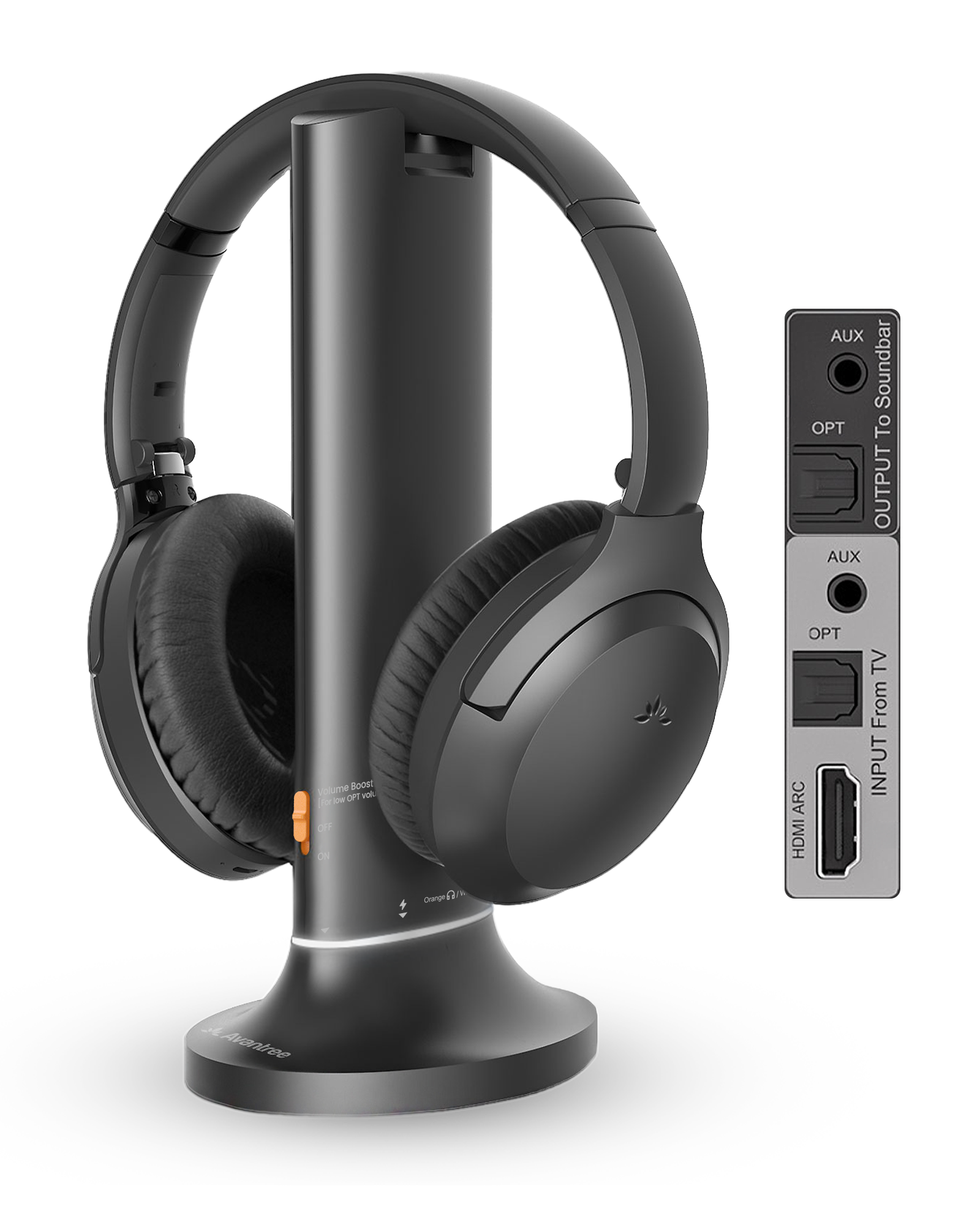
- Slide Volume Boost / OFF / ON to ON.
Step 2
Choose one TV audio output.
Look at the labels on the back or side of the TV, then choose the matching path.
Which TV output do you have?
Tap a connection to reveal its cable, switch position, and next setting.
Connect with Optical
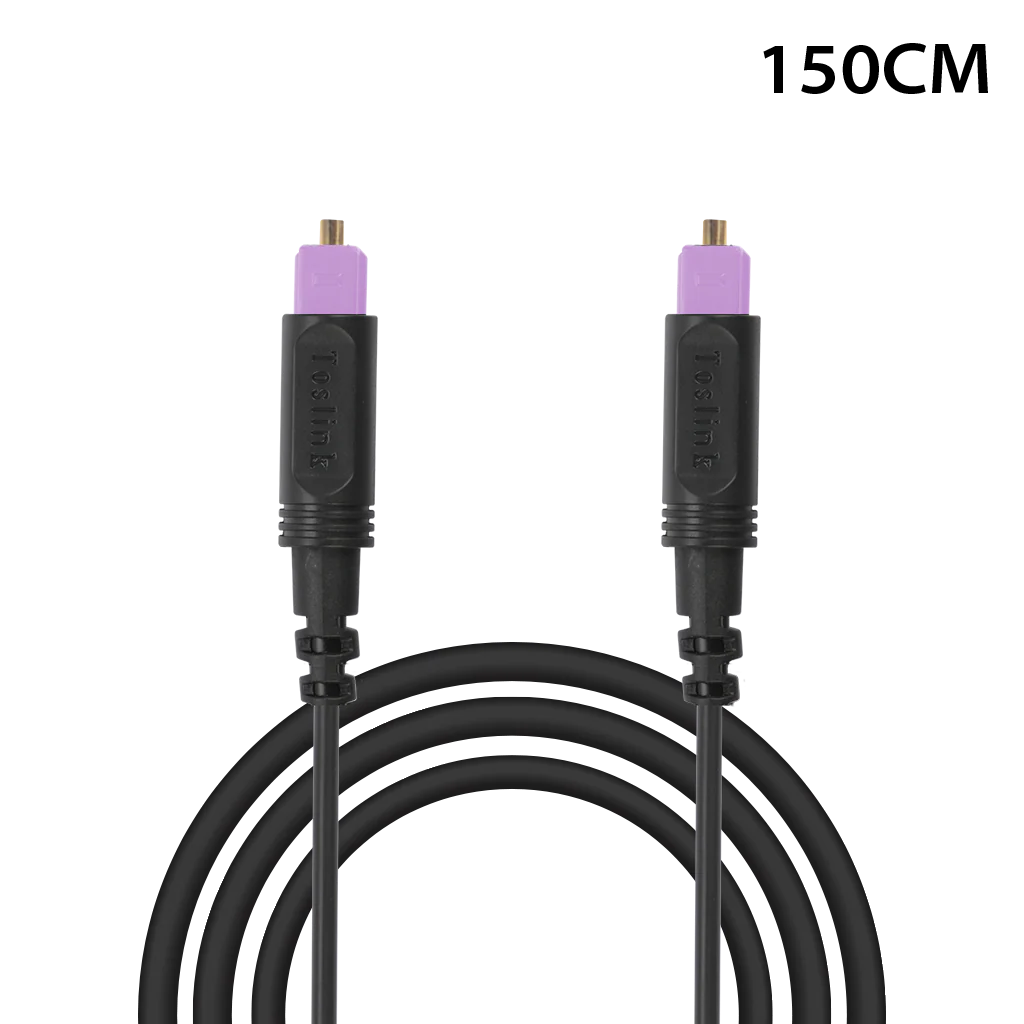
- Remove the protective caps from both cable ends.
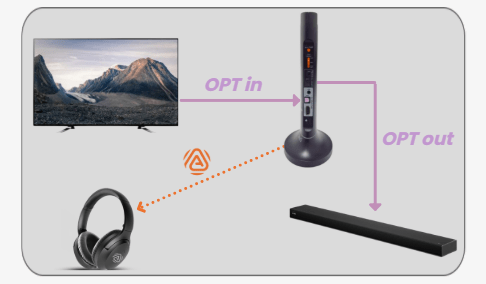
- Connect TV OPTICAL / DIGITAL AUDIO OUT to transmitter OPT IN.
- Set the transmitter Input Selector to OPT.
Connect with HDMI ARC
- Use the TV port specifically labeled HDMI ARC or eARC.
- Connect that port to the transmitter HDMI ARC input.
- Set the transmitter Input Selector to HDMI ARC.
Connect with AUX / 3.5 mm
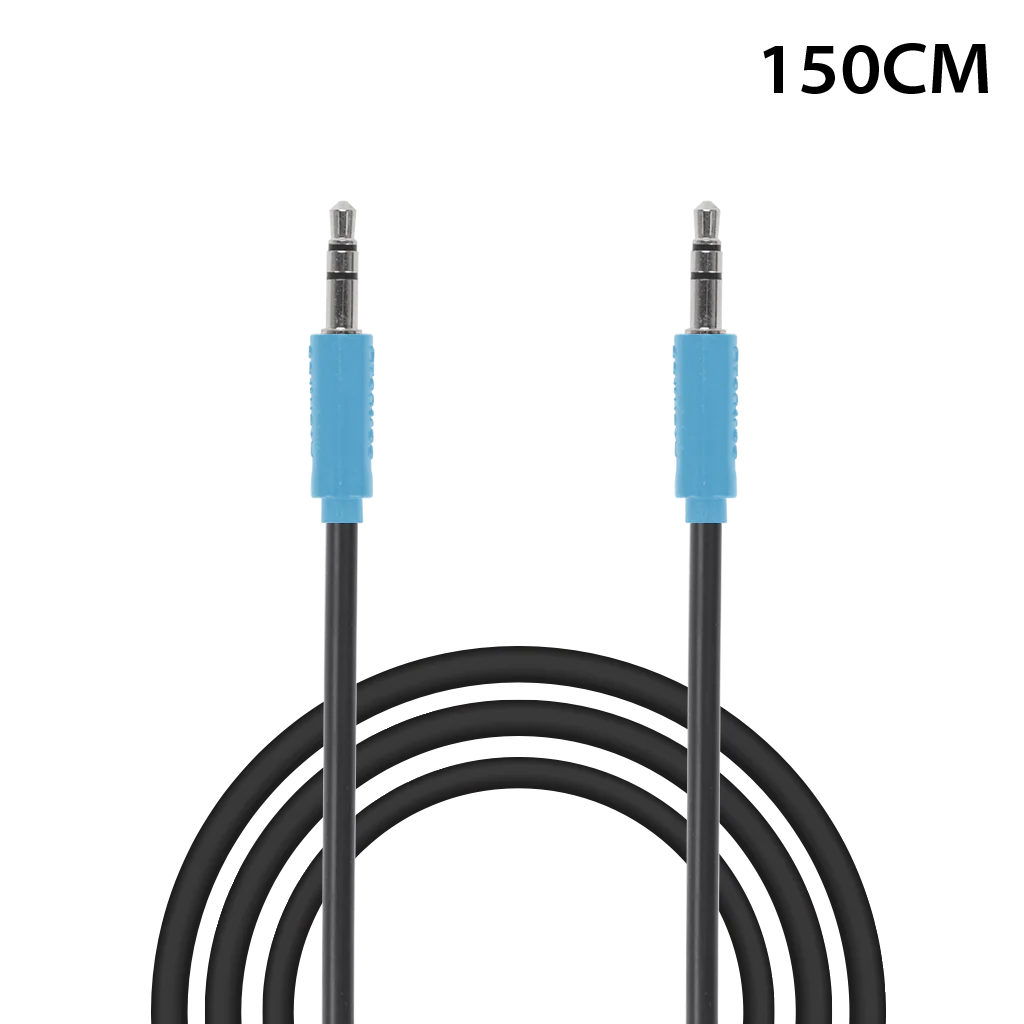
- Connect TV HEADPHONES / AUDIO OUT to transmitter AUX IN.
- Set the transmitter Input Selector to AUX.
- Set TV sound output to Headphones and raise TV volume to a normal level.
Step 3
Make the TV send usable audio.
The sound-output name varies by TV brand. Optical and HDMI ARC also require PCM.
Set TV audio
- Open the TV's Settings → Sound / Audio.
- Choose the output you connected: Optical / External Speaker, HDMI ARC / Receiver, or Headphones.
- For Optical or HDMI ARC, set Digital Audio Format to PCM or Stereo.
- For HDMI ARC, turn eARC off.
- Play a TV program with speaking voices.
Choose your TV brand for PCM steps
Step 4
Turn on the headphones.
They will search for the transmitter's Auracast broadcast. Do not use Bluetooth pairing for normal TV listening.
Join the TV broadcast

- Keep the headphones near the powered transmitter.
- If the LED does not flash orange, hold ⏯ for 3 seconds.
- Wait for solid orange.
- Put on the headphones and raise the volume slowly.
TV Bluetooth setup
Connect the headphones directly to a Bluetooth TV.
This bypasses the Opera Aura transmitter and may have more delay.
Start Bluetooth pairing
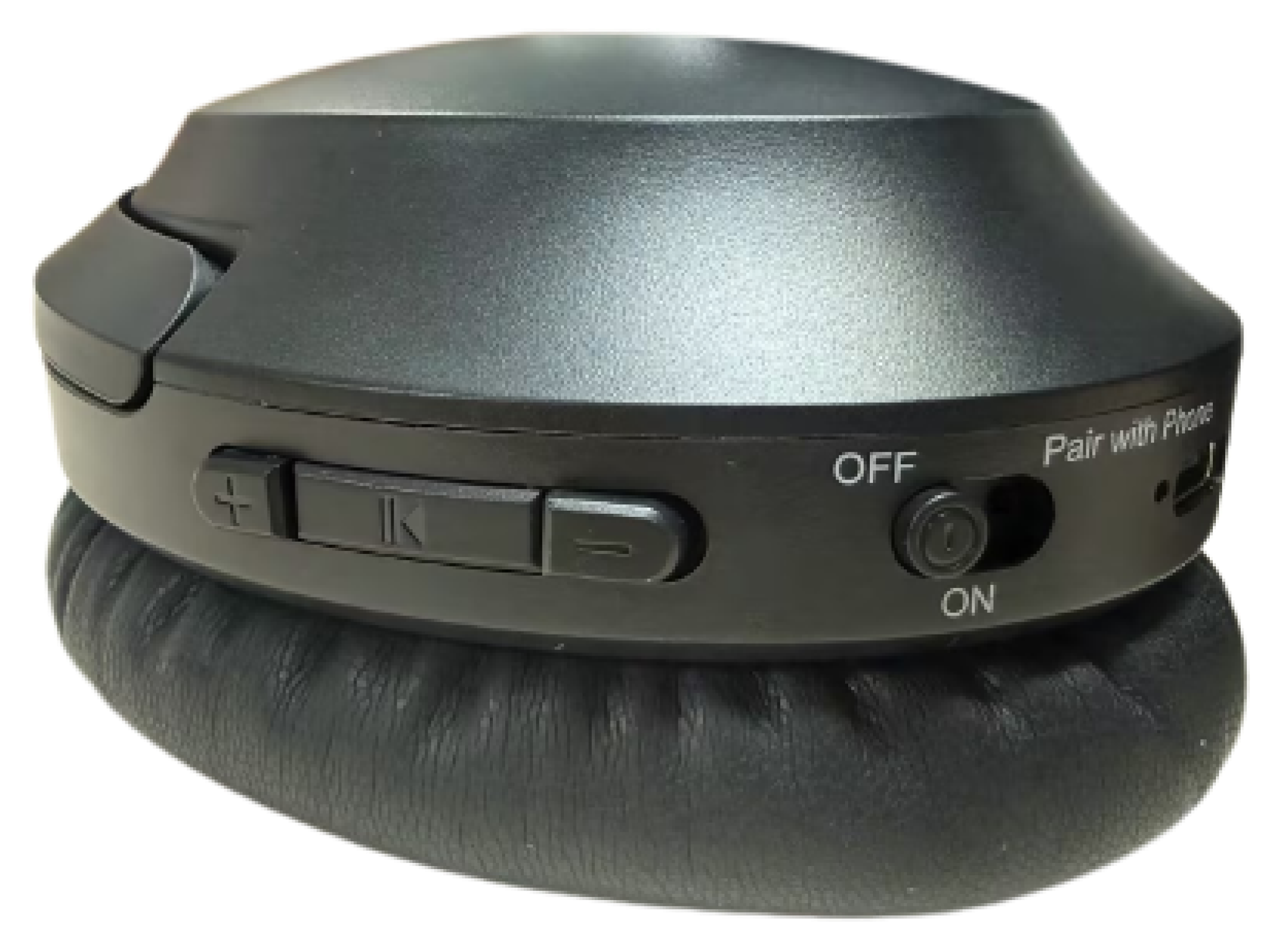
Hold the power switch at Pair with Phone for 3 seconds until red and blue flash.
Select Aria Aura
Open the TV Bluetooth audio list and select Aria Aura.
Confirm solid blue
Solid blue means the Bluetooth connection is ready.
Too much lip-sync delay?
Daily use
Charge the headphones.
Use the powered dock or a USB-C cable.
Power & charging
About 2.5 hours for a full charge.
- Use the powered dock or USB-C with a 5 V, 1–2.4 A source.
- On the dock, align the charging contacts.
- Solid red means charging; the LED turns off when full.
Not charging? Reseat the headphones or USB-C cable and verify the power source.
Battery reference
Up to 35 hours of playtime. Actual time varies with volume, connection, and use.
Quick fixes
Match what you see.
Each fix states the action, expected result, and next step.
⌁Headphones won't join the transmitter
- Confirm the transmitter is on and playing TV audio.
- Keep the headphones close to the transmitter and at least 2 m from Wi-Fi routers or microwaves.
- Double-press ⏯ if the LED is red + blue, then hold ⏯ for 3 seconds until it flashes orange.
- Wait for solid orange.
Expected: solid orange and TV sound. If it still fails, hold + and − together for 5 seconds to reset the headphones, then search again.
🔇Joined, but no TV sound
- Confirm the transmitter Input Selector matches HDMI ARC, OPT, or AUX.
- Confirm the cable is connected to a TV audio output.
- For Optical/HDMI ARC, set TV output correctly and Digital Audio Format to PCM; for HDMI ARC also turn eARC off.
- For AUX, raise TV volume and check headphone mute/volume.
- Power the transmitter off and on once.
Expected: the transmitter audio-signal light becomes solid and dialogue plays.
ARCHDMI ARC has no sound
- Use the TV port labeled HDMI ARC/eARC—not a standard HDMI input.
- Select HDMI ARC/Receiver as TV Sound Output.
- Turn eARC off and set Digital Audio Format to PCM.
- Set the transmitter Input Selector to HDMI ARC, then restart the TV and transmitter.
A soundbar already using the ARC port must be disconnected or rerouted; Opera Aura soundbar pass-through is Optical/AUX only.
▣Use a soundbar and headphones together
- First get sound in the headphones using Optical or AUX.
- Use the same connection type from transmitter OPT OUT or AUX OUT to the soundbar.
- Select that input on the soundbar and adjust its volume.
HDMI ARC soundbar pass-through is not supported. An HDMI audio extractor such as HAX06 is required for that arrangement.
⚡No light on transmitter
- Reconnect USB-C at both ends.
- Try a known-working 5 V USB adapter.
- Slide the transmitter switch to OFF, then ON.
If there is still no light, submit a support ticket with a photo of the power connection.
🔋Headphones will not charge
- Confirm the dock has power.
- Align the charging contacts and look for solid red.
- Try USB-C charging directly.
- Allow about 2.5 hours.
In the box
Use the right connection.

Opera Aura set
Headphones, transmitter/charging dock, USB-C power cable, Optical cable, and AUX cable. HDMI cable is not included.
View product details →Official manual
Open the current Opera Aura interactive manual for advanced features and button diagrams.
Open official manual →Reference
Connections, lights, and official help.
Quick reference
- TV inputs
- HDMI ARC, Optical, or AUX
- Solid orange
- Headphones joined the Auracast broadcast
- Flashing orange
- Searching for an Auracast broadcast
- Solid blue
- Headphones connected by Bluetooth
- Red + blue
- Bluetooth pairing mode
- Charge time
- About 2.5 hours
- Playtime
- Up to 35 hours
Official resources
FIRMWARE UPDATE
Keep Opera Aura up to date.
Updates can add features and improve performance.
- Use a USB data cable and a Windows 10+ PC or macOS 10.14+ Mac.
- Open Avantree Firmware Updates and install the Avantree Updater.
- Connect the requested Opera Aura device, run the update, then complete the reset step shown by the updater.
STILL NEED HELP?
Get the right help for Opera Aura.
Choose Opera Aura / 6190R and include the TV model, connection type, LED pattern, and a clear photo of the TV and transmitter ports.
DON'T WANT TO SUBMIT A TICKET?