Power it
Connect the included USB-C cable to a 5 V, 500 mA–2 A power source. Slide the power switch to ON.
Connect a TV or computer to one or two Bluetooth headphones, earbuds, speakers, or compatible Classic Bluetooth hearing aids.
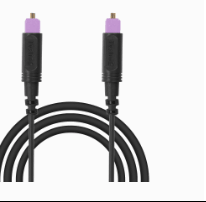
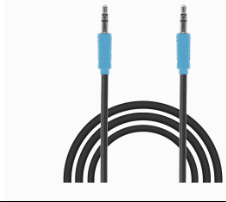
Oasis Plus 2Model TC500P2 · Bluetooth 5.3Power Oasis Plus 2, choose the cable that matches your TV output, then set the TV audio correctly.
Connect the included USB-C cable to a 5 V, 500 mA–2 A power source. Slide the power switch to ON.
Look at the labels beside your TV ports. Match one output to the corresponding Oasis Plus 2 input.
For Optical, select Optical output and set the digital audio format to PCM.
Find the matching output label on your TV. Do not connect to an input port.
Select your TV brand for the exact menu path. Menu names can vary by model.
Open the full TV PCM guide →Oasis Plus 2 can pair with one or two Classic Bluetooth audio devices.
Turn off Bluetooth on nearby phones/tablets, then put the headphones into true pairing mode—not merely powered on.
AirPods work through Classic Bluetooth. The case light must blink white before Oasis Plus 2 can find them.
The speaker must accept standard Bluetooth audio (A2DP) and be placed in pairing mode.
Oasis Plus 2 is not an Auracast transmitter. It can connect only to hearing aids that receive Classic Bluetooth audio directly; Avantree currently confirms Phonak in its official guide.
Use +/− on Oasis Plus 2 or the included remote. With Optical input, the OPT Volume switch can add a fixed boost; use the device controls for everyday adjustment.
For an Optical soundbar, connect TV Optical Out → Oasis Plus 2 Optical In, then Oasis Plus 2 Optical Out → soundbar Optical In.
Choose the closest symptom. Each fix includes the expected result and next step.
Slide to ON after USB-C power is connected. Slide to OFF to shut down.
Blinking green + white means pairing. Solid white means connected. Press to reconnect; hold to start pairing.
Solid means a valid input signal. Flashing means no usable signal—check the cable, input selector, playback, and PCM.
Adjust transmitter output volume. The included remote provides the same convenient control.
Use the Optical volume/boost setting when Optical sound remains low. It does not affect AUX input.
Use the official factory-reset steps when old devices keep reconnecting or pairing repeatedly fails.
Firmware updates can improve pairing performance and stability.
Use a Windows PC or Mac and a USB data cable. Download and install the official Avantree Updater.
Connect Oasis Plus 2 to the computer, turn it on, then choose Check for Updates → Install in the updater.
Wait for completion, disconnect the transmitter, factory-reset it, then pair your devices again.
Choose Oasis Plus 2 / TC500P2. Include your TV/computer model, listening-device model, cable type, and the exact A/B and OPT/AUX light patterns.
DON'T WANT TO SUBMIT A TICKET?
Keep Oasis Plus 2 and the headphones within 3 ft / 1 m while pairing.
Turn off Bluetooth on nearby phones and computers first. Simply turning headphones on is not enough.
Choose your headphones
Pairing instructions
Success: the headphone or case light flashes rapidly.
If side A is not already searching, hold the A-side pairing button for 2 seconds.
Keep the devices close
The connection completes automatically after both products enter pairing mode.
Test the result
Success: audio plays through the first headphones.
Leave the first headphones connected while pairing the second set.
Pair side B
Success: both listeners hear the same TV audio.
Was this helpful?