
What do you want to listen to?
TV with Bluetooth
Use this option if your TV supports Bluetooth headphones. Open the TV’s sound settings and look for a Bluetooth headphone or speaker list.
- Slide the headphone power switch to ON.
- If the light isn’t flashing red and blue, hold the switch at HOLD TO PAIR for 3 seconds.
- Select Eon Aura on your TV, then play a show.
Look for a solid blue light and listen for TV sound.
Watch the Bluetooth pairing demo
Phone or computer with Bluetooth
- Slide the headphone power switch to ON. A flashing red and blue light means the headphones are ready to pair.
- If the light isn’t flashing red and blue, hold the switch at HOLD TO PAIR for 3 seconds.
- Open Bluetooth settings on your phone or computer and select Eon Aura.
- Play something. If sound still comes from the speakers, choose Eon Aura as the audio output.
Look for a solid blue light and listen for sound in the headphones.
Watch the Bluetooth pairing demo
TV with an Auracast transmitter
- Connect your Auracast transmitter to the TV using the transmitter’s setup guide. Start an open broadcast and play a show.
- Move close to the transmitter and slide the headphone power switch to ON. The headphones scan for nearby open broadcasts.
Flashing orange means searching. When the light turns solid orange, listen for TV sound.
The orange light keeps flashing · I’m connected but hear nothing
Compatible Avantree transmitters
-
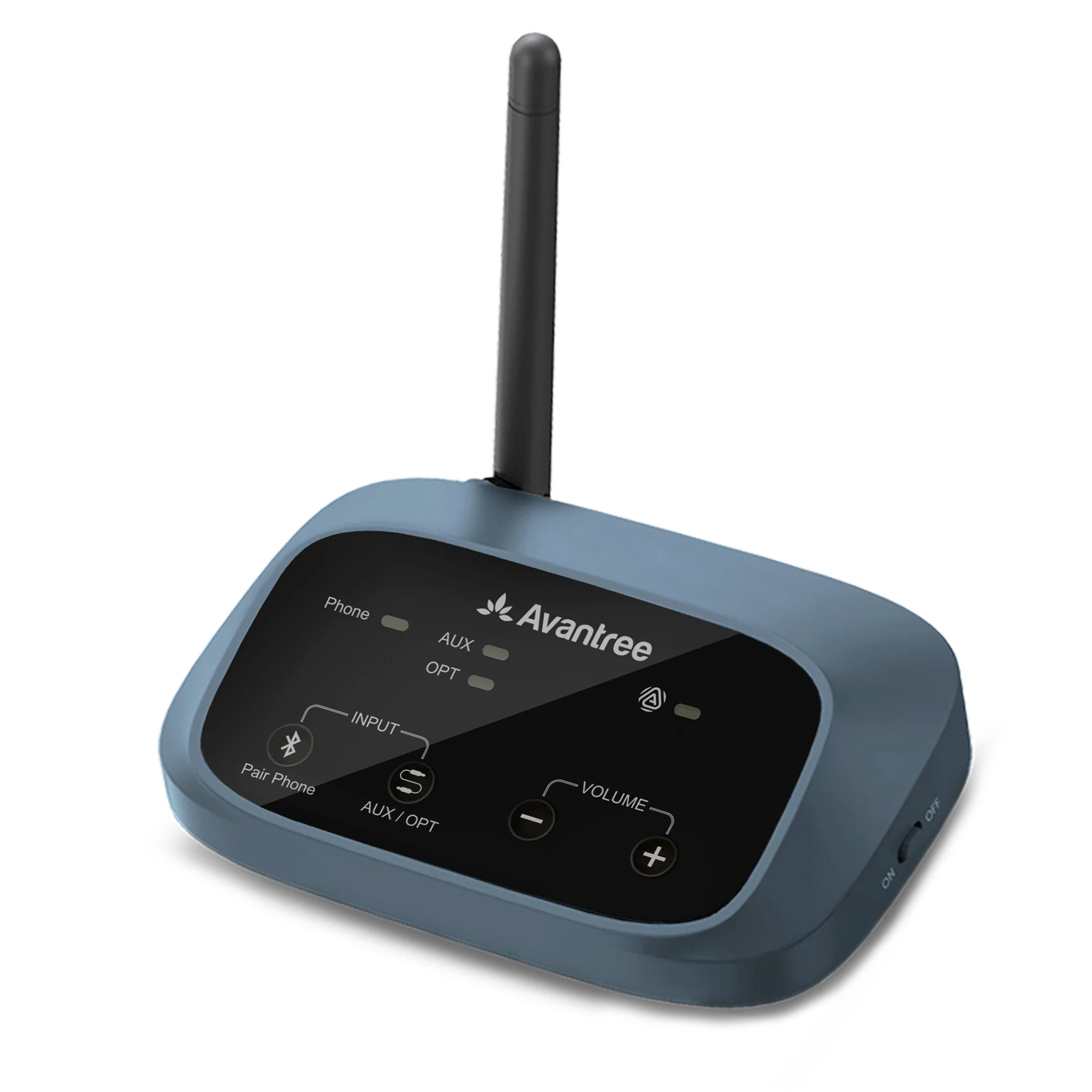 Oasis Aura
-
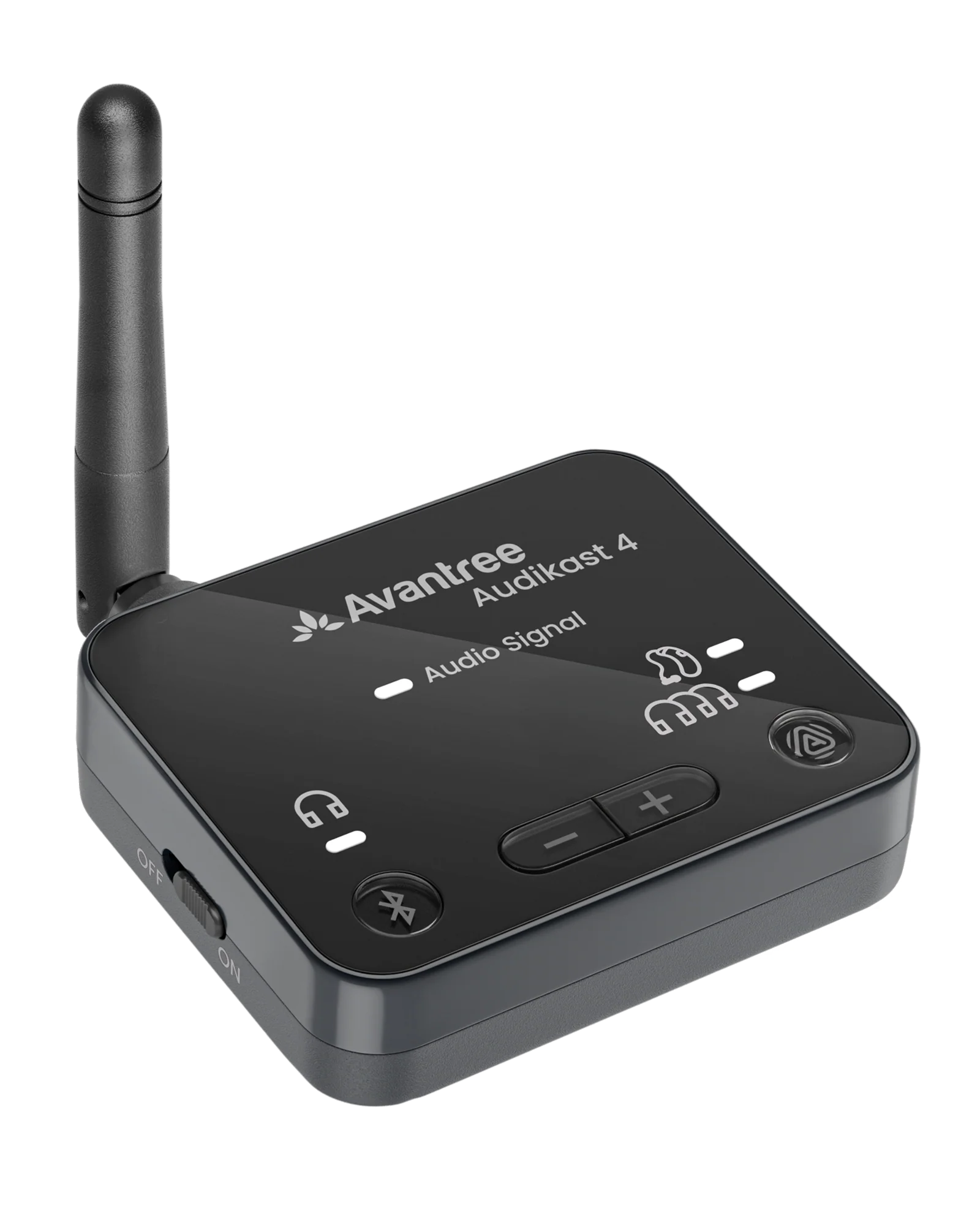 Audikast 4
-
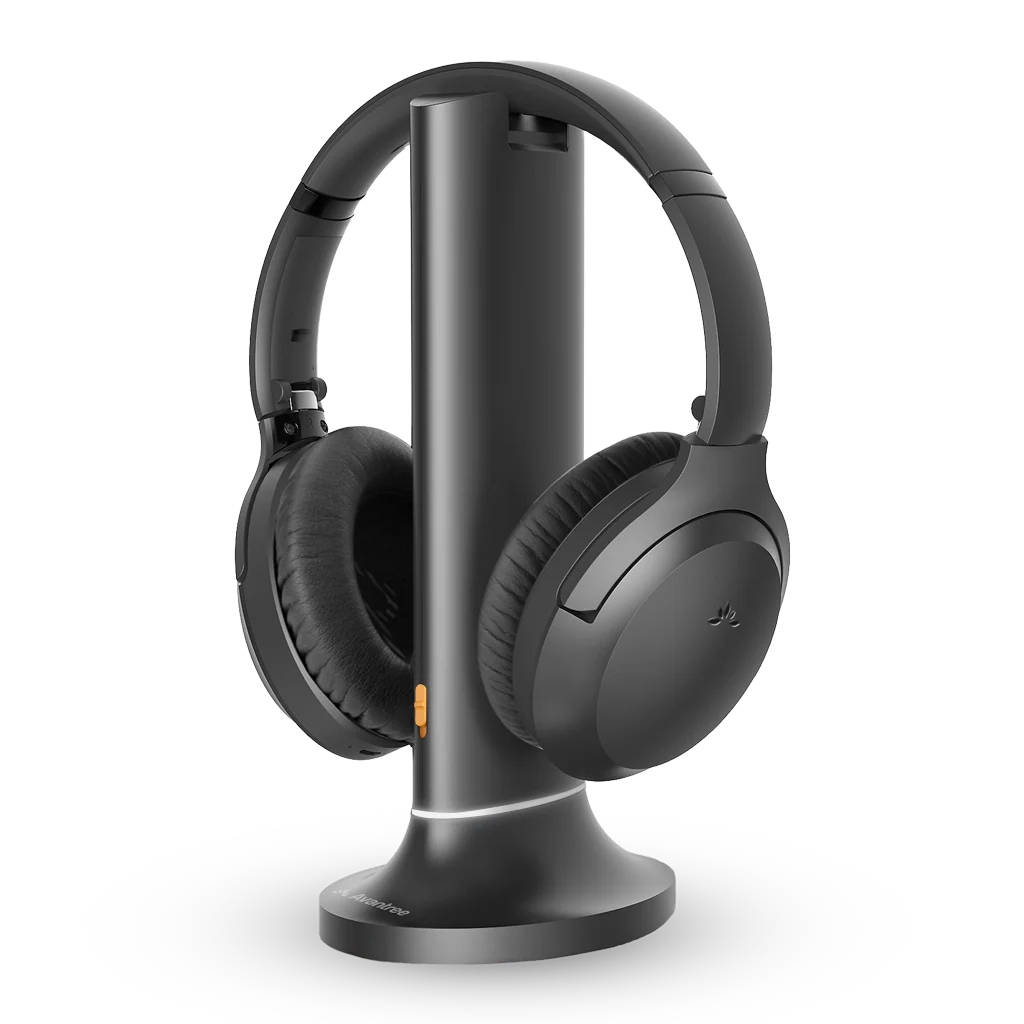 Opera Aura
-
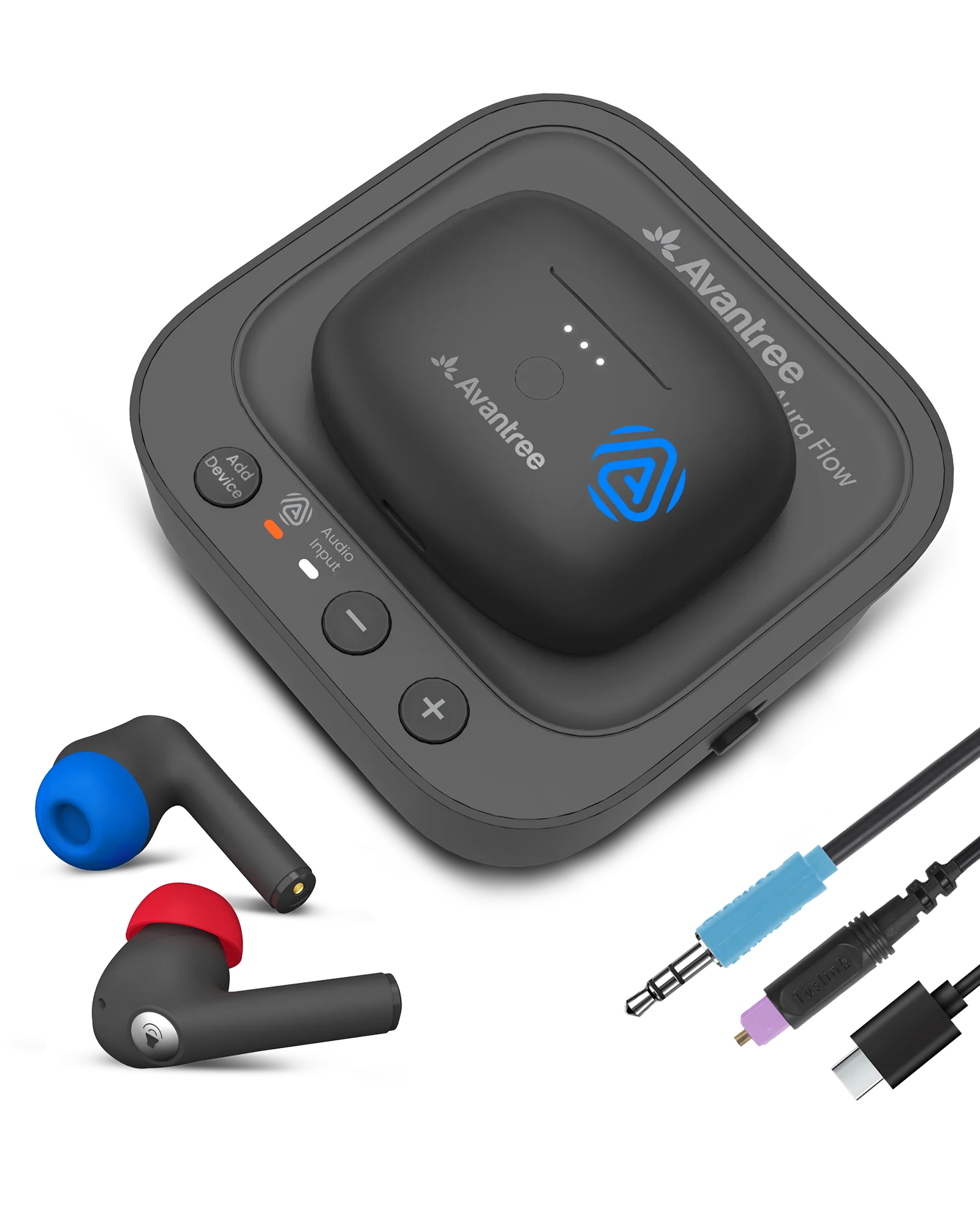 Aura Focus
-
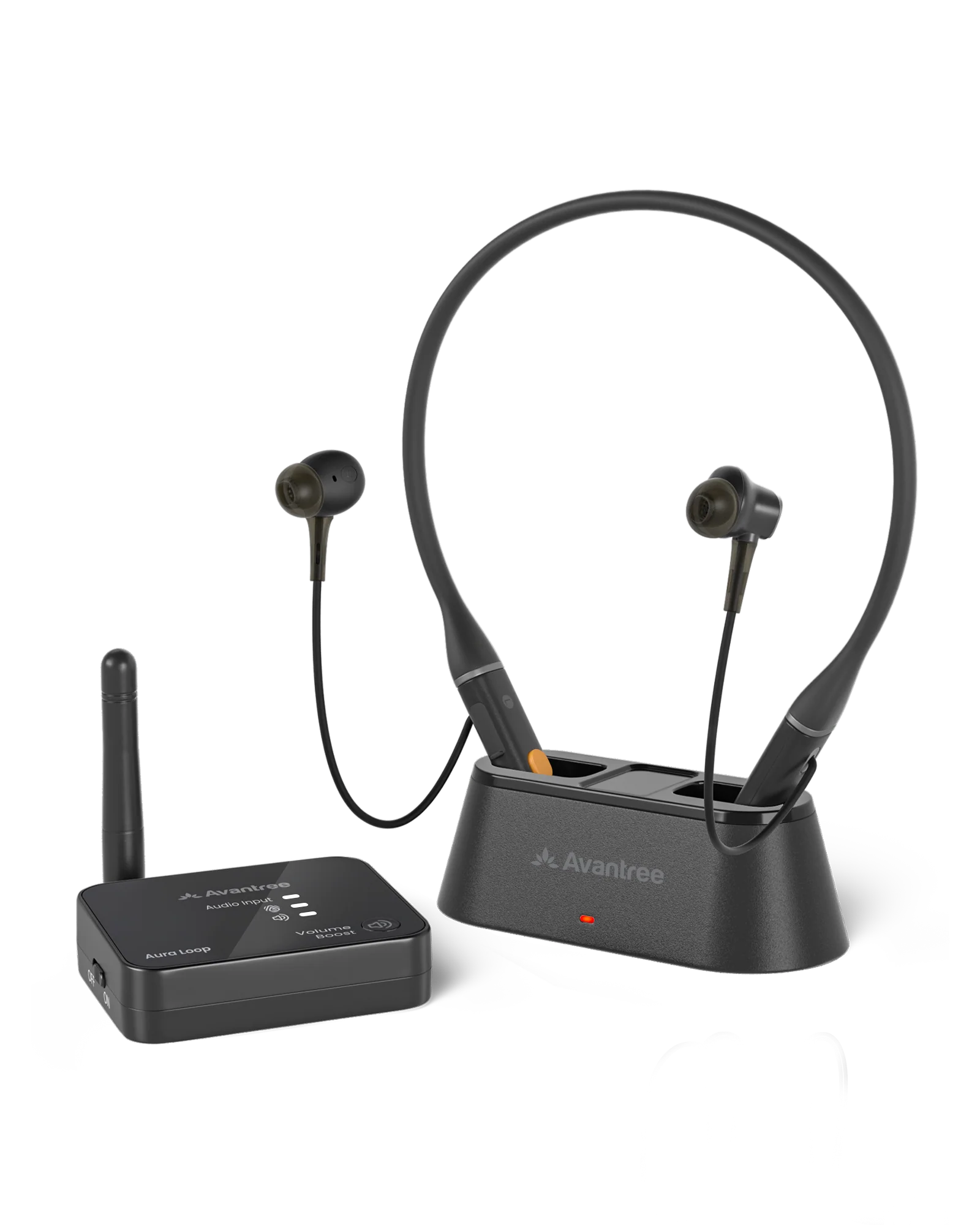 Aura Loop
Auracast at a venue
- Ask staff which area has Auracast and whether there’s an open broadcast.
- In the listening area, slide the headphone power switch to ON. Wait for the orange light to stop flashing.
Solid orange means you’ve joined. Check that you can hear the venue audio.
The broadcast asks for a password · The orange light keeps flashing
The broadcast asks for a password
Ask staff or the transmitter owner for an open Auracast channel. The headphones automatically look for broadcasts you can join without a password.
If the venue only offers a locked channel, ask staff what other listening options they provide.
Fix a problem
I’m connected but hear nothing
- Play a different track, video, or TV channel. Unmute your source and turn up the headphone volume.
- Solid blue: Select Eon Aura as the audio output on your Bluetooth device. Solid orange: Check that your Auracast transmitter is receiving sound, or ask venue staff if the broadcast has started.
- Still silent? Switch the headphones off and back on. If you control the audio source, restart it too and reconnect.
Check that the sound comes through your headphones.
Eon Aura doesn’t show up in Bluetooth
- If the headphones connected to another device, disconnect them from that device.
- With the headphones on, hold the power switch at HOLD TO PAIR for 3 seconds until the light flashes red and blue.
- Refresh your Bluetooth list and select Eon Aura.
The light turns solid blue. Play something to check the sound.
Watch the pairing switch · Still can’t pair? Clear saved devices
The orange light keeps flashing
- Move closer to the transmitter or into the venue’s listening area.
- Check that an open broadcast is running. Switch the headphones off and back on nearby to scan again.
The light turns solid orange and you hear the broadcast.
The broadcast asks for a password · Still searching? Get help
Clear saved Bluetooth devices
Try this if the headphones still won’t pair. You’ll need to pair your Bluetooth devices again afterward.
- Turn on the headphones and end any active call.
- Hold + and − together for 5 seconds. The light shows solid red and blue for about 5 seconds.
- When the light flashes red and blue, select Eon Aura in Bluetooth settings.
Look for a solid blue light after pairing.
Charging and everyday use
Charge the headphones
Using the stand: Connect the stand to USB power and seat the headphones on it.
Using a cable: Plug a USB-C cable directly into the headphones and connect it to a 5 V USB power source. Either version can charge this way.
Solid red means charging. The light goes out when the battery is full, usually after about 2.5 hours.
Watch the charging demo
If the battery is low and no red light comes on, reseat the headphones or try another USB-C cable and power source. Still won’t charge? Get help
Take a call while listening to Auracast
- Connect the headphones to your phone over Bluetooth, then join the Auracast broadcast.
- When a call comes in, press Play/Pause once. The broadcast pauses for the call.
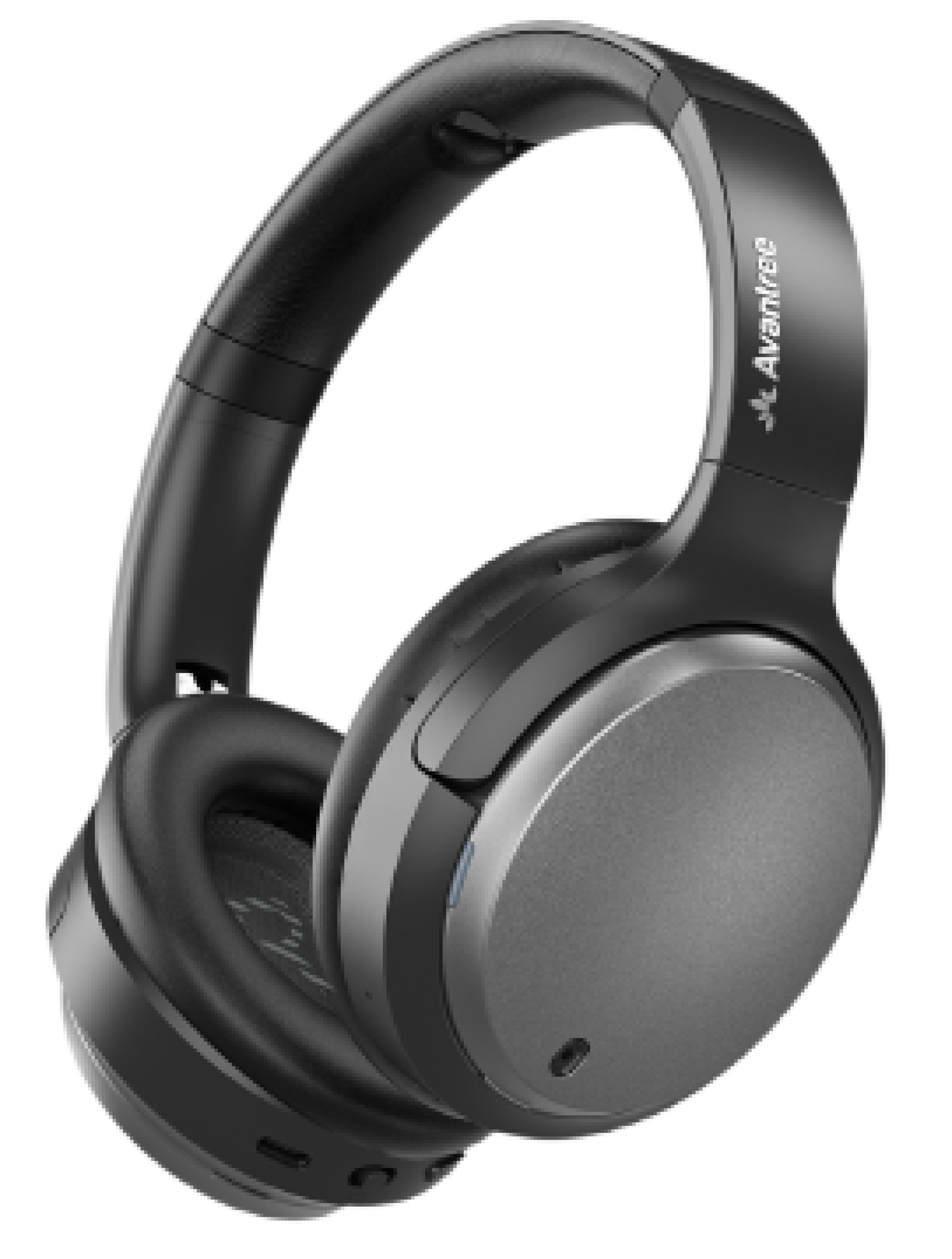
After the call, the orange light flashes slowly while the headphones reconnect. Look for solid orange and listen for the broadcast to resume.
Find a button or check a light
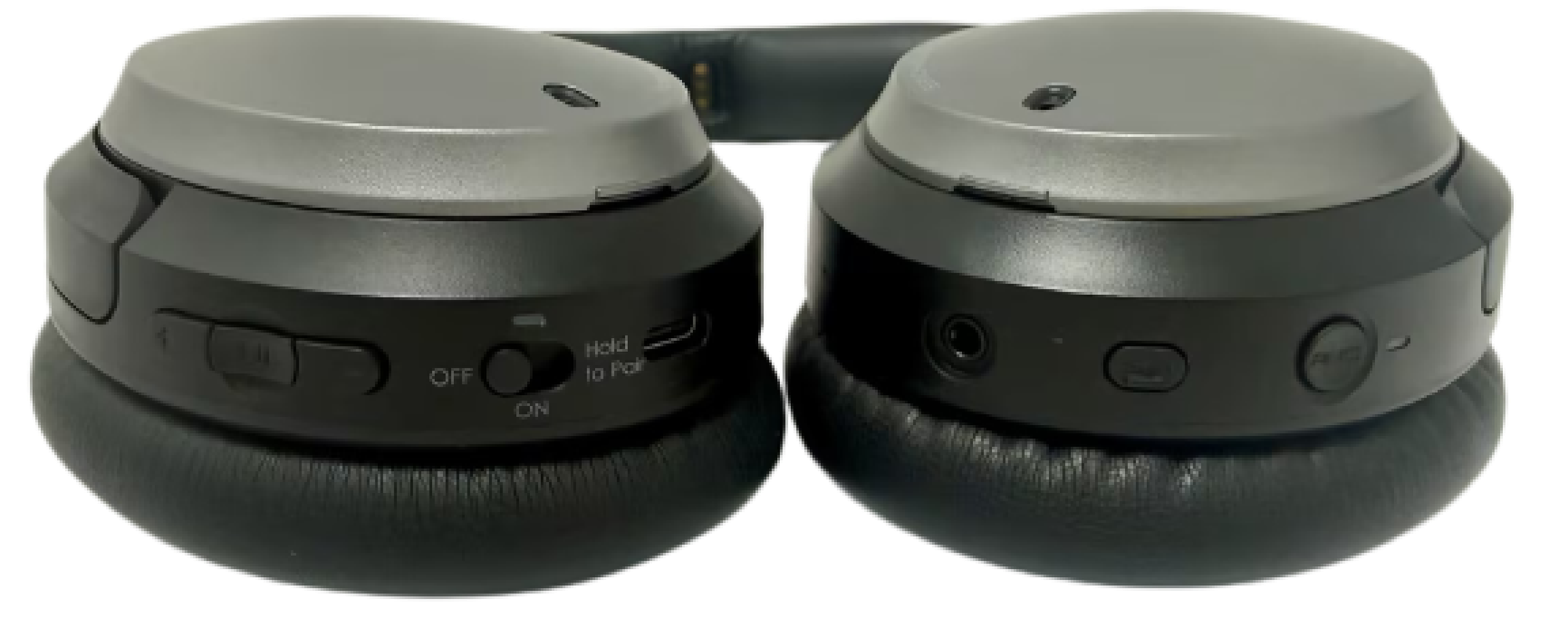
See the full button diagram

- Press + or − to change volume.
- Press ANC to cycle through noise cancelling, transparency, and normal.
- Press EQ to change sound presets. Listen for the voice prompt when a mode changes.
- Flashing red and blue
- Ready to pair over Bluetooth
- Solid blue
- Bluetooth connected
- Flashing orange
- Searching for Auracast
- Slow orange flash after a call
- Reconnecting to the broadcast
- Solid orange
- Auracast joined
- Solid red on USB power
- Charging
- Light goes out after charging
- Fully charged
See all button functions · Replace ear pads or the headband cushion