
- Sound OutputOptical / External Speaker / Audio System
-
Digital Audio Format✓Use:PCM or Stereo×Do not use:Dolby, DTS, Auto, or BitstreamThese may produce silence.
- Play audioPlay a program with speaking voices.
TV
→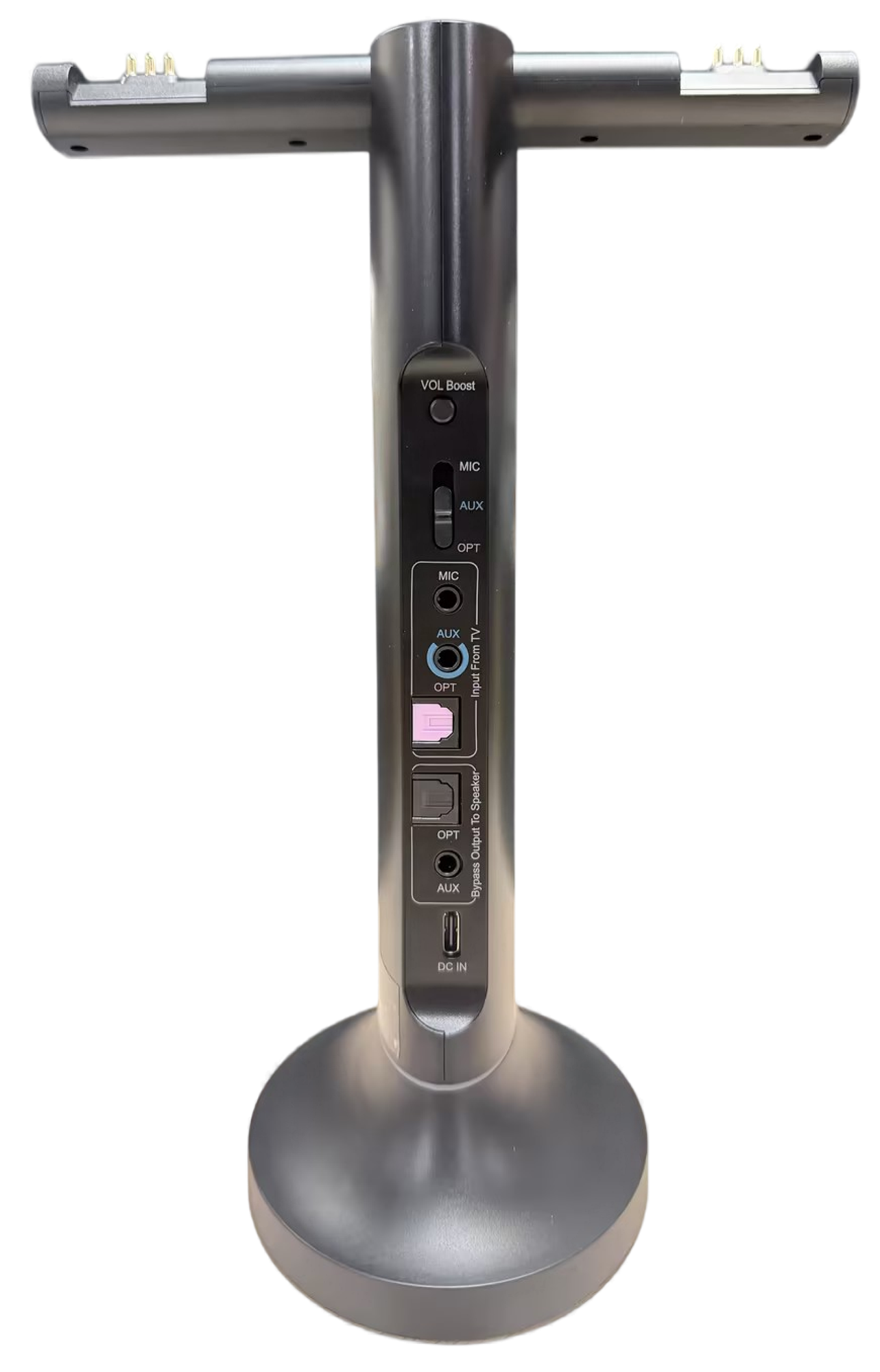 Duet dock
Use the included Duet dock, not the TV Bluetooth menu.
 Two listenersOptical or AUX
Recommended kit setup
Four steps. One clear result.
Follow each step in order. We show what to do, what to look for, and how to fix it.
Step 1 of 4 · Power
Power the Duet dock
Watch: power the Duet dock
- Connect USB-C to the Duet dock.
- Connect USB-A to a 5 V, 1–2.4 A USB power adapter.
- Slide the Duet dock power switch to ON.
✓
Expected result: the Duet dock powers on. Its connection light becomes solid blue when a headphone connects.
No light? Reseat both cable ends. Try another USB power source.
Step 2 of 4 · Cable
Connect your TV
Check the labels beside the ports, then choose the first match below.
Using Roku, Fire TV, Apple TV, or a cable box?
Roku TV: connect Duet to an audio output on the TV.
External player: leave the player connected to the TV by HDMI. Connect Duet to the TV audio output shown below, not to the player or the TV Bluetooth menu.
Not sure? Take a photo of your TV ports.Contact Support →
Connect the Optical cable
Watch: connect with Optical
- Remove the clear protective caps from both cable ends.
- TV: plug into OPTICAL / DIGITAL AUDIO OUT.
- Duet dock: plug into OPT IN.
- Set the dock input switch to OPT.
✓
Ready
Both square plugs are fully inserted and the input switch points to OPT.
Connect the AUX cable
Watch: connect with AUX
- TV: plug into HEADPHONES / AUDIO OUT.
- Duet dock: plug into AUX IN.
- Set the dock input switch to AUX.
- Raise the TV volume to a normal level.
✓
Ready
Both round plugs are fully inserted and the input switch points to AUX.
Connect through an HDMI ARC audio extractor
- Connect the TV HDMI ARC/eARC port to the separate HAX06 extractor.
- Connect HAX06 Optical OUT to Duet OPTICAL IN.
- Set the Duet input switch to OPT.
- Follow the extractor instructions and set TV digital audio to PCM / Stereo.
Do not plug HDMI directly into Duet. HAX06 details →
Step 3 of 4 · TV sound
TV sound settings
Use your TV remote.
Choose your cable in Step 2 to see the matching TV settings.
Open Settings → Sound
These ARC settings apply to the separate HAX06 extractor. The Duet dock stays on OPT.
- Sound OutputHDMI ARC / Receiver
- eARCOffHow to turn off eARC →
-
Digital Audio Format✓Use:PCM or Stereo×Do not use:Dolby, DTS, Auto, Bitstream, or Pass ThroughThese may produce silence.
- Play audioPlay a program with speaking voices.
Sound OutputHeadphones or Audio Out
Raise the TV volume to a normal listening level. No PCM setting is needed.
Find PCM steps for your TV brand
TV speakers + headphones?Check TV compatibility and steps →
Step 4 of 4 · Listen
Turn on both headphones and listen
Both Duet headphones are already paired to the dock. Finish the TV settings above, then:
Watch: turn on and use the headphones
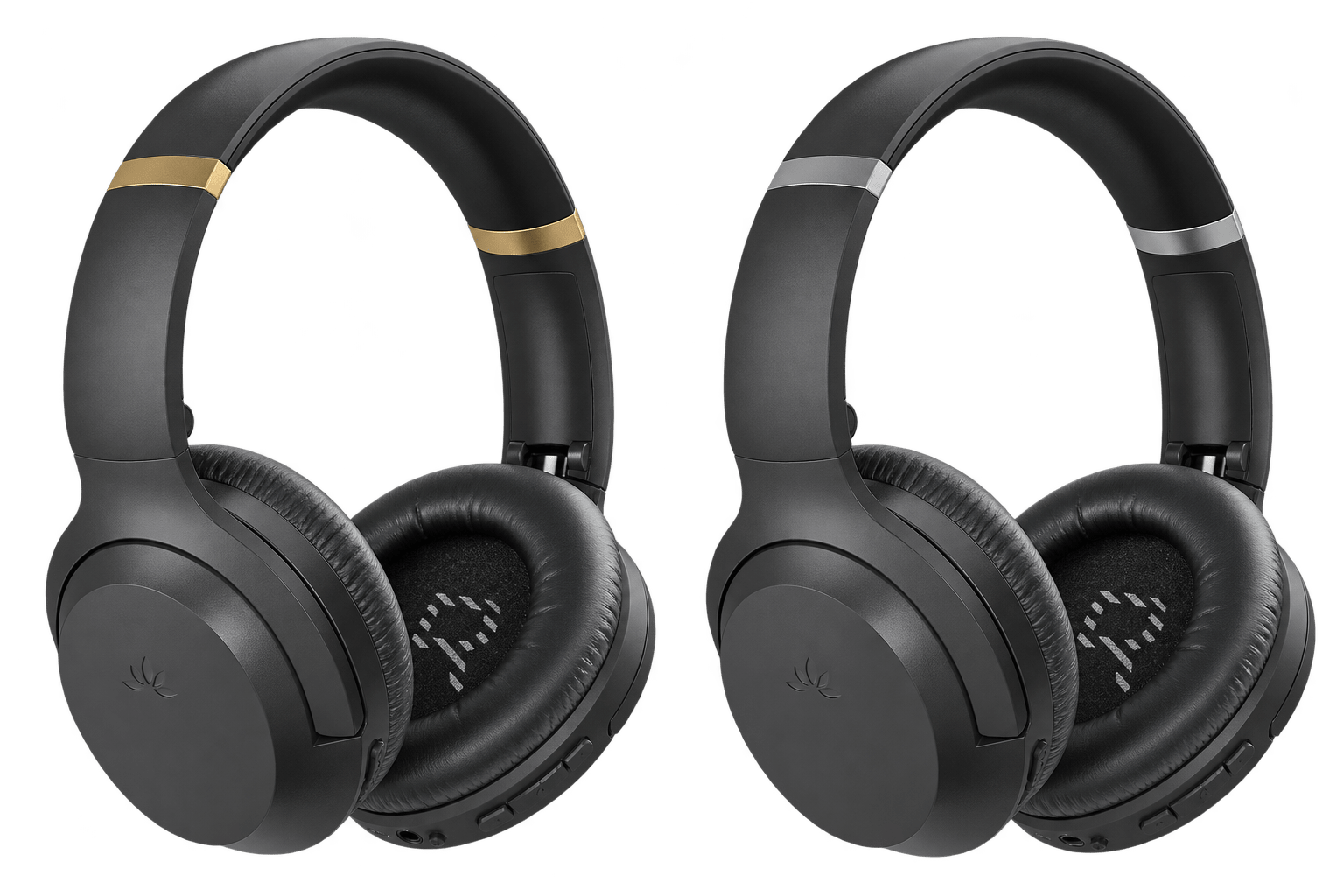
- Remove the headphones from the charging dock.
- Turn on the dock and each headphone.
- Keep them near the dock and wait for the connection lights to become solid blue.
- Put on each headphone and adjust its volume gradually.
✓
Success: both headphones have a solid blue connection light and play the same TV program. Each listener controls their own volume.
Daily use
Adjust volume
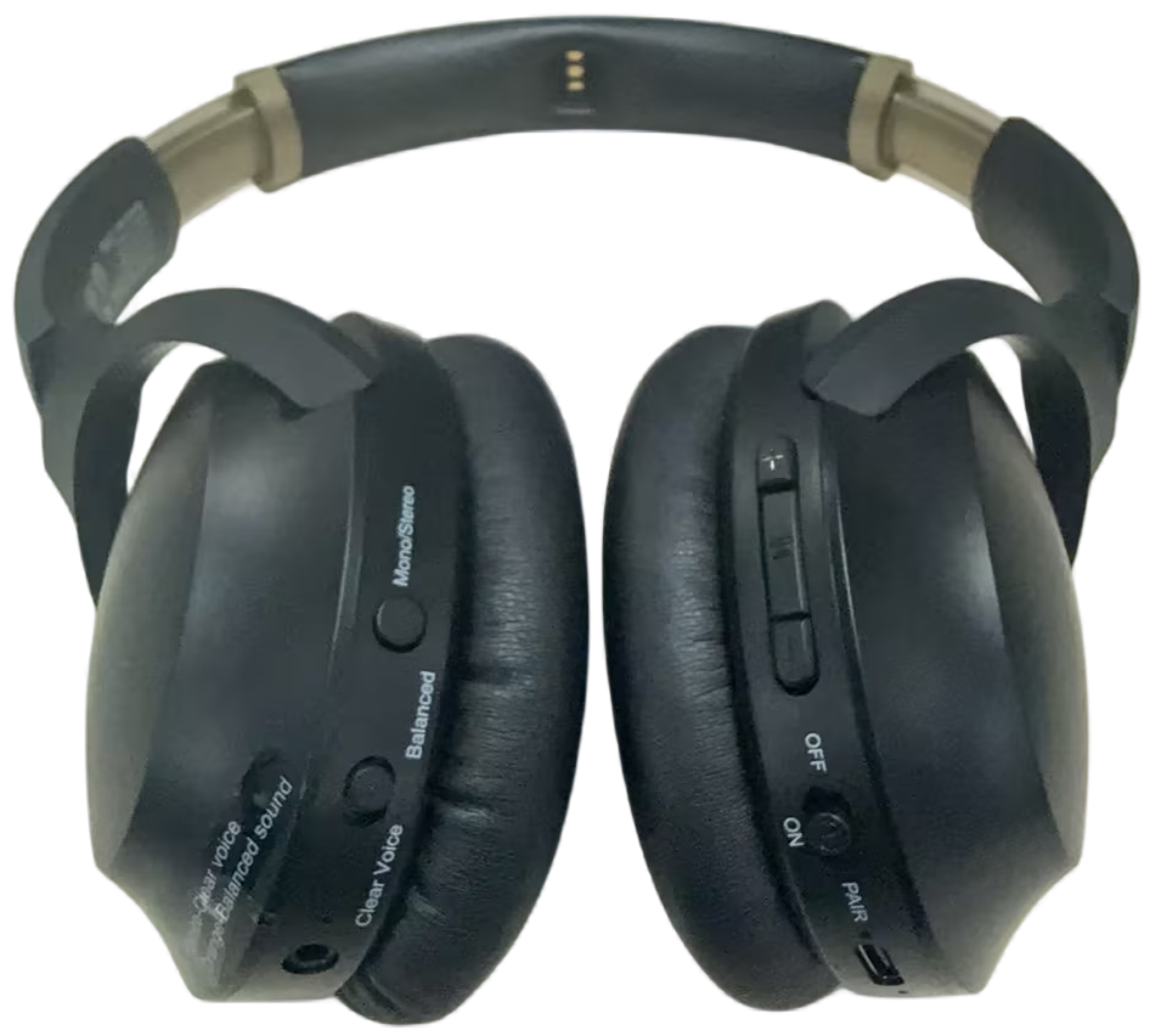
- Adjust each headphone separatelyUse the + / − buttons on that Duet headphone. Start low and raise the volume gradually.
-
Check the TV output volumeAUX: raise the TV headphone/audio-out volume.
Optical: the TV remote may not change the output volume.
Expected: both listeners hear the same program at their preferred volume.
Daily use
Charge the headphones
The headphone LED stays solid red while charging and turns off when fully charged.
Watch: charge the Duet headphones
- Keep the Duet dock connected to 5 V USB power.
- Place a headphone on the charging contacts, or connect a USB-C cable directly to it.
- Confirm the headphone LED is solid red.
- Charging is complete when the LED turns off.
Up to 20 hours of listening per charge.
Not charging? Reseat the headphone on the contacts, clean/dry the contact area, or reseat the USB-C cable and verify the power source.
Daily use
Use a soundbar and headphones together
Match the input and output cable.
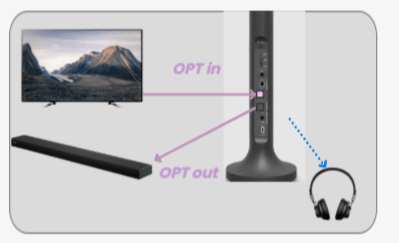
HDMI ARC/eARC only?
Duet cannot pass HDMI directly. Use a compatible HDMI audio extractor such as HAX06. For Sonos products without Optical input, use the compatible Sonos/HDMI adapter path for that model.
Expected: the headphones and soundbar play the same TV program together.
Quick fixes
Match what you see or hear.
Each fix states the check, action, expected result, and next step.
Using Roku: connected, but no TV sound
1. Check where Duet connects
- Roku TV: connect Duet to the TV Optical or AUX output. Choose that connection in Step 2 and apply the matching TV settings.
- External Roku player: keep Roku connected to the TV by HDMI. Connect Duet to the TV audio output, not the player.
2. Check the audio format
- Optical / HAX06 is silent: set the TV digital audio format to PCM / Stereo.
- TV programs work, but Roku is silent: also set the Roku player audio format to Stereo / PCM.
Replay a program and check for sound.
3. Check the dock lights
- Solid blue: the headphone is connected to the Duet dock. This does not confirm TV audio input.
- Solid white audio light: the dock receives a valid audio signal.
Expected: valid TV audio input + connected headphone + sound you can hear.
Still no sound? Contact Support →No sound after setup
Check the TV output, cable/input selection, audio format, and headphone connection.
Using AUX
- Connect TV HEADPHONES / AUDIO OUT → Duet AUX IN.
- Select AUX on the dock.
- Raise the TV headphone/audio-out volume.
Using Optical / HAX06
- Confirm TV OPTICAL OUT → Duet OPTICAL IN and select OPT. For HAX06, check the extractor's Optical output connection to Duet.
- Set TV Sound Output to Optical / External Speaker for an Optical connection.
- Set Digital Audio Format to PCM / Stereo, not Dolby, DTS, or Auto.
Check the result
Expected: dock audio light solid white + headphone connection light solid blue + TV sound you can hear.
Still silent? Open the complete no-sound guide →Blue connection light flashes
Try these steps in order
- Keep the headphone within 1 m / 3 ft of the powered dock.
- Turn the headphone off. Wait 5 seconds, then turn it on.
- If the light still flashes, power-cycle the dock.
Expected: the connection light becomes solid blue.
Still flashing? Submit a ticket and specify which headphone/channel is affected.
Contact Support →Dock audio light is not white
Check the TV audio input
- Play a TV program with speech.
- Connect the cable to a TV OUT port, not an input.
- Match the dock input selector to Optical or AUX.
-
Optical: select PCM.
AUX: raise the TV output volume.
Expected: the dock audio-valid light becomes solid white.
Still not white? Check the no-sound steps →Use TV speakers and headphones together
Check what your TV supports
- Optical: some TVs allow TV Speaker + Optical output together.
- Headphone jack: plugging in a cable often mutes the TV speakers.
Check the TV settings
- Open TV Sound Output settings.
- Look for TV Speaker + Optical, Multiple Audio Output, or similar.
- If unavailable, use Duet pass-through with a compatible soundbar.
AUX / microphone jack questions
Choose an audio output
- Use: a 3.5 mm TV jack labeled Headphones or Audio Out. This sends analog audio to Duet AUX IN.
- Do not use: a MIC-only input or AV/Component input sockets.
Connect and test
- Confirm the TV jack is an output.
- Insert both plugs fully.
- Select AUX and raise the TV output volume.
Expected: the dock audio light turns white and the headphones play sound.
Still silent? Check the no-sound steps →Video guides
See the physical setup.
Official videos complement the written connection steps above.
Duet setup guide
Watch the full connection and first-use overview.
Watch on YouTube →Duet tips & tricks
See additional daily-use guidance for the Duet system.
Watch on YouTube →Reference
Buttons, lights, listening modes, and advanced setup.
Dock indicators and controls
- Power
- Slide ON/OFF to power the Duet dock.
- Input selector
- Set OPT for Optical or AUX for the 3.5 mm input.
- Solid white
- The selected input has a valid audio signal.
- Solid blue A/B
- The corresponding headphone is connected.
- Pass-through
- Use matching types: Optical in → Optical out, or AUX in → AUX out.
Headphone controls and lights
- Power
- Turn each headphone on or off.
- + / −
- Adjust that headphone's listening volume independently.
- Sound mode
- Switch between Clear Voice and Balanced listening; the mode light is white for Clear Voice and orange for Balanced.
- Solid blue
- Connected to the dock.
- Solid red
- Charging.
- Light off while docked
- Fully charged.
Add compatible headphones
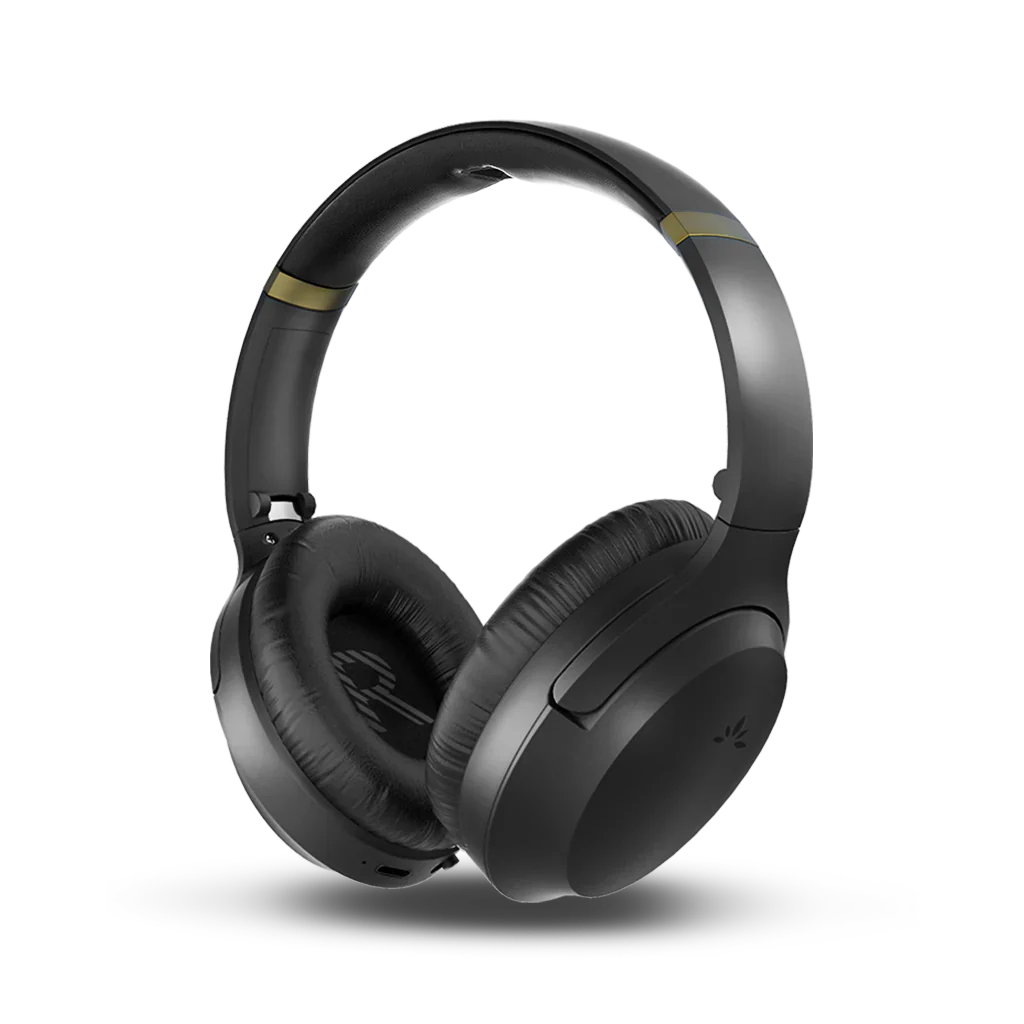
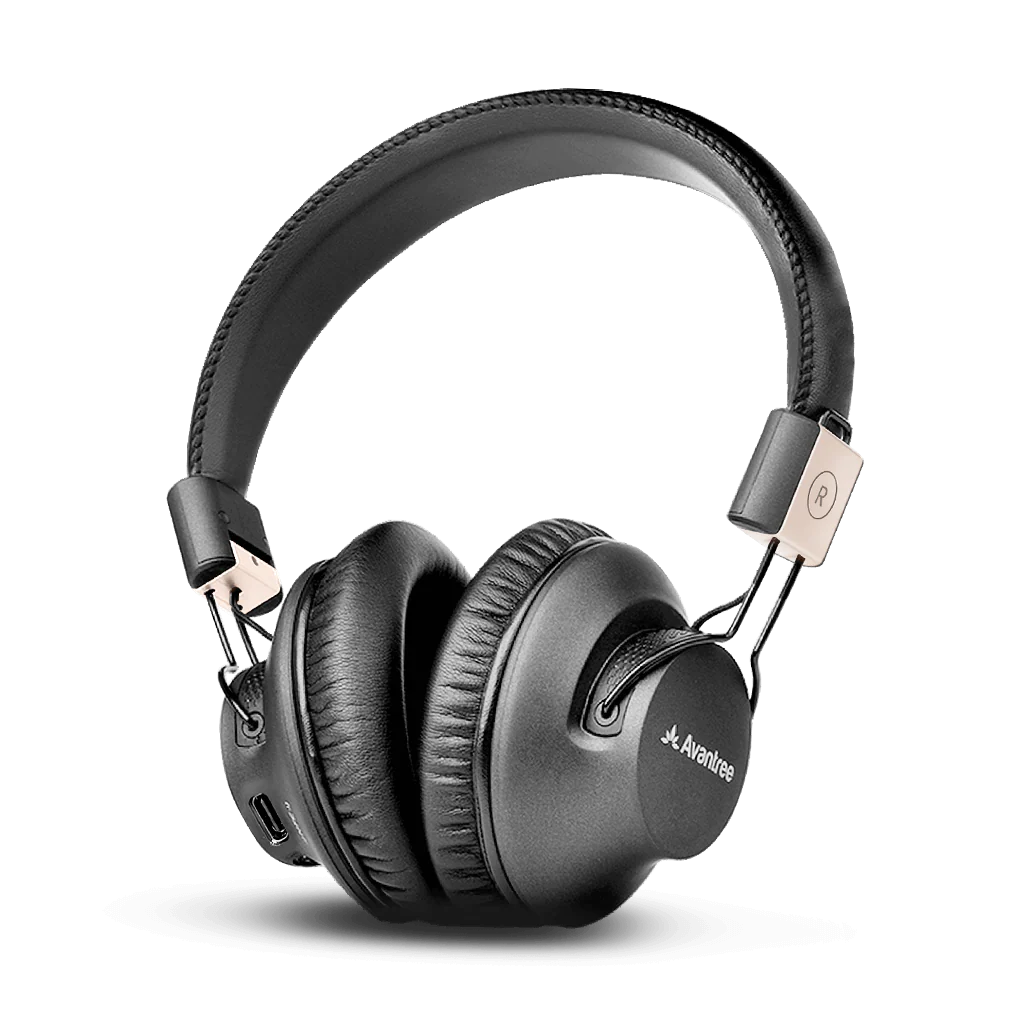
Duet supports additional compatible 2.4 GHz headphones, including Duet-Extra and Quartet-Extra. Follow the official pairing steps; these are not Bluetooth headphones.