


Choose Your Way to Listen with Auracast™
Whether you wear hearing aids, need to borrow a receiver, or want to use your own headphones, select your method below to view the setup guide.


Option 1: Find Your Auracast Hearing Aids Setup Guide here


How to Connect
- Confirm Compatibility: Ensure your hearing aid is listed above and firmware is updated.
- Scan the Code: Use your phone’s camera to scan the QR code.
- Join Broadcast: Open your brand’s app or Auracast Assistant to start listening.

SCAN TO CONNECT
Option 2: Standard Hearing Aids
(Use T-Coil via Neck Loop)

1. Borrow
Venue Receiver
+

2. Plug In
Neck Loop
➤

3. Listen
Switch Aid to “T”
ℹ️ Borrow listener (no headphones) from venue staff.

Option 3
Borrow a Receiver
Don't have a compatible hearing aid or smartphone? No problem. We provide dedicated Auracast receivers free of charge for use during the service.
-
1Borrow Receiver & Headphones Visit the welcome desk to pick up a sanitized receiver and a pair of headphones.
-
2Connect, Switch On & Listen Plug in the headphones, switch the receiver ON, and adjust volume to start listening instantly.
-
3Return After Use Please return the device and headphones to the designated bin or staff member when leaving.
Option 4: Bring Your Own Auracast Headphones
You are welcome to use your existing Auracast™-enabled headphones, earbuds, or hearing aids to join the broadcast. Our system uses standard Auracast protocols, ensuring compatibility with all certified third-party devices.
💡 Why We Recommend Avantree Headphones?
While third-party devices work, Avantree products are optimized for the easiest user experience:
- Turn On & Work: Instant auto-connection without searching for channels.
- No App Needed: No smartphone required to install or manage apps.
- Zero Setup: No complex configuration—perfect for all users.
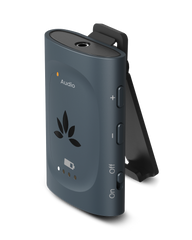
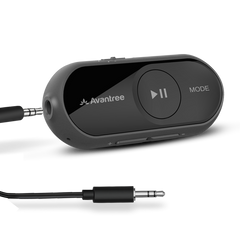
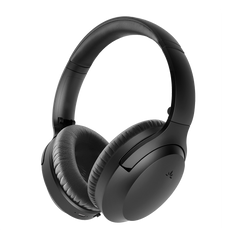
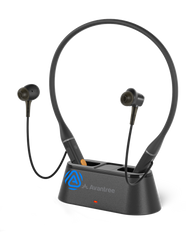


| Product Name | AuraClip Receiver | AuraGo | Aria Aura | Loop Dock Neckband | Infinity NC / SO | Harmony A1 Speaker | AuraLink | ShareCast Solo |
|---|---|---|---|---|---|---|---|---|
| Best for | Venues offering clip-on receivers | Private multi-function clip-on receivers | Users who prefer over-ear comfort | Private multi-function earbuds | Personal BYO users (NC model with ANC support) | Open audio for shared or extended areas | Wired Speakers & Traditional Audio Systems | Private multi-function clip speaker |
| Auto-join on power on* | Yes | Yes | No | Yes | No | Yes | Yes | No |
| Manual scan via device button | N/A | N/A | Yes – press & hold Play for 5 seconds | N/A | N/A | N/A | N/A | Yes, hold Play button for 2s |
| Scan via Avantree app | N/A | Yes | App support planned (firmware update required) | Coming Soon | Yes | N/A | N/A | N/A |
| Scan via Android Auracast Assistant | N/A | Yes | Yes | Yes | Yes | Yes | Yes | Yes |
* Auto-join works when a compatible Auracast broadcast is available.
Notes:
• All devices listed are Auracast receivers only.
• All devices listed are Auracast receivers only.
• iOS devices currently cannot scan for Auracast broadcasts directly.
• Feature availability may vary by firmware version.

Looking for Venue Event Devices?
You are probably looking for
Venucast
— Assistive Listening, Instant Venue Audio & Guided Tour Systems.
 Assistive Listening
 Instant Venue Audio
 Guided Tour
- Choosing a selection results in a full page refresh.