Open My Starkey App
The Home screen opens.


Interactive user guide
Listen to Auracast directly, or use a receiver.
Step 1 · Choose your setup
Select your Starkey model below. If it isn’t listed, choose an option that matches your hearing aids.
 Auracast hearing aidsEdge AIOmega AIMy Starkey App 6.0.0+
 You can hear music from your phone through your hearing aids

 You can switch your hearing aids to “T” or “MT”
Look for a T or MT setting in your hearing aid app or paperwork. If you cannot find one, ask your hearing care professional.

Step 2 · Join the broadcast
Find and join a nearby broadcast.
The Home screen opens.
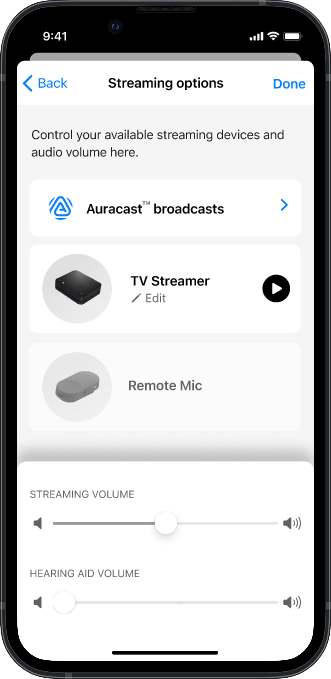
The Stream screen opens.
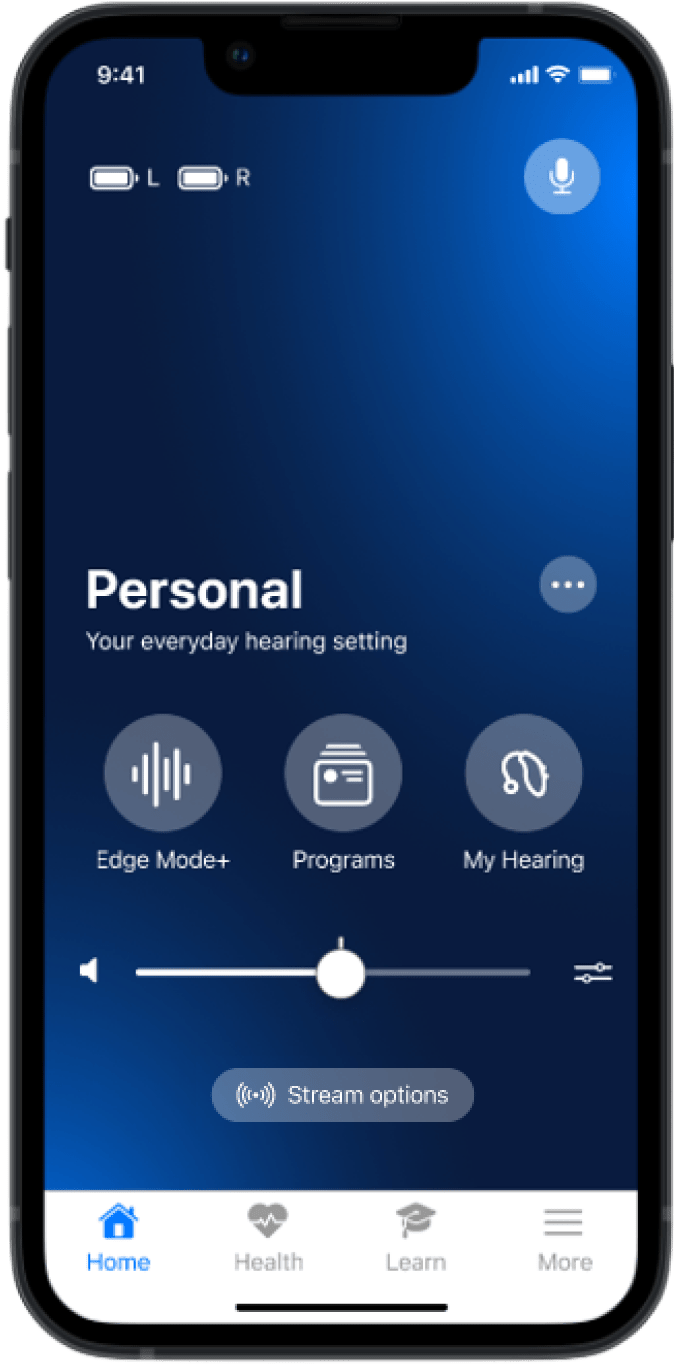
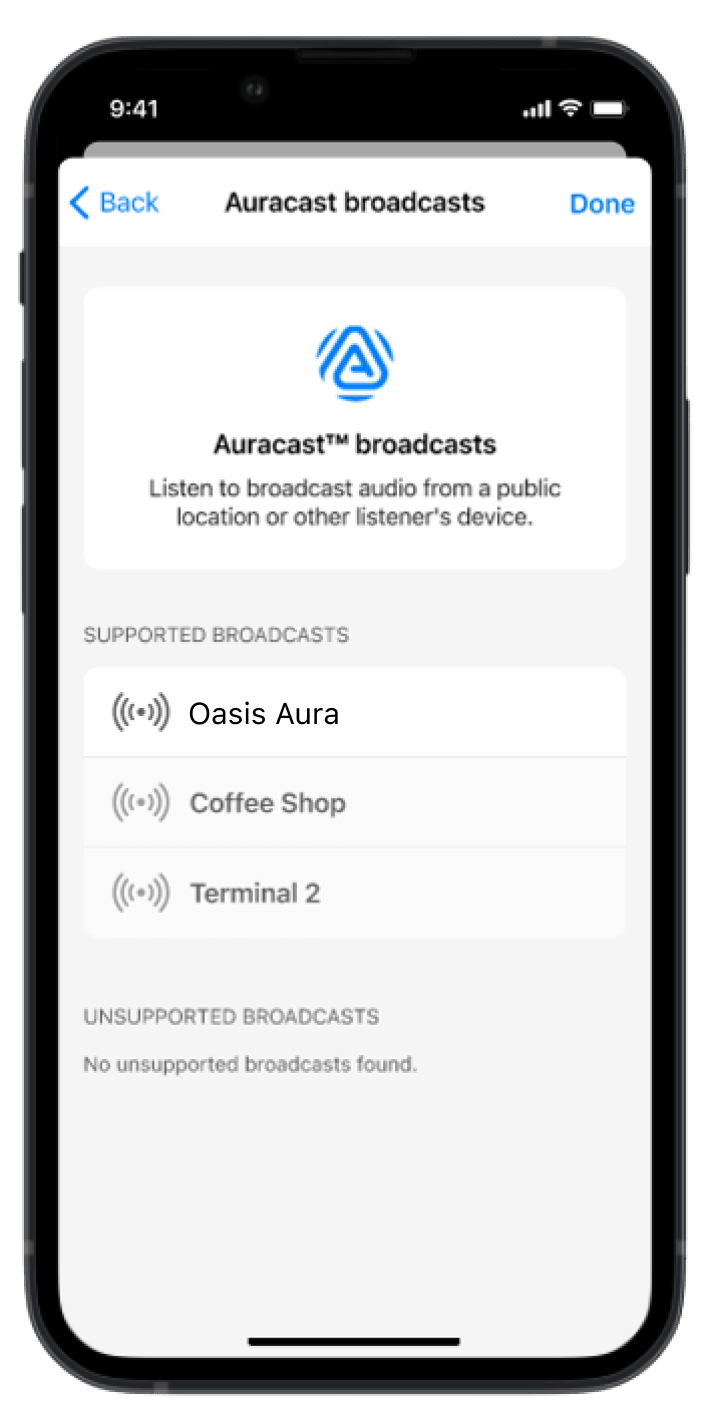
Nearby broadcasts appear.
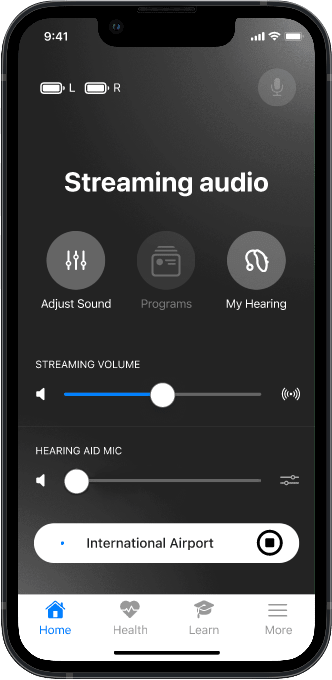
Audio starts in your hearing aids.
Set a comfortable stream volume.
Other ways to listen
Aura C phone hearing aids
Aura C does not pair directly with hearing aids.
Set up Aura C →Switch to T or MT. The neckloop sends the broadcast to your hearing aids.
AuraCoilBuilt-in neckloop
Set up AuraCoil →AuraClipNeeds a compatible 3.5 mm T-coil neckloop
Set up AuraClip →Troubleshooting
Choose what is happening.
Problem: Auracast does not appear in My Starkey App.
Cause: the app or firmware may be too old.
Result: Auracast appears. If not, contact support.
Problem: the broadcast is selected, but there is no sound.
Cause: you may be out of range, the broadcast may have stopped, or volume may be low.
Result: audio plays in both hearing aids. If not, restart the broadcast source and scan again.
Problem: room sound makes the broadcast hard to hear.
Cause: microphone sound is competing with the stream.
Result: the broadcast sounds clearer.
Problem: you hear the broadcast twice.
Cause: your hearing aids and a nearby speaker are both playing.
Result: one clear audio stream remains.