
Skip to guide
PDF Guide
FR

Interactive user guide

SoundJet R1 Setup Guide

Airplane audio setup

Pair your headphones, then connect SoundJet R1 to the airplane screen.

Airplane screen3.5 mm AUDIO OUT
SoundJet R1Bluetooth transmitter
Your headphonesAirPods / Bluetooth

Pair headphones with SoundJet R1. Turn off nearby phone Bluetooth.

Connect your first pair of headphones

Keep both devices within 3 ft / 1 m while pairing.

1

Headphones

Put headphones in pairing mode

Turning them on is not enough.

Headphone pairing helpChoose brand
AirPods / AirPods Pro

Check the back of your case.

There is a button

AirPods 1–3 / AirPods Pro 1–2

  1. Open the case with your AirPods inside.
  2. Hold the button on the back for about 5 seconds.
AirPods case rear setup button held until the front status light flashes white

Ready when: the case light flashes white.

There is no button

AirPods 4 or 5 / AirPods Pro 3

  1. Open the case with your AirPods inside.
  2. Double-tap the front of the case.
AirPods 4 or 5, or AirPods Pro 3 case front double-tapped until the status light flashes white

Ready when: the case light flashes white.

AirPods Max

Press and hold the noise control button for about 5 seconds.

Ready when: the status light flashes white.

Bose
  1. Turn on the headphones or open the earbud case.
  2. Hold the Bluetooth or power button until the light flashes blue or you hear “Ready to connect.”

Ready when: the light flashes blue or the voice prompt confirms pairing.

Beats
  1. Turn on the headphones.
  2. Hold the system or power button until the indicator flashes.

Ready when: the indicator flashes for pairing.

Sony
  1. With the headphones off, hold the power button for about 5 seconds.
  2. For Sony earbuds, use the case or touch-sensor pairing command for your exact model.

Ready when: the light flashes blue or you hear “Bluetooth pairing.”

Samsung Galaxy Buds
  1. Place both earbuds in the case, close it for 5–6 seconds, then open it.
  2. If pairing does not start, wear both earbuds and touch both touchpads until you hear the pairing sound.

Ready when: the earbuds announce pairing or show their pairing pattern.

JBL
  1. Hold the Bluetooth or power button until the indicator flashes rapidly.
  2. If JBL reconnects to a phone, turn that phone Bluetooth off and try again.

Ready when: the indicator flashes rapidly.

Other headphones
  1. Hold the power, Bluetooth, or main button until the light flashes rapidly.
  2. Check the headphone manual for the exact command if the light does not change.

Ready when: the headphones show their documented pairing pattern.

  1. Turn off Bluetooth on nearby phones, tablets, and computers.
  2. Put your headphones into Bluetooth pairing mode.
  3. Wait for a flashing pairing light or pairing prompt.

DoneYour headphones are searching.

If notOpen Headphone pairing help above and select your brand.
2

SoundJet R1

Put SoundJet R1 in pairing mode

With SoundJet R1 off, hold the large round MFB for 2 seconds to turn it on.

Red + blue flashingSoundJet R1 is searching

DoneRed and blue alternate: SoundJet R1 is searching.

If notOnly blue flashing? Press and hold the MFB until red and blue alternate.

No light appears
Charge SoundJet R1, then hold the large round MFB for 2 seconds to turn it on.
3

Connect

Let them connect

  1. Keep SoundJet R1 and the headphones within 3 ft / 1 m.
  2. Wait 10–30 seconds for the light to change.

Solid blueConnected

DoneSolid blue confirms a Bluetooth connection. Check both ears for sound in Step 4.

If notStill red + blue after 30 seconds? Repeat Step 1 and confirm the headphones are in pairing mode.

Blue is flashing instead of solid
About every second: SoundJet R1 is trying to reconnect. Turn on the previously paired headphones.
About every 5 seconds: no headphones are connected. Hold MFB for 2 seconds to enter pairing mode again.
4

Listen

Connect audio and adjust volume

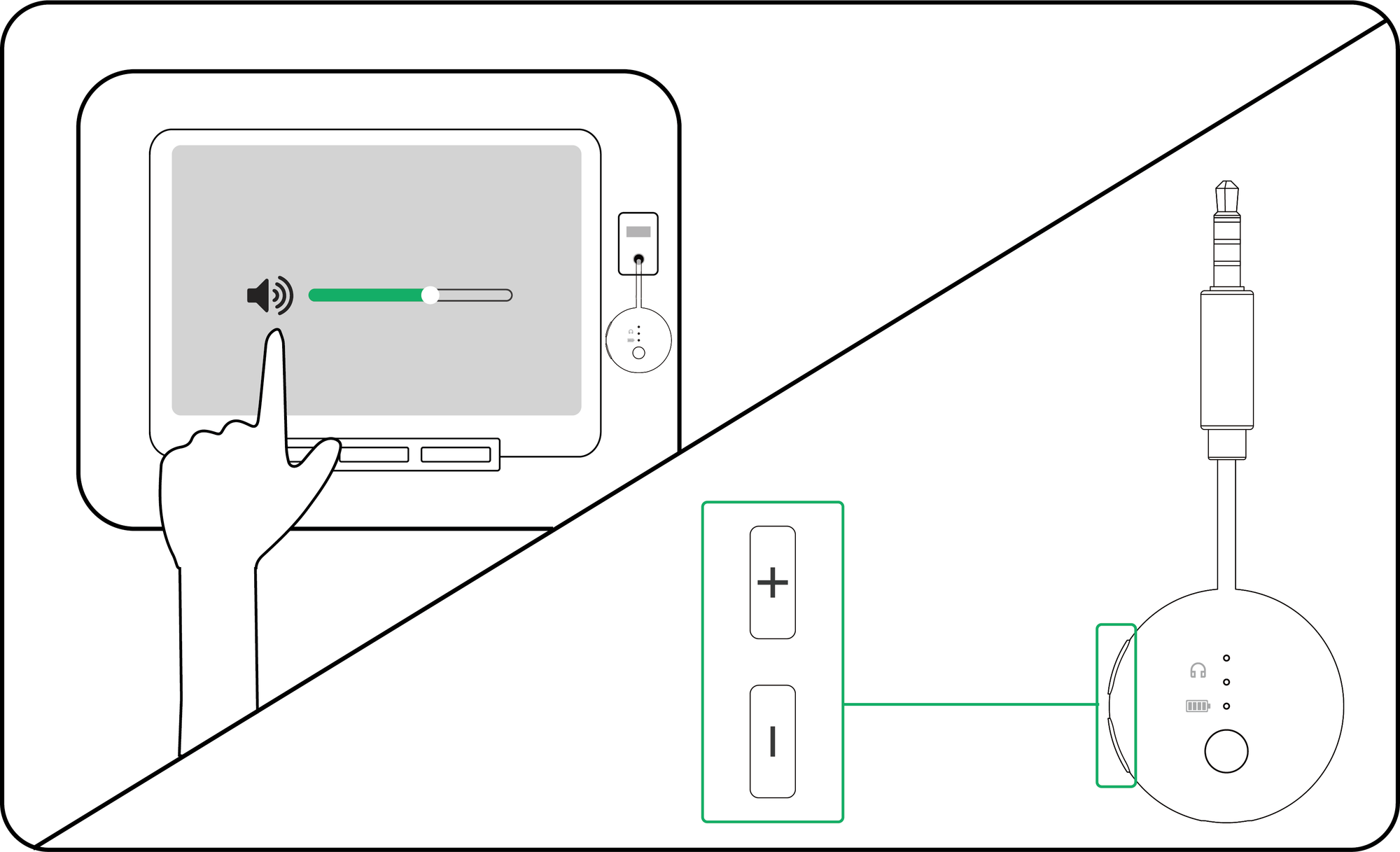
  1. Plug SoundJet R1 into a 3.5 mm AUDIO OUT jack.
  2. Start the audio on the airplane screen, laptop, or other source.
  3. Raise the source volume, then press SoundJet R1 + / −, then adjust headphone volume.
1SourceAirplane screen
→
2SoundJet R1+ / - buttons
→
3HeadphonesVolume control

Important: use AUDIO OUT, not AUDIO IN. SoundJet R1 has no play button.

DoneSolid blue and clear left/right sound.

If notPush the plug in fully, then raise the source, SoundJet R1, and headphone volumes.

SoundJet R1 connected to an AUDIO OUT source with its volume buttons shown
Turn off SoundJet R1 after use

With SoundJet R1 on, hold the large round MFB for 5 seconds.

Done: SoundJet R1 powers off.

Add a second pair of headphones

Pair headphone 2
  1. Keep headphone 1 connected.
  2. Hold MFB for 2 seconds until light ② alternates red + blue.
  3. Put headphone 2 in pairing mode.
  4. Wait 10–30 seconds. Lights ① and ② should both be solid blue.
Reconnect both next time
  1. Turn on both headphones first.
  2. Then turn on SoundJet R1.
  3. Allow up to 30 seconds for both lights to become solid blue.

Before and during your trip

01

Before your flight

  1. Fully charge SoundJet R1 and your headphones.
  2. Pair and test both devices with a 3.5 mm audio source before boarding.
  3. Turn them off after testing. They will remember each other.
02

Reconnect next time

  1. Turn off nearby phone Bluetooth.
  2. Turn on your headphones, then SoundJet R1.
  3. If needed, press MFB once to reconnect the last device.

Fix a problem

What’s happening

Tap an issue to see the fix.

Cannot pair

Possible cause

The headphones are powered on but not in pairing mode, or a nearby phone reconnects first.

Solution

  1. Turn off Bluetooth on nearby phones, tablets, and computers.
  2. Put the headphones into pairing mode.
  3. Hold SoundJet R1 MFB for 2 seconds until its light alternates red + blue.
  4. Keep both devices within 3 ft / 1 m.

Expected result: SoundJet R1 becomes solid blue.

Sound from one side only

Possible cause

A loose audio plug, phone Bluetooth reconnection, or an earbud connection issue can interrupt one side.

Solution

  1. Push the SoundJet R1 audio plug fully in. Reseat both adapter plugs if used.
  2. Turn off Bluetooth on nearby phones.
  3. Put both AirPods in their case, close it for about 3 seconds, then take them out.

Expected result: Audio plays through both AirPods.

Still one-sided? Open the complete fix →

Connected but no sound

Possible cause

SoundJet R1 is connected, but the audio source or one volume control is muted or too low.

Solution

  1. Push the SoundJet R1 plug fully into AUDIO OUT.
  2. Start audio on the source and raise its volume.
  3. Raise SoundJet R1 and headphone volumes slowly.

Expected result: SoundJet R1 stays solid blue and audio plays through both ears.

Adjust volume →

More questions and solutions →

Firmware update

Update SoundJet R1

  1. Download the Firmware Update Tool on a Windows/Mac computer.

  2. Connect SoundJet R1 to your computer with a USB data cable.

    Firmware update cable: Use the gray-tip cable (a USB cable that supports data transfer) that came with your device.
    Mac users can also use an Apple charging cable.

  3. Open the Firmware Update Tool.

    Follow the on-screen instructions.

    Keep SoundJet R1 connected until it says Complete.

After updating: reset SoundJet R1.