
INTERACTIVE USER GUIDE · SHARECAST SOLO / SP402

Hear calls, music, and Auracast broadcasts hands-free.

Clip on ShareCast Solo and choose how you want to listen. For normal Bluetooth and LE Audio, look for ShareCast on your phone.

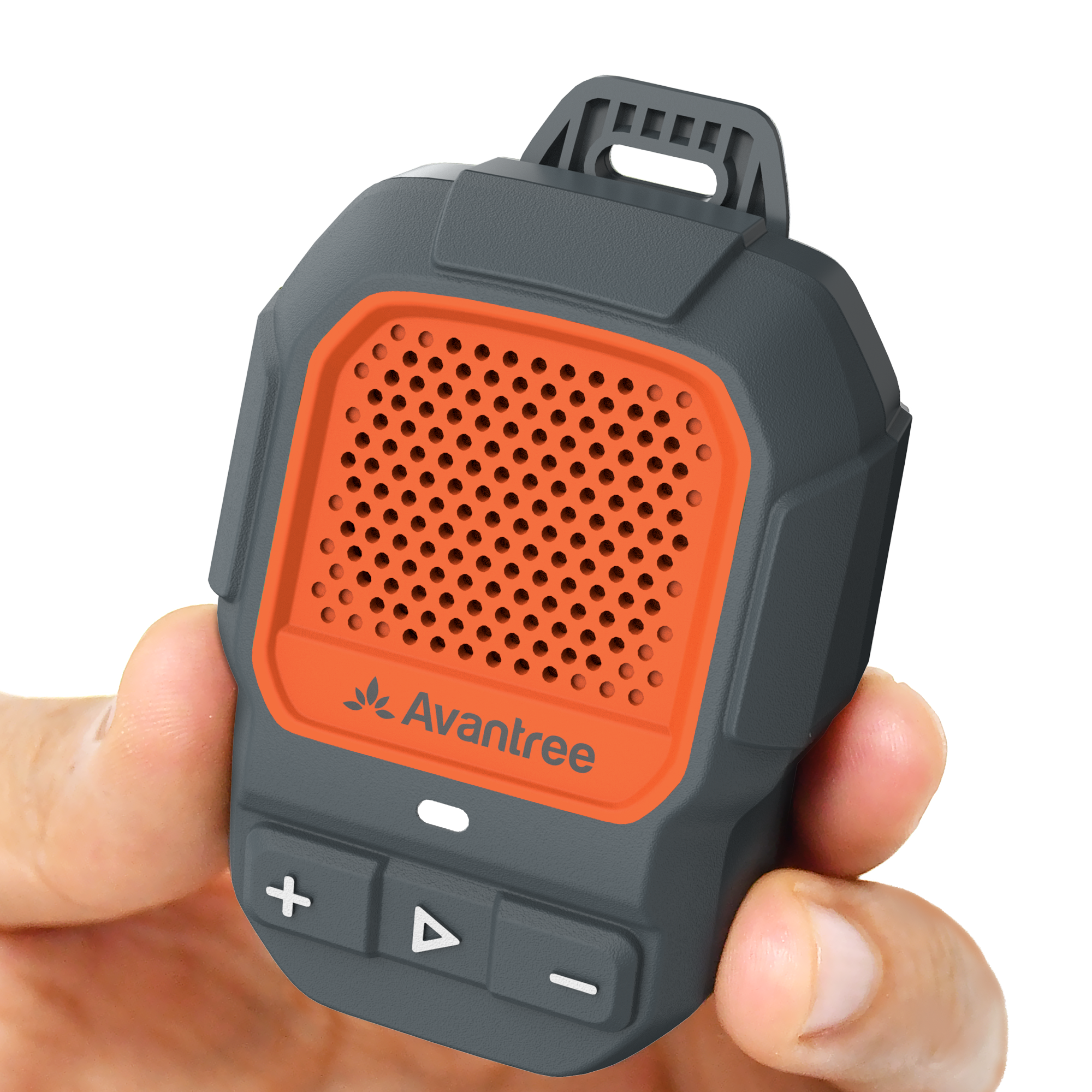
Avantree ShareCast Solo clip-on wearable speakerBluetooth · LE Audio · Auracast

START SETUP

What do you want to listen to?

Choose one path. The instructions appear directly below.

REFERENCE

Buttons, lights, and charging.

Keep this section handy while setting up.

Buttons

Hold 2 sec: enter Bluetooth pairing
+ and ▶
Hold 3 sec: switch Bluetooth ↔ Auracast

LED

Red + blue
Bluetooth pairing
Solid blue
Bluetooth connected
Orange
Auracast mode

USB-C charging

Power
5 V, 0.5-2 A
Solid red
Charging
LED off
Full, about 2 hours
Playtime
Up to 15 hours

FIX A PROBLEM

Choose what you see.

Each fix tells you the expected result and where to go next.

Phone or TV cannot find the speaker

Recognize: Check the LED color. Blue means Bluetooth mode and is visible to phones and TVs. Orange means Auracast mode and will not appear in the Bluetooth list.

  • If the LED is orange, hold ▶ and Volume + together for 3 seconds.
  • Confirm the LED changes from orange to blue, then scan again in the phone or TV Bluetooth settings.
  • If ShareCast Solo may already be paired to another device, reset its pairing with Volume + and –, then scan again.
  • Keep ShareCast Solo close to the phone or TV and make sure its battery is charged.

Expected: the LED is blue and ShareCast appears in the Bluetooth device list.

Open the official troubleshooting guide ↗

Connected, but there is no sound

Recognize: LED is solid blue or orange, but the speaker is silent.

  • Play audio and raise volume on the source device.
  • Raise ShareCast Solo volume.
  • For Auracast, confirm the transmitter is broadcasting audio and move within about 2 m while reconnecting.

Expected: audio begins without changing the connected LED state.

Auracast does not connect

Recognize: LED blinks orange and never stays orange.

  • Confirm the source is an open Auracast broadcast.
  • Move close to the transmitter, then re-enter Auracast mode: hold + and ▶ for 3 seconds.
  • For a protected broadcast, select it through a compatible phone and enter the password.

Expected: audio plays and orange becomes solid. If not, open product troubleshooting below.

Low battery or charging problem

Recognize: LED flashes red with a beep, or no charging light appears.

  • Use a USB-C cable and a 5 V, 0.5-2 A USB power source.
  • Try a known-working cable and charger.

Expected: LED stays red while charging and turns off after a full charge (about 2 hours).

FIRMWARE UPDATE

Update ShareCast Solo when a fix or feature requires it.

Not part of normal setup. Update only when Avantree Support recommends it or a troubleshooting guide directs you here.

  1. 1
    Download Avantree UpdaterChoose Windows 10+ or macOS 10.14+.
  2. 2
    Connect ShareCast Solo to your computerUse a USB data cable. A charge-only cable cannot transfer the update.
  3. 3
    Run the updateKeep ShareCast Solo connected until the updater confirms completion, then restart it.

During the update: do not unplug ShareCast Solo, close the app, or turn off the computer.

STILL NEED HELP?

Get the right help for ShareCast Solo.

For the fastest answer, start a product-specific ticket and choose ShareCast Solo / SP402.

RECOMMENDED

Submit a ShareCast Solo support ticket

Add your source device, LED pattern, and photos or screenshots if helpful.

Start support request →

DON'T WANT TO SUBMIT A TICKET?

Talk to a real support agent.

Did this guide help?