Open ReSound Smart 3D
Open the latest ReSound Smart 3D app on your phone.

Interactive user guide
Listen to Auracast directly, or use a receiver.
Step 1 · Find your connection
Joining depends on your hearing aids.
 You can hear music from your phone through your hearing aids

 You can switch your hearing aids to “T” or “MT”
Look for a T or MT setting in your hearing aid app or paperwork. If you cannot find one, ask your hearing care professional.
SETUP PATH
Use the latest version of the ReSound Smart 3D app.
Open the latest ReSound Smart 3D app on your phone.
Tap Search or SEE ALL DEVICES.
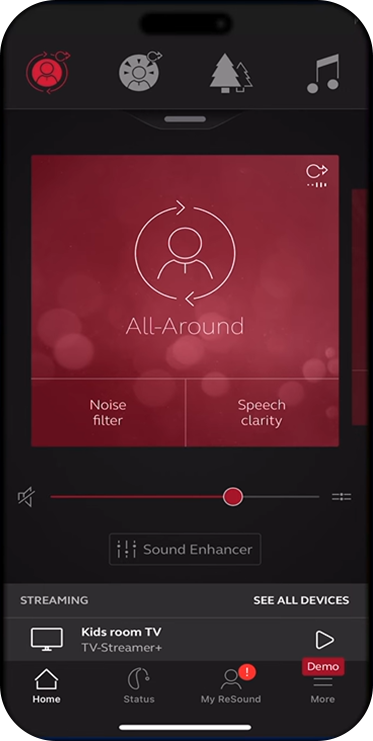
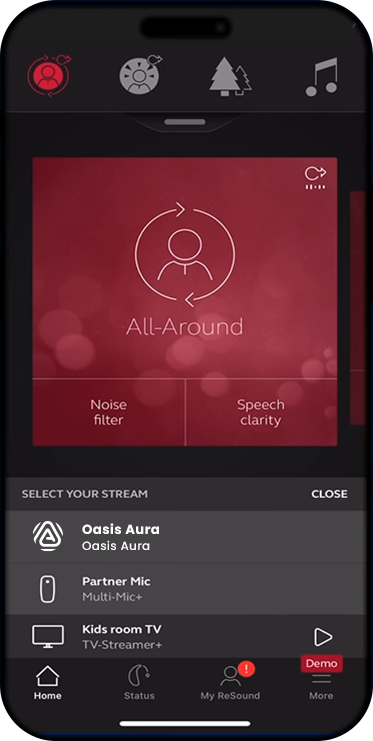
Choose the broadcast you want. Once joined, you will hear its audio.
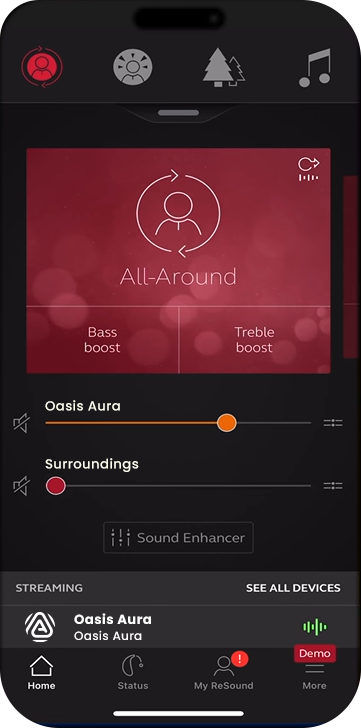
Set the stream to a comfortable level.
Other ways to listen
Aura C phone hearing aids
Aura C does not pair directly with hearing aids.
Set up Aura C →Switch to T or MT. The neckloop sends the broadcast to your hearing aids.
AuraCoilBuilt-in neckloop
Set up AuraCoil →AuraClipNeeds a compatible 3.5 mm T-coil neckloop
Set up AuraClip →TROUBLESHOOTING
Match what you hear, try the action, then check the expected result.
Recognize: the broadcast appears selected, but your hearing aids are silent.
Expected: broadcast audio plays through both hearing aids. If it does not, restart the broadcast source and repeat the scan.
Recognize: broadcast audio plays, but room sound makes it difficult to understand.
Expected: the broadcast becomes clearer without uncomfortable loudness.
Recognize: the same broadcast reaches you through your hearing aids and a nearby speaker at slightly different times.
Expected: only one synchronized audio path remains.
REFERENCE
This guide covers Enzo IA, Nexia, Savi, Sensia, and Vivia. For model-specific updates, use current ReSound documentation and software.