Open the Philips app
Open the Philips hearing-aid app on your phone.

Interactive user guide
Listen to Auracast directly, or use a receiver.
Step 1 · Choose your setup
Select your Philips model below. If it isn’t listed, choose an option that matches your hearing aids.
 Auracast hearing aidsHearLink 9050
 You can hear music from your phone through your hearing aids

 You can switch your hearing aids to “T” or “MT”
Look for a T or MT setting in your hearing aid app or paperwork. If you cannot find one, ask your hearing care professional.
Step 2 · Join the broadcast
Pair the hearing aids with your phone before opening the app.
Open the Philips hearing-aid app on your phone.
Tap the three-dot More Options button.
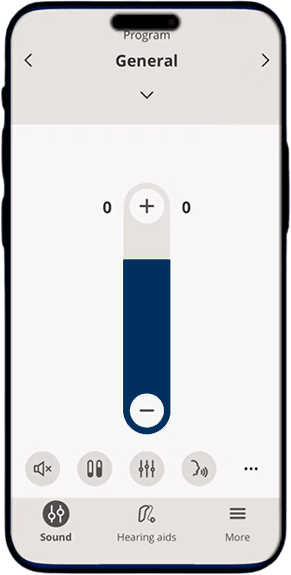
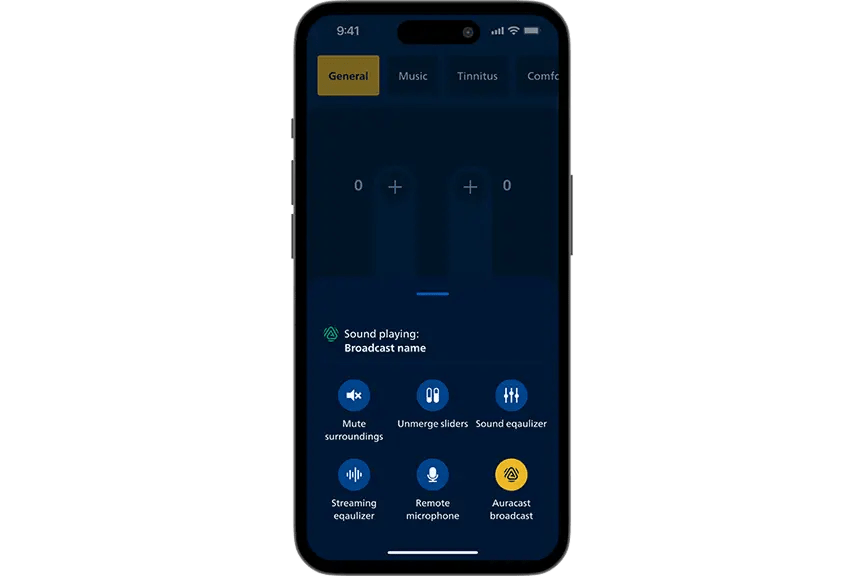
Tap Auracast broadcast.
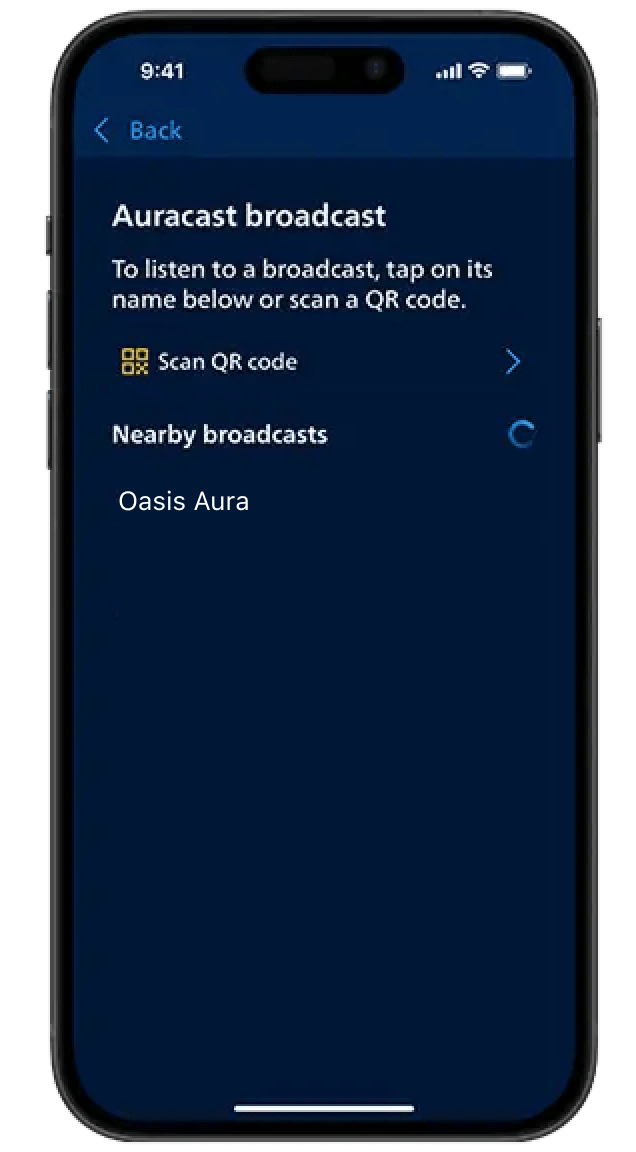
Choose the broadcast you want to hear.
Set the broadcast volume to a comfortable level.
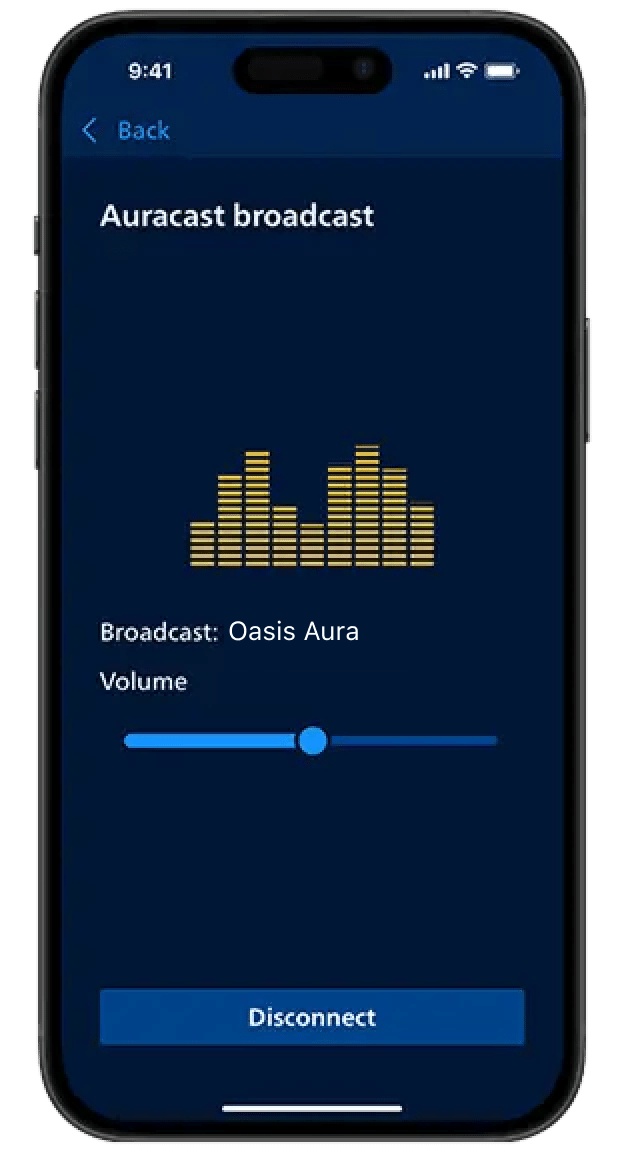
Expected result: You hear the selected broadcast through both hearing aids at a comfortable volume. If not: use Fix a problem and start with the symptom you notice.
FIX A PROBLEM
Recognize: no expected broadcast name is listed. Action: move closer, confirm the transmitter is broadcasting, leave ordinary Bluetooth pairing, and scan again in HearLink 2. Expected: the broadcast name appears. If it does not, restart the hearing aids and phone, then confirm HearLink 9050 compatibility.
Action: select the broadcast again and raise streaming volume gradually. Expected: audio plays through both hearing aids. If it differs, note the broadcast name, phone model, hearing-aid model, and what HearLink 2 shows.
Action: move closer, use one listening path, and mute the TV speaker when practical. Expected: stable audio without duplicate voices. Persistent problems need Philips- or transmitter-specific support.
Other ways to listen
Aura C phone hearing aids
Aura C does not pair directly with hearing aids.
Set up Aura C →Switch to T or MT. The neckloop sends the broadcast to your hearing aids.
AuraCoilBuilt-in neckloop
Set up AuraCoil →AuraClipNeeds a compatible 3.5 mm T-coil neckloop
Set up AuraClip →Expected result: broadcast audio plays through the hearing aids already connected to your phone. If not: first confirm the hearing aids can play ordinary phone audio, then reopen the Aura C setup guide above.
Expected result: broadcast audio plays after you switch the hearing aids to T or MT. If not: confirm the T or MT program with your hearing care professional, then repeat the receiver setup above.
REFERENCE