Open the Jabra Enhance Pro app
Pair your hearing aids with your phone, then open the app. Stay on the main screen showing “All-Around,” the volume slider and Sound Equalizer.


Interactive user guide
Listen to Auracast directly, or use a receiver.
Step 1 · Choose your setup
Select your Jabra model below. If it isn’t listed, choose an option that matches your hearing aids.
 You can hear music from your phone through your hearing aids
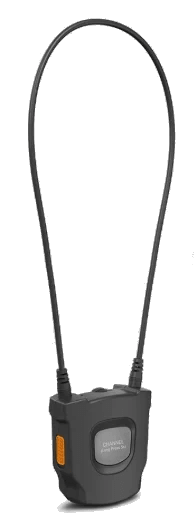
 You can switch your hearing aids to “T” or “MT”
Look for a T or MT setting in your hearing aid app or paperwork. If you cannot find one, ask your hearing care professional.
SETUP PATH
For supported Auracast Jabra hearing aids.
Pair your hearing aids with your phone, then open the app. Stay on the main screen showing “All-Around,” the volume slider and Sound Equalizer.
When an Auracast broadcast is nearby, the app may show a streaming or connection option, or detect nearby audio automatically. Wait a few seconds.
The wording varies by app version. Look for:
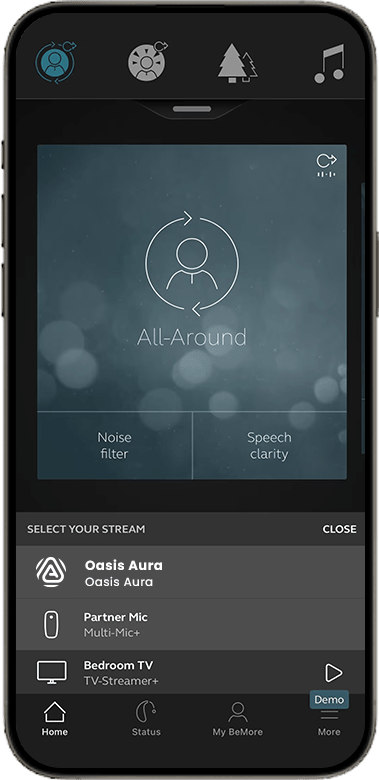
Choose the broadcast you want to hear. Once joined, the broadcast audio will play through your hearing aids.
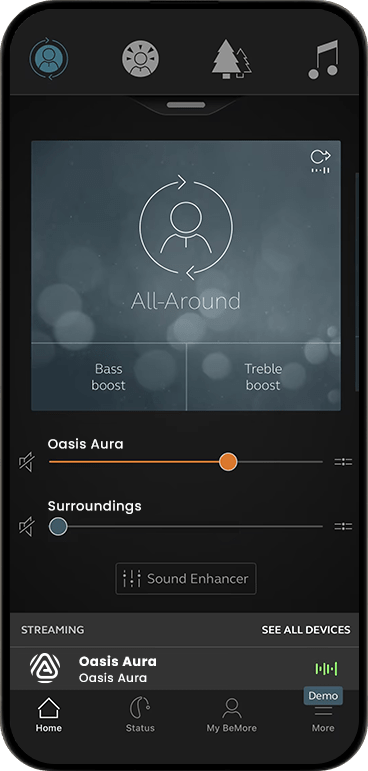
Set the stream to a comfortable level.
SETUP PATH
For Jabra Enhance Select 500 and other compatible setups.
Other ways to listen

Aura C phone hearing aids
Aura C does not pair directly with hearing aids.
Set up Aura C →Switch to T or MT. The neckloop sends the broadcast to your hearing aids.
AuraCoilBuilt-in neckloop
Set up AuraCoil → AuraClip
Needs a compatible 3.5 mm T-coil neckloop
Set up AuraClip →TROUBLESHOOTING
These are the three issue areas called out in the source guide.
Open the source FAQ for model-specific checks and support.
Adjust broadcast volume and lower or mute Surroundings volume in the Jabra app.
Open the source FAQ for model-specific checks and support.