Ensemble Pro Interactive User Guide | Avantree

Interactive User Guide · Ensemble Pro / BTHT-5150R

Clear TV dialogue at your own volume.

Connect by Optical or AUX, then listen through the included wireless headphones.

TransmitterHeadphones
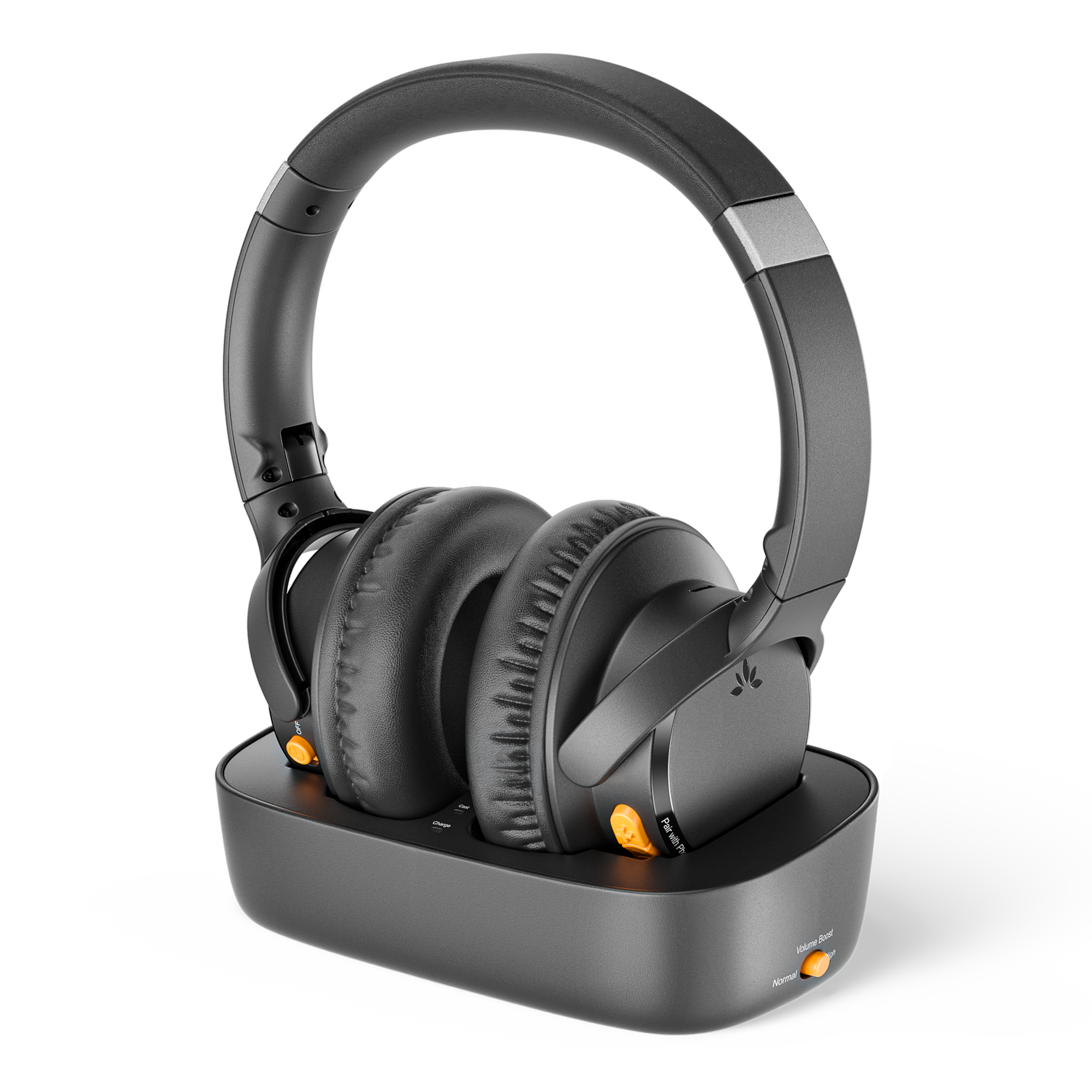
Ensemble Pro headphones on the transmitter charging dockOptical · AUXMulti-headphone · up to 35 hours

Start setup

How do you want to connect?

Choose the option that works best for you.

★ Use the Ensemble Pro transmitter for the lowest-delay TV listening experience.

2Simpler setup, no extra device.No extra deviceUse built-in BluetoothNo Volume BoostTV volume onlyMore audio delaySlightly more delay

Volume and dialogue

Adjust volume in this order.

1. TV and transmitter

  • Using AUX? Raise the TV/source volume first.
  • Need more volume? Switch Volume Boost to ON (+6 dB).

2. Headphones

  • Set volume: raise it slowly.
  • Dialogue unclear? Try the Voice Clear EQ setting.

Bluetooth headphones

Use with a Phone or PC

Connect the headphones directly by Bluetooth.

1

Turn off the transmitter

2

Start pairing

Hold Pair with Phone for 3 seconds. The LED flashes red and blue.

3

Open Bluetooth settings

On your phone or PC, turn on Bluetooth.

4

Select Ensemble Pro

Solid blue means connected.

More listeners

Add More Headphones

Share TV sound via Auracast.

Add another Auracast device

Avantree device
Turn it on near the transmitter.

Other brand
Use its app to join Ensemble Pro.

Bluetooth-only headphones won't work.

Daily use

Charge the headphones.

Use the powered dock or a USB-C cable.

Power & charging

Full charge:
about 2 hours

  • Headband: retract it before placing the headphones on the dock.
  • Base: align the headphones with the charging pins.
  • USB-C: use a 5 V, 1–2.4 A power source.
  • Light: solid red = charging; off = full.

Not charging? Reseat the headphones or USB-C cable. Check the power source.

Quick fixes

Match what you see.

Each fix states the action, expected result, and next step.

Headphones won't join the transmitter
  1. Confirm the transmitter is on and playing TV audio.
  2. Keep the headphones close to the transmitter and at least 2 m from Wi-Fi routers or microwaves.
  3. Double-press if the LED is red + blue, then hold for 3 seconds until it flashes orange.
  4. Wait for solid orange.

Expected: solid orange and TV sound. If it still fails, hold + and together for 5 seconds to reset the headphones, then search again.

🔇Joined, but no TV sound
  1. Check the cable: use a TV audio OUT port and match the transmitter selector to OPT or AUX.
  2. Check the transmitter: a solid Audio Signal light means usable TV audio is arriving. If it blinks, correct the cable or TV settings first.
  3. Check the TV: for Optical choose Optical/External Speaker and set Digital Audio Format to PCM; for AUX choose Headphones and raise TV volume.
  4. Check volume: raise the TV volume for AUX, then raise the headphone volume and try the Voice Clear EQ setting.
  5. Restart: turn the transmitter OFF, then ON.

Expected: the Audio Signal light is solid and spoken dialogue plays. Still silent? Reopen Step 2 and follow the matching connection path from the beginning.

No light on transmitter
  1. Reconnect USB-C at both ends.
  2. Try a known-working 5 V USB adapter.
  3. Slide the transmitter switch to OFF, then ON.

If there is still no light, submit a support ticket with a photo of the power connection.

🔋Headphones will not charge
  1. Confirm the dock has power.
  2. Align the charging contacts and look for solid red.
  3. Try USB-C charging directly.
  4. Allow about 2.5 hours.

In the box

Everything included.

Ensemble Pro headphones, transmitter and charging dockHeadphones + transmitter charging dock
Included USB-C power cable connected to the Ensemble Pro transmitterUSB-C power cable
Included purple square-ended Optical cableOptical cable
Included blue round-ended 3.5 mm AUX cable3.5 mm AUX cable

HDMI is not supported directly. For an HDMI-only TV, use the HAX06 HDMI ARC-to-Optical adapter (sold separately).

Reference

Connections, lights, and official help.

Quick reference

TV inputs
Optical or AUX
Solid orange
Headphones joined the Auracast broadcast
Flashing orange
Searching for an Auracast broadcast
Solid blue
Headphones connected by Bluetooth
Red + blue
Bluetooth pairing mode
Charge time
About 2 hours
Playtime
Up to 35 hours

STILL NEED HELP?

Get help with Ensemble Pro.