Skip to guide
PDF Guide
FR

Interactive user guide

Duet Aura Setup Guide

TV headphone setup

Connect by Optical, HDMI ARC, or AUX, then listen together through the two included wireless headphones.

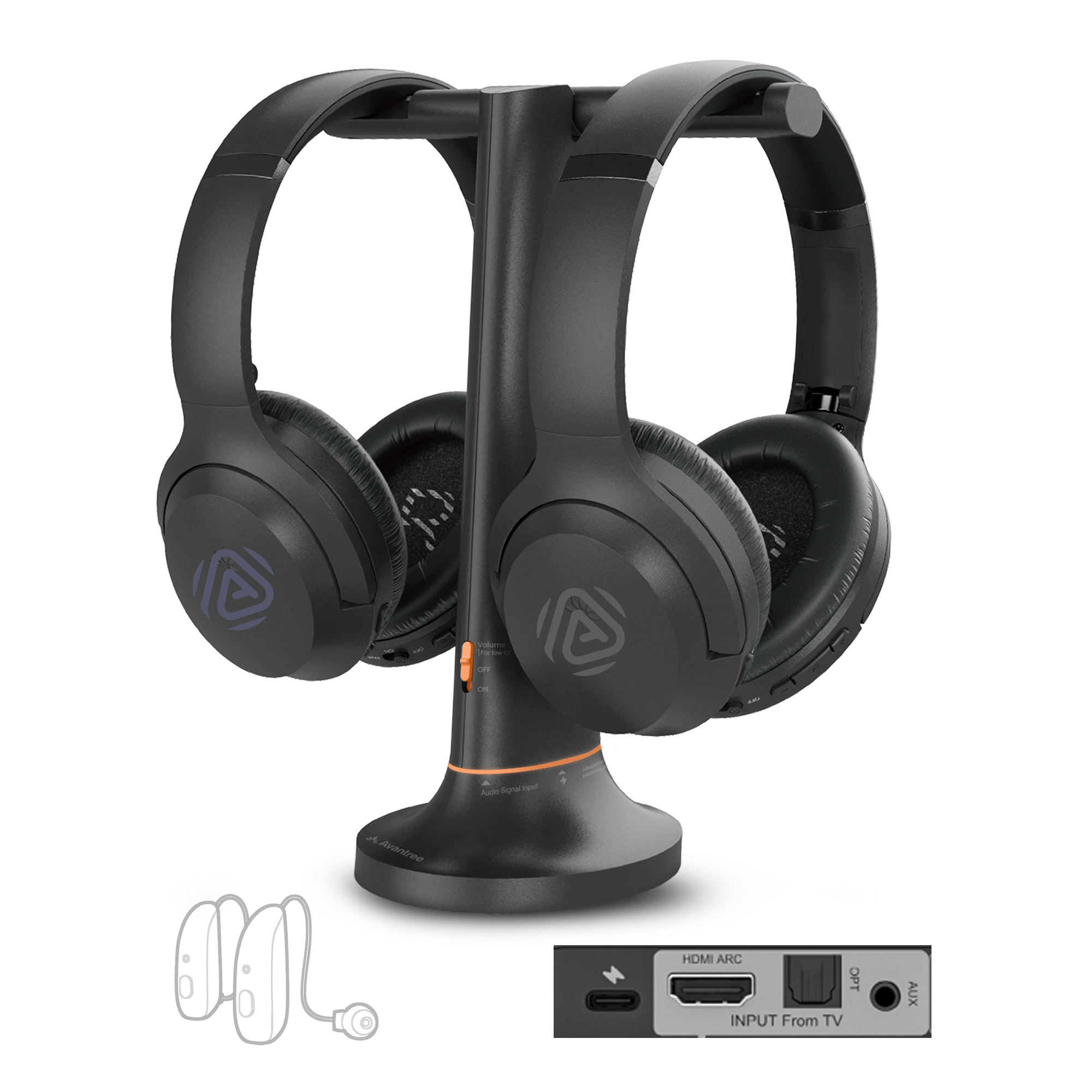
Duet Aura headphones with transmitter charging dockHDMI ARC · Optical · AUXAuracast · up to 35 hours

Recommended kit setup

Set up with the transmitter

1

Choose your TV audio OUT

TaskChoose the first available output below.

Use AUDIO OUT, not AUDIO IN. For HDMI, use ARC or eARC—not a standard HDMI port.

DoneThe matching TV port and cable are selected.

If notPhotograph all TV ports and the TV model label, then contact Support.
2

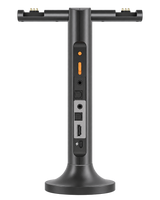
Connect Duet Aura to the TV

TaskConnect the cable selected in Step 01.

Power the transmitter

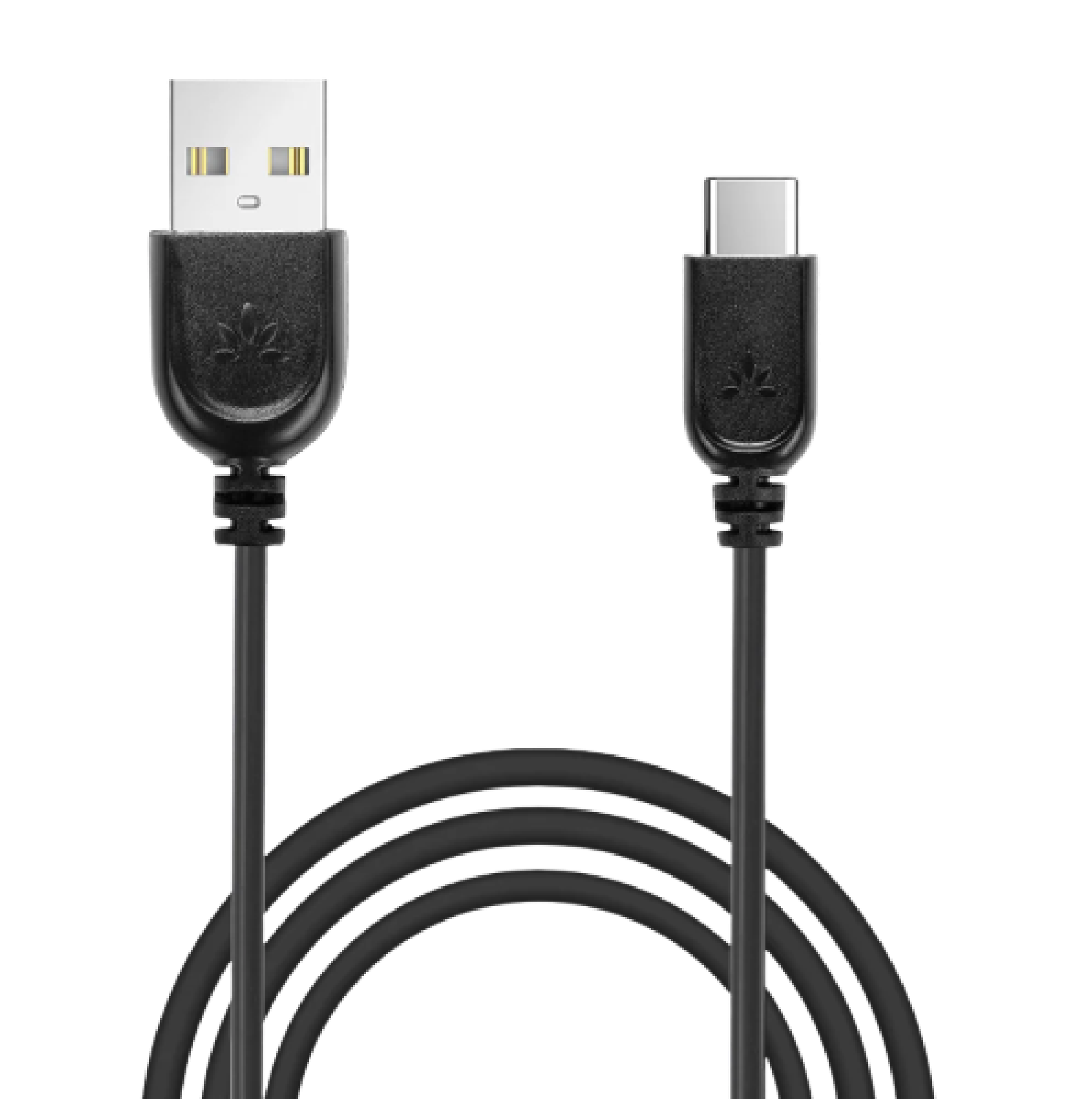
Included USB-A to USB-C power cable
Use the included USB-C power cable.
  1. Connect USB-C to the transmitter.
  2. Connect USB-A to a 5 V, 500 mA–2 A power source.

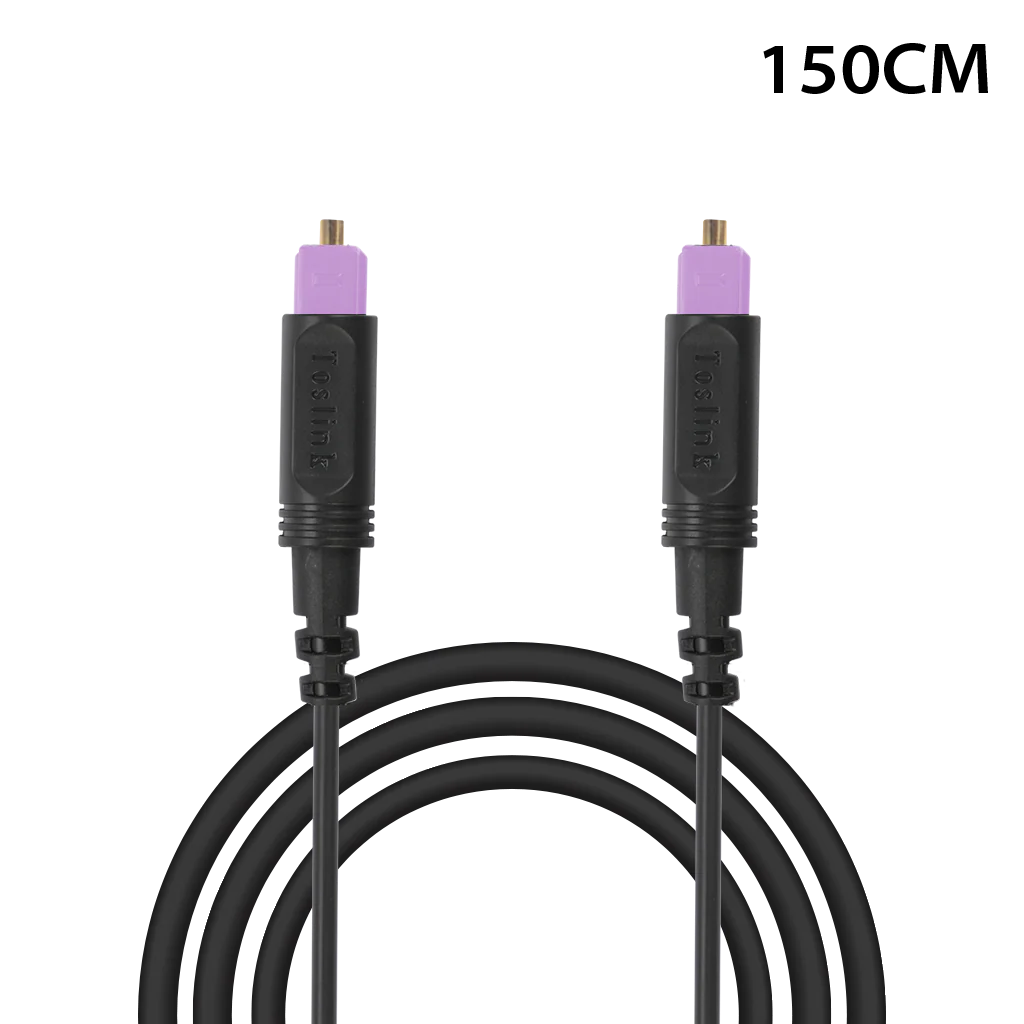
Connect Optical

Optical cable with purple tips
  1. Remove the clear protective caps from both cable ends.
  2. Connect TV OPTICAL OUT / DIGITAL AUDIO OUT to transmitter OPT IN.
  3. Set the transmitter Input Selector to OPT.

Connect HDMI ARC

  1. Use only the TV port labeled HDMI ARC or HDMI eARC.

    Using eARC? Turn eARC Off to get sound. See the next step.

  2. Connect it to the transmitter HDMI ARC input.
  3. Set the transmitter Input Selector to HDMI ARC.

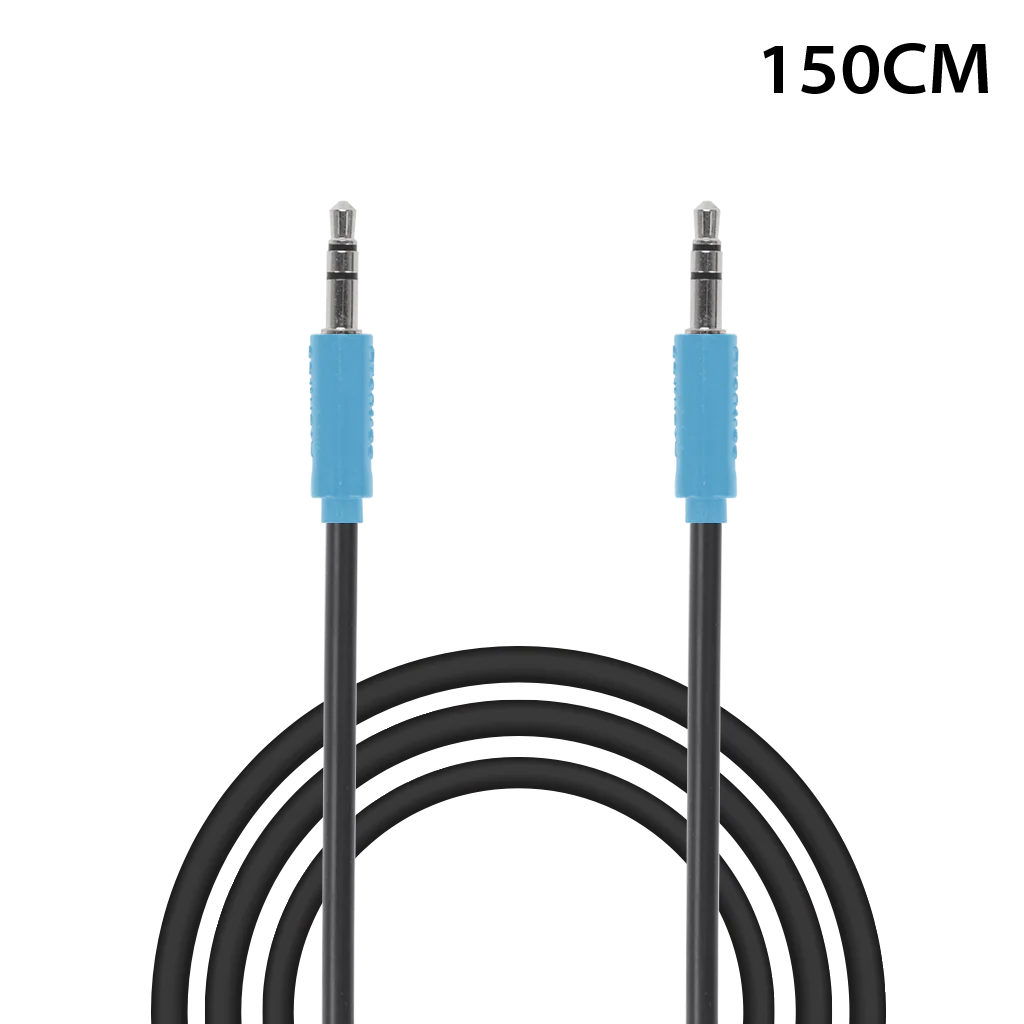
Connect AUX

AUX cable with blue ends
  1. Connect TV HEADPHONES / AUDIO OUT to transmitter AUX IN.
  2. Set the transmitter Input Selector to AUX.
  3. Raise the TV volume to a normal level.

No Bluetooth pairing needed. The headphones use the transmitter’s Auracast broadcast.

DonePower light on; both Optical plugs seated; selector at OPT.

If notCheck power, reseat both plugs, and match the Input Selector.

3

Optical TV settings

Use your TV remote.

Open Settings → Sound

TV speakers + headphones?Check TV compatibility and steps →

DoneThe transmitter Audio Signal light is solid while TV audio plays.

If notRecheck the TV Sound Output and audio format before continuing.

4

Listen with the headphones

Listen with hearing aids →

TaskTurn on both headphones, wait for solid orange on each, then test TV sound.

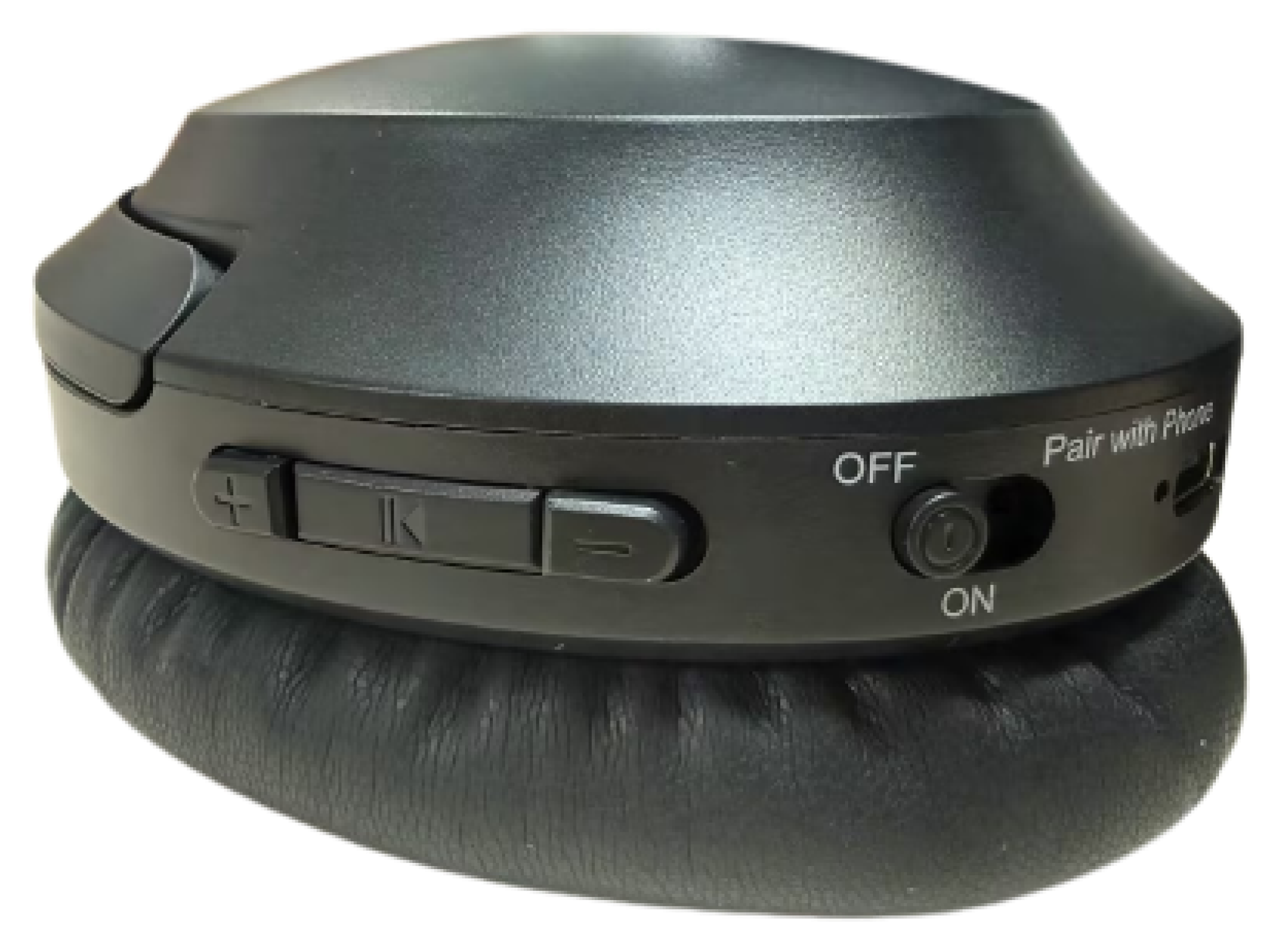
Duet Aura headphone power switch set to ON
Slide each headphone power switch to ON.
  1. Keep both headphones near the powered transmitter.
  2. Wait for each headphone LED to become solid orange.

    Red + blue flashing? Hold ⏯ for 5 seconds until orange flashes rapidly; wait for solid orange.

  3. Put on the headphones and adjust each volume separately.

No sound after resuming? Turn the transmitter OFF, then ON.

DoneSolid orange on both headphone LEDs and audible TV dialogue confirm setup.

If notChoose “No — help me fix it” above for the matching recovery.

Listen with hearing aids

Use the Duet Aura TV broadcast with compatible hearing aids or a receiver.

Before you start: Complete Steps 1–3, then keep the transmitter on and TV audio playing.

1

Check Hearing Aid mode

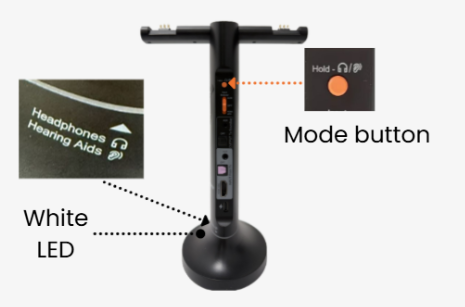
The transmitter LED beside Hearing Aids should be white.

Not white? Hold the transmitter’s Mode button for 3 seconds, then recheck.

Duet Aura transmitter: the orange arrow points to the Mode button and the black arrow points to the white Hearing Aids LED at the base
White LED
Close-up of the transmitter's orange Mode button
Mode button
2

Open the hearing-aid Auracast guide

Choose your hearing-aid brand and type, then follow the matching instructions to join the Duet Aura TV broadcast.

Open hearing-aid guide →

DoneTV audio plays through your hearing aids.

If notConfirm the transmitter Audio Signal light is solid, then follow the selected brand or receiver guide.

Adjust Sound

Stop when the volume is comfortable and voices are clear.

Headphone volume

Raise each headphone volume slowly.

Volume Boost

Still too quiet? Switch Volume Boost ON on the transmitter for +6 dB. It works with Optical, HDMI ARC, and AUX.

Voice Clear 2

Voices unclear? Select Voice Clear 2 on the headphones.

Using AUX? Raise the TV/source volume if needed.

Fix the common problems

More Quick Fixes →

Use the headphones with a Phone/PC

Connect a headphone directly—do not pair the transmitter. To listen with both included headphones, use the transmitter setup.

Watch: connect to a phone or PC
1

Turn off the transmitter

This prevents the headphones from rejoining TV audio.

2

Start Bluetooth pairing

Hold the headphone switch at Pair with Phone for 3 seconds. Wait for red + blue flashing.

3

Select Aria Aura

Open Bluetooth on the phone or computer and select Aria Aura.

4

Confirm solid blue

A solid blue headphone LED means connected.

Back to TV: Turn off phone Bluetooth. Switch the headphones ON near the powered transmitter; wait for solid orange.

Charge both headphones

About 2.5 hours for a full charge.

  1. Use the powered dock or USB-C with a 5 V, 1–2.4 A source.
  2. On the dock, align the charging contacts.
  3. Solid red means charging; the LED turns off when full.

Not charging? Reseat each headphone on the powered dock or reconnect its USB-C cable; check the power source.

Battery reference

Up to 35 hours of playtime. Actual time varies with volume, connection, and use.

Use a soundbar and headphones together

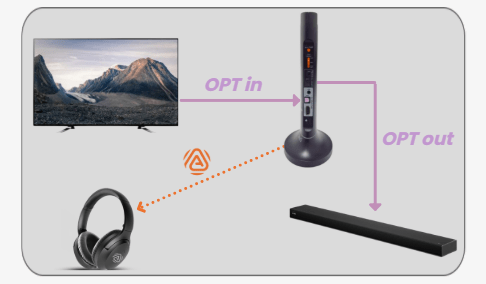
TV Optical audio enters the Duet Aura transmitter, passes from OPT OUT to a soundbar, and broadcasts wirelessly to the headphones
OPT IN → OPT OUT, or AUX IN → AUX OUT.
  1. 1Get headphone sound with Optical or AUX.
  2. 2Connect the matching OUT to the soundbar.
  3. 3Select that input on the soundbar.

HDMI ARC soundbar? Use the HAX06 extractor →

Update Duet Aura headphones

Update only if Avantree Support tells you to, or this guide sends you here.

  1. Download the Avantree Updater for your Windows PC or Mac.
  2. Connect the Duet Aura headphones—not the transmitter dock—to your computer with a USB data cable.

    Use the included gray-tip data cable. On Mac, an Apple charging cable also works.

  3. Run the updater. Follow its instructions and keep the headphones connected until it says Complete.

After updating: follow the updater’s reset instructions.

During the update: do not unplug the headphones, close the updater, or turn off the computer.

Private Mode is coming soon

Private Mode uses an encrypted, password-protected Auracast broadcast.

Until then

Use the open Duet Aura broadcast for normal TV listening. The headphone app is only needed for password-protected broadcasts.

Register for product updates →