Interactive User Guide · AuraBand / BTHS-391

Hear Auracast broadcasts clearly and comfortably.

AuraBand is a personal Auracast receiver for churches, senior centers, clinics, events, and other compatible venues. Power on to find an open broadcast, then adjust volume and left/right balance for you.

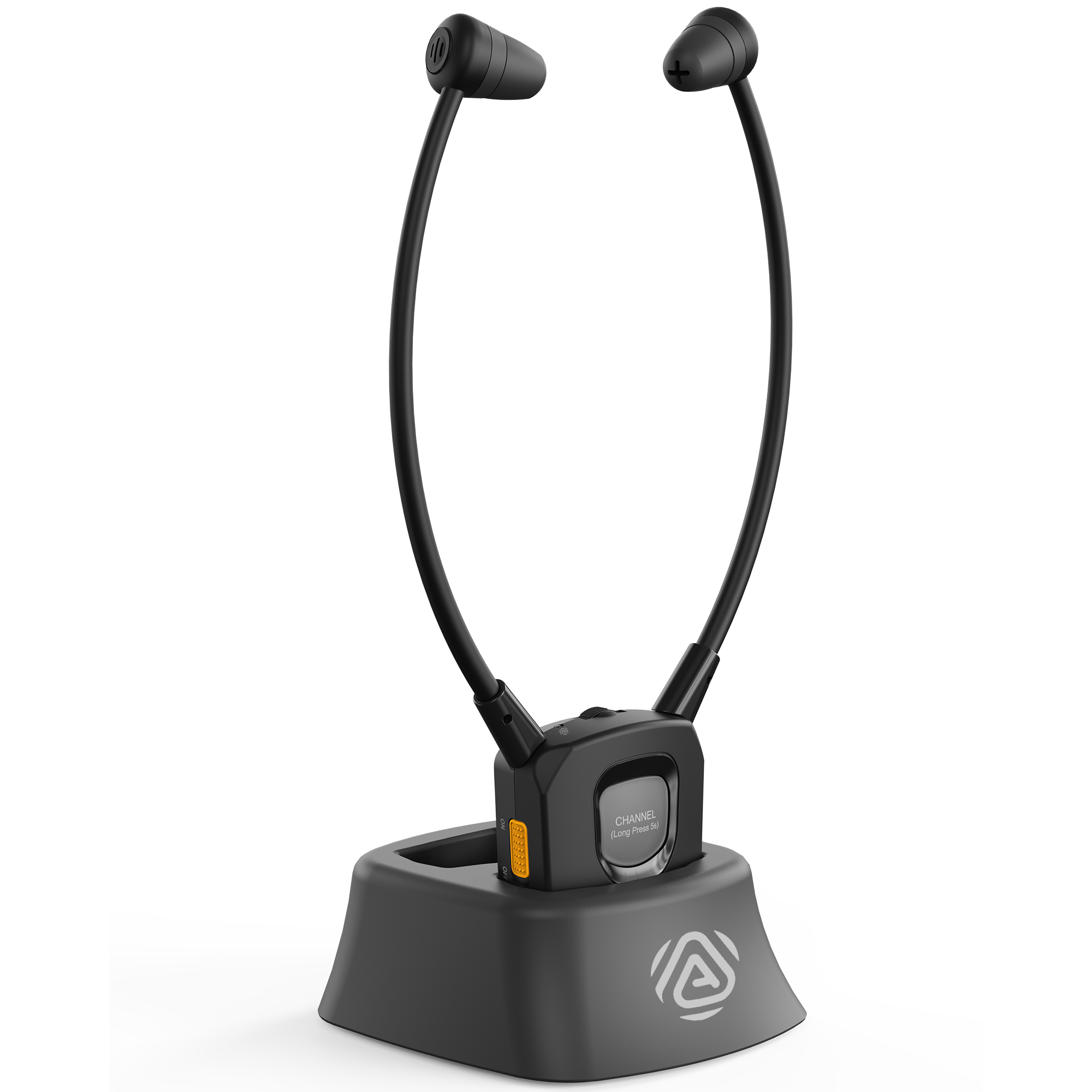
Avantree AuraBand Auracast personal receiver with earbuds and charging dockAuracast receiver

Start setup

Which broadcast are you joining?

Choose the path that matches the venue. Most public broadcasts are open and connect without an app.

Join an open Auracast broadcast

Confirm the Auracast transmitter is broadcasting.Ask the venue if you are unsure. Stay close to the transmitter during setup.

Slide the AuraBand power switch to ON.The white indicator flashes while AuraBand searches.

Wait for the white indicator to stay solid.That means AuraBand joined the broadcast. Put on the earbuds and adjust volume and left/right balance.

Success: solid white and the broadcast plays through the earbuds.

Still flashing? Confirm the transmitter is active, move closer, and power AuraBand off and on once. AuraBand supports Auracast only—not Classic Bluetooth or 2.4 GHz.

Join a password-protected broadcast

Availability note: The supplied manual says AuraBand support in the Avantree app is planned for mid-to-late September 2026. Before support appears in the app, AuraBand can join open broadcasts only.

Turn AuraBand on.Double-click the CHANNEL button. Alternating white and red flashes mean it is waiting for the app.

Open the Avantree app.Allow Bluetooth and Nearby Devices permission.

Avantree app iconGet the Avantree app on Google PlayDownload the Avantree app on the App Store

Add the receiver.Tap Add device / Search devices, select BTHS-391, and complete the BLE connection.

Select the Auracast broadcast.Search in the app, choose the target broadcast, enter the venue password, and connect.

Success: the selected secured broadcast plays through AuraBand.

Important: BLE is used only for app control and broadcast selection. It does not carry phone audio, so do not pair AuraBand in the phone's regular Bluetooth audio list.

Use AuraBand

Move to another nearby broadcast.

1 · SEARCH

Hold CHANNEL for about 5 seconds.

The white indicator flashes while AuraBand searches for a different Auracast broadcast.

2 · CONNECT

Wait for solid white.

Solid white means the receiver joined another broadcast. Listen to confirm it is the one you want.

RECOVERY

No other broadcast found?

AuraBand automatically returns to the original broadcast. Move closer to the intended transmitter and try again.

Fix a problem

What do you see or hear?

White light keeps flashing
  1. Confirm the Auracast transmitter is powered on and already broadcasting.
  2. Move AuraBand closer to the transmitter.
  3. Turn AuraBand off, then on, and wait for solid white.

Expected: the white indicator stays solid and broadcast audio begins.

Connected to the wrong broadcast
  1. Hold CHANNEL for about 5 seconds.
  2. Wait while the white indicator flashes.
  3. Listen after it becomes solid white.

If AuraBand finds no other broadcast, it returns to the original one. Move nearer the intended transmitter and repeat.

Solid white, but sound is unclear or uneven
  1. Confirm the venue's broadcast is playing.
  2. Raise AuraBand volume gradually from a low level.
  3. Adjust the left/right balance until speech is centered and comfortable.

Expected: clear audio at a comfortable level in both ears.

Secured broadcast will not connect
  1. Confirm AuraBand support appears in the current Avantree app.
  2. Double-click CHANNEL and look for alternating white and red flashes.
  3. Allow Bluetooth and Nearby Devices permissions.
  4. Select BTHS-391, then re-enter the venue password.

If AuraBand is not listed in the app yet, use an open broadcast and check the product support page for availability updates.

The phone cannot play audio to AuraBand

This is expected. AuraBand receives Auracast broadcasts only. It does not support Classic Bluetooth audio or 2.4 GHz connections.

Use a compatible Auracast transmitter or venue broadcast instead.

The receiver will not charge
  1. Turn AuraBand off.
  2. Connect the supplied power cable to the charging dock.
  3. Seat AuraBand fully in the dock.

Expected: the dock light is solid red while charging and turns off when charging is complete.

Reference

Controls, lights, charging, and compatibility.

Controls

  • Power: slide to ON or OFF.
  • CHANNEL: hold about 5 seconds to search for another open broadcast.
  • CHANNEL: double-click to enter app connection mode for a secured broadcast.
  • Volume and balance: adjust listening level and left/right balance.
AuraBand controls for channel, volume, balance, and power

Indicator states

  • White flashing: searching for a broadcast.
  • Solid white: connected to a broadcast.
  • Dock solid red: charging.
  • Dock light off: charging complete.
  • White/red alternating: waiting for the Avantree app.

Charging

  1. Turn AuraBand off.
  2. Power the dock with the supplied cable.
  3. Place AuraBand fully in the dock.

The battery is removable and replaceable. Contact Avantree Support for the correct replacement.

Compatibility: AuraBand is an Auracast receiver. It does not support Classic Bluetooth audio or 2.4 GHz connections. The product page also lists it as incompatible with Avantree HT381.

Still need help?

Get the right help for AuraBand.

Select AuraBand / BTHS-391 / VRC-391. Include the venue or transmitter model, symptom, light pattern, and photos if useful.

RECOMMENDED

Submit an AuraBand support ticket

The form accepts photos or screenshots and routes product-specific questions.

Start support request →

Don't want to submit a ticket?

Talk to a real support agent.