English

Aura Loop · Interactive User Guide

Clear TV sound. Simple setup.

Connect the transmitter, turn on the earbuds, and listen.

Avantree Aura Loop earbuds, charging dock and TV transmitterAuracast TV audioPhone Bluetooth too

Start setup

How do you want to connect?

For the best lip sync and most reliable connection, use the supplied Aura Loop transmitter.

Secure the Fit

Keep the earbuds comfortable and secure.

Choose the ear tip that seals comfortably. Add the soft stability earfins when you need extra support.

Earbuds feel loose?

  1. Try each supplied ear-tip size.
  2. Insert and gently rotate until secure; do not force it.
  3. Install the free stability earfins when extra support is needed.
Open the illustrated earfin installation guide →
Watch: fit the optional stability earfins.

Charging

Charge by dock or USB-C.

A full charge provides up to 12 hours of listening.

Charge the earbuds.

Keep charging contacts dryEarbuds + charging dock

  1. Place the earbuds on the charging dock or connect USB-C (5 V, 1–2.4 A).
  2. Confirm the LED is solid red while charging.
  3. Charging is complete when the LED turns off, usually after about 2 hours.

After USB-C charging: the earbuds power on automatically when unplugged.
Watch: charge with the dock or a USB-C cable.

Phone & Auracast

Use the earbuds beyond the TV.

Pair with a phone or computer

  1. Turn on the earbuds.
  2. Hold the pairing/play button for 3 seconds.
  3. When red and blue blink, select Avantree Loop in Bluetooth settings.
Watch: place the earbuds in Bluetooth pairing mode and connect by phone.

DUAL MODE

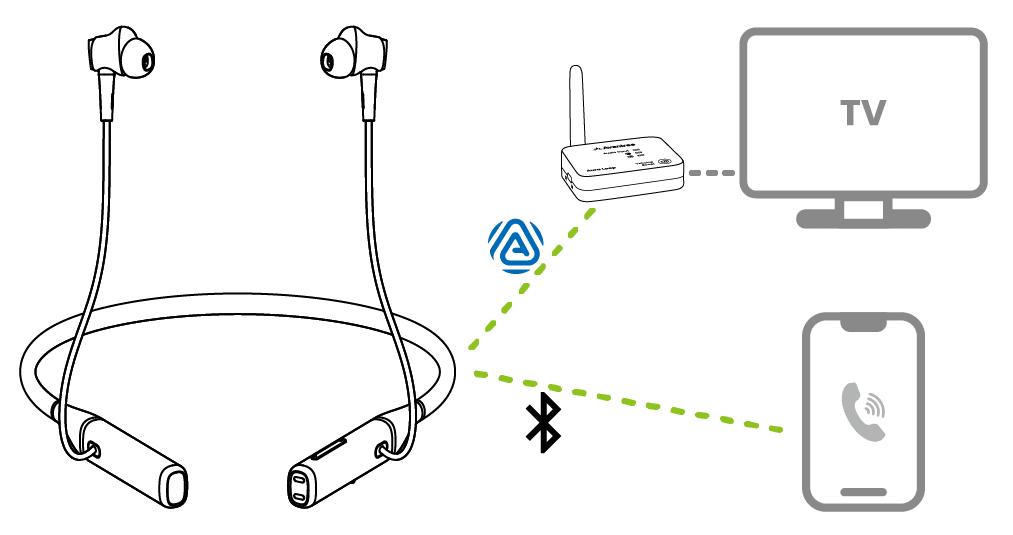
Stay connected to your phone while watching TV.

Never miss a call
  • Incoming calls pause TV audio automatically.
  • TV sound resumes after the call ends.
Aura Loop earbuds connected to the TV transmitter by Auracast and to a phone by Bluetooth

Add Auracast listeners

Additional compatible Avantree Auracast devices can join by powering on. Other brands may require their companion app.

Add more earbuds →

Rename & Encrypt

Name your broadcast or make it private.

Use Avantree Updater on a Windows PC or Mac. Finish both firmware updates first.

Before you begin

  • Update the transmitter and earbuds.
  • Confirm the earbuds have joined the transmitter and TV sound is playing.
  • Connect the transmitter to the computer with the included gray USB data cable.
How to update both devices →

Rename or encrypt the broadcast

  1. Open Avantree Updater → Advanced.
  2. Enter your preferred broadcast name.
  3. For Private Mode, set Encryption → Encrypted (User-defined) and enter a passcode.
  4. Enable Synchronize to supported Avantree Rx, then choose Apply settings.
Keep the earbuds connected before Apply. Only devices with the passcode can join an encrypted broadcast.
Watch: set a broadcast name and passcode in Avantree Updater.
Earbuds did not reconnect?
  1. In Advanced, set Encryption → Public, then choose Apply settings.
  2. Wait for the earbuds to reconnect.
  3. Repeat the Private Mode steps above.

Quick fixes

Choose the symptom.

Each fix tells you what to check, what to do, and what success looks like.

No TV sound
  1. Confirm the cable uses a TV OUT port and the transmitter input matches it.
  2. Play a program with speech.
  3. For Optical, choose Optical output and PCM/Stereo.
  4. For AUX, raise TV volume.

Expected: transmitter audio-input LED is solid white; earbud LED is solid orange.

Complete no-sound guide →
Can't pair or sync with a phone
  1. Turn on the earbuds.
  2. Hold the manual-pairing / play button for 3 seconds.
  3. Wait for the LED to blink red and blue.
  4. Open the phone Bluetooth list and select Avantree Loop.

Expected: the LED becomes solid blue or purple. If the name is missing, turn phone Bluetooth off/on and repeat pairing mode beside the phone.

Earbuds fall out or feel uncomfortable
  1. Try a different ear-tip size.
  2. Rotate the earbuds gently for a stable seal.
  3. Add the soft stability earfins.

Expected: secure without pressure or pain.

Earfin installation & fit guide →
Sound is too low
  1. Increase TV volume when using AUX.
  2. Use + / − on the earbuds.
  3. Only if still low, activate transmitter Volume Boost.

Expected: clear sound without distortion. Turn Boost off if audio becomes harsh.

Use TV speakers and earbuds together

Availability depends on the TV. Look for simultaneous TV Speaker + Optical or Multiple Audio Output. Aura Loop does not provide soundbar passthrough.

See TV-speaker options →
Reset the earbuds

Use the verified factory-reset procedure in the official Aura Loop support article before clearing saved connections.

Open factory-reset instructions →

Reference

Buttons, lights, firmware, and official resources.

Earbud indicators

Red + blue blinking
Classic Bluetooth pairing mode
Solid blue / purple
Classic Bluetooth connected
Solid orange
Joined the Auracast transmitter
Solid red
Charging
Off while charging
Fully charged

Full buttons & indicators guide →

FIRMWARE UPDATE

Update both devices separately.

The transmitter uses a computer. The earbuds use the Avantree-Avantalk mobile app.

1 · TRANSMITTER

Update with a Windows PC or Mac.

  1. Open the Aura Loop Firmware Update page and install Avantree Updater.
  2. Connect the transmitter with the included gray USB data cable, then turn it on.
  3. Open Avantree Updater and select Check for Updates.
  4. Install the latest version and wait for the completion message before unplugging.
2 · EARBUDS

Update with the phone app.

  1. Install Avantree-Avantalk: App Store or Google Play.
  2. Pair the earbuds with your phone through Bluetooth.
  3. Open the app, tap Add Device, select Avantree Loop, then tap Connect.
  4. Follow the update prompt. If none appears, open the gear icon and tap Update Now.

Allow about 5–10 minutes. Keep the earbuds close to the phone with a stable internet connection until the update reaches 100%.

Do not interrupt an update. Keep the USB cable connected during the transmitter update, and keep the earbuds near the phone during the earbud update.

STILL NEED HELP?

Get the right help for Aura Loop.

For the fastest answer, choose Aura Loop / BTHT-4817 and include the TV or phone model, connection type, LED pattern, and screenshots or photos.

Was this helpful?

Thanks for your feedback!
