Roadtrip · CK12

User Manual

Roadtrip Setup Guide

Pair your phone. Choose your sound.

Use Roadtrip's built-in speaker or send phone audio to your car radio by FM.

Park your car while setting up and testing sound.

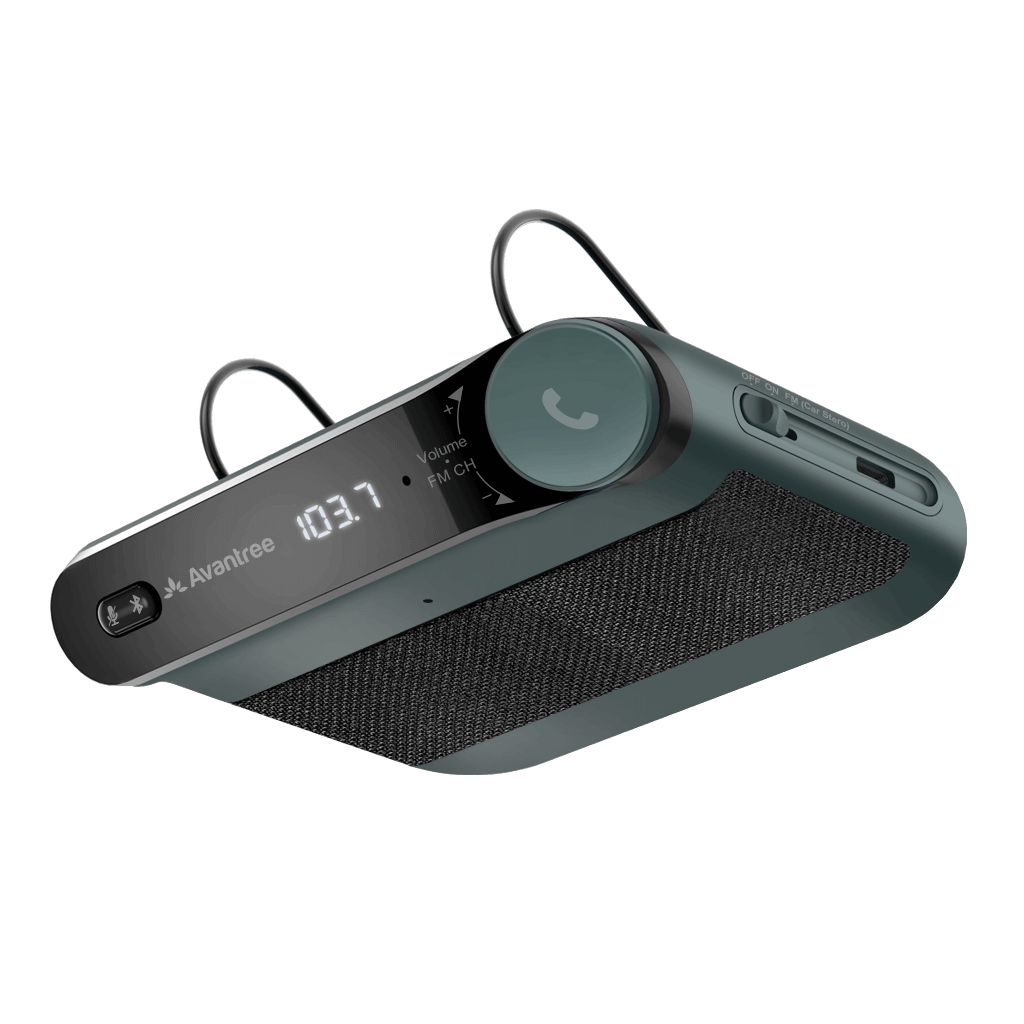
Avantree Roadtrip Bluetooth car speaker and FM transmitter

Phone

Pair Roadtrip with your phone

Roadtrip connects to one phone at a time. Turning it on does not always start pairing.

  1. Slide Roadtrip's OFF/ON/FM switch to ON.

    Look for: The LED flashes red and blue. Roadtrip says “Power on” and “Pairing.”

    If not: Hold the Bluetooth and microphone symbol button until the LED flashes red and blue.

    Watch: Turn on Roadtrip and enter Bluetooth pairing mode.
  2. Open Bluetooth settings on your phone and select Avantree Roadtrip.
    Watch: Find Avantree Roadtrip in your phone's Bluetooth settings.
  3. Wait for Roadtrip to say “Connected.”
  4. Play a short audio clip on your phone to test the connection.

Done: Roadtrip says “Connected”; its blue LED flashes about every five seconds, and audio plays.

If not: If the phone cannot find Roadtrip, fix pairing.

Sound

Choose where to hear audio

Use Roadtrip's speaker

Condition: Your phone is connected to Avantree Roadtrip and the switch is at ON.

  1. Clip Roadtrip to the driver's sun visor.
    Watch: Install Roadtrip on the driver's sun visor.
  2. Play audio or make a test call on the phone.
  3. Rotate Roadtrip's knob to a comfortable volume.
  4. Adjust the phone volume if needed.

Done: You hear the phone through Roadtrip's built-in speaker.

If not: Check the phone's Bluetooth audio output and fix low or missing sound.

Use your car's FM radio

Condition: Your phone is connected to Avantree Roadtrip, and the car radio receives FM.

Choose a clear channel on the car radio first. Then match Roadtrip to that channel.

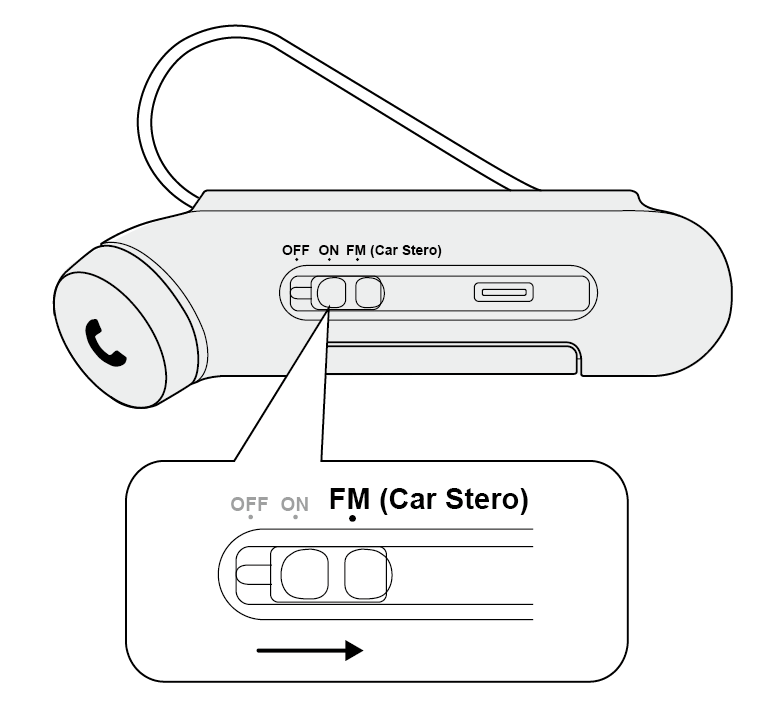
  1. Slide Roadtrip's OFF/ON/FM switch all the way to FM (the rightmost position).
    Roadtrip OFF/ON/FM switch moved right to the FM (Car Stereo) position
    FM is the rightmost switch position.
  2. Tune the car radio to an unused FM frequency.

    Check: Listen for steady static, not a station or voices.

    Tip: Try below 90.0 MHz or above 107.0 MHz, within Roadtrip's 88.1–107.9 MHz range.

    Watch: Choose an unused channel on the car radio.
  3. Rotate Roadtrip's knob until its displayed FM frequency exactly matches the car radio.
    Watch: Match Roadtrip's display to the car radio.
  4. Play audio on the phone.
  5. Adjust the phone, Roadtrip, and car-radio volumes if needed.

Done: You hear phone audio from the car speakers without a radio station in the background.

If not: Check that the frequencies match. If you hear a station, choose another clear channel on the car radio and match Roadtrip again.

Quick help

Fix a Roadtrip problem

Phone cannot find or reconnect to RoadtripNot in the Bluetooth list or will not reconnect

Problem: Avantree Roadtrip does not appear in the phone's Bluetooth list or does not reconnect.

Possible cause: Roadtrip is not in pairing mode or has connected to a previously paired device.

  1. Charge Roadtrip if its LED flashes red for low battery.
  2. Turn off Bluetooth on other nearby devices previously paired with Roadtrip.
  3. Slide Roadtrip to ON; hold the Bluetooth and microphone symbol button until the LED flashes red and blue.
  4. On your phone, select Avantree Roadtrip in Bluetooth settings.

Expected result: Roadtrip says “Connected” and the blue LED flashes about every five seconds.

If it still fails, clear pairing history or contact support.

Connected but sound is low or missingPhone connects, audio is quiet or silent

Problem: The phone connects to Roadtrip, but audio is quiet or silent.

Possible cause: The phone or Roadtrip volume is low, or the phone uses another audio output.

  1. Play audio and select Avantree Roadtrip as the phone's Bluetooth audio output.
  2. Raise the phone's media or call volume and rotate Roadtrip's volume knob.
  3. If using FM, raise the car-radio volume and make sure both FM frequencies match.

Expected result: You hear the phone through the selected speaker or car radio.

If Roadtrip's speaker is still too quiet, try the FM route; if silent, contact support.

FM audio has static or no soundCar speakers are noisy or silent

Problem: Phone audio sent through Roadtrip to the car radio has noise or cannot be heard.

Possible cause: A station or local interference occupies the chosen frequency, or the two frequencies differ.

  1. Find an unused car-radio frequency with only quiet static, within 88.1–107.9 MHz.
  2. Set Roadtrip's FM display to exactly the same frequency and play phone audio.
  3. If noise remains, try another unused frequency on Roadtrip and the car radio.
  4. If noise persists, temporarily unplug other car accessories.

Expected result: Phone audio plays clearly through the car speakers.

Interference can change while driving. In a new area, retune Roadtrip and the car radio.

If several clear channels fail, contact support.

Calls play through the phone, not RoadtripPhone keeps the call audio

Problem: The phone is connected to Avantree Roadtrip, but call audio stays on the phone.

Possible cause: The phone routes calls to its own speaker instead of Roadtrip.

  1. Answer a test call by pressing Roadtrip's phone/multifunction knob once.
  2. Select Avantree Roadtrip as the call-audio output on the phone.
  3. On iPhone, set Settings → Accessibility → Touch → Call Audio Routing to Automatic.

Expected result: You hear the caller through Roadtrip.

If calls still use the phone, reset Roadtrip's Bluetooth connection.

Caller cannot hear meMicrophone audio is missing

Problem: During a call through Avantree Roadtrip, you hear the caller but they cannot hear your voice.

Possible cause: Roadtrip's microphone is muted or its Bluetooth connection needs resetting.

  1. Check Roadtrip's indicator during the call. Solid red means its microphone is muted.
  2. If the indicator is solid red, press Roadtrip's microphone mute button once.
  3. If the caller still cannot hear you, reset Roadtrip's Bluetooth connection and make a test call.

Expected result: Roadtrip's microphone is unmuted and the caller hears your voice.

If the caller still cannot hear you, contact support.

Clear Roadtrip's Bluetooth pairing historyRemove old saved connections

Problem: Roadtrip repeatedly fails to pair, reconnects to the wrong phone, or drops calls.

Possible cause: Saved Bluetooth connections are interfering.

Before you start: This clears Roadtrip's saved pairings; you must pair the phone again.

  1. Forget Avantree Roadtrip in the phone's Bluetooth settings, then turn phone Bluetooth off.
  2. Turn Roadtrip on. Hold the Bluetooth and microphone symbol button about two seconds until the LED flashes red and blue.
  3. While red and blue flash, double-click the same Bluetooth and microphone symbol button.
  4. Wait for a pink LED flash and two beeps, then red and blue flashing again.
  5. Turn phone Bluetooth on and select Avantree Roadtrip again.

Expected result: A pink flash and two beeps confirm cleared history. After pairing, Roadtrip says “Connected.”

No pink flash or beeps? Repeat the reset while Roadtrip is in pairing mode.

Still stuck? Contact support and describe the LED and beeps.

Voice assistant does not startSiri or Google Assistant does not respond

Problem: Siri or Google Assistant does not respond through Roadtrip.

Possible cause: The phone is disconnected, its assistant is disabled, or it has no internet connection.

  1. Connect the phone to Avantree Roadtrip by Bluetooth.
  2. Hold Roadtrip's phone/multifunction knob for two seconds.
  3. If nothing happens, enable the assistant on the phone.
  4. Check the phone's Wi-Fi or mobile-data connection.
  5. Test the assistant directly on the phone.

Expected result: The phone's voice assistant activates and accepts a command.

If it works on the phone but not through Roadtrip, contact support.

Reference

Controls and indicator lights

Roadtrip controls

OFF / ON / FM switch
Power off, built-in speaker, or FM transmission to a car radio.
Phone / multifunction knob
  • Press once: answer or end a call.
  • Hold two seconds: reject a call or activate the voice assistant.
  • Press twice: redial.
  • Rotate: adjust volume or FM frequency.
Pairing / microphone button
Hold to enter Bluetooth pairing mode. During a call, press once to mute or unmute the microphone.

What the indicators mean

Alternating red and blue
Ready to pair by Bluetooth.
Blue flashing about every five seconds
Connected to a Bluetooth device.
Solid blue
Bluetooth disconnected.
Solid red
Microphone muted during a call.
Red flashing
Low battery; recharge Roadtrip.
Four white battery LEDs flashing / solid
Charging / fully charged.
FM frequency display
Current Roadtrip transmission frequency; match it to the car radio.

Charge Roadtrip

Condition: Roadtrip's LED flashes red for low battery, or it needs charging before setup.

  1. Connect Roadtrip's USB-C charging cable to the supplied USB car charger.
  2. Wait until all four battery LEDs are solid white.

Done: The battery LEDs stop flashing and remain solid white.

If not: Check the cable and charger connection; if no battery LED lights, contact support.

Automatic reconnection

After a previous pairing, Roadtrip can power off when the phone disconnects.

When you return to the car, Roadtrip's motion sensor can turn Roadtrip on and reconnect to the phone.

If not: Use pairing help.

Original Roadtrip PDF manual · More Roadtrip troubleshooting

Still need help?

Get help with Roadtrip.

Send us your issue

A support agent will reply. Include Roadtrip / CK12, your phone model, the symptom, and the steps you tried.

Submit a ticket →

Contact support directly

Email or call us