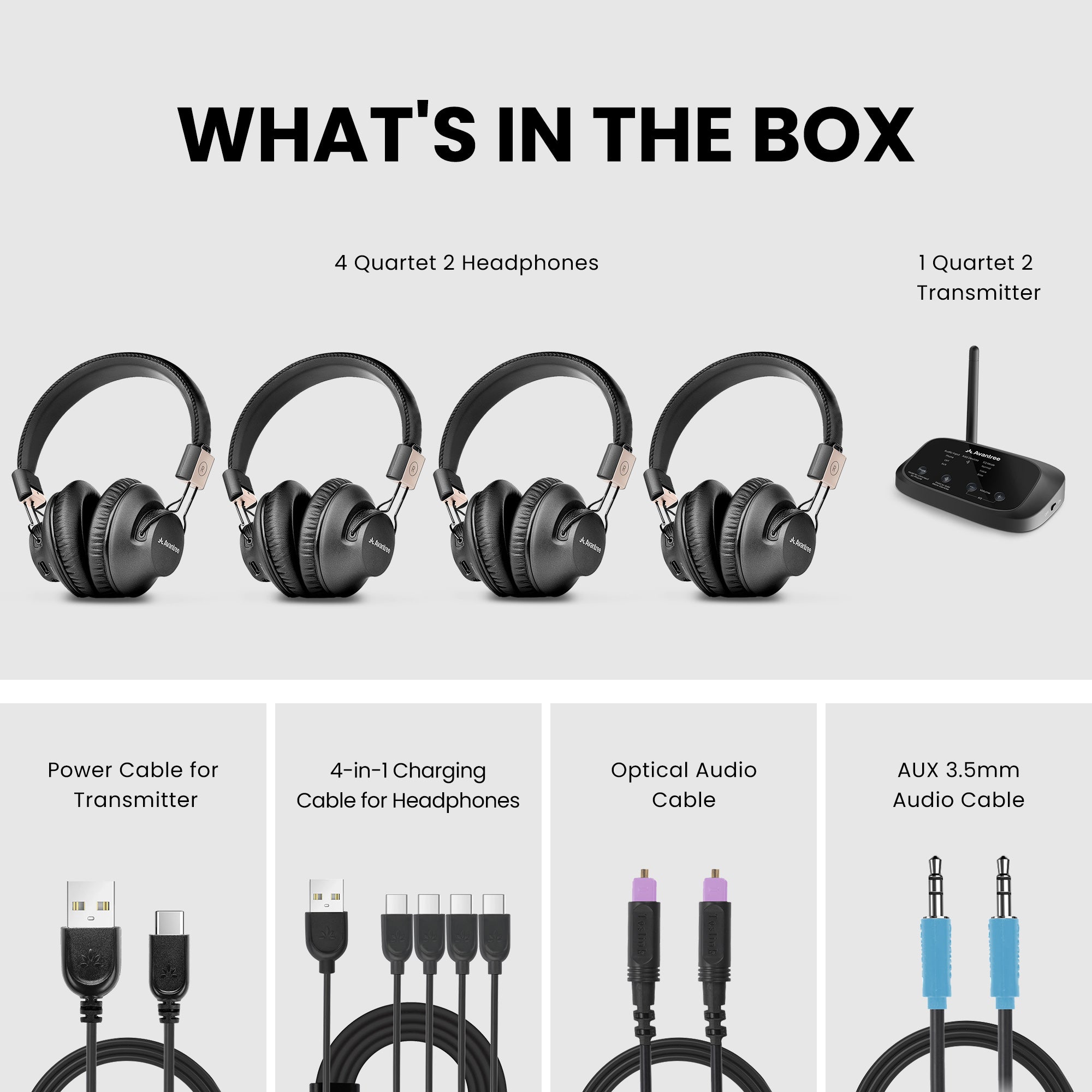
Important: Quartet 2 headphones are 2.4 GHz receivers. They do not connect directly to a phone or TV Bluetooth menu.
 4 headphones includedUp to 100 ft / 30 m
Know what connects
Audio goes into the transmitter, then to every headphone.
Audio sourceTV · phone · PC · mixer
→
Quartet 2 transmitterOptical · AUX · Bluetooth input
→
Quartet 2 headphones2.4 GHz group listening
Do not pair the headphones to your phone. For phone or PC audio, pair the transmitter as the Bluetooth device.
Start setup
Four steps. One shared audio source.
Follow the four steps in order. In Step 2, match the audio output on your TV.
Step 1
Power the transmitter.
- Connect the transmitter USB-C power port to a 5 V / 1–2 A USB power source.
- Slide the transmitter power switch to ON.
- Confirm an input indicator lights.
Expected: the selected input light turns white.
No light? Reseat both cable ends and try a known-working USB power source.
Watch: power and select the Optical/AUX input
Step 2
Choose one TV audio output.
Check the back or side of your TV and match the socket label below.
Use only one connection. Optical is recommended when available. If the TV only has HDMI ARC/eARC, use an HAX06 adapter.
Which socket label do you see?
Tap the matching card. The connection steps and video will open below.
Connect with Optical
Use the square-ended cable selected above.
- Remove the protective caps from both Optical cable ends.
- Connect TV OPTICAL / DIGITAL AUDIO OUT to transmitter Optical Input from TV.
- Slide Audio Input to OPT/AUX.
- Push both plugs in fully.
TV
OPTICAL OUT→TRANSMITTER
OPTICAL INPUT
OPTICAL OUT→TRANSMITTER
OPTICAL INPUT
Expected: OPT is solid white.
Watch: connect Optical
Connect with AUX / 3.5 mm
Use the round-ended 3.5 mm cable selected above.
- Connect TV HEADPHONES / AUDIO OUT to transmitter AUX Input from TV.
- Slide Audio Input to OPT/AUX.
- Push both plugs in fully.
TV
HEADPHONES / AUDIO OUT→TRANSMITTER
AUX INPUT
HEADPHONES / AUDIO OUT→TRANSMITTER
AUX INPUT
Expected: AUX is solid white.
Watch: connect AUX
Connect an HDMI ARC-only TV with HAX06
HAX06 converts HDMI ARC/eARC audio to Optical. It is sold separately.
- Connect the TV HDMI ARC / eARC port to HAX06 HDMI ARC.
- Connect HAX06 OPTICAL OUT to Quartet 2 Optical Input from TV.
- Slide Quartet 2 Audio Input to OPT/AUX.
- Turn off eARC if required by the TV, then set digital audio to PCM.
TV
HDMI ARC/eARC→ HAX06 →QUARTET 2
OPTICAL INPUT
HDMI ARC/eARC→ HAX06 →QUARTET 2
OPTICAL INPUT
Expected: HAX06 outputs Optical audio and Quartet 2 OPT is solid white.
Step 3
Set the TV to the output you chose.
Use your TV remote control to open the TV's Settings, then go to Sound / Audio.
Using Optical or HAX06? Complete both TV settings shown next.
Set TV audio
First, use the TV remote: open Settings → Sound / Audio. Menu names vary by TV.
- Set Sound Output to Optical, External Speaker, or Audio System.
- Set Digital Audio Format to PCM or Stereo.
- Play a TV show with speaking voices.
Important for Optical: The TV digital audio format must be PCM. Dolby or DTS can produce silence.
Used the Headphone / AUX cable? Use the TV remote to turn the TV volume up to a normal level. Depending on the TV, its speakers may stay on or mute automatically.
Used HAX06? Select HDMI ARC/eARC as the TV sound output, turn off eARC if required, and keep Digital Audio Format set to PCM.
Step 4
Turn on all headphones.
- Slide each headphone power switch to ON.
- Wait for each headphone LED to turn solid blue.
- Play audio and adjust each listener's volume gradually.
Success: solid blue on the headphones and the same audio plays for every listener.
One headphone does not connect? Keep it close to the transmitter, then follow “Add or reconnect a headphone” below.
Want the TV speakers on too? Some TVs can play through their speakers and Quartet 2 together. Check your TV settings →
Watch: turn on the headphones
Adjust volume
Set a comfortable level for each listener.
Each headset has independent volume and mute controls.
- Start playback and set the TV, phone, or PC to a normal level.
- Press + or − on each headphone to set that listener's volume.
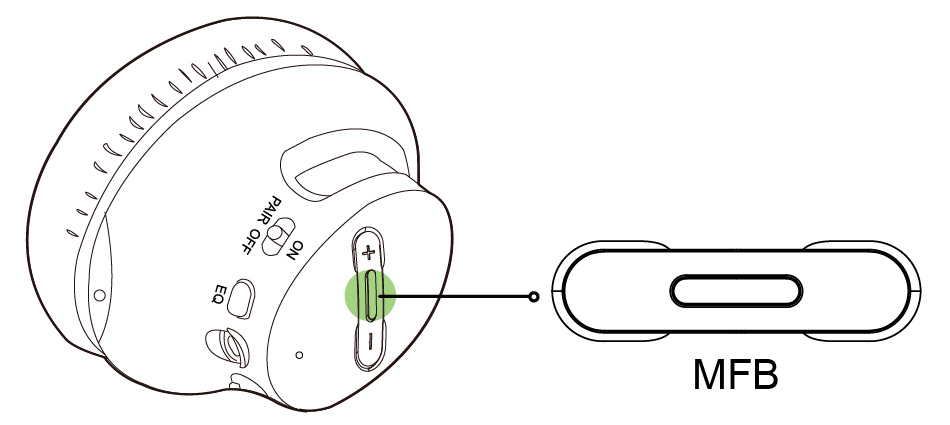
- Double-press the headphone MFB to mute; double-press again to unmute.
Expected: each listener can change their own volume without changing the others.
Still too quiet? For AUX, raise the TV/source volume first. For Optical, confirm the source is PCM and raise the headphone volume gradually.
Daily use
Charge the headphones.
Charge each headset independently before group listening.
Power & charging
USB-C · about 3 hours
- Connect each headphone to a 5 V / 0.5–2 A USB power source.
- Leave it connected until the charging light turns off.
Not charging? Reseat the USB-C cable, inspect the port, and try another known-working cable or power source.
Phone / PC Bluetooth input
Play phone or PC audio on Quartet 2.
Pair with the transmitter—not the headphones.
-
Transmitter: Set Audio Input to Phone.
Phone should blink white. If not, hold Phone for 4 seconds. - Phone or PC: Open Bluetooth and select the Quartet 2 transmitter.
- Phone is solid white? Turn on the headphones and play audio.
Done: Audio plays on every connected headphone.
During pairing: Keep the phone or PC within 3 m / 10 ft of the transmitter.
Watch: connect a phone or PC to the Quartet 2 transmitter
More features
Add or reconnect a headphone.
- Hold Add Devices on the transmitter for 2 seconds; its light blinks white.
- Slide the headphone to ON, then hold at PAIR for 2 seconds; blue blinks.
- Wait until both lights are solid.
Expected: the transmitter and new headphone indicators become solid.
Supports up to 100 compatible receivers, including Quartet-Extra, Audiplex-RX, or Duet-RX.
More features
Use a soundbar at the same time.
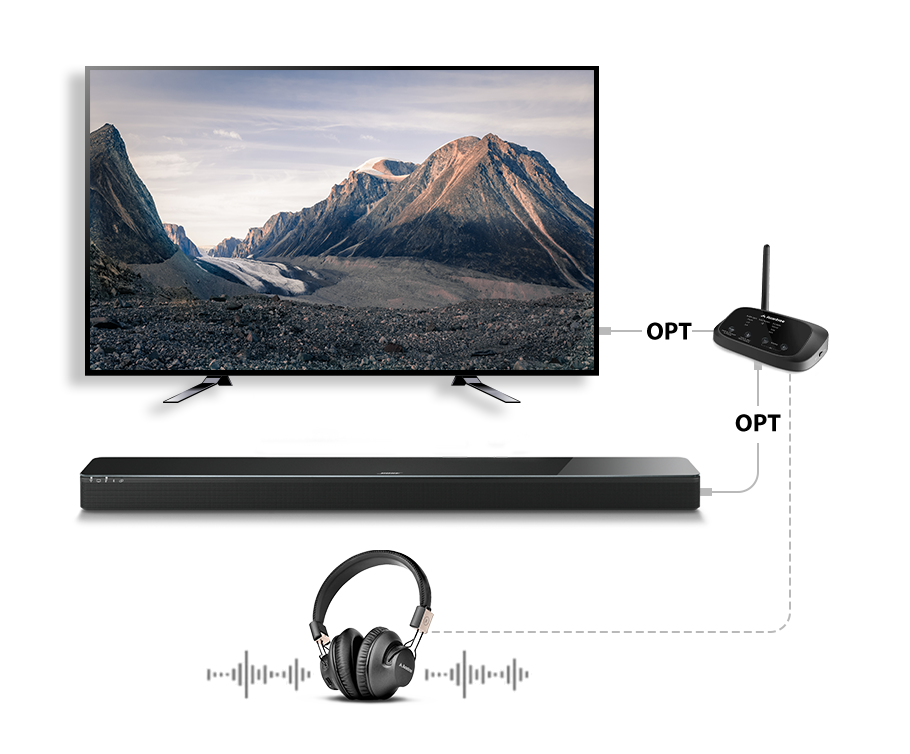
Connect TV → transmitter input, then transmitter bypass output → soundbar. Use the same cable type for both sides: Optical-to-Optical or AUX-to-AUX.
No soundbar audio? Confirm the TV uses PCM and the soundbar is on the matching input.
TV speakers + headphones
Hear both at the same time.
This depends on your TV—not the Quartet 2.
- Use the TV remote to open Settings → Sound / Sound Output.
- Look for Dual Audio Output or TV Speaker + Optical, then turn it on.
- If that option is missing, select TV Speaker, keep Quartet 2 connected to Optical OUT, and set Digital Audio Format to PCM.
Expected: The TV speakers and every connected Quartet 2 headphone play together.
Still only one output? Your TV may not support dual audio. Use the soundbar bypass setup above instead.
Quick fixes
What is going wrong?
Each fix tells you what to check and what success looks like.
🔇No sound from any headphone
- Confirm the source cable is in an OUT socket and fully inserted.
- Match the transmitter input switch to Optical/AUX or Phone.
- For Optical, set TV format to PCM; for AUX, raise source volume.
- Confirm headphones are solid blue and raise their volume.
Expected: the selected input is solid white, headphones are solid blue, and speech plays.
1Only one headphone has no sound
- Charge and restart that headphone.
- Keep it near the transmitter.
- Hold Add Devices on the transmitter for 2 seconds.
- Hold the headphone at PAIR for 2 seconds and wait for solid lights.
Expected: that headphone becomes solid blue and joins the same audio.
PCMOptical connected but silent or noisy
- Set Sound Output to Optical / External Speaker.
- Set Digital Audio Format to PCM / Stereo, not Dolby or DTS.
- Disconnect HDMI ARC soundbar temporarily if it overrides Optical.
Expected: clear speech without static.
BTPhone or PC cannot find the Quartet 2 transmitter
- Pair the Quartet 2 transmitter—not the headphones.
- Set Audio Input to Phone.
- Hold Phone for 4 seconds until it blinks white.
- Remove an old saved entry and search again within 10 ft / 3 m.
Expected: Phone becomes solid white.
↔Soundbar and headphones will not play together
- Use transmitter bypass: TV → transmitter → soundbar.
- Use the same connection type on both sides.
- For Optical, set PCM and select the soundbar Optical input.
Expected: both outputs play together with independent headphone volume.
?Still not working
- Record the source brand/model, chosen input, and all LED states.
- Photograph the source socket and transmitter connections.
- Submit a Quartet 2 ticket below and attach those details.
Reference
Controls, lights, package contents, and official help.
Quick reference
- Headphones
- 2.4 GHz receivers; not Bluetooth headphones
- Transmitter inputs
- Optical, 3.5 mm AUX, Bluetooth 5.3
- Headphone solid blue
- Connected
- Headphone blue blinking
- Pairing / searching
- Charging solid red
- Charging; light off when full
- Latency
- About 25 ms through the 2.4 GHz system
- Range
- Up to about 100 ft / 30 m in open conditions
- Capacity
- Up to 100 compatible receivers
Official resources
Quartet 2 troubleshooting & FAQ →
Original Quartet 2 interactive manual →