1
STEP 01
Choose Your TV Audio OUT
Find one TV port labelled AUDIO OUT.
TASKChoose the first available option below.
-
Check the TV labels
Use an OUT port, never an IN port.
-
Choose Optical first
Use OPTICAL or DIGITAL AUDIO OUT when available.
 →
→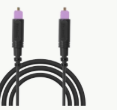 Optical cablePurple tips
-
No Optical? Use AUX
HEADPHONES / AUX OUT / AUDIO OUT
 →
→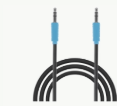 AUX cableBlue ends
-
Otherwise use an adapter
RCA: use an RCA-to-3.5 mm adapter.
HDMI ARC/eARC: use the Avantree HAX06 HDMI ARC adapter ↗.
✓DONEYou have chosen one TV audio output.
IF NOTSend Support a clear photo of all TV ports with the TV brand and model.
2
STEP 02
Connect Medley Pebble 2 To The TV
Power the transmitter, then connect one audio cable.
TASKConnect the cable chosen in Step 01.
- Power on
Connect USB-C power, then slide the switch to ON.
- Connect Optical
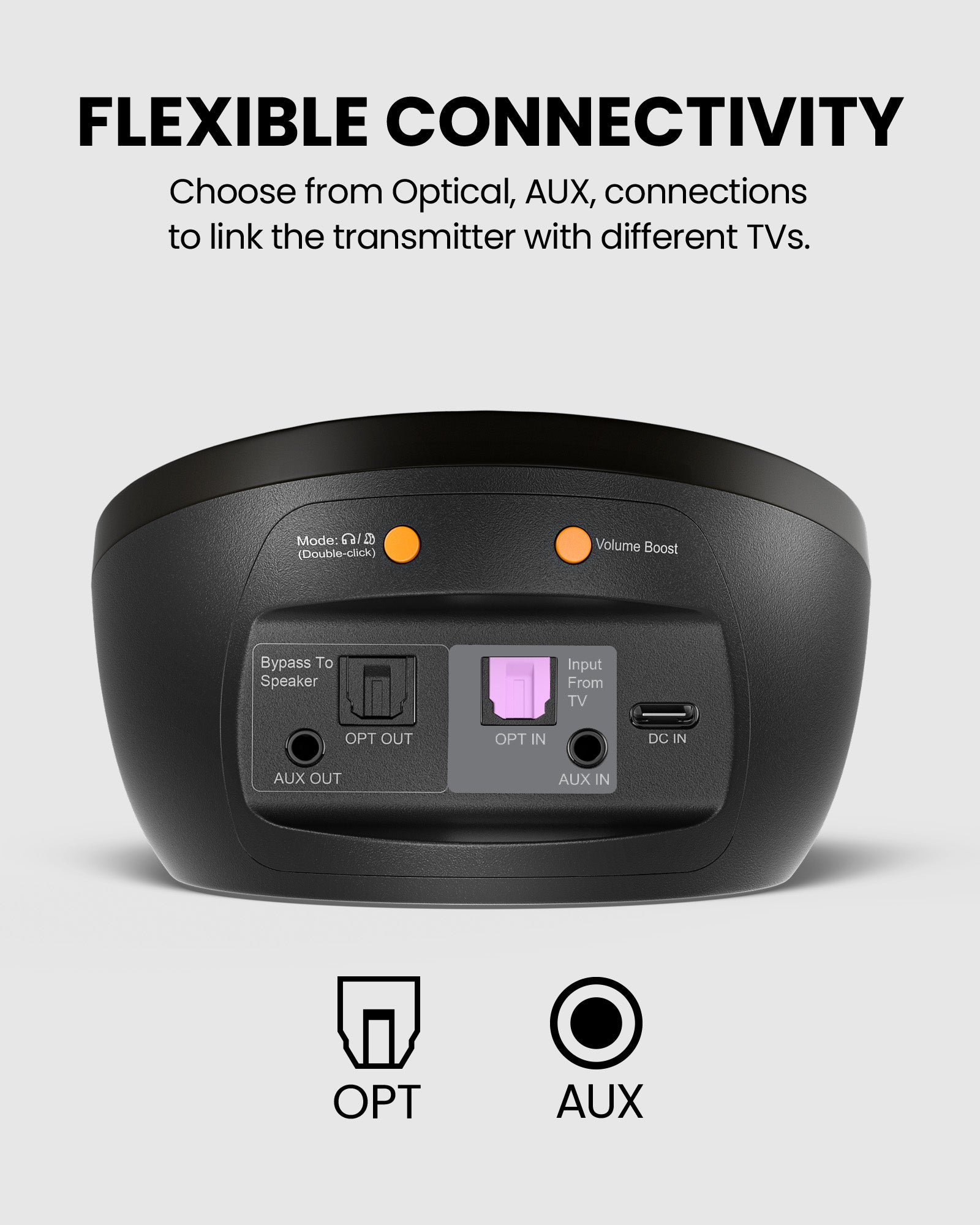
Use the purple square-ended cable: TV OPTICAL OUT → Medley Pebble 2 OPT IN.
- Or connect AUX
Use the blue round-ended cable: TV HEADPHONES / AUDIO OUT → Medley Pebble 2 AUX IN.
✓DONEMedley Pebble 2 is on and connected to the TV.
IF NOTRecheck that both ends are fully inserted and the TV port is labelled OUT.
3
STEP 03
Set Optical Audio To PCM
Optical users must set the TV to PCM. AUX users can skip this step.
TASKSet the TV's Optical audio format to PCM.
-
Open Sound settings
On the TV remote, open Settings → Sound.
-
Choose Optical output
Select Optical, External Speaker or Audio System.
-
Choose PCM
Set Digital Audio Format to PCM or Stereo.
Open the TV PCM guide→Want TV speakers on too?→
✓DONEThe TV output is Optical and the format is PCM or Stereo.
IF NOTOpen the brand-by-brand PCM guide for the exact TV menu path.
4
STEP 04
Listen With Earphones
- Remove the earphones from the transmitter.
- Wear the earphones to hear your TV.
✓DONEEarphone LEDs: solid orange for 3 seconds, then off. TV sound plays.
Not connected? Reconnect→No sound? Get help→