Open the Jabra Enhance Pro app
Pair your hearing aids with your phone, then open the app. Stay on the main screen showing “All-Around,” the volume slider and Sound Equalizer.

JABRA HEARING AIDS · AURACAST GUIDE
Choose your Jabra hearing aid first. We’ll show the right way to join nearby Auracast audio.
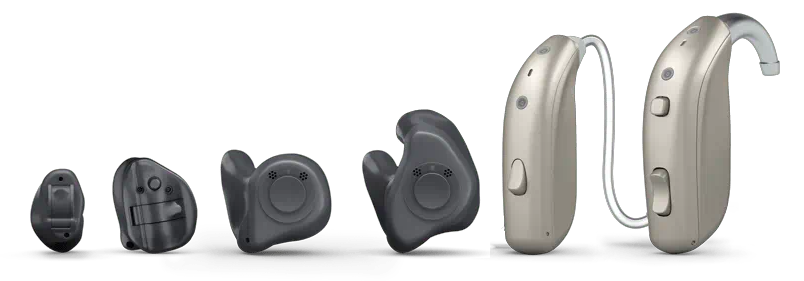
CHOOSE YOUR PATH
Select a setup path to see only the steps that apply to you.
METHOD 1
For supported Auracast Jabra hearing aids.
Pair your hearing aids with your phone, then open the app. Stay on the main screen showing “All-Around,” the volume slider and Sound Equalizer.
When an Auracast broadcast is nearby, the app may show a streaming or connection option, or detect nearby audio automatically. Wait a few seconds.
The wording varies by app version. Look for:
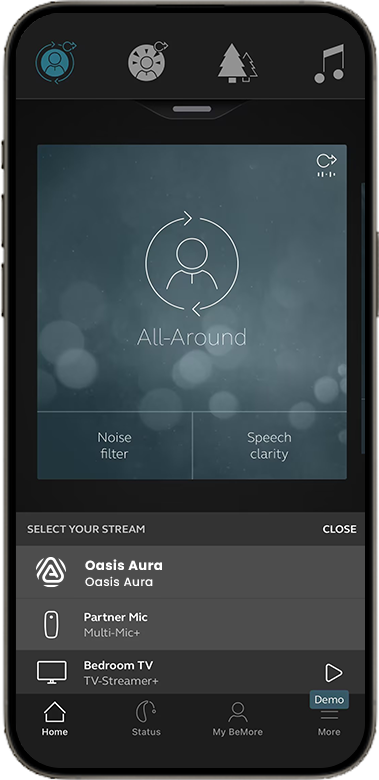
Choose the broadcast you want to hear. Once joined, the broadcast audio will play through your hearing aids.
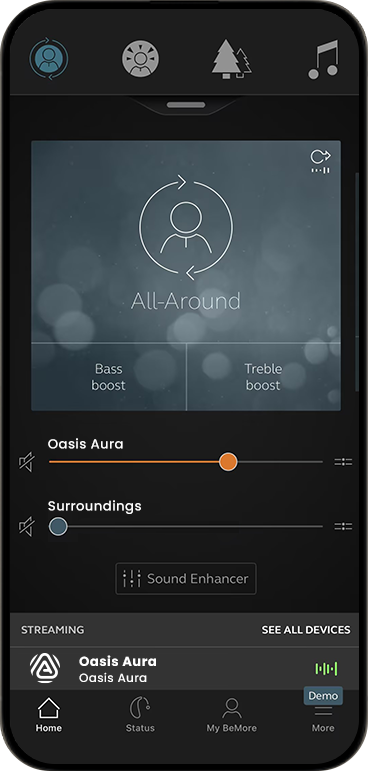
Set the stream to a comfortable level.
METHOD 2
For Jabra Enhance Select 500 and other compatible setups.
METHOD 3
For hearing aids that cannot join an Auracast broadcast directly.
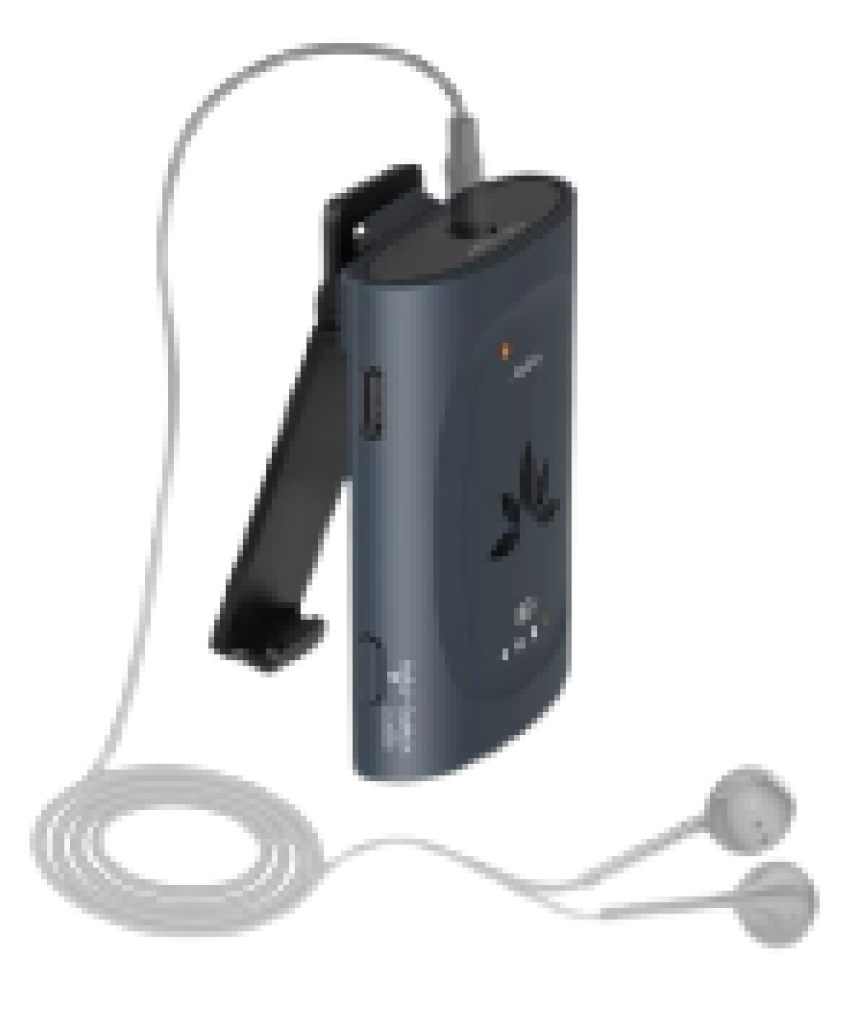
Connect wired headphones, or use a T-coil neck loop with compatible T-coil hearing aids.
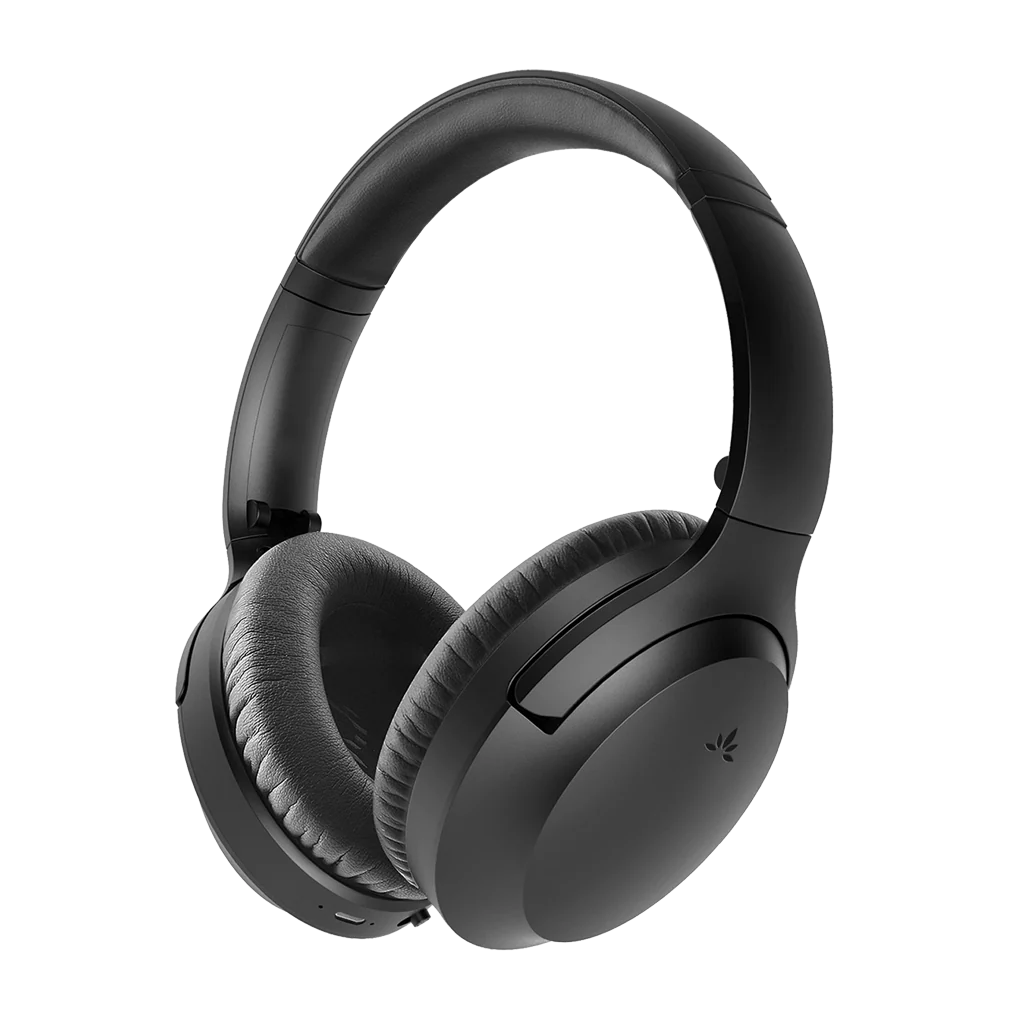
You can wear Auracast headphones over your hearing aids, or use them without hearing aids. Example: Aria Aura.
TROUBLESHOOTING
These are the three issue areas called out in the source guide.
Open the source FAQ for model-specific checks and support.
Adjust broadcast volume and lower or mute Surroundings volume in the Jabra app.
Open the source FAQ for model-specific checks and support.