
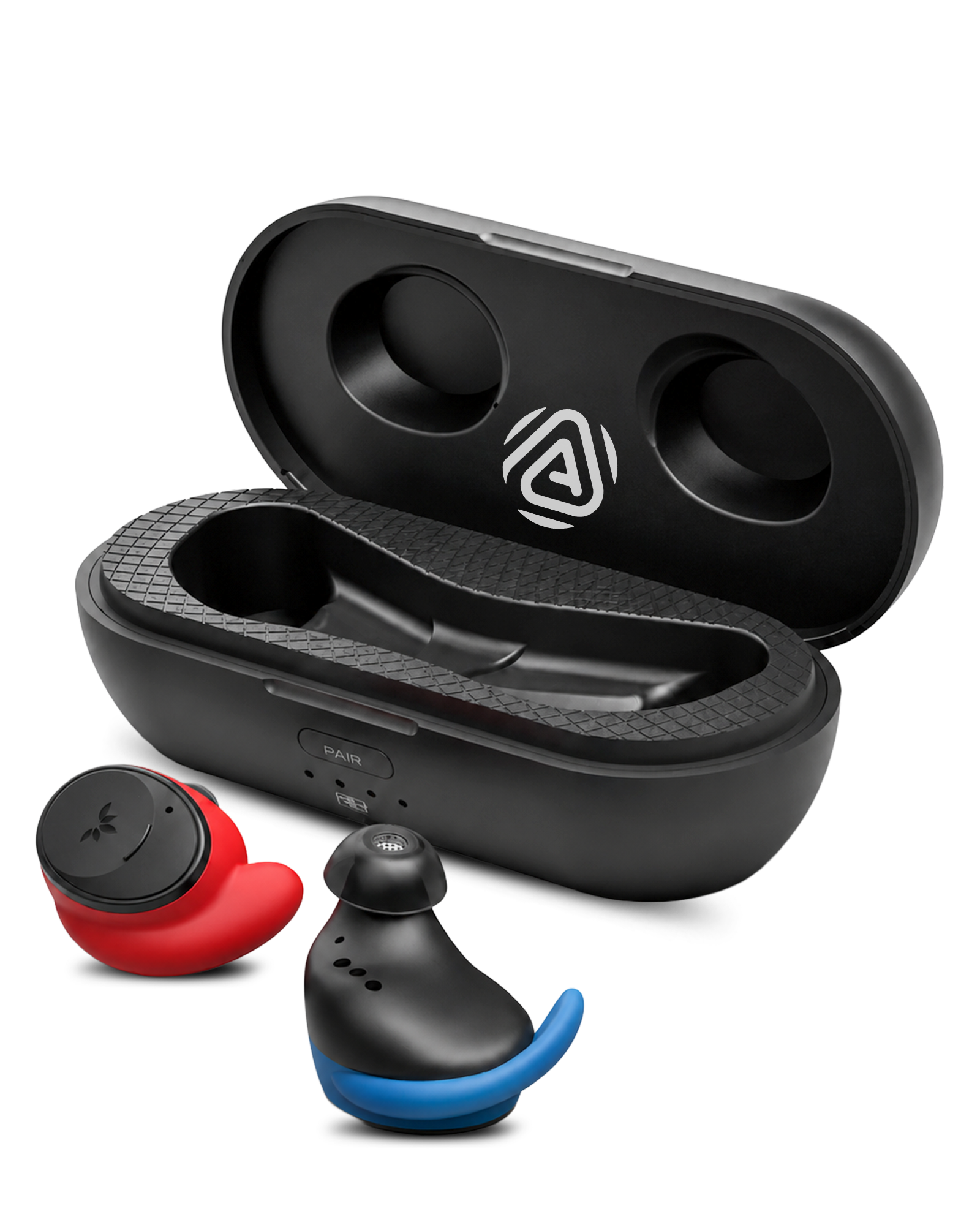



FitLock Aura · BTHS-TW130R

Hear Bluetooth and Auracast with FitLock Aura

Connect to Bluetooth devices, a Medley Pebble 2 transmitter, or Auracast broadcasts

Avantree FitLock Aura secure-fit earbuds and charging caseBluetooth + Auracast

First-time setup

Charge and wake the earbuds

Prepare both earbuds before connecting

Charge before first useUse a 5 V, 1–2.4 A USB power source.

Place both earbuds in the caseSeat each earbud fully so its charging contact connects.

Connect USB powerThe earbud LED stays solid red while charging.

Wait until charging finishesThe LED turns off when fully charged.

Start setup

Choose how you want to listen

Connect with Bluetooth

Take both earbuds out of the case.Pairing starts automatically. The LED flashes red and blue.

Not flashing red and blue? Hold the + button on either earbud for 5 seconds.

Open Bluetooth on your device.Select FitLock Aura.

Connected: the LED turns solid blue. Start playing audio.

Choose how to join

Join Medley Pebble 2

Hold the transmitter's Mode button for 2 seconds. The LED flashes orange rapidly.

On either earbud, hold the button for 5 seconds. Its LED flashes orange rapidly.

Keep them closeWait for the connection to complete.

Joined: the earbud LED stays solid orange for 3 seconds, then turns off.
Avantree app

Join another broadcast

Select FitLock Aura when adding your headphones in the app.

Get the Avantree appDownload it from the App Store or Google Play.

Avantree app icon
Get it on Google PlayDownload on the App Store

Connect FitLock Aura to your phonePair it in your phone's Bluetooth settings first.

Add FitLock AuraOpen the app, tap to add a device, then choose FitLock Aura.

Choose a broadcastTap Auracast, then select the broadcast you want.

For an encrypted broadcastEnter its password. Tap the information icon, then tap Save.

How to wear

Lock in a secure, comfortable fit

Choose ear tips that seal comfortably, insert each earbud, then settle the ear hook around your ear so it stays secure without pressure.

FitLock Aura secure-fit earbuds worn during a workout

Adjust volume

Change the volume one step at a time

Use the buttons on either earbud

Wear either earbudPlay audio so you can hear each change.

Press + or − onceUse either earbud. The volume change applies to both earbuds.

Repeat one press at a timeStop when the volume feels comfortable.

Success: each short press changes the listening volume.

Reference

Charging and connection indicators

Charging

  • Power source5 V, 1–2.4 A USB
  • Solid redCharging
  • LED offFully charged
  • Charging timeAbout 2 hours
  • PlaytimeUp to 10 hours; up to 36 hours with the charging case

Connection indicators

  • Red + blue flashingBluetooth pairing
  • Solid blueBluetooth connected
  • Orange flashingSearching for Auracast
  • Solid orange for 3 seconds, then offAuracast joined

Firmware update

Update FitLock Aura in the app

The app will notify you automatically when a new version is available.

  1. 1
    Connect FitLock Aura to your phonePair and connect the earbuds in your phone's Bluetooth settings.
  2. 2
  3. 3
    Confirm the updateIf a new version is available, follow the pop-up instructions to start the update.

Fix a problem

Choose what is going wrong

Bluetooth device cannot find FitLock Aura
  1. Move FitLock Aura close to the phone, computer, or TV.
  2. Hold the + button on either earbud for 5 seconds.
  3. Wait for red and blue flashing, then select FitLock Aura.

Expected: the LED becomes solid blue. If it does not, open the full manual or contact support below.

Cannot join the Medley Pebble 2 transmitter
  1. Hold the transmitter's Mode button for 2 seconds until its LED flashes orange rapidly.
  2. Hold the button on either earbud for 5 seconds until the earbud LED flashes orange rapidly.
  3. Keep the earbuds close to the transmitter.

Expected: the earbud LED turns solid orange for 3 seconds, then turns off. For another open or encrypted broadcast, use the Avantree app steps above.

Connected, but there is no sound
  1. Start playback at the source.
  2. Raise the source and earbud volumes from low levels.
  3. For Bluetooth, confirm the LED is solid blue. After joining Auracast, the orange LED stays solid for 3 seconds and then turns off.

If the expected indicator does not appear, reconnect using the matching setup path above.

Only one earbud has sound
  1. Place both earbuds in the charging case.
  2. Wait a few seconds, then remove both together.
  3. Reconnect FitLock Aura and start audio.

Expected: both earbuds play. If one side is still silent, contact support below.

Need more product help

Open the official FitLock Aura Support page for current FAQ, troubleshooting, accessories, warranty, and firmware destinations.

Open FitLock Aura Support ↗

Still need help

Get help with FitLock Aura

Send us your issue

A support agent will reply. Include the connected device, symptom, LED pattern, and screenshots.

Submit a ticket →

Contact support directly

Email or call us