
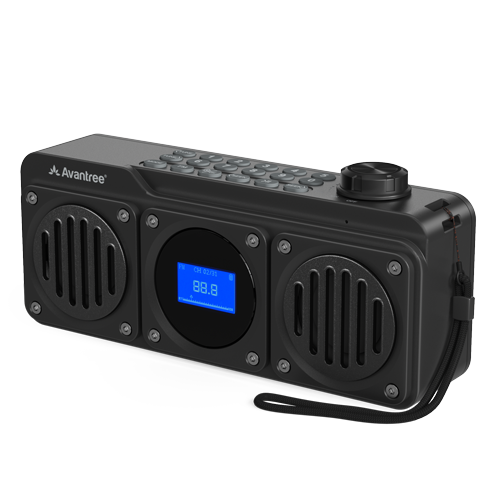
FM RADIO · BLUETOOTH SPEAKER · BTSP-870

Choose a source. Start listening.

Pick FM, Bluetooth, MicroSD, or USB. Follow the short steps and check the success message.

Avantree Boombyte portable FM radio and Bluetooth speaker

STEP 1 · CHARGING

Charge Boombyte.

You can use Boombyte while it charges. A full charge takes about 3 hours.

  • Connect: USB-C, 5 V / 1 A
  • Charging: battery icon blinks
  • Full: battery icon stays solid
  • Playtime: up to 17 hours
Connect the USB-C cable to the DC IN port.
Next: Turn it on →

STEP 2 · POWER ON

Turn it on.

  1. Turn the volume knob to ON. You should see: the screen turns on and shows the last-used mode.
  2. Choose your source below. For MicroSD or USB, insert the card or drive first.

Ready: the display is on and shows FM, Bluetooth, MicroSD, or Music.

Next: Choose a source →

CHOOSE A SOURCE

What do you want to hear?

Choose one. Only its steps will open.

FIX A PROBLEM

What is happening?

Open the problem that matches what you see or hear.

No power or the screen stays dark

You see: the screen stays dark after you turn the knob to ON.

Do this:

  1. Charge for at least 30 minutes.
  2. Use a 5 V / 1 A USB-C source.
  3. No blinking battery icon? Try another cable or charger.

You should see: the screen turns on.

Still dark? Submit a Boombyte support ticket.

FM has static or weak reception

Do this:

  • Fully extend the antenna.
  • Reposition it. Move near a window.
  • Move Boombyte away from routers, TVs, microwaves, metal, and other electronics.
  • Try another station or room.

You should hear: clearer reception.

Still weak? Test several locations. If reception stays weak, contact support. Include your location and setup.

FM scans only 76–90 MHz

What happened: Campus Band is selected.

Do this:

  1. In FM mode, press Settings OK button.
  2. Use SEEK to choose Common Band.
  3. Press the same button again.

You should see: the FM range changes to 87–108 MHz.

Bluetooth device cannot find Boombyte

Do this:

  1. Press MODE until Bluetooth appears.
  2. Disconnect Boombyte from the last paired device.
  3. Select Avantree Boombyte again.

You should see: Connected. Your audio starts playing.

Still not connected? Use Factory Reset below.

MicroSD or USB mode does not appear

You see: MODE skips MicroSD or Music.

Do this:

  • Reinsert the card or drive.
  • Use 32 GB or less.
  • Add MP3, WAV, or WMA files.

File limit: 88 kHz or higher audio is not supported.

You should see: the mode appears. Music starts.

Buttons do not respond

Do this: hold 0 to unlock the buttons. Try again.

Factory reset
  1. Turn Boombyte on.
  2. Hold Settings OK button to open System Settings.
  3. Use SEEK> to find Factory Reset.
  4. Press the same button to confirm.

You should see: FM mode opens. Scanning takes about 1 minute.

This erases saved FM stations and Bluetooth pairing history.

REFERENCE

Buttons and menus—without guesswork.

The button image below is the exact ⚙️/OK silk-screen mark from the previous Boombyte IUG.

Buttons

OFF / ON / − / +
Turn on/off; rotate for volume
MODE
Switch Bluetooth, MicroSD, and Music modes

Settings OK button
Press: mode settings / confirm · Hold: System Settings
<SEEK / SEEK>
Scroll menu choices or saved FM stations
Mute/unmute FM · Play/pause other modes
FM
Press: FM mode · Hold: scan and save stations
1–0
Enter station/track; hold 1–9 to save FM; hold 0 to lock/unlock
<TUNE / TUNE>
Change FM frequency by 0.1 MHz

System Settings

Mode Settings

Charging and media

Input
USB-C, 5 V / 1 A
Full charge
About 3 hours
Average playtime
About 11 hours
Media
MicroSD or USB, up to 32 GB
Files
MP3, WAV, WMA; no 88 kHz+ high-resolution audio
Private listening
Connect 3.5 mm wired headphones

STILL NEED HELP?

Get the right help for Boombyte.

Select Boombyte / BTSP-870 and include the source mode, display message, connected device or media, and what happened after a restart.

DON'T WANT TO SUBMIT A TICKET?

Talk to a real support agent.

Was this helpful?