INTERACTIVE USER GUIDE · ACUEAR PEBBLE 2 / PHA-126M-2

Hear conversations more clearly.

Wear the open-ear earphones.
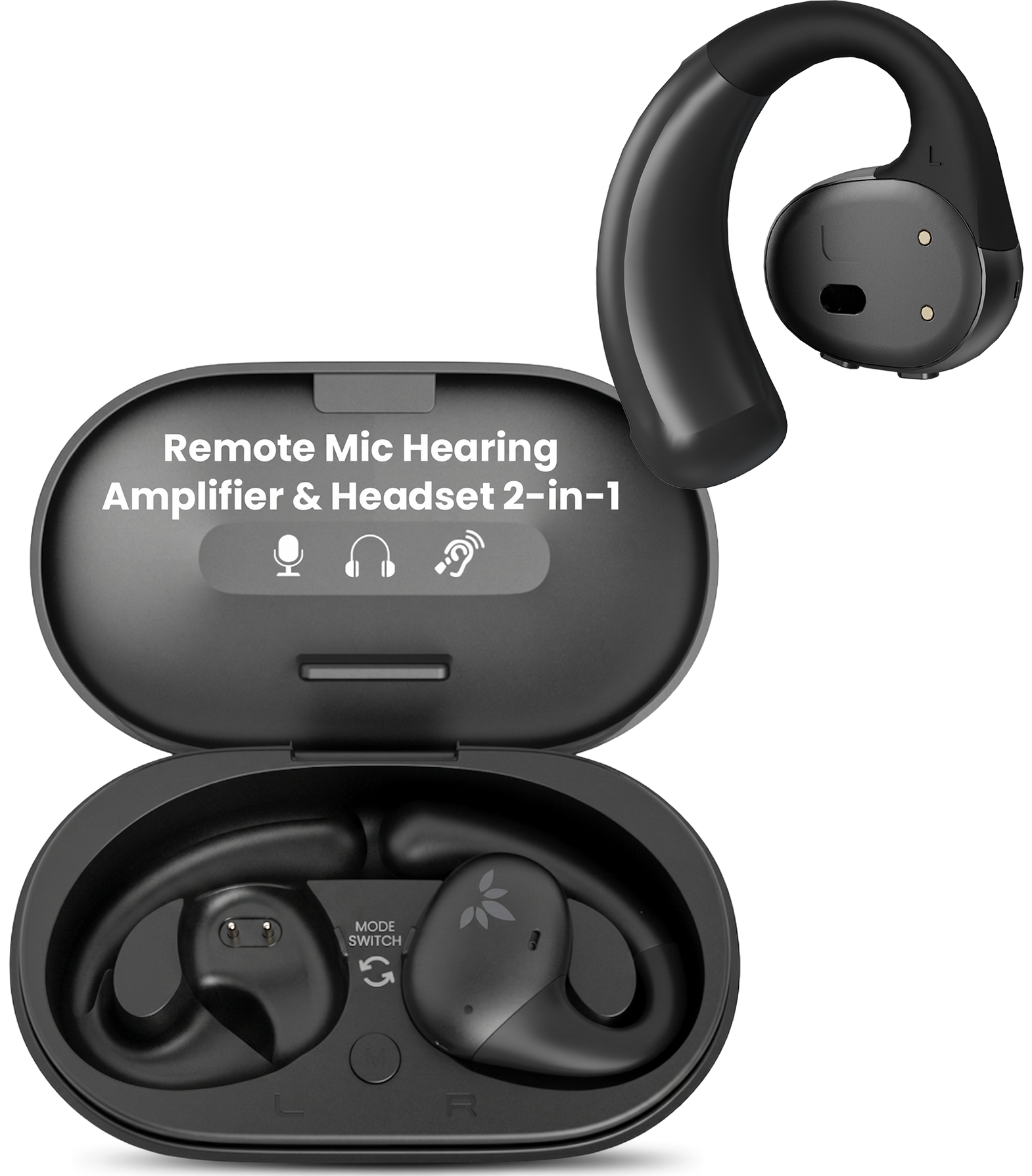
The case becomes your remote microphone.

AcuEar Pebble 2 open-ear earphones and remote microphone charging case

FIRST-TIME SETUP

Activate the earphones.

Do these four steps once.

First, remove both protective films.They cover the charging contacts.
Leaving them on prevents activation.
  1. Remove both protective films.Check the metal contacts.
  2. Put both earphones in the case.Seat each one fully.
  3. Close the lid.Wait 5 seconds.
  4. Open the lid. Remove both earphones.They connect to the case mic automatically.
Next: choose a listening mode →

CHOOSE A MODE

What do you want to hear?

HOW TO WEAR

Follow the curve of your ear.

Put on the ear hook along the contour of your ear.

Next: adjust the volume →

ADJUST VOLUME

Change it one level at a time.

Wear either earphone so you can hear each change. Press + or − on either side.

Plus and minus volume buttons on both AcuEar Pebble 2 earphones
  1. Wear either earphone so you can hear the change.Only one side needs to be worn.
  2. Press + or − once on either side.The volume changes on both earphones. Do not hold the button.
  3. Repeat slowly, one press at a time.Wait for the level to change before pressing again. Choose from 16 levels.

Success: Each press changes both earphones by one level.

Hear a tone? You reached minimum or maximum volume.

Next: charge the set →

CHARGING

Charge the case and earphones.

Use a USB-C power source rated 5 V, 1–2.4 A.

Charge the setSee the correct charging position.
  • Charging: earphone LEDs stay solid red.
  • Fully charged: the LEDs turn off after about 2.5 hours.
  • Case mic: up to 10 hours.
  • Earphones:
    • Hearing Assist: up to 10 hours with the case mic.
    • Bluetooth: up to 18 hours.
Next: fix a problem →

FIX A PROBLEM

What is happening?

Open the symptom that matches what you see or hear.

No sound from the case mic

Do this:

  1. Remove both protective films.
  2. Put both earphones in the case.
  3. Close the lid for 5 seconds.
  4. Open it. Remove both earphones.

Expected: You hear sound from the case.
If not, open the reset steps below.

Sound cuts out

Do this:

  • Stay within 15 m / 50 ft.
  • Move away from walls, metal, and interference.
  • Move the case closer to the speaker.

Expected: Steady speech without dropouts.

Bluetooth cannot find the earphones
  1. Hold the case power button for 6 seconds.
  2. Wait for red and blue flashes.
  3. Turn off Bluetooth on previously connected devices.
  4. Scan again.

Expected: “AcuEar Pebble 2” appears in the device list.

Volume does not change
  • Wear at least one earphone.
  • Press + or − once on either side. Do not hold.
  • The volume applies to both earphones.
  • Repeat separate presses and listen for the end tone.
Reset the case mic and earphones
  1. Open the case. Hold the case power button for 3 seconds until its LED flashes red and blue.
  2. Double-press the case power button. Solid pink for 2 seconds means reset complete.
  3. Remove both earphones. While their LEDs flash red and blue, hold + and − together on either earphone for 5 seconds. Both show solid pink for 2 seconds.
  4. Return both earphones to the case and close the lid. Open it again to reconnect automatically.

This clears saved Bluetooth pairing information.

REFERENCE

Buttons, modes, charging.

Case microphone

Power
Hold 6 sec: on/off
Reset
Hold 3 sec, then double-press
Environment
Normal / Noisy
Mic pickup
Omnidirectional

Earphones

+ / −
Single-press: volume
+ and −
Hold 5 sec: reset
Volume
16 levels; end tones
Mono use
Either side works alone

Power & range

Charging
About 2.5 hours
Hearing mode
About 10 hours
Bluetooth mode
About 18 hours
Stable target
About 15 m / 50 ft or closer

STILL NEED HELP?

Get the right help for AcuEar Pebble 2.

Select AcuEar Pebble 2 / PHA-126M-2. Include the mode, LED pattern, distance, and what happened after closing and reopening the case.

RECOMMENDED

Submit an AcuEar Pebble 2 support ticket

Add photos or screenshots if needed. The form routes your question to the product team.

Start support request →

DON'T WANT TO SUBMIT A TICKET?

Talk to a real support agent.
