

START SETUP
What do you want to listen to?
BLUETOOTH
Connect with Bluetooth
Take the earphones out of the case.
LED flashes red & blue.
Not flashing red and blue? Hold the + button on either earphone for 5 seconds.
Turn on Bluetooth on your phone, PC or Bluetooth TV.
Select Pebble Aura.
Success: Earphone LED turns blue for 3 seconds, then off.
Continue Auracast setupAURACAST
Listen With Auracast
AT HOME
Use With Medley Pebble 2 Transmitter
Transmitter: Connect to power and turn it on. Hold MODE for 2 seconds. MODE LED flashes orange rapidly.
Earphones: Hold Volume − for 5 seconds on either earphone. LED flashes orange rapidly.
Keep them close.
Success: Earphone LED turns solid orange for 3 seconds, then off.
Play TV audio to check the sound.
OTHER TRANSMITTERS & PUBLIC VENUES
Join With The Avantree App
Use the app for other Auracast transmitters and public broadcasts, including encrypted broadcasts.
Download the Avantree App

Connect Pebble Aura to your phone
Follow Connect with Bluetooth →
Open the app and choose Auracast
First use? Add Device → Pebble Aura, then tap Auracast.
Find and join your broadcast
Make sure the transmitter is powered on and broadcasting. Keep your phone and earphones close to it, and stop any Bluetooth audio playing on your phone.
Open Auracast → Available Broadcasts. Tap the scan/refresh icon, wait for the search to finish, then select your broadcast. Enter the password if required.
COMFORT
How To Wear
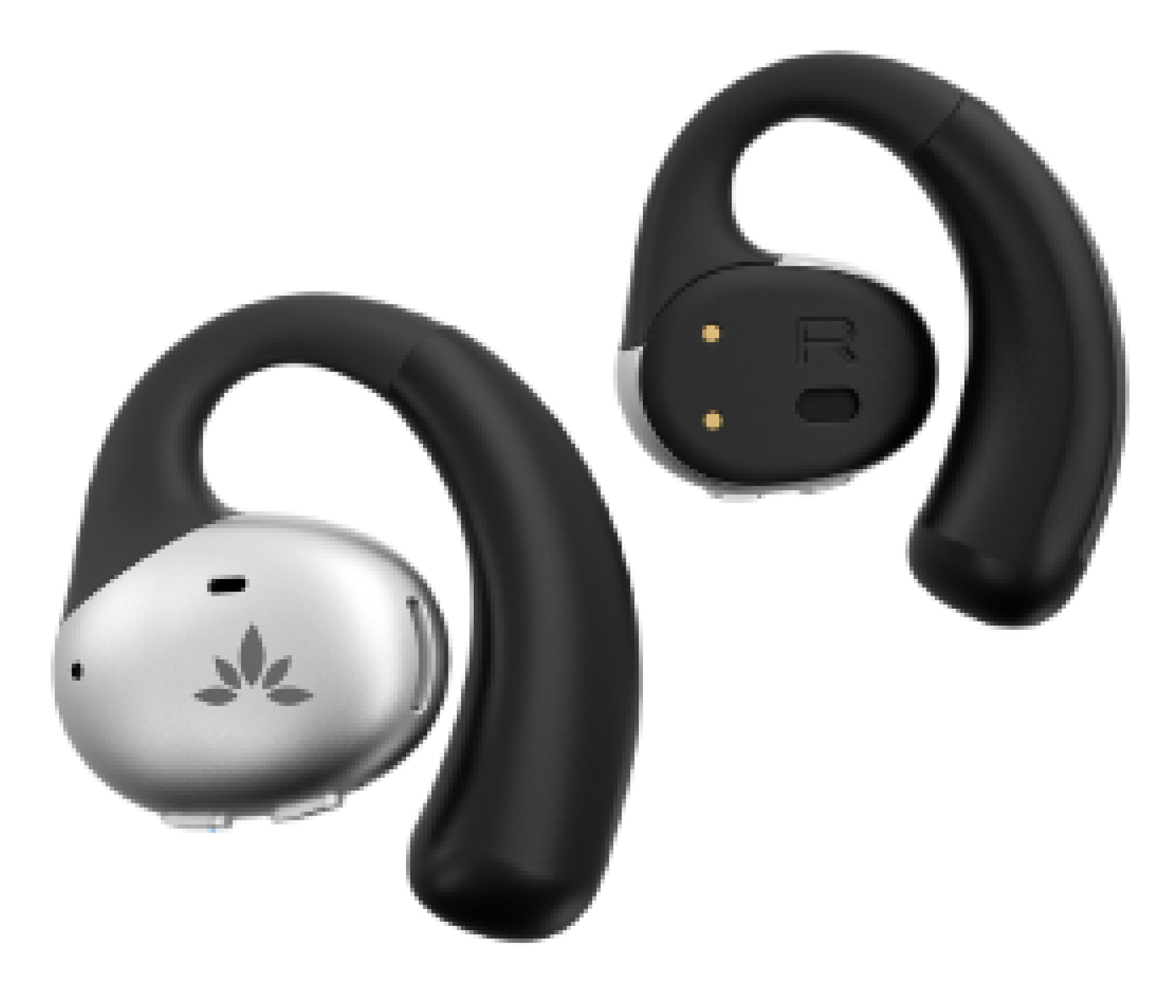
Place each ear hook along your ear’s contour.
VOLUME
Adjust Volume
Tap + or − on either earphone. The change applies to both.
PHONE + TV · OPTIONAL
Dual Mode: Never Miss a Call
Stay connected to your phone while listening to TV audio.
Incoming call?
TV audio pauses automatically.
It resumes when the call ends.
Set up Dual Mode
Start with the earphones connected to Medley Pebble 2.
Pair with your phone
Turn the transmitter OFF, then follow Connect with Bluetooth →
Turn the transmitter back ON
The earphones reconnect to TV audio and stay linked to your phone.
POWER
Power & Charging
Earphones
Place in the case to charge.
Solid red: charging. Off: fully charged (~2 hours).
Playtime: up to 18 hours.
Case
Connect USB-C power (5V, 1–2.4A).
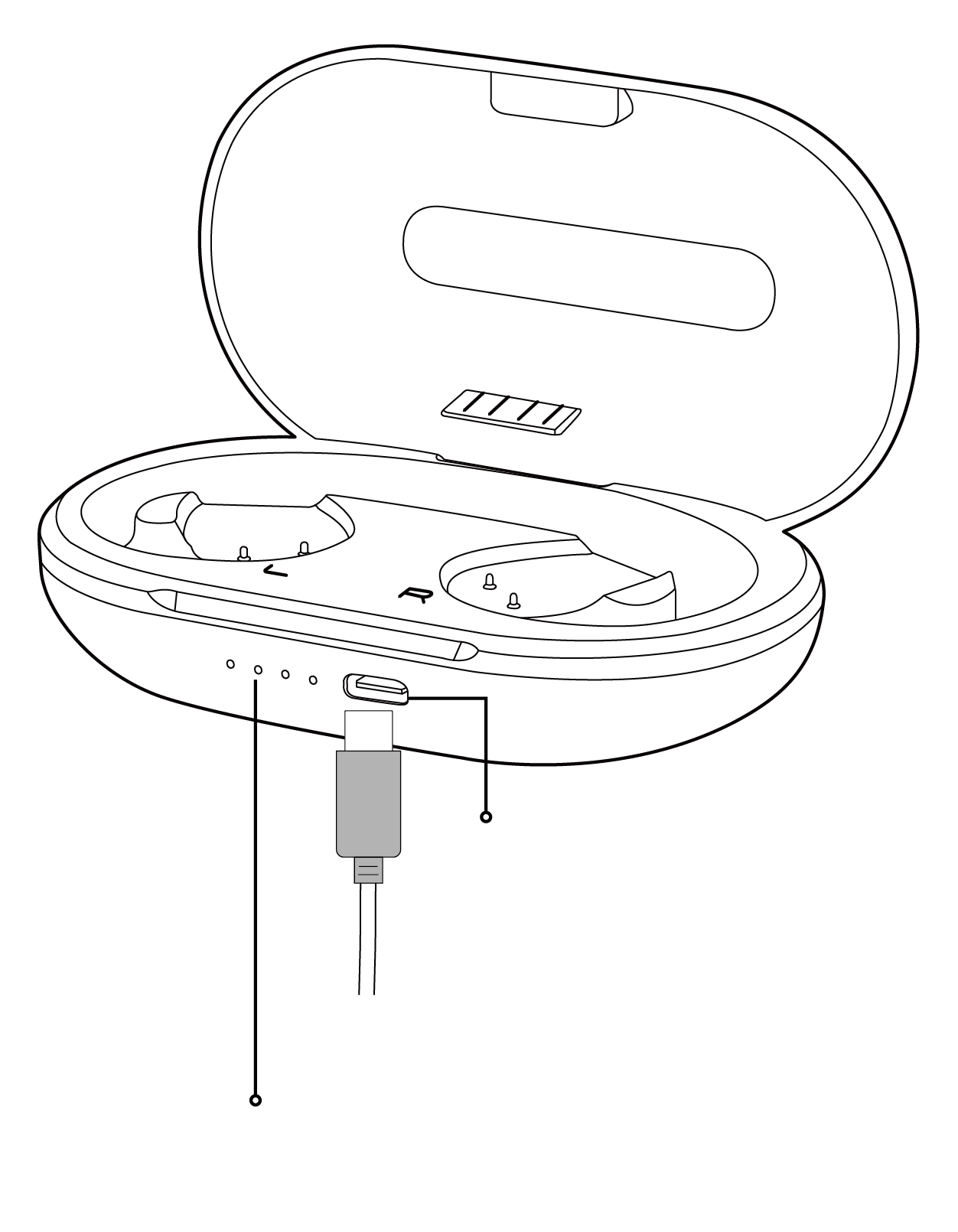 USB-C
USB-Ccharging portCase battery
level indicator
QUICK REFERENCE
Buttons & Indicators
Earphone LEDs
Flashing
- Red & blue
- Bluetooth pairing
- Fast orange
- Auracast search
Solid for 3 seconds, then off
- Blue
- Bluetooth connected
- Orange
- Auracast joined
QUICK HELP
Fix The Common Problems
Only One Earphone Has Sound
Put both earphones back in the case, then take them out again.
Need More Help?
Our support team is here for you.